
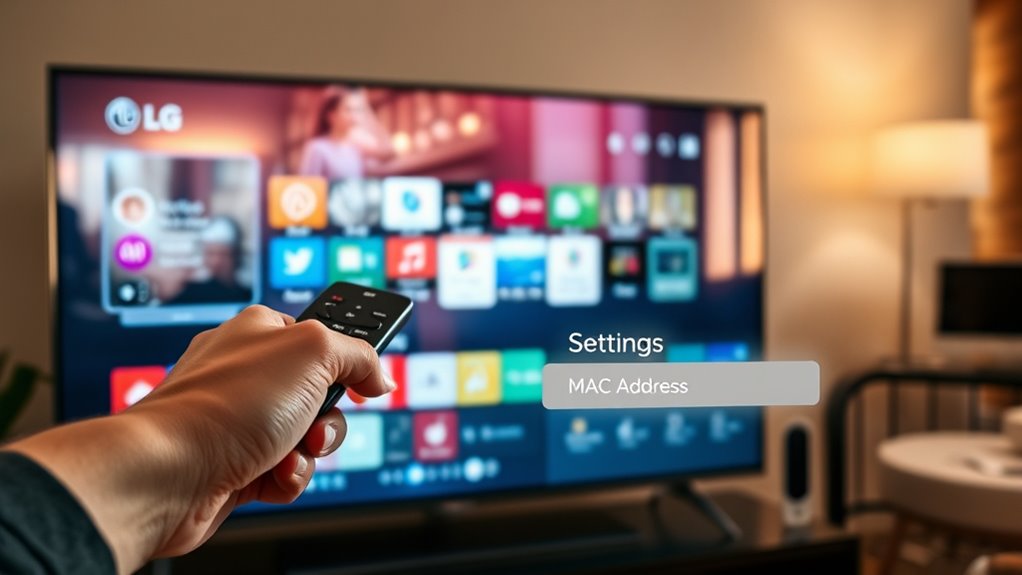

To find the MAC address on your LG Smart TV, first, navigate to the home screen and select the Settings icon. From there, go to Network settings and check the Network Status. You’ll see your MAC address displayed as “MAC Address” or “Physical Address.” Alternatively, you can use the LG Support App to access network information. Knowing your MAC address is important for managing your network and improving connectivity, and there’s more to explore to enhance your setup.
Understanding MAC Address
A MAC address, or Media Access Control address, is a unique identifier assigned to your LG Smart TV’s network interface. This address plays an essential role in network communication, as it helps devices identify and connect with each other. Understanding the MAC address significance is important for managing your home network. It guarantees that data packets are sent to the correct device, preventing any mix-ups that could disrupt your streaming experience. Additionally, MAC address functions include enabling security features, such as MAC filtering, which allows you to control which devices can access your network. By knowing your TV’s MAC address, you empower yourself to optimize your network settings and enjoy seamless connectivity.
Importance of MAC Address for Your LG Smart TV
While you might not think about it often, your LG Smart TV’s MAC address is vital for ensuring a smooth and secure connection to your home network. This unique identifier helps in device identification on your network, allowing your TV to communicate effectively with your router and other devices. A proper connection not only enhances your viewing experience but also plays a vital role in maintaining network privacy. By knowing your MAC address, you can set up MAC filtering to restrict unauthorized access to your network, keeping your data secure. Ultimately, understanding the importance of your TV’s MAC address empowers you to manage your home network better and enjoy the freedom of safe and uninterrupted streaming.
Preparing Your LG Smart TV
Before diving into the steps to find your LG Smart TV’s MAC address, it’s vital to verify your TV is properly set up and connected to your home network. Start with the LG TV setup; make sure your TV is plugged in and turned on. Connect it to your Wi-Fi network or use an Ethernet cable for a wired connection. If you’re using Wi-Fi, confirm you’ve entered the correct password during the initial setup. This network preparation is essential, as it allows your TV to access the internet and communicate with other devices. Once your TV is connected, you’ll be ready to proceed with finding your MAC address without any interruptions.
Accessing the Settings Menu
To access the settings menu on your LG Smart TV, start by maneuvering to the home screen. From there, select the network options to find relevant settings. Finally, you can view the About section for important details, including the MAC address.
Navigating Home Screen
Maneuvering the home screen on your LG Smart TV is essential for accessing various features, including the settings menu where you’ll find your MAC address. To make traversing menus easier, familiarize yourself with these home screen features:
- Quick Access Bar: Use it to launch your favorite apps and settings instantly.
- Search Function: Type keywords to find specific content or settings quickly.
- Settings Icon: Locate this to enter the settings menu and explore options including network settings.
Selecting Network Options
Once you’re familiar with the home screen features, accessing the settings menu is straightforward. Start by heading to the gear icon, which represents the settings. Once there, look for the “Network” option; this is where you’ll manage your network setup. You’ll see various connection types, such as Wi-Fi or Ethernet. Select the one appropriate for your setup. If you’re using Wi-Fi, choose your network from the list and enter the password if prompted. For wired connections, confirm your Ethernet cable is securely connected. Adjust any additional settings as needed, and you’re on your way to enjoying a seamless connection. This is a key step to find your MAC address later on.
Viewing About Section
As you navigate through the settings menu, look for the “About” section, where you’ll find important information about your LG Smart TV. This area not only gives you the MAC address but also includes essential details about your device. Here are some key about features you’ll discover:
- Device Name: Learn how your TV identifies itself on your network.
- Software Version: Check if you’re running the latest firmware, ensuring peak performance.
- User Options: Access various settings that let you customize your viewing experience.
Exploring the “About” section empowers you with the knowledge to make informed decisions about your LG Smart TV, enhancing your freedom to enjoy your entertainment.
Navigating to Network Settings
To access the Network Settings on your LG Smart TV, start by pressing the Settings button on your remote. This opens the main menu where you’ll find various options. Scroll down until you see the “Network” option and select it. Here, you can manage your network setup, ensuring your TV connects smoothly to the internet. If you’re experiencing connection issues, this is the place to troubleshoot. You can check your current network status or update your Wi-Fi settings. Remember, having the right network configuration is essential for a seamless viewing experience. Once you’re in the Network Settings, you’ll be well on your way to resolving any connectivity problems and enhancing your smart TV’s performance.
Locating the MAC Address
Now that you’re in the Network Settings, finding your TV’s MAC address is straightforward. This unique identifier is essential for network identification. Here’s how to locate it:
- Scroll down to the “Network Status” option.
- Select “Wi-Fi Connection” or “Wired Connection,” depending on your setup.
- You’ll see your MAC address displayed, usually labeled as “MAC Address” or “Physical Address.”
Once you have that number, you can use it for various network configurations or troubleshooting. Remember, your MAC address is an important part of your device’s identity on the network, so keep it handy for future reference. With these steps, you’ve got the freedom to manage your network like a pro!
Alternative Method: Using the TV’s Product Information
Another way to find your LG Smart TV’s MAC address is by accessing the product settings. From there, you’ll be able to view the network details, which include the MAC address. This method is straightforward and lets you gather the information you need quickly.
Accessing Product Settings
Accessing product settings on your LG Smart TV can be a straightforward process, especially when you opt for the product information method. Here’s how to get started:
- Navigate to Settings: Press the Settings button on your remote to access the main menu.
- Select All Settings: Choose “All Settings” to explore the extensive options available.
- Check Product Information: Look for the “About This TV” section to view product features and details.
For a more detailed guide, refer to your user manual, which provides specific steps tailored to your TV model. By familiarizing yourself with these settings, you can easily customize your viewing experience and enhance your overall enjoyment of the LG Smart TV.
Viewing Network Details
After you’ve explored the product settings, you can easily find your LG Smart TV’s MAC address by viewing its network details. This method not only helps with network troubleshooting but also addresses any privacy concerns you may have regarding your device’s connectivity. Here’s how to do it:
| Step | Action | Notes |
|---|---|---|
| 1 | Go to Settings | Access through remote |
| 2 | Select Network | Find under connections |
| 3 | View Network Status | Displays current info |
| 4 | Locate MAC Address | Usually labeled clearly |
| 5 | Note for Device Management | Helps secure your network |
Using the LG Support App to Find MAC Address
If you want to quickly locate your LG Smart TV’s MAC address, using the LG Support App is a convenient option. This app offers several useful features that streamline the process. Here’s how you can find your MAC address:
- Download the LG Support App: Get it from your device’s app store.
- Connect to Your TV: Open the app and connect it to your LG Smart TV.
- Access Network Information: Navigate through the app features to view the network details, including your MAC address.
What to Do With Your MAC Address
Now that you’ve found your MAC address, you can use it for important tasks like configuring your network settings and enhancing device security. By knowing your MAC address, you can set up filters on your router or troubleshoot connectivity issues more effectively. Let’s explore how to make the most of this information.
Network Configuration Settings
Understanding your MAC address is essential for effective network configuration on your LG Smart TV. It plays a vital role in network troubleshooting and ensuring connection stability. Here’s how you can utilize your MAC address:
- Set up MAC filtering: Many routers allow you to restrict access to your network by whitelisting MAC addresses.
- Assign static IP addresses: Link your MAC address to a specific IP for consistent connectivity, useful for devices needing stable connections.
- Diagnose network issues: Use your MAC address when contacting support to help identify any connectivity problems.
Device Security Measures
While you may not think about it often, your MAC address can greatly impact your device’s security. It serves as a unique identifier for your LG Smart TV on the network, allowing for proper device identification. To enhance your network security, consider changing your MAC address periodically, especially if you notice suspicious activity. This can help prevent unauthorized access and potential hacking attempts. Additionally, avoid sharing your MAC address publicly, as it can be exploited by malicious actors. Use network filtering options on your router to restrict access based on MAC addresses, adding an extra layer of protection. By taking these measures, you empower yourself to maintain a secure and private digital environment.
Troubleshooting Connectivity Issues
If you’re facing connectivity issues with your LG Smart TV, it is essential to pinpoint the problem quickly. Here are some practical network troubleshooting steps to get you back online:
- Check Your Wi-Fi Connection: Verify your TV is connected to the correct network and that your router is functioning properly.
- Restart Your Devices: Power cycle your TV and router. Sometimes, a simple reboot can resolve connectivity solutions.
- Update Firmware: Make certain your TV’s software is up to date, as outdated firmware can lead to connectivity hiccups.
Frequently Asked Questions
Can I Change the MAC Address on My LG Smart TV?
No, you can’t directly change your LG Smart TV’s MAC address. However, MAC address spoofing is possible with advanced network configurations. Keep in mind that altering it can impact your network security and device functionality.
Does My LG Smart TV Have a Static or Dynamic MAC Address?
A bird in the hand’s worth two in the bush; your LG Smart TV typically has a static MAC address for network identification, enhancing device security. It’s reliable, ensuring consistent connectivity without frequent changes.
Will the MAC Address Affect My Internet Speed?
No, your Mac address doesn’t affect internet speed; it’s primarily for device identification and network security. However, a stable connection and router settings can influence your overall internet performance more considerably than the Mac address itself.
Can I Find the MAC Address Without Using the TV?
You can’t find the MAC address without using the TV directly. Check the network settings on your router for device identification, which may show the connected devices and their respective MAC addresses.
How Often Does the MAC Address Change on My LG Smart TV?
Your LG TV’s MAC address usually stays the same, unless you reset network settings. Understanding its significance can aid in troubleshooting connectivity issues, ensuring your streaming experience remains seamless and uninterrupted while enjoying your freedom.
