
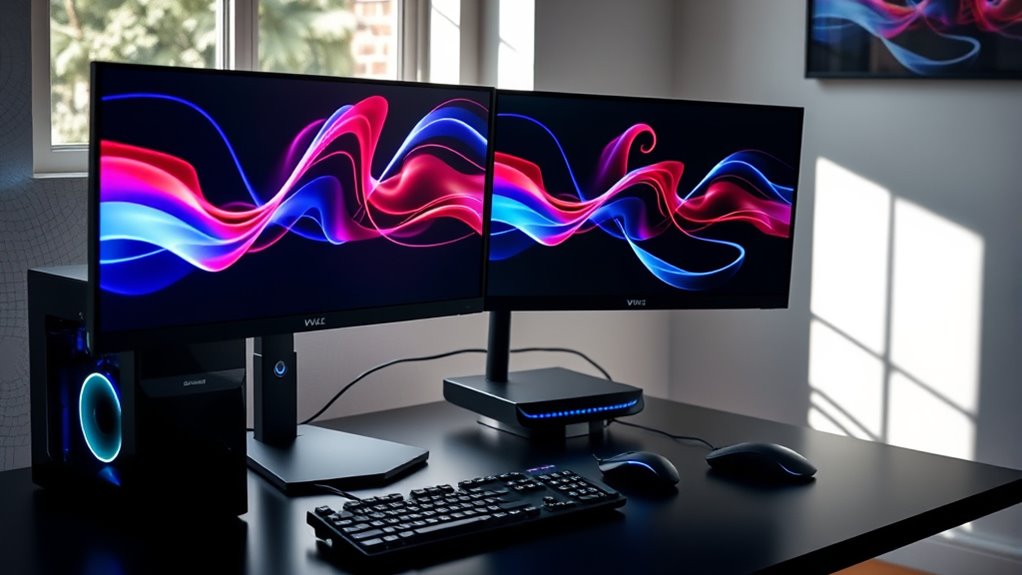

To hook up two monitors to your PC, first, check if your graphics card supports multiple displays and gather the necessary cables, like HDMI or DisplayPort. Connect the monitors securely to the appropriate ports on your PC, ensuring all connections are firm. Then, adjust display settings by right-clicking on your desktop and selecting “Display settings” to arrange your monitors correctly. If you’re facing issues, there are troubleshooting steps that can help optimize your setup further.
Check Your PC’s Compatibility
Before you plunge into setting up dual monitors, how can you be certain your PC can handle it? First, check your graphics card’s specifications. It must support the combined monitor resolution you plan to use. Most modern cards can handle two monitors, but if you’re running older hardware, you might hit a limitation. Next, verify your system requirements; make sure your CPU, RAM, and ports can manage the additional load. Look for at least one HDMI or DisplayPort connection on your graphics card, as you’ll need these for setup. Finally, consider the resolution of each monitor; higher resolutions require more processing power. By confirming these factors, you’ll guarantee a seamless dual-monitor experience that enhances your digital freedom.
Gather the Necessary Equipment
To set up dual monitors, you need to verify compatibility between your monitor types and your PC. You’ll also require the appropriate cables and adapters, along with a graphics card that supports multiple displays. Gathering this equipment is essential for a seamless dual-monitor experience.
Monitor Types Compatibility
When setting up two monitors for your PC, understanding monitor types and their compatibility is essential. You’ll typically encounter LCD and LED displays; while both are LCD technology, LED uses backlighting for better color and contrast. Make certain your graphics card supports the monitor types you choose.
Next, consider connection types like HDMI vs DisplayPort. HDMI is versatile for most setups but may not support higher resolutions or refresh rates like DisplayPort. If you’re gaming or working with high-resolution graphics, DisplayPort could be your best option. Always check the specifications of your monitors and your graphics card to guarantee seamless compatibility. This knowledge empowers you to create a multi-monitor setup that meets your unique needs.
Required Cables and Adapters
Having confirmed that your monitors are compatible with your graphics card, the next step involves gathering the necessary cables and adapters to connect them. Here’s what you’ll need:
- HDMI Cable – Commonly used for both video and audio, ideal for most setups.
- DisplayPort Cable – Offers higher refresh rates and resolutions, perfect for gaming.
- DVI Cable – A good option for older monitors, providing a solid digital connection.
- Adapter Options – If your graphics card and monitors have different ports, consider HDMI to DVI, DisplayPort to HDMI, or other combinations.
Graphics Card Specifications
Before you can successfully connect two monitors to your PC, you’ll need to check your graphics card specifications to verify it can support multiple displays. Different graphics card types, such as integrated or dedicated GPUs, vary in their capabilities. Most modern dedicated graphics cards offer dual monitor support, but you’ll want to confirm the number of outputs available and the maximum resolution they can handle. Look for specifications like DisplayPort, HDMI, or DVI outputs, as these will determine your connection options. If your card supports it, you can easily set up a dual-monitor configuration, enhancing your productivity and gaming experience. Always refer to the manufacturer’s documentation for precise details on compatibility and supported resolutions.
Connect the Monitors to Your PC
To connect your monitors, start by identifying the compatible ports on your PC and monitors. Next, use the appropriate cables to make the connections secure. Finally, configure the display settings in your operating system to guarantee both screens work seamlessly together.
Identify Compatible Ports
Connecting two monitors to your PC starts with identifying the compatible ports available on both your computer and the monitors. You’ll want to guarantee that the port types match between your PC and the monitors to support the necessary cable standards. Here are four common port types you might encounter:
- HDMI: Widely used for both video and audio.
- DisplayPort: Supports high resolutions and multiple monitors.
- DVI: Primarily for video, often found on older monitors.
- VGA: An older standard, mainly for legacy devices.
Check your graphics card and monitor specifications to confirm which ports are available. Understanding these port types will help you make informed decisions for a seamless multi-monitor setup.
Use Appropriate Cables
Once you’ve identified the compatible ports on your PC and monitors, it’s time to choose the right cables for connection. HDMI cables are a popular choice due to their versatility and ability to carry both video and audio signals. If your monitors and PC support DisplayPort, consider using DisplayPort cables for higher refresh rates and resolutions, especially in gaming or design applications.
Make sure to check the specifications of each cable type, as some may support different features like 4K resolution or multi-stream transport. It’s essential to use the appropriate cables to guarantee peak performance. Once you’ve gathered your HDMI or DisplayPort cables, you’re ready to connect your monitors and elevate your workspace efficiently.
Configure Display Settings
After plugging in your monitors, it’s time to configure the display settings on your PC. This step is essential for maximizing your multi-monitor productivity. Here’s how to do it:
- Right-click on the desktop and select “Display settings.”
- Identify your monitors in the display configuration window. You’ll see numbers representing each monitor.
- Adjust the display arrangement by dragging the monitor icons to match their physical layout. This guarantees smooth cursor movement between screens.
- Select your main display. Choose which monitor will serve as your primary screen by clicking on it and checking the box that says “Make this my main display.”
Configure Display Settings
While configuring display settings for your dual monitors, it’s essential to confirm both screens are recognized by your PC. Start by right-clicking on your desktop and selecting “Display settings.” You’ll see options for adjusting your display arrangement; drag and drop the monitor icons to match their physical layout. This guarantees your mouse moves fluidly across screens. Next, check the resolution settings for each monitor. It’s important to set them to their native resolutions for peak clarity. You can do this by selecting each monitor and adjusting the resolution dropdown. Once these settings are adjusted, apply the changes. Be sure everything looks good, as this step is critical for an efficient dual-monitor experience. Enjoy your enhanced workspace!
Optimize Your Dual-Monitor Setup
With your display settings configured, you can now focus on optimizing your dual-monitor setup for maximum productivity. To enhance your display arrangement, consider these steps:
- Align Monitors: Confirm both screens are at eye level and aligned for seamless viewing.
- Adjust Resolutions: Set identical or compatible resolutions for consistent visuals across monitors.
- Utilize Software: Use window management tools to easily organize applications and improve multitasking.
- Personalize Backgrounds: Differentiate screens with unique wallpapers to enhance focus and reduce distraction.
Troubleshooting Common Issues
If you encounter issues with your dual-monitor setup, troubleshooting can often resolve these problems quickly. Common issues include display flickering and resolution problems. Here are some steps to guide you:
| Issue | Solution |
|---|---|
| Display Flickering | Check cable connections; replace faulty cables. |
| Resolution Issues | Adjust settings in display options; verify both monitors support the same resolution. |
| No Signal on Monitor | Verify power and input settings; test with another device. |
| Screen Alignment | Use display settings to arrange monitors correctly. |
| Color Distortion | Update graphics drivers; calibrate display settings. |
Frequently Asked Questions
Can I Use Different Monitor Brands for a Dual Setup?
Yes, you can use different monitor brands in a dual setup. For instance, pairing an Acer and an HP monitor works fine. Just verify monitor compatibility and adjust display settings for peak performance and resolution.
Will Dual Monitors Affect My Pc’s Performance?
Yes, dual monitors can impact your PC’s performance, primarily due to resource allocation. Running additional screens requires more GPU power and memory, potentially slowing down performance if your hardware isn’t robust enough to handle the load.
How Do I Switch Between Monitors Quickly?
Switching between monitors is like flipping a light switch. You can quickly use keyboard shortcuts like Windows + P to change displays or adjust display settings in your control panel for seamless changes. Enjoy your freedom!
Can I Extend My Desktop Across Multiple Monitors?
Yes, you can extend your desktop across multiple monitors. Just adjust your desktop settings in the display configurations menu. This allows for a seamless workspace, giving you the freedom to multitask effectively across screens.
What Are the Benefits of a Dual-Monitor Setup?
You’ll feel like a productivity superhero with dual monitors! Enjoy increased productivity and enhanced multitasking, effortlessly juggling tasks, comparing documents side-by-side, and diving into projects without the constant window-switching. Freedom to work smarter awaits!
