
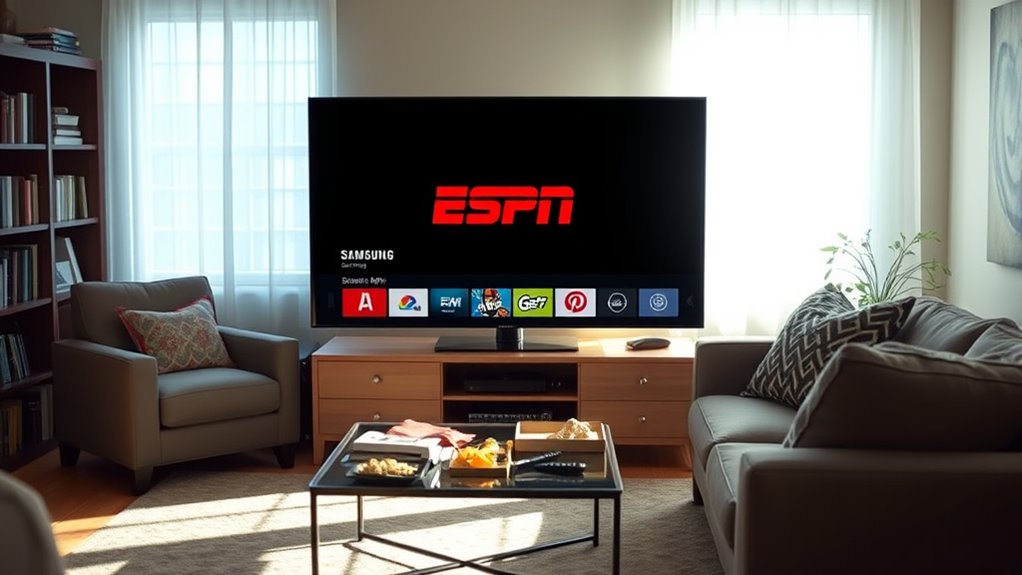

To install the ESPN app on your Samsung Smart TV, first, check your TV’s compatibility in the settings. Next, press the Home button to access the Smart Hub and use the search icon to find the ESPN app. Once you locate it, click on “Install” to download the app. After installation, open the app and set up your ESPN account to enjoy live sports. Continue exploring to discover more about managing your subscriptions for a better viewing experience.
Checking Compatibility of Your Samsung Smart TV
Before you plunge into installing the ESPN app, it’s essential to check if your Samsung Smart TV is compatible. First, identify your TV model. ESPN’s app version requirements vary based on the model and the software version your TV runs. Generally, newer models support the latest app versions, while older ones may not. You can find your TV model in the settings menu or on the back of your TV. Once you’ve determined your model, visit the ESPN website for specific compatibility information. Ensuring your TV meets these requirements will save you time and frustration later on. By confirming both TV model compatibility and app version requirements, you’ll be ready to enjoy your favorite sports without hassle.
Accessing the Samsung Smart Hub
How can you quickly access the Samsung Smart Hub? Start by pressing the Home button on your remote. This brings up the Smart Hub, where you can explore its various features. You’ll notice options for apps, settings, and recommendations tailored to your viewing preferences. The Smart Hub is designed for easy app management, allowing you to download, organize, and delete applications effortlessly. Navigate through the categories to find what you need, whether it’s streaming services or games. If you’re looking to install the ESPN app, the Smart Hub will be your best friend, offering a seamless experience to access your favorite content. Enjoy the freedom to personalize your Samsung Smart TV just the way you like it!
Searching for the ESPN App
Once you’re in the Smart Hub, finding the ESPN app is straightforward. Start by maneuvering to the search icon, usually located at the top of the screen. Type in “ESPN” to quickly locate the app. The ESPN app is packed with fantastic features, including live sports streaming, highlights, and exclusive content, making it a must-have for any sports fan. As you explore, take note of the app benefits, such as personalized notifications and access to your favorite teams. If you see the app in your search results, it’s a good sign you’re on the right track. Remember, having the ESPN app on your Samsung Smart TV opens a world of sports entertainment you won’t want to miss!
Installing the ESPN App
To install the ESPN app on your Samsung Smart TV, you’ll need to navigate back to the Smart Hub after finding the app. Once you’re in the Smart Hub, you’ll see the ESPN app icon. Select it, and click on the “Install” button. This process should only take a few moments.
Once installed, you can explore the app features, which include live streaming sports, on-demand highlights, and access to exclusive content. Take advantage of these features to enjoy your favorite games and events anytime. After the installation is complete, you’re free to launch the app and immerse yourself in the world of sports. Enjoy the freedom of streaming your favorite teams and events right from your living room!
Setting Up Your ESPN Account
Setting up your ESPN account is essential for accessing all the app’s features and accessing exclusive content. To get started, you’ll need to create an account directly through the ESPN app or their website. Simply provide your email address, create a password, and follow the prompts. Once you’ve confirmed your email, you can begin managing subscriptions to access live games, original shows, and more.
Don’t forget to check your subscription options, as they may vary depending on the content you want to watch. You can easily manage subscriptions within your account settings. Remember, having an ESPN account not only enhances your viewing experience but also gives you the freedom to enjoy your favorite sports anytime, anywhere.
Frequently Asked Questions
Can I Watch Live Sports Without a Cable Subscription on ESPN App?
Absolutely, you can watch live sports on the ESPN app without a cable subscription! With various cable alternatives available, you’ll find a world of freedom to enjoy your favorite games and events anytime, anywhere.
Is There a Subscription Fee for Using the ESPN App?
Yes, there’re subscription options for the ESPN app. While some features are free, accessing all app features and live sports typically requires a paid subscription. Check their website for the latest pricing and plans.
How Do I Update the ESPN App on My Samsung Smart TV?
To update the ESPN app on your Samsung Smart TV, navigate to the app store, search for ESPN, and hit update. If issues arise, consider app troubleshooting to explore new app features. Enjoy seamless streaming!
Can I Cast ESPN Content From My Mobile Device to My TV?
Yes, you can cast ESPN content from your mobile device to your TV using various casting options like Chromecast or AirPlay. Just make certain your devices are connected to the same network for seamless mobile streaming.
What Should I Do if the ESPN App Crashes on My TV?
If the ESPN app crashes on your TV, try closing and reopening it. Check for updates, restart your TV, or clear the app’s cache. These ESPN app troubleshooting steps can help resolve app performance issues.
