
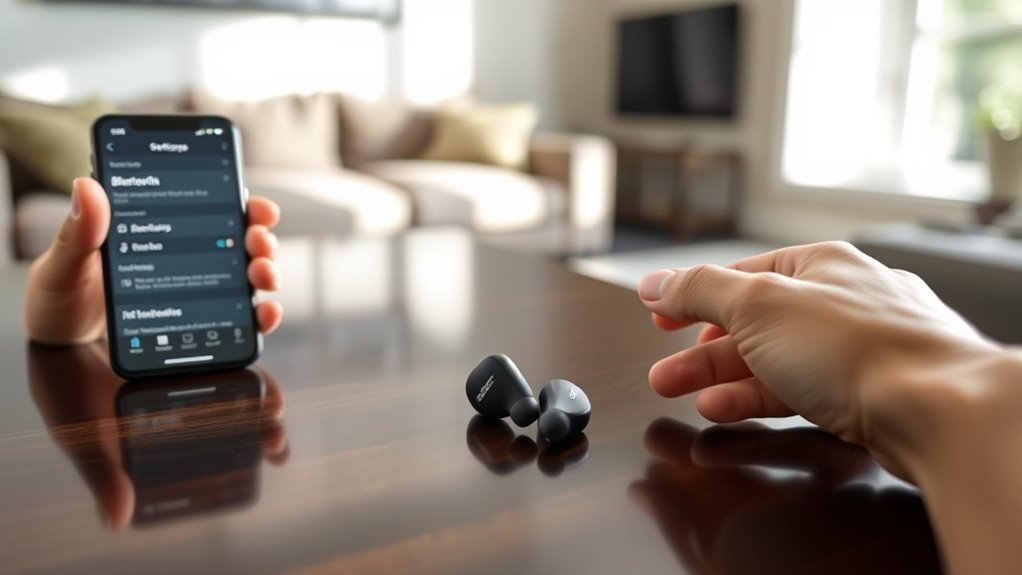

To pair your Bose QC Ultra earbuds, first make sure they’re fully charged and powered on. Enable Bluetooth on your device, then press and hold the earbuds’ Bluetooth button until you hear the pairing prompt. On your device, access the Bluetooth settings and select “Bose QC Ultra” from the list of available devices. Once connected, you’ll hear a confirmation sound. If you encounter issues, you can find helpful troubleshooting steps to optimize the pairing process.
Preparing Your Bose QC Ultra Earbuds for Pairing
Before you can enjoy the superior sound quality of your Bose QC Ultra Earbuds, you’ll need to prepare them for pairing with your device. Start by following the charging instructions: connect the included USB-C cable to a power source and make certain your earbuds are fully charged. This step is essential for peak performance. While they charge, take a moment to review earbud maintenance; keeping them clean and free of debris enhances longevity and sound clarity. Gently wipe the surfaces with a soft cloth to remove any dust or oils. Once charged, you’re ready to explore the pairing process. Proper preparation not only extends the life of your earbuds but also guarantees a seamless listening experience. Enjoy your newfound freedom!
Pairing With a Smartphone
To pair your Bose QC Ultra Earbuds with a smartphone, start by ensuring Bluetooth is enabled on your device. Navigate to your smartphone settings and access the Bluetooth settings. Here, you’ll see a list of available devices. With your earbuds powered on, press and hold the Bluetooth button until you hear a voice prompt indicating they’re in pairing mode. The earbuds should now appear in the list of available devices on your smartphone. Tap on the Bose QC Ultra Earbuds to establish a connection. Once connected, you’ll hear a confirmation tone, indicating successful pairing. This seamless smartphone compatibility allows you to enjoy your favorite music and calls with freedom and clarity, enhancing your audio experience on the go.
Connecting to a Tablet
Connecting your Bose QC Ultra Earbuds to a tablet is just as straightforward as pairing them with a smartphone. First, verify your tablet’s Bluetooth is turned on. Open the earbuds’ charging case, then press and hold the Bluetooth button until you see the LED light flashing. On your tablet, navigate to the Bluetooth settings and look for “Bose QC Ultra.” Select it to establish the connection.
Once connected, check your audio settings to guarantee ideal sound quality. Adjust the volume levels and enable any audio enhancements your tablet offers. With tablet compatibility on point, you’ll enjoy a seamless sound experience whether you’re streaming shows, listening to music, or making video calls. Freedom to connect is just a few taps away!
Linking With a Laptop
Linking your Bose QC Ultra Earbuds with a laptop is a quick and efficient process that enhances your audio experience during work or leisure. First, verify your laptop supports Bluetooth connectivity, as laptop compatibility is essential. Next, power on your earbuds and put them in pairing mode by pressing and holding the Bluetooth button until you see a blinking light.
On your laptop, navigate to the Bluetooth settings, typically found in the system tray or settings menu. Select “Add Bluetooth or other device,” and choose your Bose earbuds from the list. Once connected, you’ll hear a confirmation sound. Now you’re ready to enjoy crystal-clear audio while working or streaming your favorite content, offering you the freedom to move without wires!
Troubleshooting Common Pairing Issues
While pairing your Bose QC Ultra Earbuds is usually straightforward, you may encounter some common issues that can disrupt the process. Here are a few troubleshooting tips to take into account:
Pairing your Bose QC Ultra Earbuds can be easy, but watch out for common issues that may arise.
- Check Bluetooth interference: Verify no other devices are causing interference in the vicinity.
- Confirm compatibility: Make sure the device you’re trying to pair with supports the earbuds.
- Perform firmware updates: Keeping your earbuds updated can resolve connectivity issues.
- Reset the earbuds: A simple reset may clear any glitches preventing pairing.
If you still can’t connect, try turning off and on your device’s Bluetooth. Sometimes, a quick refresh is all you need to regain that seamless connection and enjoy your audio freedom.
Frequently Asked Questions
Can I Use Bose QC Ultra Earbuds With Gaming Consoles?
Yes, you can use Bose QC Ultra earbuds with gaming consoles, but make sure they’re compatible. Their excellent sound quality enhances gaming performance, giving you an immersive experience. Just check for any required adapters or Bluetooth support.
Are Bose QC Ultra Earbuds Water-Resistant?
Bose QC Ultra earbuds aren’t fully waterproof but have a decent waterproof rating. They offer sweat resistance, making them suitable for workouts or outdoor use, allowing you to enjoy freedom without worrying about moisture damage.
How Long Is the Battery Life During Playback?
You can expect around 6 hours of playback with the Bose QC Ultra Earbuds, depending on your usage. For extended battery performance, utilize the charging case, offering additional charges and flexible charging options for your convenience.
Can I Customize the Sound Settings of the Earbuds?
Good things come to those who customize! You can absolutely tweak the sound settings on your earbuds. With the equalizer settings, you’re free to adjust bass, treble, and midrange for a personalized listening experience.
Do the Earbuds Support Voice Assistants Like Siri or Google Assistant?
Yes, the earbuds support voice assistant compatibility, including Siri integration. You can effortlessly access your favorite features and control your music, providing you with the freedom to stay connected without touching your device.
