
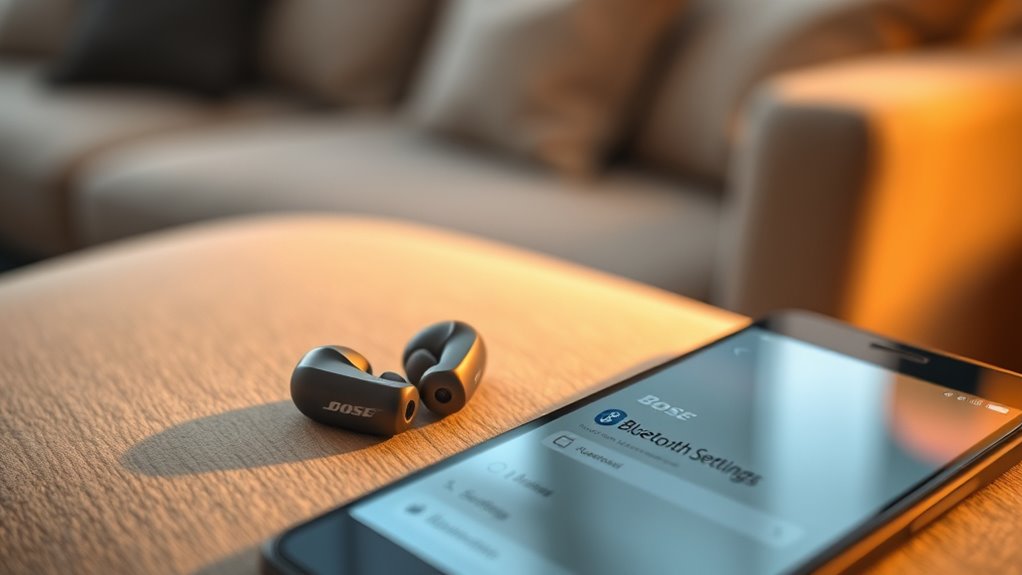

To pair your Bose wireless earbuds, start by turning them on and confirming they’re charged. Press and hold the Bluetooth button until the light flashes blue, indicating they’re in pairing mode. On your device, go to Bluetooth settings and look for your earbuds in the list. Select them to connect. If you encounter issues, check battery levels and verify no other devices interfere. Follow along to explore more tips for enjoying your Bose earbuds fully.
Unboxing Your Bose Wireless Earbuds
Unboxing your Bose wireless earbuds is an exciting step toward immersive sound experiences. As you open the sleek packaging, you’ll find the earbuds nestled securely, ready for action. The unboxing experience is designed to impress, with every detail considered. Alongside the earbuds, you’ll discover included accessories like a charging case, various ear tip sizes for a perfect fit, and a USB-C charging cable. These essentials guarantee you’re set up for comfort and convenience right out of the box. Take a moment to admire the design and quality; you’re about to elevate your audio journey. With everything at hand, you’re just moments away from enjoying your favorite music, podcasts, and calls wirelessly, wherever life takes you.
Understanding Bluetooth Technology
When you’re ready to pair your Bose wireless earbuds, it’s essential to understand how Bluetooth technology works. Bluetooth enables wireless communication between devices, offering you the freedom to enjoy music without tangled wires. However, keep in mind the Bluetooth range, which typically extends up to 30 feet. Beyond this range, you might experience signal interference, leading to choppy audio or disconnections.
| Aspect | Description |
|---|---|
| Bluetooth Range | Up to 30 feet |
| Signal Interference | Caused by walls or other devices |
| Connection Type | Secure and quick pairing |
Preparing Your Device for Pairing
Before you can enjoy your Bose wireless earbuds, you need to confirm your device is ready for pairing. First, check your device compatibility; verify it supports Bluetooth and can connect to wireless audio devices. This step is essential for achieving ideal audio quality. If you’re using a smartphone, tablet, or computer, make sure your operating system is updated to the latest version, as this can affect connectivity. Next, disable any previously connected Bluetooth devices to avoid confusion during the pairing process. Finally, make sure your device’s Bluetooth settings are easily accessible, as you’ll need them shortly. Taking these steps will help create a seamless connection, letting you immerse yourself in your favorite music or podcasts with freedom and ease.
Turning On Your Bose Earbuds
To turn on your Bose earbuds, first, locate the power button. Make sure they’re charged before use, as they won’t function without power. Once you press the button, listen for sounds that indicate they’re ready to connect.
Locate Power Button
Finding the power button on your Bose wireless earbuds is an essential first step in getting them ready for use. Typically, the power button location is easily accessible on the earbuds themselves. Look for a small, raised button, often located on the side or the top of the earbud. This button’s functionality goes beyond just powering on; it may also assist with pairing and controlling your audio experience. To turn on your earbuds, simply press and hold the power button until you see a light indicator. This visual cue confirms that your earbuds are active and ready to connect. Once you’ve located the power button and powered them on, you’re one step closer to enjoying your favorite tunes wirelessly.
Charge Before Use
Charging your Bose wireless earbuds is essential for ensuring they’re ready for use. Before you plunge into your favorite tunes, take a moment to check the battery life. If they’re low, simply connect them to the charging case or a USB charger. For maximum performance, try to charge your earbuds regularly and avoid letting them drain completely. A good tip is to charge them after use, even if it’s just for a brief time, to keep the battery healthy. Additionally, avoid using them while charging to prevent overheating. By following these charging tips, you’ll enjoy extended listening sessions and the freedom to move without interruption. Now that your earbuds are charged, you’re ready to pair and enjoy!
Listen for Sounds
Before you can start enjoying your music, you’ll need to turn on your Bose earbuds, and listening for specific sounds can make this process easier. To power them on, simply press and hold the button until you hear a distinct audio feedback. You’ll notice a chime indicating that your earbuds are ready to connect. This sound quality is designed to enhance your listening experience, so pay attention to these cues. If you don’t hear the chime, try again or verify your earbuds are charged. Once powered on, they’ll enter pairing mode, allowing you to connect seamlessly to your device. Enjoy the freedom of wireless listening with your Bose earbuds!
Activating Pairing Mode
To activate pairing mode on your Bose wireless earbuds, simply press and hold the Bluetooth button until you see the Bluetooth indicator light flash blue. This means you’re ready for activating Bluetooth and connecting to your device. If you prefer pairing alternatives, consider the following steps:
- Make certain your earbuds are charged – Low battery can affect pairing.
- Turn on the device you want to connect – Confirm Bluetooth is enabled on that device.
- Search for devices – On your device, look for your Bose earbuds in the Bluetooth settings.
Once these steps are complete, you’ll be set to connect your earbuds and enjoy the freedom of wireless listening. Happy listening!
Connecting to a Smartphone
Connecting your Bose wireless earbuds to a smartphone is a straightforward process that enhances your listening experience. First, verify your smartphone is compatible with Bluetooth devices. Open the settings on your smartphone and navigate to the Bluetooth menu. Make certain Bluetooth is turned on, and you’ll see a list of available devices. With your earbuds in pairing mode, select them from the list. Once connected, you’ll enjoy exceptional audio quality, allowing you to immerse yourself in your favorite music or podcasts. If you encounter any issues, make certain your earbuds are fully charged and within range. This seamless connection gives you the freedom to move while enjoying your audio without being tethered to your device.
Pairing With a Tablet
Pairing your Bose wireless earbuds with a tablet is a simple process that takes just a few moments. You’ll enjoy excellent tablet compatibility and impressive audio quality once connected. Here’s how to do it:
Pairing your Bose wireless earbuds with a tablet is quick and easy, ensuring remarkable audio quality and seamless compatibility.
- Turn on your earbuds: Press and hold the power button until you hear a voice prompt indicating they’re in pairing mode.
- Access Bluetooth settings: Open your tablet’s settings, navigate to Bluetooth, and make sure it’s turned on.
- Select your earbuds: Look for your Bose earbuds in the list of available devices and tap to connect.
Once paired, you can enjoy your favorite music or videos hassle-free. With just a few steps, you’ll be ready to experience sound like never before!
Connecting to a Laptop
To connect your Bose wireless earbuds to a laptop, you’ll need to adjust the Bluetooth settings. Start by ensuring your earbuds are in pairing mode, then follow the steps to pair them with your laptop. Once connected, you’ll enjoy high-quality audio for all your tasks.
Bluetooth Settings Adjustment
While setting up your Bose wireless earbuds with a laptop, you’ll first need to access the Bluetooth settings. This is essential for guaranteeing peak performance, especially considering Bluetooth range and codecs. Here’s how to navigate:
- Open your laptop’s settings menu and select “Devices.”
- Click on “Bluetooth & other devices” to view available connections.
- Confirm Bluetooth is turned on for seamless pairing.
Adjust any necessary settings, such as audio output and codec preferences, to enhance your listening experience. Keep in mind that the right codecs can greatly improve sound quality and reduce latency. With these adjustments, you’re one step closer to enjoying your Bose earbuds with freedom and clarity.
Pairing Process Steps
Begin by putting your Bose wireless earbuds into pairing mode, which is essential for connecting them to your laptop. Once they’re ready, follow these pairing tips to access the freedom of wireless technology.
- Open your laptop’s Bluetooth settings.
- Click on “Add Bluetooth or other device.”
- Select “Bluetooth” and wait for your earbuds to appear.
- Click on your earbuds to connect.
| Step | Action | Emotion |
|---|---|---|
| 1 | Open Bluetooth settings | Anticipation |
| 2 | Click “Add device” | Excitement |
| 3 | Select your earbuds | Joy |
| 4 | Enjoy the connection | Freedom |
With these steps, you can enjoy your favorite music without being tethered!
Troubleshooting Common Pairing Issues
If you encounter issues while trying to pair your Bose wireless earbuds, don’t worry—troubleshooting these common problems can often be straightforward. Here are some quick fixes to take into account:
- Check Battery Levels: Verify your earbuds and device have sufficient charge. Low battery can prevent pairing.
- Reset Your Earbuds: Sometimes, a simple reset can resolve connectivity issues. Follow the reset instructions in your user manual.
- Forget Device: On your Bluetooth settings, remove or “forget” the earbuds, then attempt to pair them again.
Enjoying Your Bose Earbuds
To truly enjoy your Bose earbuds, it’s crucial to find the ideal sound settings that suit your preferences. Additionally, ensuring a comfortable fit will enhance your listening experience and keep the earbuds secure during use. Let’s explore how to maximize both sound quality and comfort for the best possible experience.
Optimal Sound Settings
While enjoying your Bose earbuds, adjusting the sound settings can greatly enhance your listening experience. To achieve ideal sound quality and audio balance, consider these tips:
- Equalizer Settings: Use the app to customize the equalizer. Boost the bass or treble according to your music preference for a richer sound.
- Volume Levels: Keep the volume at a comfortable level. Too high can distort sound quality, while too low might not deliver the full experience.
- Noise Cancellation: Experiment with noise cancellation levels. Adjusting this can considerably impact how you perceive sound, making your music more immersive.
Comfort and Fit
Finding the right comfort and fit for your Bose earbuds can make a significant difference in your listening experience. It’s crucial to take into account earbud ergonomics, as a proper fit guarantees they stay in place during any activity. Bose earbuds come with adjustable tips, allowing you to find the perfect size for your ears. Start by trying on different tips to see which ones feel best; a snug fit helps block out external noise, enhancing sound quality. If they’re too loose, you might miss out on bass and clarity. Remember, comfort is key; you should be able to wear them for hours without discomfort. A well-fitted pair can truly elevate your freedom to enjoy music wherever you are.
Frequently Asked Questions
Can I Connect Multiple Devices to My Bose Earbuds Simultaneously?
You can’t connect multiple devices to your Bose earbuds simultaneously, but their Bluetooth connectivity makes switching between devices a breeze. Just verify each device’s compatible, and you’ll enjoy seamless audio freedom without hassle!
How Do I Reset My Bose Wireless Earbuds?
To reset your Bose wireless earbuds, press and hold the power button for 10 seconds until you see the LED light flash. This earbud troubleshooting step initiates the reset process, restoring your earbuds to default settings.
What Should I Do if My Earbuds Won’t Charge?
If your earbuds won’t charge, it’s ironic how we crave freedom yet forget battery maintenance. Check the charging cable and port for debris, and try a different outlet. Sometimes, a reset might just do the trick.
Are My Bose Earbuds Water-Resistant?
Yes, your Bose earbuds have water-resistant features, making them suitable for exercise and light rain. For peak performance, guarantee proper earbud maintenance by cleaning them regularly and storing them in a dry place.
How Do I Update the Firmware on My Bose Earbuds?
To update your Bose earbuds’ firmware, download the Bose Connect app. You’ll enjoy firmware improvements that enhance performance. Follow the app’s instructions during the update process, ensuring you’re connected to Wi-Fi for a smooth experience.
