
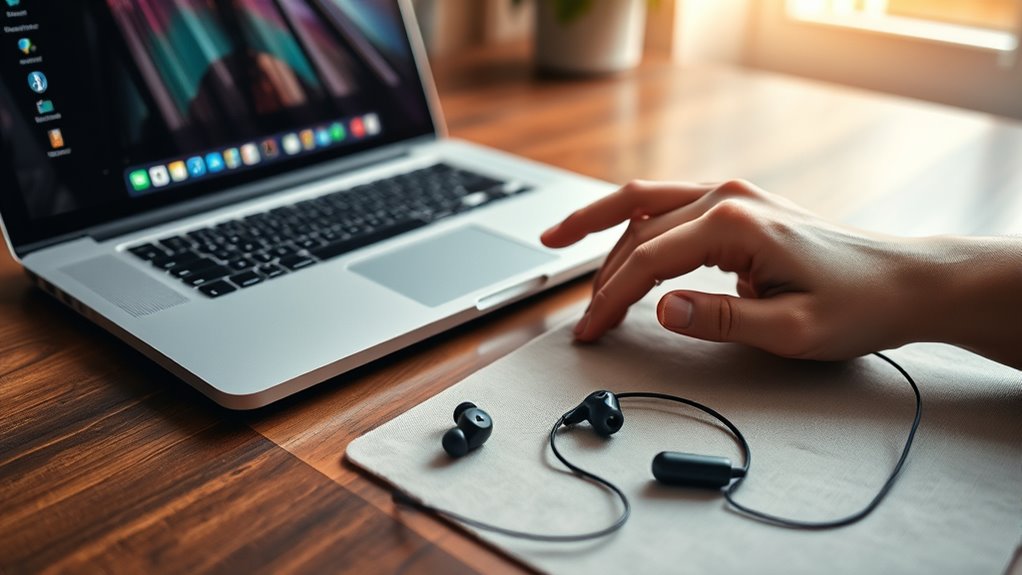

To pair your earbuds to a laptop, first make sure they’re fully charged and in pairing mode. On your laptop, go to Bluetooth settings by searching “Bluetooth” in the Start menu. Turn on Bluetooth and select “Add Bluetooth or other device.” Choose your earbuds from the list once they’re discoverable. If you encounter issues, check the earbud’s pairing status, toggle Bluetooth, or update drivers. There’s more you can do to optimize your earbuds, so keep going!
Understanding Bluetooth Technology
While you might be familiar with Bluetooth as a way to connect devices wirelessly, understanding its basics can help you troubleshoot issues and enhance your experience. Bluetooth is a short-range wireless technology that allows devices to communicate without cables, making it perfect for connecting earbuds to your laptop. The technology works by using radio waves in the 2.4 GHz frequency, which means it’s generally compatible with most devices. It operates in pairs, with one device acting as a master and the other as a slave, ensuring seamless connectivity. Knowing these Bluetooth basics can empower you to make the most of your wireless devices. Whether you’re streaming music or taking calls, the convenience of Bluetooth opens up a world of freedom in your daily tech usage.
Preparing Your Earbuds for Pairing
Before pairing your earbuds with your laptop, make sure they’re fully charged. Once charged, you’ll need to enter pairing mode, which is typically done by pressing and holding a specific button on the earbuds. This step is essential for establishing a connection with your laptop.
Charge Your Earbuds
To guarantee a smooth pairing process, it’s essential to charge your earbuds fully before attempting to connect them to your laptop. A well-charged pair provides maximum battery life, so you won’t have to worry about interruptions during your listening experience. Most earbuds come with a charging case, which is a convenient method to keep them powered. Just place them in the case and connect it to a power source using the provided cable. Alternatively, some models offer wireless charging options. Always check the manufacturer’s guidelines for specific charging methods and battery indicators. Once your earbuds are charged, you’ll be ready to enjoy your favorite tunes or podcasts without any hassle.
Enter Pairing Mode
Entering pairing mode is a crucial step in connecting your earbuds to your laptop. To get started, make sure your earbuds are compatible with your device. Most earbuds have a specific pairing technique that usually involves holding down the power button until you see a blinking light, indicating they’re ready to connect. If they’re already paired with another device, you might need to disconnect them or reset them to enter pairing mode. Once your earbuds are in this mode, head to your laptop’s Bluetooth settings. From there, you’ll easily find and select your earbuds to establish the connection. With just a few simple steps, you’re on your way to enjoying wireless freedom with your earbuds!
Accessing Your Laptop’s Bluetooth Settings
How can you quickly access your laptop’s Bluetooth settings? First, click on the Start menu or press the Windows key. Then, type “Bluetooth” in the search bar and select “Bluetooth & other devices settings.” This will open the Bluetooth settings window, where you can manage your Bluetooth devices. If your laptop has Bluetooth compatibility, you’ll see an option to turn it on or off. Make sure Bluetooth is enabled to connect your earbuds. Here, you can add new Bluetooth devices, ensuring your earbuds are discoverable. If you don’t see the Bluetooth option, your laptop may not support Bluetooth devices, so check your specifications before proceeding. Enjoy the freedom of wireless audio once you’re all set!
Putting Earbuds in Pairing Mode
Getting your earbuds into pairing mode is a straightforward process that typically takes just a few seconds. First, check your earbud models, as the pairing methods can vary slightly. For most earbuds, you’ll need to hold down the power button until you see a blinking light or hear a voice prompt indicating they’re ready to pair. If your earbuds have a dedicated pairing button, you might need to press that instead. Some models automatically enter pairing mode when removed from their charging case. Once you see the indicator light flashing, you’re set to connect. Remember, keeping your earbuds close to your laptop during this process can help guarantee a smooth pairing experience.
Connecting Earbuds to Your Laptop
Once your earbuds are in pairing mode, it’s time to connect them to your laptop. Start by opening your laptop’s Bluetooth settings. You can usually find this in the system tray or under settings. Confirm your earbuds are compatible with your laptop’s Bluetooth version; this is vital for smooth connection and ideal laptop audio. Select “Add Bluetooth or other device” and choose “Bluetooth.” Your laptop will search for nearby devices. When you see your earbuds in the list, click on them to initiate the connection. Wait for a moment as your laptop links up with your earbuds. Once connected, you’ll be ready to enjoy your favorite tunes or calls wirelessly, releasing the full potential of your audio experience!
Confirming the Connection
Once your earbuds are connected, it’s essential to confirm the connection for peak performance. Start by checking your Bluetooth settings to verify your earbuds are listed as connected. Then, test the audio output to make certain sound is coming through your earbuds properly.
Check Bluetooth Settings
To guarantee your earbuds are properly connected to your laptop, start by checking the Bluetooth settings. Open your laptop’s settings and navigate to the Bluetooth section. Confirm Bluetooth is enabled; if not, toggle it on. Look for your earbuds in the list of paired devices. If they’re not listed, you might need to put them in pairing mode again.
Also, check for Bluetooth compatibility; your laptop must support the same version as your earbuds for best performance. Finally, consider the Bluetooth range; make sure your earbuds are within the recommended distance from your laptop. A strong connection will guarantee a better experience, free from interruptions and disconnections.
Test Audio Output
After confirming your earbuds are properly paired, it’s important to verify that the audio output is working as expected. Start by playing a song or video to check the audio quality. Listen closely for any distortion or interruptions in sound. If everything sounds clear, move on to evaluating the sound balance. Adjust the volume levels on your laptop and see if the audio shifts equally between both earbuds. If one side sounds weaker, you might need to tweak your audio settings. You can often find sound balance options in your laptop’s audio settings. This simple test verifies you’re ready to enjoy your media without any hiccups, giving you the freedom to immerse yourself completely.
Adjusting Audio Settings
Adjust your audio settings to guarantee the best experience when using your earbuds with your laptop. Start by accessing your sound settings, which can typically be found in the control panel or system preferences. Here, you can adjust the volume levels for different applications to suit your needs. Don’t forget to explore audio enhancements; these features can improve sound quality, providing a richer listening experience. You might find options like equalizers, bass boost, or virtual surround sound. Experiment with these settings to discover what works best for you. Remember, finding the right balance can enhance your enjoyment, whether you’re gaming, watching movies, or listening to music. Tailoring these settings allows you to enjoy your content without restrictions.
Troubleshooting Common Connection Issues
Even with your audio settings optimized, you might still encounter connection issues when pairing your earbuds with your laptop. First, verify there are no connection errors by checking if your earbuds are in pairing mode. If they aren’t showing up, try turning Bluetooth off and on again. Next, confirm device compatibility; some laptops may not support certain earbuds. If you’ve recently updated your laptop’s operating system, check for any new Bluetooth drivers that need installation. Also, verify your earbuds are charged and within range. If problems persist, remove any previously paired devices that might be causing interference. Remember, troubleshooting can take a bit of time, but persistence usually leads to a successful connection.
Maintaining Your Earbuds for Optimal Performance
To keep your earbuds performing at their best, regular cleaning and proper storage are essential. Dust and earwax can accumulate, affecting sound quality, so make it a habit to clean them often. Additionally, storing them correctly can prevent damage and extend their lifespan.
Regular Cleaning Practices
While it might seem easy to overlook, regular cleaning practices are essential for maintaining your earbuds’ performance and longevity. To guarantee ideal earbud hygiene, clean your earbuds at least once a week. Start by removing any ear tips and rinsing them with warm water; use mild soap if needed. For the main body, use a soft, dry cloth or a cleaning brush designed for electronics. Don’t forget to check the speaker mesh for debris—gently use a toothpick or a cotton swab to clear any buildup. Investing in cleaning accessories, like a dedicated cleaning kit, can make this process even easier. By adopting these cleaning habits, you’ll enjoy clearer sound and extend the life of your earbuds considerably.
Proper Storage Techniques
Proper storage techniques can greatly enhance your earbuds’ longevity and performance. To keep them in top shape, always store them in a protective case when not in use. This shields them from dust and potential damage. For effective cable management, avoid tangling by winding the cords loosely and securing them with a Velcro strap or twist tie. If your earbuds have removable tips, detach them to prevent wear and tear. Remember to keep them in a cool, dry place; extreme temperatures can harm the battery and materials. By following these proper storage methods, you’ll enjoy crisp sound quality and reliability for longer, allowing you the freedom to focus on what you love—your music or podcasts.
Exploring Additional Features of Your Earbuds
Earbuds today come packed with a range of features that enhance your listening experience beyond just audio quality. To make the most of your earbuds, explore these additional features:
- Noise Cancellation Features: These allow you to immerse yourself in music by blocking out external sounds.
- Touch Controls: Easily manage playback, adjust volume, and answer calls with simple taps on the earbuds.
- Voice Assistant Integration: Access your virtual assistant hands-free for convenience.
- Sweat and Water Resistance: Perfect for workouts or outdoor use, ensuring durability in various conditions.
Frequently Asked Questions
Can I Connect Multiple Earbuds to My Laptop Simultaneously?
You can’t connect multiple earbuds to your laptop simultaneously. Bluetooth technology typically limits audio quality and range when multiple devices are paired, so it’s best to use one pair at a time for ideal performance.
What if My Earbuds Aren’t Visible in Bluetooth Settings?
If your earbuds aren’t visible in Bluetooth settings, try resetting them and ensuring they’re in pairing mode. Check earbud compatibility with your laptop and troubleshoot Bluetooth settings to resolve connection issues.
Do I Need to Uninstall Previous Bluetooth Devices?
You don’t need to uninstall previous Bluetooth devices; around 80% of users manage multiple connections effortlessly. Just check your Bluetooth settings for any interference and guarantee proper device management for peak performance. Enjoy your freedom!
How Far Can I Be From My Laptop While Connected?
You can typically stay up to 30 feet from your laptop while connected. However, signal interference from walls or other devices can reduce Bluetooth range, so keep that in mind for best performance.
Can I Use My Earbuds While Charging?
Yes, you can use your earbuds while charging, but keep in mind charging limitations may affect battery life. Continuous use during charging might slow down the charging process, so consider taking breaks for ideal performance.
