
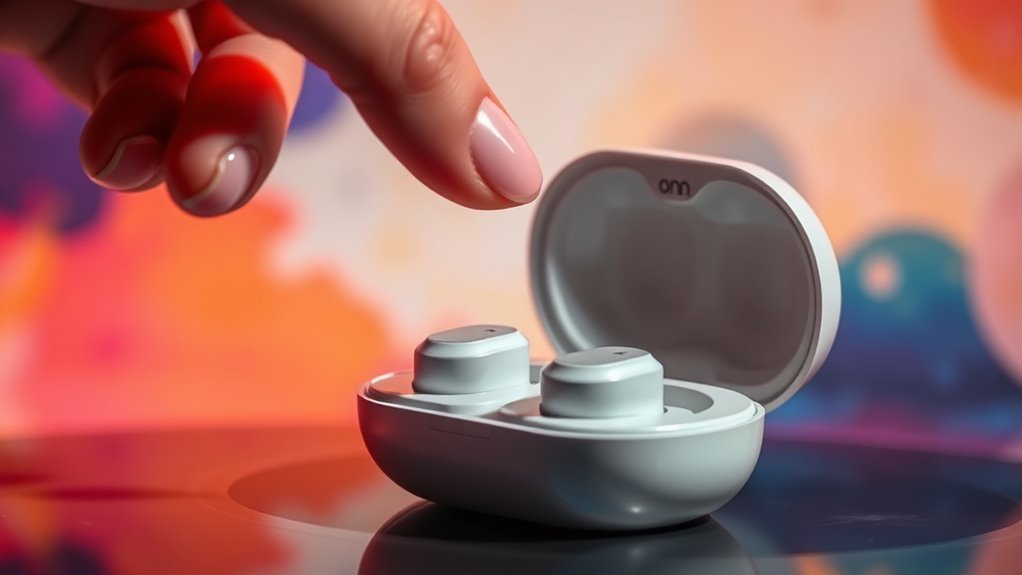

To pair your Onn earbuds, power them on and make sure they enter pairing mode. For Android, go to Bluetooth settings, enable Bluetooth, and select your earbuds. For iOS, hold the button on the earbuds until the light flashes, then choose them from the device list. On Mac, make certain Bluetooth is on and find your earbuds in the settings. If you encounter issues, troubleshooting tips can help you connect smoothly. There’s more to learn on keeping your earbuds connected!
Unboxing Your Onn Earbuds
Unboxing your Onn earbuds is an exciting first step toward enjoying high-quality audio. As you open the package, you’ll discover the earbuds, a compact charging case, and a user manual. Pay attention to the earbud features, like their lightweight design, comfortable fit, and intuitive controls. These elements enhance your listening experience and make it easy to manage calls and music without hassle. The sound quality is impressive, offering rich bass and clear treble that bring your favorite songs to life. Before you plunge into pairing, take a moment to appreciate the sleek design and thoughtful packaging. With everything at your fingertips, you’re just moments away from experiencing the freedom of wireless listening with your Onn earbuds.
Charging Your Earbuds
After enjoying the unboxing experience, it’s time to charge your Onn earbuds to make sure they’re ready for use. Proper battery care is essential for maximizing your earbuds’ lifespan. Follow these charging tips to keep your earbuds in prime condition:
- Use the provided charging case to make certain of a secure fit and ideal charging.
- Avoid letting your earbuds drain completely before charging; aim to recharge when they reach around 20%.
- Don’t expose your earbuds to extreme temperatures while charging, as this can damage the battery.
Activating Pairing Mode
To activate pairing mode on your Onn earbuds, start by powering them on. Next, head to your device’s Bluetooth settings. Finally, select your Onn earbuds from the list of available devices.
Power On Earbuds
Powering on your Onn earbuds is the first step to enjoying wireless sound. To activate them, simply locate the power button on your earbuds and press it until you see a light indicator. This signifies that your earbuds are ready for use.
- Make sure your earbuds are charged for peak performance.
- Familiarize yourself with earbud functions for a better experience.
- Keep your earbuds within range for a stable connection.
Once powered on, your earbuds will enter pairing mode automatically. This seamless process allows you to connect to your devices effortlessly. Embrace the freedom of wireless sound and enjoy your favorite tunes without the hassle of tangled wires.
Enter Bluetooth Settings
Once your Onn earbuds are powered on, the next step is to enter the Bluetooth settings on your device. This is where you’ll verify your device’s Bluetooth compatibility is activated. If you’re using a smartphone or tablet, swipe down from the top of the screen to access quick settings, and tap the Bluetooth icon. For laptops or desktops, navigate to the device settings, often found in the control panel or system preferences. Make certain Bluetooth is turned on. Once you’re in the Bluetooth settings, your device will start scanning for available devices. Keep your Onn earbuds nearby, as they’ll enter pairing mode automatically, making it easy to connect and enjoy your favorite music or podcasts.
Select Onn Earbuds
With your device’s Bluetooth settings open and scanning for available devices, it’s time to select your Onn earbuds. Make certain your earbuds are in pairing mode; this is vital for a seamless connection. Once they appear on your device, tap on them to initiate pairing.
Consider these selecting features for a better experience:
- Sound Quality: Verify your earbuds deliver the audio experience you crave.
- Battery Life: Longer battery life means more freedom to enjoy your music without interruptions.
- Comfort: Choose earbuds that fit well for those long listening sessions.
After selecting your Onn earbuds, you should hear a confirmation sound, indicating a successful connection. Enjoy your newfound freedom!
Pairing With an Android Device
To pair your Onn earbuds with an Android device, start by enabling Bluetooth in your device’s settings. Once Bluetooth is activated, you can easily connect your earbuds when they appear in the available devices list. Just select them, and you’ll be ready to enjoy your audio.
Enable Bluetooth Settings
Before you can enjoy your Onn earbuds, you’ll need to enable Bluetooth settings on your Android device. This step is vital for Bluetooth compatibility, guaranteeing a smooth connection between your earbuds and phone. Here’s how to get started:
- Open your device settings and select “Connected devices.”
- Tap on “Bluetooth” and toggle it on.
- Verify your earbuds are charged and in pairing mode.
Once you’ve done this, your device will be ready to discover available Bluetooth devices. Remember, having Bluetooth enabled allows you to explore a world of wireless freedom, whether you’re listening to music, taking calls, or enjoying podcasts. Enjoy the convenience of your Onn earbuds once you’ve set up these essential device settings!
Connect Onn Earbuds
Connecting your Onn earbuds to an Android device is a straightforward process that takes just a few steps. First, verify your earbuds are charged and in pairing mode. To do this, press and hold the multi-function button until the LED indicator flashes. Next, open your Android device’s Bluetooth settings and scan for available devices. You should see your Onn earbuds listed; tap on them to connect. Once paired, you can enjoy the impressive earbud features, like touch controls and voice assistant compatibility. The sound quality will enhance your listening experience, making music and calls clearer than ever. With these easy steps, you’ll be ready to enjoy your favorite audio wirelessly in no time!
Pairing With an Ios Device
While getting your Onn earbuds ready to use with an iOS device, it’s essential to follow a few straightforward steps. This guarantees you avoid compatibility issues and can enjoy peak sound quality. Here’s what you need to do:
Prepare your Onn earbuds for seamless use with your iOS device by following these simple steps for optimal sound quality.
- Charge your earbuds: Make sure they’re fully charged for best performance.
- Enable Bluetooth: Go to your iOS device’s settings and turn on Bluetooth.
- Put earbuds in pairing mode: Press and hold the button on your earbuds until the light flashes.
Once you’ve completed these steps, select your Onn earbuds from the list on your device. With this process, you’ll be set to enjoy your music, podcasts, or calls hassle-free.
Pairing With a Windows Computer
To pair your Onn earbuds with a Windows computer, you’ll need to confirm Bluetooth is enabled on your device. Start by opening the Bluetooth settings on your computer. Once you see your earbuds in the available devices list, select them to pair. If you encounter pairing difficulties, here are some troubleshooting methods to take into account:
| Issue | Solution |
|---|---|
| Earbuds not found | Confirm they’re in pairing mode |
| Connection drops | Move closer to the computer |
| Audio lag | Update Bluetooth drivers |
| Can’t hear audio | Check volume settings |
Following these steps should help you enjoy your Onn earbuds without hassle. If issues persist, restarting your computer or resetting the earbuds might resolve the problem.
Pairing With a Mac
- Enjoy seamless mac compatibility for your devices.
- Experience remarkable audio quality with your Onn earbuds.
- Explore the freedom of wireless listening without distractions.
Once connected, you can enjoy your favorite music or podcasts with ease. Remember, the sound quality can enhance your experience, so make sure your earbuds are properly charged for peak performance.
Troubleshooting Connection Issues
If you encounter connection issues with your Onn earbuds, don’t worry—there are several steps you can take to resolve them. First, verify your device is compatible with the earbuds. If they still won’t connect, try resetting the earbuds by following these steps:
| Step | Action | Notes |
|---|---|---|
| Check Compatibility | Verify device specs | Confirm Bluetooth is enabled |
| Resetting Earbuds | Hold the button for 10 seconds | LED light should flash |
| Re-pair | Remove from Bluetooth list | Try pairing again |
| Restart Device | Turn off and on | Refresh connections |
These quick fixes can help get your Onn earbuds back in action, letting you enjoy your favorite tunes without hassle.
Disconnecting and Reconnecting
If you need to disconnect your Onn earbuds from a device, it’s a quick process that can help resolve connection issues. Reconnecting them to a Bluetooth device is just as simple and usually restores functionality without hassle. Let’s go over the steps to guarantee your earbuds are paired correctly and troubleshoot any lingering connection problems.
Disconnecting Earbuds From Device
Sometimes, you might need to disconnect your Onn earbuds from your device, whether to switch to another audio source or troubleshoot a connection issue. Managing connections effectively can enhance your listening experience. Here’s how to disconnect your earbuds:
- Open the Bluetooth settings on your device.
- Locate your Onn earbuds in the list of connected devices.
- Select the option to disconnect or forget the device.
Reconnecting to Bluetooth Device
Once you’ve disconnected your Onn earbuds, reconnecting them to your Bluetooth device is a straightforward process. First, make certain your earbuds are powered on and in pairing mode. On your device, navigate to the Bluetooth settings, and look for your earbuds in the available devices list. Tap to connect. If you’re within the Bluetooth range, the connection should establish quickly, maintaining good connection stability. If your earbuds don’t appear, try turning the Bluetooth off and on again on your device. You may also want to make certain no other devices are connected, as this could impact your earbuds’ ability to reconnect. Enjoy the freedom of wireless listening without interruptions!
Troubleshooting Connection Issues
When facing connection issues with your Onn earbuds, it’s important to systematically troubleshoot the problem to restore your audio experience. First, check for Bluetooth interference—other devices can disrupt the connection. If that doesn’t help, try an earbud reset by holding the buttons on both earbuds until the LED flashes. Here are some additional steps you can follow:
- Confirm your earbuds are fully charged.
- Unpair and re-pair the earbuds with your device.
- Move closer to your device to eliminate distance issues.
Maintaining Your Onn Earbuds
Proper maintenance is essential for keeping your Onn earbuds in top condition and ensuring a long lifespan. Start with regular cleaning; use a soft, lint-free cloth to wipe down the exterior and a cotton swab with mild alcohol to gently clean the speaker mesh. Avoid using harsh chemicals, as they can damage the surface. For storage solutions, always place your earbuds in their charging case when not in use to protect them from dust and damage. If you’re on the go, consider using a small pouch to keep them safe. By following these cleaning tips and storage solutions, you’ll enjoy your Onn earbuds for years to come, maintaining that freedom to listen whenever you like.
Frequently Asked Questions
Can I Use Onn Earbuds With Non-Bluetooth Devices?
While you can’t use Onn earbuds wirelessly with non-Bluetooth devices, you can often connect them via a wired connection. Just remember, you might sacrifice some audio quality compared to their wireless performance.
How Do I Reset My Onn Earbuds?
To reset your Onn earbuds, hold down the power button for about 10 seconds until you see the LED flash. This troubleshooting tip can help resolve connectivity issues and restore functionality quickly.
Are Onn Earbuds Waterproof or Water-Resistant?
Onn earbuds aren’t waterproof, but some models offer water-resistant ratings. To guarantee longevity, you should practice good earbud care, keeping them dry and clean after use, especially if you sweat during workouts or outings.
What Is the Battery Life of Onn Earbuds?
You won’t be running marathons with Onn earbuds—expect about 4-5 hours of battery performance. After that, they’ll need a charging time that feels like waiting for your coffee to brew. Freedom awaits, but patience is key!
Can I Use One Earbud at a Time?
Yes, you can use one earbud at a time. However, be aware of earbud limitations; using just one may affect audio quality, limiting your overall listening experience compared to using both earbuds together.
