
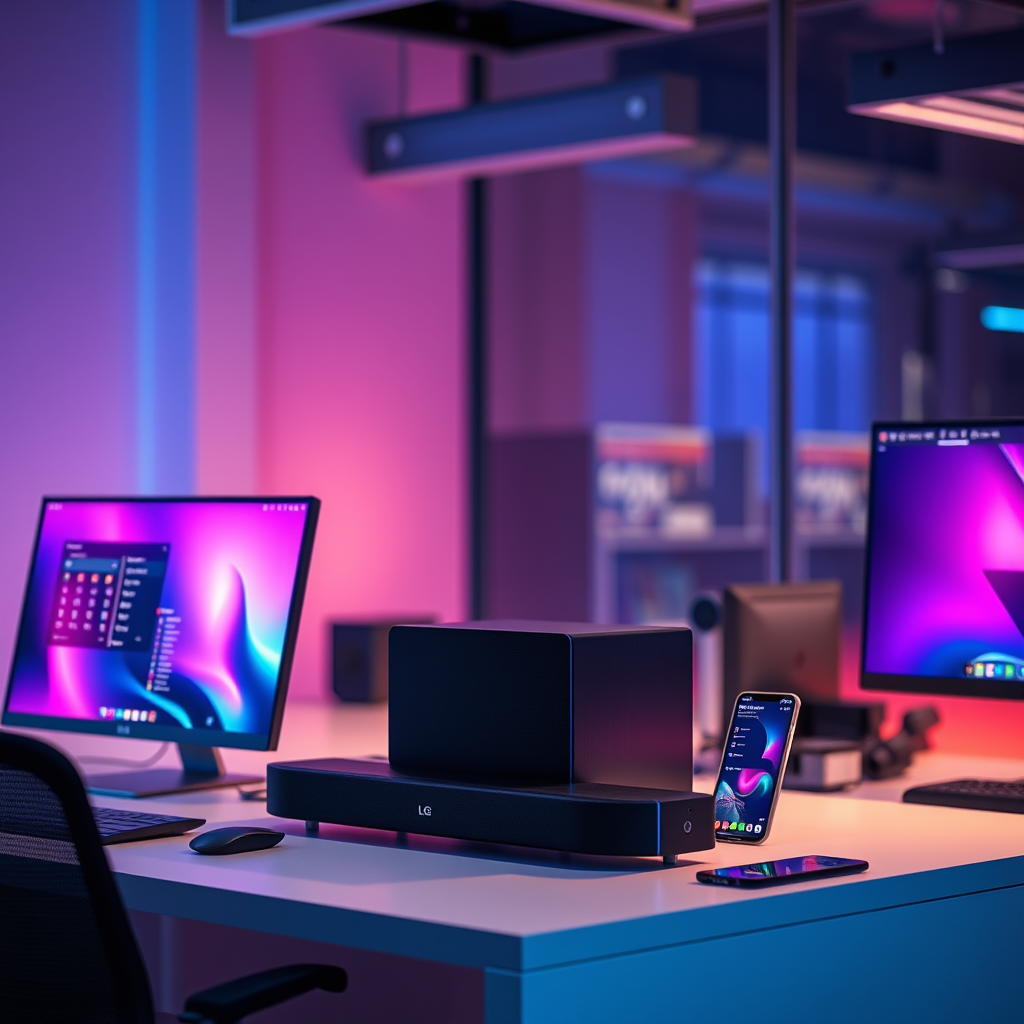

To pair your LG soundbar and subwoofer, simply follow the pairing instructions in the user manual, which typically involve pressing a sync button on both devices. This quick and straightforward method ensures you enjoy an enhanced audio experience in no time. In this article, we will explore the step-by-step process, troubleshooting tips, and additional features for optimal sound quality.
Understanding Your LG Soundbar and Subwoofer
LG offers a diverse range of soundbars, each designed to elevate your home audio experience. Popular models such as the LG SN11RG, SN9YG, and SL10YG often come with compatible subwoofers that enhance bass performance and overall sound clarity. Pairing your soundbar with its corresponding subwoofer is crucial; it not only enriches your audio experience but also allows for an immersive soundstage that can make movies, music, and gaming truly come alive.
The importance of pairing cannot be overstated. When connected correctly, the soundbar and subwoofer work in unison, allowing the soundbar to handle mid and high frequencies while the subwoofer delivers deep, resonant bass. This division of labor results in a more balanced and enjoyable listening experience, making it essential to take the time to set up the devices properly.
Preparing for the Pairing Process
Before diving into the pairing process, ensure that both your LG soundbar and subwoofer are powered on and positioned within close proximity to each other. This is essential for a successful connection. Additionally, it’s prudent to check for any firmware updates for both devices. Keeping your devices up to date ensures optimal performance and may fix bugs that could hinder the pairing process. You can find firmware updates by visiting LG’s official website or through the LG ThinQ app, which provides an intuitive interface for managing your devices.
Step-by-Step Pairing Instructions
To successfully pair your LG soundbar and subwoofer, follow these detailed steps:
1. Identify the Pairing Buttons: Locate the pairing button on both the soundbar and the subwoofer. This button is often labeled as “Pair,” “Sync,” or may simply have a Bluetooth icon.
2. Activate Pairing Mode:
– For the soundbar, press and hold the pairing button until you see a blinking LED indicator, signaling that it is in pairing mode.
– For the subwoofer, press the pairing button as well. The subwoofer’s LED light will also begin to blink, indicating it is ready to connect.
3. Wait for Connection: After both devices are in pairing mode, they will automatically look for each other. Once the connection is established, the LED indicators on both devices will change from blinking to steady, confirming a successful pairing.
4. Test the Sound: Play some audio or video content to ensure that the subwoofer is functioning correctly with the soundbar. Adjust the volume settings as necessary to achieve a balanced sound.
Popular LG Soundbar Models and Features
| # | Model | Power Output | Subwoofer | Bluetooth Version |
|---|---|---|---|---|
| 1 | LG SN11RG | 770W | Wireless | 5.0 |
| 2 | LG SN9YG | 520W | Wireless | 5.0 |
| 3 | LG SL10YG | 600W | Wireless | 5.0 |
| 4 | LG SK9Y | 500W | Wireless | 4.2 |
| 5 | LG SL5Y | 400W | Wired | 4.0 |
| 6 | LG SL6Y | 420W | Wired | 4.0 |
| 7 | LG SK1 | 70W | Wired | 4.0 |
Troubleshooting Common Pairing Issues
Despite the straightforward pairing process, you may encounter some issues. Common problems include the soundbar and subwoofer not syncing properly or failing to connect altogether. If you find that the devices are not pairing, start by ensuring that both devices are within close range. Wireless interference from other devices can also affect connectivity; try turning off nearby devices or moving the soundbar and subwoofer to a different location.
If the devices still refuse to sync, resetting them may be necessary. For most LG soundbars and subwoofers, you can perform a factory reset by holding down the reset button or following specific instructions in the user manual. This process will restore the devices to their original settings, allowing you to attempt the pairing process anew.
Optimizing Your Audio Experience
Once your LG soundbar and subwoofer are successfully paired, you can further enhance your audio experience by adjusting the sound settings. Many LG soundbars come with various sound modes, such as cinema, music, and game modes, each tailored for different audio experiences. Experiment with these settings to find the one that best suits your preferences.
Additionally, the placement of your subwoofer plays a significant role in the overall sound quality. Ideally, position the subwoofer in a corner or against a wall to maximize bass response. However, avoid placing it in enclosed spaces where sound waves may bounce back and create muddiness. Proper placement can significantly improve the clarity and depth of the audio.
Additional Features to Explore
LG soundbars often come packed with features that can elevate your audio experience even further. Many models support Dolby Atmos and DTS:X, which provide immersive surround sound. Furthermore, you can connect additional devices such as TVs, gaming consoles, and mobile devices through HDMI ARC, optical cables, or Bluetooth, allowing for a versatile home theater setup.
Many LG soundbars also integrate with smart home technology, enabling voice control through devices like Google Assistant or Amazon Alexa. Exploring these additional features can enrich your audio experience and provide a comprehensive entertainment solution.
In summary, pairing your LG soundbar and subwoofer is a simple process that can significantly enhance your audio experience. By following the outlined steps and troubleshooting tips, you can ensure a seamless setup. For further enhancement, explore the sound settings available on your devices to customize your listening experience. Don’t hesitate to reach out for further assistance or check out additional resources on LG’s official website.
Frequently Asked Questions
How do I pair my LG soundbar with the subwoofer?
To pair your LG soundbar with the subwoofer, first ensure both devices are powered on. Then, press the “Pairing” button on the subwoofer; the LED indicator will blink. On your soundbar, navigate to the settings menu and select the option to connect to the subwoofer. Once successfully paired, the LED light on the subwoofer will stop blinking and remain solid.
Why isn’t my LG soundbar connecting to the subwoofer?
If your LG soundbar isn’t connecting to the subwoofer, ensure that both devices are turned on and within range of each other. Check if the subwoofer is in pairing mode; if not, press the pairing button. Additionally, confirm that no other Bluetooth devices are interfering with the connection, and consider resetting both devices if the issue persists.
What should I do if my LG soundbar is not recognizing the subwoofer?
If your LG soundbar is not recognizing the subwoofer, first check if both devices are compatible. Ensure the subwoofer is in pairing mode and close enough to the soundbar. You may also try power cycling both devices or resetting the soundbar to factory settings, which can often resolve connectivity issues.
Which LG soundbars are compatible with my subwoofer?
Most LG soundbars are compatible with their respective subwoofers, particularly models that include a wireless subwoofer option. Check your soundbar’s user manual or the LG website for a list of compatible subwoofers. If you’re considering an upgrade, look for soundbars specifically designed to work with the model of your existing subwoofer.
What is the best way to enhance the sound quality of my LG soundbar and subwoofer combo?
To enhance the sound quality of your LG soundbar and subwoofer combo, ensure they are properly paired and positioned in your room for optimal acoustics. Adjust the sound settings within the soundbar’s menu, such as bass and treble levels, to suit your preferences. Additionally, using a high-quality HDMI or optical cable to connect your devices can improve audio clarity and performance.
References
- Product Support: Help Library | LG USA Support
https://www.lg.com/us/support/help-library/how-to-connect-lg-soundbar-to-lg-tv-CT10000019-20150174089747 - Product Support: Help Library | LG USA Support
https://www.lg.com/us/support/help-library/how-to-pair-lg-soundbar-and-subwoofer-CT10000019-20150174089752 - Google Scholar Google Scholar
https://scholar.google.com/scholar?q=how+to+pair+lg+soundbar+and+subwoofer - Google Scholar Google Scholar
https://scholar.google.com/scholar?q=lg+soundbar+subwoofer+pairing - Google Scholar Google Scholar
https://scholar.google.com/scholar?q=how+to+connect+lg+soundbar - https://www.lifewire.com/how-to-connect-soundbar-to-subwoofer-2495492
https://www.lifewire.com/how-to-connect-soundbar-to-subwoofer-2495492 - how to pair lg soundbar and subwoofer – Search results
https://en.wikipedia.org/wiki/Special:Search?search=how+to+pair+lg+soundbar+and+subwoofer - https://www.ncbi.nlm.nih.gov/search/research-articles/?term=how+to+pair+lg+soundbar+and+subwoofer
https://www.ncbi.nlm.nih.gov/search/research-articles/?term=how+to+pair+lg+soundbar+and+subwoofer

[…] how to add apps on your LG Smart TV with a straightforward, step-by-step process that actually works the first time. You’ll get the exact taps and settings to find the LG Content […]
[…] how to pair UE Boom speakers in minutes with a reliable step-by-step process that works whether you’re trying to connect a second speaker or build stereo sound. Follow the […]
[…] how to delete an application on your Samsung Smart TV with a simple, step-by-step process that removes the app in minutes. You’ll be guided through opening the Apps screen, selecting the […]
[…] exactly how to add apps to your LG Smart TV with a simple, step-by-step process that gets you from no new apps installed to streaming in minutes. This guide walks you through the […]
[…] how to pair JLab earbuds to a new device in minutes, with a step-by-step process that reliably gets you connected the first time. If the earbuds don’t show up in Bluetooth, […]
[…] out how to connect Beats earbuds to your iPhone in under a minute, with a step-by-step process that tells you exactly what to tap and when. If you have the newer Beats models that support […]
[…] your phone to your TV for sound, what to do if the TV doesn’t have Bluetooth, and how to avoid common pairing issues. Get the direct steps and a clear “works/doesn’t work” answer for your exact […]
[…] can upgrade your Samsung Smart TV quickly and safely with a straightforward step-by-step process that works for most models. This guide answers exactly how to install the latest firmware and […]
[…] preferences, and access Samsung services—this guide tells you exactly how to do it. Follow the step-by-step process on your TV, and you’ll have your account set up and signed in in minutes, with the quickest path […]
[…] can change a projector bulb safely and correctly with a straightforward step-by-step process that prevents common mistakes like damaging the lamp housing or burning yourself. This guide walks […]
[…] to connect a laptop to a projector with HDMI fast and without guesswork. You’ll follow a clear step-by-step process to choose the right ports, set the correct display/input mode, and fix the most common “no […]
[…] can’t guarantee a successful connection until the projector is set to the correct input—most “it doesn’t work” cases are actually a […]
[…] Restarting the projector and the casting device forces a new discovery cycle, which often resolves “projector not found” issues. Selecting the correct projector input/source (e.g., “Wireless Display”) is a common reason for black-screen failures after a successful connection. […]
[…] the frames, and focuses them into a sharp, watchable picture. If you need the working parts and the step-by-step process behind cinematic projection, you’ll get the clear, practical answer […]
[…] digital projector works by converting your video signal into light—so here’s the exact step-by-step process, from the image source to the final projection on screen. You’ll see how the lamp or LED, optical […]
[…] to fix stubborn pairing issues, audio glitches, or a failed Bluetooth connection. Follow a clear step-by-step process to wipe the earbuds back to factory settings and restore them to working order. If your model […]
[…] how to install apps on a smart TV fast with a step-by-step process that works for most major brands and operating systems. This guide walks you through opening the […]
[…] how to add an app on your Samsung Smart TV with a step-by-step process that tells you exactly where to go and what to press. If you want the fastest path, follow the […]
[…] how to add an app to your smart TV with a step-by-step process that works for most major brands. You’ll get the exact sequence—opening the app store, […]
[…] how to download an app on your smart TV with a step-by-step process that gets you installed fast. This guide walks you through finding the right app store, signing in […]
[…] how to delete apps on your LG Smart TV with a fast, step-by-step process you can follow immediately. We’ll walk you through the exact menus to remove unwanted apps and […]
[…] successful connection isn’t just “Connected to Wi‑Fi”—you should confirm that internet access and streaming are […]
[…] – Wait for the TV to confirm a successful connection. […]
[…] from opening the Smart TV’s Network/Wi‑Fi settings to entering the password and confirming a successful connection. If your model supports it, using an Ethernet cable is the most reliable option with fewer […]
[…] Open Settings on your smart TV and open the Network (or Wi‑Fi) setup to start connecting. From there, you choose the connection type—Wi‑Fi for speed or Ethernet for stability—then follow the prompts until the smart TV reports a successful connection. […]
[…] from the app—starting with a full app restart and then a device reboot if needed. This quick, step-by-step process shows you exactly how to reset Netflix on a smart TV to restore streaming in minutes. Follow the […]