
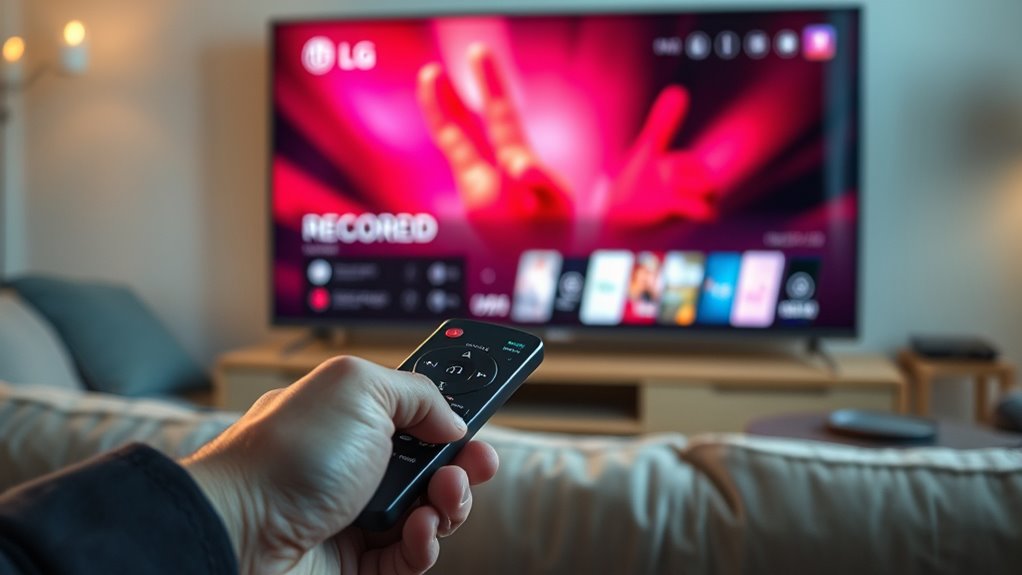

To record on your LG Smart TV, connect an external USB drive and access the recording settings via the Home button. Make sure your TV model supports recording features, then press the record button while watching live TV. You can pause, rewind, and manage your recordings easily. Keep an eye on storage space and adjust your settings for ideal performance. If you want to explore more tips on scheduling and managing your recordings, there’s plenty to discover.
Understanding the Recording Feature on LG Smart TVs
When you want to capture your favorite shows, understanding the recording feature on LG Smart TVs can make the process effortless. The user interface is designed for ease, allowing you to navigate through options quickly. You’ll find various recording formats available, ensuring you can choose what best suits your needs. Whether you prefer saving a series or just one episode, the flexibility of the recording feature gives you the freedom to manage your viewing experience. To start, simply access the recording option through the menu, select your desired program, and adjust the settings as needed. With a little practice, you’ll master the recording process and never miss an episode again. Enjoy your shows on your terms!
Checking Compatibility and Requirements
Before you start recording on your LG Smart TV, it’s essential to check its compatibility with your specific model. You’ll also need to guarantee you have enough storage space and a stable internet connection for smooth operation. Let’s go through these requirements to make certain you’re all set.
Supported TV Models
To guarantee you can record on your LG Smart TV, it’s vital to check the compatibility of your specific model with recording features. Not all LG TV models support recording capabilities, so you’ll want to verify yours before diving in. Generally, newer models tend to have better recording options, but it’s important to consult your user manual or LG’s official website for a list of supported models. Look for features like built-in DVR or USB ports, which can indicate recording functionality. By confirming your model’s capabilities, you can assure a smooth recording experience without any surprises. This way, you’ll be free to capture your favorite shows and movies whenever you want.
Required Storage Space
While your LG Smart TV may support recording, you’ll need to confirm you have enough storage space to accommodate your recordings. The required storage capacity depends on the quality and duration of the content you plan to record. For instance, high-definition recordings will take up considerably more space than standard definition, impacting your recording duration. Generally, you’ll want a USB drive or external hard drive with at least 32GB of capacity to make sure you can capture multiple shows or movies without running out of space. Before you start recording, check that your external storage is compatible with your TV. With the right setup, you can enjoy seamless recording without the hassle of constantly managing your storage.
Internet Connection Needs
A stable internet connection is essential for recording on your LG Smart TV, especially if you plan to access streaming services. To guarantee a smooth recording experience, keep these requirements in mind:
- Minimum Internet Speed: Aim for at least 10 Mbps for streaming and recording without interruptions.
- Network Stability: A wired connection is often more stable than Wi-Fi, reducing the risk of dropped signals.
- Router Quality: Use a modern router that can handle multiple devices to maintain network performance.
- Bandwidth Availability: Ascertain there’s enough bandwidth, especially if others are using the network simultaneously.
Setting Up Your LG Smart TV for Recording
To set up your LG Smart TV for recording, you’ll first need to connect an external storage device, like a USB drive. Once you’ve done that, access the recording settings menu to configure your preferences. This guarantees you’re ready to capture your favorite shows effortlessly.
Connect External Storage Device
Before you can start recording on your LG Smart TV, you’ll need to connect an external storage device. This is essential for saving your recordings without taking up space on your TV. Here are some options to evaluate:
- USB Flash Drives: These are portable and come in various storage capacity options, making them convenient for quick recordings.
- External Hard Drives: If you’re planning on recording a lot, these can offer larger storage capacity options.
- SD Cards: Some LG models support SD cards, which are great for easy insertion and removal.
- Network Attached Storage (NAS): For advanced users, NAS devices allow for extensive storage and access across devices.
Choose the right external device type that fits your recording needs!
Access Recording Settings Menu
Accessing the recording settings menu on your LG Smart TV is a straightforward process that sets the stage for capturing your favorite shows. Begin by pressing the “Home” button on your remote. Navigate to the “Settings” icon, which usually looks like a gear symbol. Once you’re in the settings menu, scroll down to the “All Settings” option. Here, you’ll find the “Recording Settings” section. This is where you can manage your recording preferences, such as scheduling and storage options. Make sure your external storage device is properly connected; otherwise, the recording settings won’t function correctly. Adjust these settings to suit your needs, and you’ll be ready to record with ease on your LG Smart TV. Enjoy the freedom of never missing a moment!
How to Access the Recording Menu
While you’re getting ready to record your favorite shows on an LG Smart TV, maneuvering to the recording menu is straightforward. Here’s how to access it:
- Press the Home button on your remote.
- Navigate to the Settings icon, usually represented by a gear.
- Scroll down and select Recording Options from the menu.
- Choose Recording Menu to view all your available options.
With these simple steps, you’ll have easy menu navigation to set up your recordings. You can explore various recording options and tailor them to your viewing preferences. Enjoy the freedom of capturing your shows without hassle!
Recording Live TV Programs
If you want to guarantee you never miss an episode of your favorite live TV programs, recording them on your LG Smart TV is a breeze. To start, make sure you’ve got a USB drive or external hard drive connected for ample storage. While you’re enjoying live streaming, simply press the record button on your remote. You’ll notice the recording quality is impressive, capturing all the action without missing a beat. After recording, you can revisit the program anytime, giving you the freedom to watch when it suits you best. Plus, you can pause, rewind, or fast-forward, enhancing your viewing experience. So, grab your remote and start recording those live TV moments you don’t want to forget!
Scheduling Recordings for Future Shows
To guarantee you never miss an episode of your favorite shows, scheduling recordings on your LG Smart TV is a straightforward process. Just follow these simple steps:
Scheduling recordings on your LG Smart TV is easy, ensuring you never miss your favorite shows.
- Open the TV Guide: Browse through the schedule and find the show you want to record.
- Select the Program: Highlight the show and press the “OK” button to access options.
- Schedule the Recording: Choose “Record” and set the date and time. You can also adjust schedules if needed.
- Set Reminders: Enable reminders to get notifications before the show starts, ensuring you’re ready to enjoy your favorite content.
Managing and Viewing Recorded Content
After scheduling your recordings, managing and viewing your recorded content on an LG Smart TV is equally straightforward. To access your recordings, navigate to the “My Recordings” section in the menu. Here, you’ll find organized content, making it easy to locate what you want to watch. You can sort recordings by date, show, or genre, enhancing your record organization. When it’s time to watch, simply select your desired show and choose from various playback options, like fast-forward, rewind, or pause. You can also delete recordings you no longer need to free up space. With these features, you’ll have the freedom to enjoy your favorite shows on your terms, hassle-free.
Troubleshooting Common Recording Issues
While enjoying the convenience of recording shows on your LG Smart TV, you might encounter some common issues that can disrupt your viewing experience. Here are some troubleshooting tips for those pesky recording errors:
- Check Storage Space: Verify there’s enough space on your device. Full storage can prevent recordings.
- Review Settings: Confirm that your recording settings are correctly configured, including scheduled times.
- Update Software: Make certain your TV’s firmware is up to date, as outdated software can cause glitches.
- Restart Your TV: Sometimes, a simple restart can resolve minor recording issues.
Frequently Asked Questions
Can I Record Shows From Streaming Services on My LG Smart TV?
If you want to record shows from streaming services, you’re in for a tough row to hoe. Many services have streaming limitations, affecting recording quality. Check your apps for specific features before getting started.
How Much Storage Space Do I Need for Recordings?
You’ll need adequate storage based on recording formats. For standard shows, 30-60 GB should suffice, but consider storage management to avoid running out. Always check your device’s capacity and adjust accordingly for your needs.
Do I Need an External Hard Drive for Recording?
You don’t necessarily need an external hard drive for recording, but having external storage can enhance your recording options. It allows for more space, greater flexibility, and guarantees you won’t miss any of your favorite shows.
Can I Record Multiple Shows at Once?
Yes, you can record multiple shows at once, but it depends on your TV’s recording limits. Make certain to check your show scheduling and available storage to avoid conflicts and guarantee you capture everything you want.
Will Recordings Be Deleted Automatically After a Certain Period?
Yes, your recordings might face automatic deletion after reaching certain recording limits. If you don’t manage your storage, you could lose favorite shows, so keep an eye on what you’ve saved and what’s available!
