
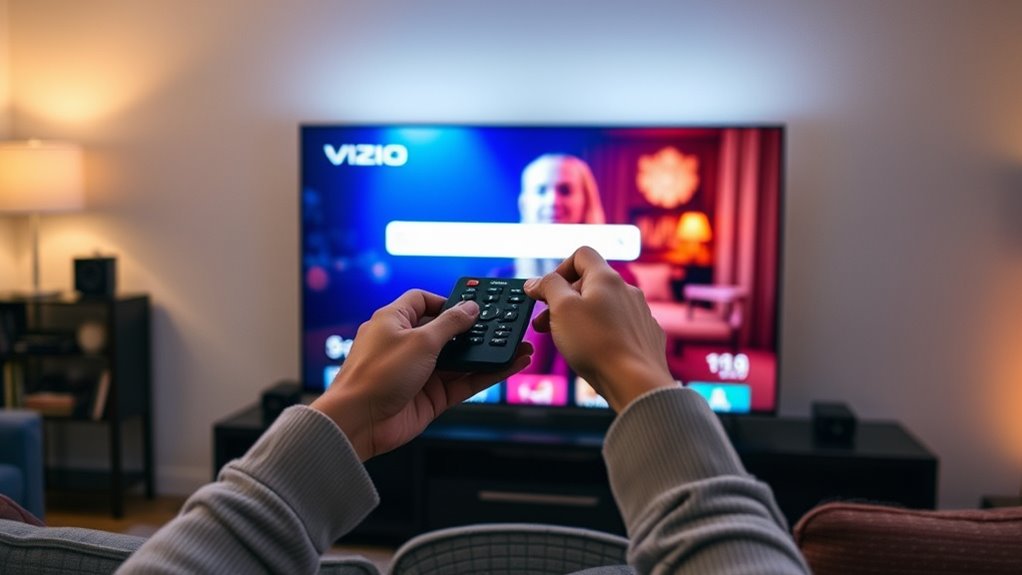

To search the internet on your Vizio Smart TV, first connect to Wi-Fi by pressing the Menu button on your remote and steering to Network settings. Once you’re connected, press the “V” button to access the Vizio menu. From there, use the arrow keys to find the Web Browser app and select it. You can then enter search terms to find content online. If you want tips for a smoother browsing experience, there’s more you should know!
Understanding Your Vizio Smart TV
Understanding your Vizio Smart TV is key to accessing its full potential. With its impressive Vizio features, you can enjoy a variety of entertainment options right at your fingertips. The Smart capabilities of your TV allow you to stream content, browse apps, and even access social media—all in one place. Familiarizing yourself with the intuitive interface will enhance your viewing experience. You’ll find easy access to popular streaming services and customizable settings to tailor your preferences. Plus, regular software updates guarantee you stay current with the latest enhancements. Embrace the freedom your Vizio Smart TV offers and make the most of its versatile features to create a personalized home entertainment system that suits your lifestyle.
Connecting to Wi-Fi
To get the most out of your Vizio Smart TV, connecting it to Wi-Fi is necessary. Follow these steps to set up your Wi-Fi connection:
- Press the Menu button on your remote.
- Navigate to Network settings.
- Select “Wireless” and choose your Wi-Fi network.
- Enter your Wi-Fi password.
- Confirm the connection.
Here’s a quick reference table to help you remember:
| Step | Action | Notes |
|---|---|---|
| Step 1 | Press Menu | Access settings |
| Step 2 | Go to Network settings | Find Wi-Fi options |
| Step 3 | Select Wireless | Choose your network |
| Step 4 | Enter Password | Check for caps lock |
| Step 5 | Confirm Connection | Verify connectivity |
Now you’re set to enjoy streaming!
Accessing the Built-in Browser
Now that you’re connected to Wi-Fi, it’s time to access the built-in browser on your Vizio Smart TV. You’ll first need to locate the browser in the app menu, and then you can start browsing web pages with ease. Let’s explore how to make the most of your browsing experience!
Locating the Browser
While exploring your Vizio Smart TV, you might wonder how to access the built-in browser. Fortunately, it’s straightforward! Here’s how you can locate the browser options:
- Press the “V” button on your remote to open the Vizio menu.
- Navigate to the “Apps” section using the arrow keys.
- Look for the “Web Browser” icon or similar in the app list.
- Select it to access the search settings and start browsing.
Once you find the browser, you can enjoy the freedom of searching the internet right from your TV. Remember, the built-in browser may not be as advanced as those on computers, but it offers a convenient way to explore online content.
Navigating Web Pages
Once you’ve located the browser on your Vizio Smart TV, exploring web pages is a breeze. You’ll appreciate the user-friendly web page layout, which makes navigation intuitive. Use the remote to scroll through content and click on links. For better browsing efficiency, it’s helpful to familiarize yourself with your TV’s controls—this way, you can easily zoom in, switch tabs, or go back.
Here’s a quick reference table for common navigation functions:
| Function | Action | Shortcut |
|---|---|---|
| Scroll Up | Up Arrow | Up Button |
| Scroll Down | Down Arrow | Down Button |
| Go Back | Back Button | Back Button |
With these tips, you’re ready to plunge into the web!
Using the Remote Control for Navigation
Managing your Vizio Smart TV with the remote control is straightforward once you know the basics. You’ll want to familiarize yourself with the remote’s control keys to easily access the internet browser and browse your favorite sites. Let’s break down how to make the most of your remote for a seamless internet experience.
Remote Control Overview
The Vizio Smart TV remote control is your gateway to a world of entertainment and information. Understanding the remote functions and button layouts can enhance your viewing experience. Here’s a quick overview of what you’ll find:
- Power Button – Turn your TV on or off effortlessly.
- Input Selection – Switch between different sources like HDMI or USB.
- Volume Control – Adjust the sound level to your preference.
- Navigation Pad – Move through menus and options smoothly.
Familiarizing yourself with these key features lets you navigate with ease. The intuitive design offers you the freedom to browse content, ensuring you can enjoy your favorite shows or search the internet without hassle. Get ready to explore with your Vizio remote!
Navigation Keys Explained
Understanding the navigation keys on your Vizio remote can greatly enhance your browsing experience. Familiarizing yourself with the remote control layout is essential for seamless navigation. The directional arrows are your primary tools, allowing you to move through menus and select options easily. The “OK” button confirms your choices, while the “Back” button helps you retrace your steps.
If you want to scroll through web pages, the “Page Up” and “Page Down” buttons are invaluable. Additionally, the “Home” button takes you back to the main screen, giving you quick access to apps and settings. Knowing these navigation key functions lets you explore the internet effortlessly, empowering you to browse freely on your Vizio Smart TV.
Accessing Internet Browser
To access the internet browser on your Vizio Smart TV, start by pressing the “Home” button on your remote. From there, you’ll want to navigate to the app section. Here’s how to get started:
- Select the “Apps” icon on your screen.
- Look for the “Internet Browser” option and click on it.
- Adjust your browser settings to enhance your internet security; this guarantees a safer browsing experience.
- Use the remote to input web addresses or search terms.
Once you have everything set up, you can freely explore the internet right from your TV. Just remember to keep your internet security in mind while browsing to protect your personal information. Happy surfing!
Searching for Content
While operating your Vizio Smart TV, searching for content can be a straightforward process that enhances your viewing experience. You can use various search engines to find your favorite shows or movies quickly. With the help of content filters, you can narrow down your options based on genres, ratings, or release years.
Here’s a quick reference table to help you understand the search process:
| Search Method | Description |
|---|---|
| Voice Search | Use your remote’s microphone for quick queries. |
| Keyword Input | Type in specific terms using the on-screen keyboard. |
| Content Filters | Select options to refine your search results. |
Bookmarking Your Favorite Websites
If you want quick access to your favorite websites on your Vizio Smart TV, bookmarking them is a smart move. Here’s how you can manage your bookmarks effectively:
- Open the Browser: Launch your Vizio Smart TV’s web browser.
- Navigate to Your Favorite Website: Type in the URL of the site you want to bookmark.
- Add Bookmark: Look for the bookmark icon (usually a star) and select it to save the page.
- Organize Bookmarks: Use bookmark management options to categorize your favorite websites for easy access later.
Troubleshooting Common Issues
Even the best technology can run into hiccups, and your Vizio Smart TV is no exception. You might experience browser compatibility issues or internet connection problems. Here’s how to troubleshoot:
| Issue | Solution |
|---|---|
| Browser Compatibility | Update your TV’s software |
| Internet Connection | Restart your router |
| Slow Browsing Speed | Clear cache and cookies |
If you’re facing browser issues, verify your apps are up-to-date. For connection problems, check if other devices can access the internet. Sometimes, a simple reboot can resolve many issues. Stay patient, and with a bit of troubleshooting, you’ll be back to enjoying your favorite online content in no time!
Exploring Streaming Apps
As you immerse yourself in the world of streaming on your Vizio Smart TV, you’ll discover a vast array of apps that cater to every entertainment taste. Here are four popular streaming services you can explore, ensuring app compatibility with your device:
- Netflix – Enjoy a wide variety of movies and series, including originals.
- Hulu – Access current TV shows and classic favorites, along with exclusive content.
- Amazon Prime Video – Stream a mix of popular films and shows, plus rent or buy new releases.
- Disney+ – Engage with family-friendly content featuring beloved franchises.
These services offer unique features and content, so you can easily find what resonates with you. Expand your viewing options and enjoy the freedom of choice!
Tips for a Better Browsing Experience
Enhancing your browsing experience on a Vizio Smart TV can make a world of difference in how you enjoy online content. Start by ensuring your internet connection is strong; a stable Wi-Fi signal is essential for enhancing speed. Consider positioning your router closer to your TV or using a Wi-Fi extender.
Next, keep your browser updated to access the latest features and improvements, which can also help with speed. For improving security, make sure to enable any built-in privacy settings and consider using a reliable VPN. This adds an extra layer of protection while you browse. Finally, clear your cache regularly to keep your browser running smoothly. With these tips, you’ll enjoy a seamless and secure browsing experience on your Vizio Smart TV.
Frequently Asked Questions
Can I Install Third-Party Browsers on My Vizio Smart TV?
Imagine sailing on a vast ocean, but your Vizio’s compatibility issues might anchor you down. You can’t install third-party browsers, but consider alternative browsing options like apps to navigate the digital sea.
How Do I Clear the Browser Cache on My Vizio Smart TV?
To clear the browser cache on your Vizio Smart TV, go to browser settings, find cache management, and select the option to clear cache. This will help improve performance and free up storage space.
Is Voice Search Available on My Vizio Smart TV?
Yes, your Vizio Smart TV does offer voice search features, but it’s important to recognize some smart TV limitations. Embrace the convenience, but know it may not cover everything you’d want to find.
Can I Use My Smartphone to Control the Browser?
Yes, you can use your smartphone for remote access to control the browser on your Vizio Smart TV. Confirm your devices are compatible, and download the Vizio Smartcast app for seamless navigation and control.
Are There Parental Controls for Internet Browsing on Vizio Smart TVS?
Yes, Vizio Smart TVs offer parental restrictions to enhance internet safety. You can set up controls to limit access to certain content, helping you manage what your family can browse and ensuring a safer viewing experience.
