

To set up speakers on your PC, start by connecting them to the appropriate audio port and ensuring your computer recognizes the device. This guide will walk you through the entire process, from hardware connections to software settings, so you can enjoy high-quality sound effortlessly. Whether you’re using wired or wireless speakers, the steps outlined below will ensure a seamless setup experience.
Understanding Your Audio Ports
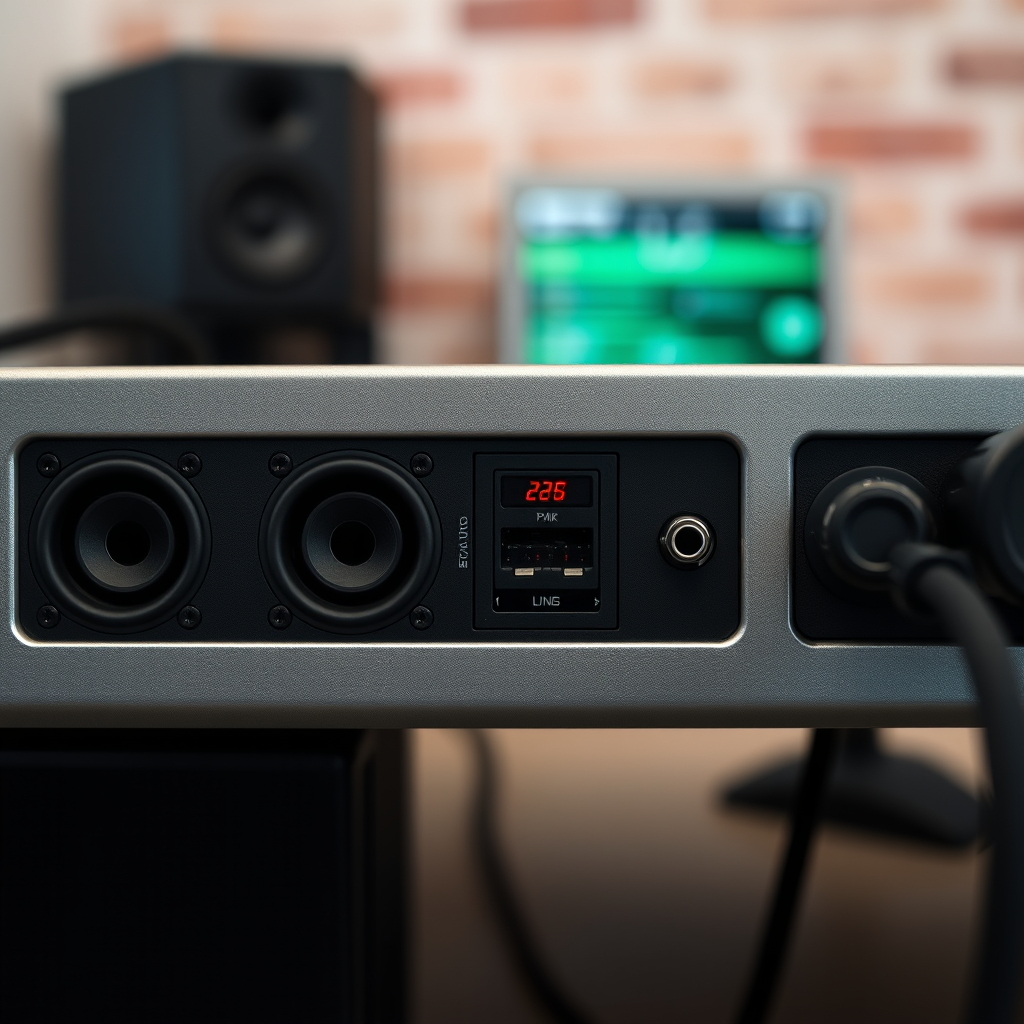
Understanding the various audio ports on your PC is crucial for a successful speaker setup. Most computers come equipped with a range of audio outputs, notably the 3.5mm audio jack, which is standard for wired speakers, and USB ports, which are often used for digital audio connections. Additionally, HDMI ports can transmit audio to speakers connected to monitors or TVs.
When considering your speakers, it’s essential to identify whether they are wired or wireless. Wired speakers typically connect via the 3.5mm jack or USB, while wireless speakers often utilize Bluetooth technology. Knowing this will guide you in selecting the correct connection method, which is critical for achieving optimal audio performance.
Connecting Your Speakers
Connecting your speakers to your PC is a straightforward process.
– For Wired Speakers: Begin by locating the 3.5mm audio output jack on your computer, usually colored green. Plug the speaker’s audio cable into this jack. Next, connect the speakers to a power source if they require external power. Once connected, turn on the speakers.
– For Wireless Speakers: Ensure that Bluetooth is enabled on your PC. On Windows, this can be done through the Bluetooth settings in the Control Panel or Settings app. Put your wireless speakers in pairing mode, which typically involves pressing a designated button on the speaker. Select the speakers from the list of available devices on your PC and complete the pairing process.
Regardless of the method, ensure that all connections are secure and follow any specific manufacturer instructions for your speakers.
Configuring Sound Settings
After physically connecting your speakers, the next step involves configuring the sound settings on your computer.
– For Windows Users: Open the Control Panel and navigate to Hardware and Sound. Click on Sound, and a new window will appear displaying all connected audio devices. Locate your speakers in the list, click on them, and select Set Default. This action ensures that all audio output is directed through your newly connected speakers.
– For Mac Users: Go to System Preferences and select Sound. Under the Output tab, you will see a list of audio devices. Choose your connected speakers to set them as the output device.
By configuring these settings, you ensure that your computer recognizes your speakers and routes audio through them effectively.
Top 7 Speaker Brands by Popularity (2024)
| # | Brand | Type | Price (USD) | User Rating |
|---|---|---|---|---|
| 1 | Bose | Wired/Wireless | $199 | ★★★★☆ |
| 2 | Sony | Wired/Wireless | $149 | ★★★★★ |
| 3 | JBL | Wireless | $129 | ★★★★☆ |
| 4 | Logitech | Wired | $99 | ★★★★☆ |
| 5 | Samsung | Wireless | $199 | ★★★★☆ |
| 6 | Apple | Wireless | $249 | ★★★☆☆ |
| 7 | Klipsch | Wired/Wireless | $299 | ★★★★★ |
Testing Your Speakers
Once your speakers are connected and configured, it’s time to test them to ensure they operate correctly.
– Play a Sample Audio File: Choose a high-quality audio track to play through your speakers. This could be music, a podcast, or sound effects from a video game. Listen carefully for clarity, balance, and volume levels.
– Utilize Sound Test Features: Most operating systems have built-in sound test features. On Windows, you can do this by right-clicking the speaker icon in the taskbar, selecting Sounds, and then clicking on your speakers followed by the Test button. On macOS, the Sound Preferences window allows for similar testing.
Once you confirm the audio is functioning correctly, adjust the volume levels using the system volume control or the physical volume knobs on the speakers to your liking.
Troubleshooting Common Issues
If you encounter issues while setting up your speakers, several common problems can arise.
– No Sound: First, ensure that all cables are securely connected and that the speakers are powered on. Check the volume settings on both your PC and the speakers to make sure they are not muted or set too low.
– Incorrect Playback Device: If sound is still not heard, check the sound settings to ensure your speakers are set as the default playback device. Sometimes, the system may revert to built-in speakers or another audio output.
– Driver Issues: Ensure your audio drivers are up to date. Outdated drivers can lead to connectivity problems. You can check for updates through the Device Manager on Windows or Software Update on macOS.
By addressing these issues, you can quickly resolve most sound problems and enjoy a seamless audio experience.
Enhancing Audio Experience
To further enhance your audio experience, explore various settings and software options available on your PC.
– Equalizer Settings: Many operating systems and media players offer equalizer settings that allow you to adjust the frequency levels of audio output. Experimenting with these settings can help you achieve the sound profile that best suits your preferences, whether you prefer deep bass or clear treble.
– Additional Software and Sound Cards: For audiophiles or those seeking premium sound quality, consider investing in additional audio software, such as digital audio workstations (DAWs) or sound enhancement tools. Additionally, external sound cards can offer superior audio processing capabilities compared to onboard sound solutions.
By taking these steps, you can customize your audio experience to meet your specific needs and preferences.
Maintenance and Care Tips
Maintaining your speakers is essential for longevity and sound quality.
– Keep Speakers Clean: Regularly dust your speakers to prevent buildup that can muffle sound quality. Use a soft cloth and avoid harsh cleaning solutions that may damage the finish.
– Check Cables and Connections: Periodically inspect all cables and connections for wear and tear. Frayed or damaged cables can lead to sound issues and should be replaced immediately to avoid further damage to your audio system.
By following these maintenance tips, you can ensure that your speakers remain in optimal condition for years to come.
Summarizing the steps to set up speakers on your PC helps ensure a smooth audio experience. By following this guide, you can easily connect and configure your speakers, troubleshoot any problems, and enhance your listening enjoyment. Take the next step and enjoy your favorite music, movies, and games with superior sound quality!
Frequently Asked Questions
How do I connect my speakers to my PC?
To connect your speakers to your PC, first identify the audio output ports on your computer, typically located at the back or side. Plug the speaker’s audio jack into the green 3.5mm port for standard speakers, or connect via USB if your speakers support it. Ensure you power on the speakers, and then adjust your PC’s sound settings to select the correct output device.
Why are my speakers not working on my PC?
If your speakers are not working on your PC, check if they are properly connected to the audio output port. Additionally, make sure the volume is turned up and not muted both on your PC and the speakers. You can also run the audio troubleshooter in your PC settings to identify and fix any potential software issues.
What is the best way to set up surround sound speakers on my PC?
To set up surround sound speakers on your PC, first connect all speakers to the appropriate audio outputs on your sound card, ensuring they are placed correctly around the room. Next, access your PC’s sound settings and configure the speaker layout to match your setup, selecting the surround sound option. Finally, test the sound output to ensure all speakers are functioning correctly.
Which settings do I need to adjust for optimal sound quality on my PC?
For optimal sound quality on your PC, go to the sound settings and ensure your speakers are set as the default playback device. Adjust the equalizer settings to suit your listening preferences, and check for any enhancements like bass boost or virtual surround sound. Additionally, make sure your audio drivers are up to date for the best performance.
How can I troubleshoot audio issues with my speakers on a Windows PC?
To troubleshoot audio issues with your speakers on a Windows PC, start by checking the physical connections and ensuring the speakers are powered on. Use the built-in audio troubleshooter by right-clicking the sound icon in the taskbar and selecting “Troubleshoot sound problems.” Additionally, check your sound settings to ensure the correct output device is selected, and consider updating your audio drivers if problems persist.
References
- https://en.wikipedia.org/wiki/Speaker_(audio
https://en.wikipedia.org/wiki/Speaker_(audio - https://www.lifewire.com/how-to-set-up-pc-speakers-1846617
https://www.lifewire.com/how-to-set-up-pc-speakers-1846617 - Google Scholar Google Scholar
https://scholar.google.com/scholar?q=how+to+set+up+speakers+on+pc - Google Scholar Google Scholar
https://scholar.google.com/scholar?q=computer+audio+setup - Google Scholar Google Scholar
https://scholar.google.com/scholar?q=speaker+configuration+PC - how to set up speakers on pc – Search results
https://en.wikipedia.org/wiki/Special:Search?search=how+to+set+up+speakers+on+pc - https://www.ncbi.nlm.nih.gov/search/research-articles/?term=how+to+set+up+speakers+on+pc
https://www.ncbi.nlm.nih.gov/search/research-articles/?term=how+to+set+up+speakers+on+pc
