
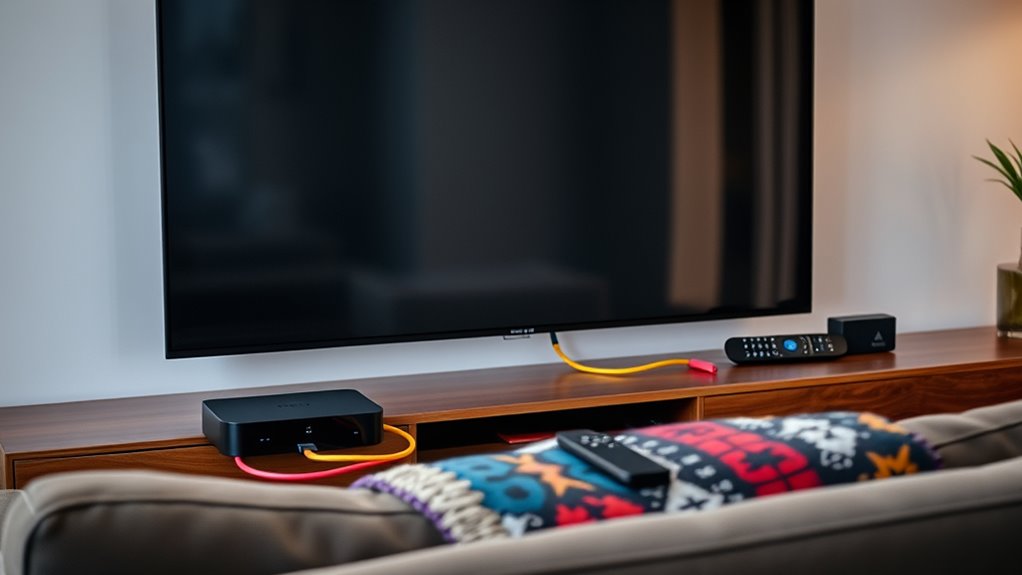

To stream to a non-smart TV, you can use HDMI streaming devices like Roku or Amazon Fire Stick by connecting them to your TV’s HDMI port and Wi-Fi. Alternatively, connect your laptop or PC using an HDMI cable, or cast from mobile devices with apps like Google Cast. Game consoles also support streaming services. Finally, consider digital antennas for live TV without subscriptions. There are plenty of options to explore for enhancing your viewing experience.
Using HDMI Streaming Devices
If you’re looking to stream content on a non-smart TV, HDMI streaming devices are your best friend. These devices, like Roku, Amazon Fire Stick, or Chromecast, connect directly to your TV’s HDMI port, bringing a world of streaming options to your screen. When considering HDMI device compatibility, make sure your TV has available HDMI ports and supports the resolution you want, such as 1080p or 4K. Setting up a streaming device is usually straightforward: plug it in, connect to Wi-Fi, and follow the on-screen instructions. Once set up, you’ll have access to countless apps and channels, allowing you to enjoy movies, shows, and more without the limitations of a traditional TV. Take control of your viewing experience!
Connecting a Laptop or PC
Connecting your laptop or PC to a non-smart TV is straightforward and can be done in a couple of ways. You can use an HDMI cable for a reliable wired connection or explore wireless streaming options if you prefer a clutter-free setup. Both methods will let you enjoy your favorite content on the big screen easily.
HDMI Cable Connection
One of the simplest ways to stream content to a non-smart TV is by using an HDMI cable to connect your laptop or PC directly. Start by checking your device’s HDMI port; most laptops and PCs adhere to current HDMI standards. Choose a cable length that suits your setup—shorter cables reduce clutter, while longer ones give you more flexibility. Once you’ve got the right cable, plug one end into your laptop and the other into your TV’s HDMI port. Switch your TV’s input source to the corresponding HDMI channel. Now, you can mirror your screen or extend your display, allowing you to enjoy streaming services, videos, and more on the big screen. It’s that easy!
Wireless Streaming Options
For those who prefer a wireless experience, there are several options to stream content from your laptop or PC to a non-smart TV without the hassle of cables. You can use wireless protocols like Miracast or Google Cast, which allow you to mirror your device’s screen directly to your TV. If your TV supports it, you can also connect via a streaming stick, like a Chromecast or Roku, which works seamlessly with various streaming apps. Just plug the device into your TV’s HDMI port, connect it to your Wi-Fi, and you’re good to go. Additionally, many laptops support DLNA, letting you stream media directly to your TV without any extra hardware. Enjoy your favorite shows wirelessly!
Utilizing Streaming Sticks
If you want to stream on a non-smart TV, using a streaming stick is a great option. Popular choices like Roku, Amazon Fire Stick, and Chromecast offer easy access to your favorite content. We’ll cover how to set them up and guarantee a smooth connection, so you can start enjoying your shows in no time.
Popular Streaming Stick Options
Streaming sticks have revolutionized how you access content on your non-smart TV, making it easier than ever to enjoy your favorite shows and movies. With popular brands like Roku, Amazon Fire TV, and Google Chromecast, you’ve got plenty of options. Each streaming stick boasts unique features, such as voice control, 4K streaming, and a user-friendly interface, which enhance your viewing experience. For instance, Roku offers a wide range of channels, while Fire TV integrates seamlessly with your Alexa devices. Chromecast allows you to cast from your mobile device, adding extra flexibility. By choosing the right streaming stick, you can reveal a world of entertainment, giving you the freedom to watch what you want, when you want.
Setup and Connectivity Tips
While setting up your streaming stick might seem intimidating at first, it’s actually a straightforward process that can have you enjoying your favorite content in no time. Here are some tips to guarantee a smooth experience and tackle any connectivity challenges:
- Check your TV’s HDMI ports for compatibility.
- Make sure to connect the stick to a power source.
- Follow the on-screen instructions for setup preferences.
- Confirm your Wi-Fi connection is strong to avoid interruptions.
- Update the stick’s software regularly for the best performance.
Casting From Mobile Devices
Casting from mobile devices can greatly enhance your viewing experience, especially when your TV lacks smart features. You can easily stream your favorite content using various casting apps designed for mobile compatibility. Simply connect your device to the same Wi-Fi network as your TV, open your preferred app, and start casting.
Here’s a quick comparison of popular casting apps:
| App Name | Compatibility | Features |
|---|---|---|
| Google Cast | Android/iOS | Screen mirroring, media playback |
| AirPlay | iOS | Seamless integration, high-quality streaming |
| Miracast | Android | Direct device-to-device connection |
With these options, you can enjoy your favorite shows and videos on the big screen without needing smart features.
Employing Game Consoles
If you’re looking for a versatile way to stream content on a non-smart TV, employing a game console can be a great solution. Most modern consoles not only offer a vast game library but also support various streaming apps. Here’s why you should consider using one:
- Access popular streaming services like Netflix and Hulu.
- Enjoy online multiplayer gaming while streaming.
- Connect easily via HDMI to your TV.
- Update your console for the latest streaming features.
- Use your existing gaming controller for navigation.
With a game console, you can seamlessly combine gaming and entertainment, giving you the freedom to enjoy both without the need for multiple devices. Just make sure your console is connected to the internet, and you’re all set!
Setting Up a Media Server
Setting up a media server can transform your non-smart TV into a multimedia powerhouse. To get started, you’ll need reliable media server software like Plex or Kodi. These applications allow you to organize your media files and stream them effortlessly to your TV. First, install the software on a computer or network-attached storage (NAS) device.
Next, configure your network settings to guarantee both the media server and your TV are connected to the same network. This step is vital for smooth streaming. Once that’s done, you can access your media library from your non-smart TV using a compatible device, like a streaming stick or game console. Enjoy your favorite movies and shows with newfound freedom!
Using Google Chromecast
After configuring your media server, you might want to explore the benefits of using Google Chromecast to stream content to your non-smart TV. Chromecast offers a simple and versatile solution, allowing you to cast movies, shows, and more from your devices directly to your TV. Here’s why you should consider it:
- Easy Chromecast setup with minimal effort
- Access to a wide range of Chromecast apps
- Supports popular streaming services like Netflix and YouTube
- Allows you to mirror your device’s screen for presentations or games
- Compact design makes it portable for travel
With Chromecast, you can enjoy a seamless streaming experience, giving you the freedom to watch what you want, whenever you want.
Leveraging DVD and Blu-ray Players
While you might think of DVD and Blu-ray players as relics of the past, they can actually be quite useful for streaming to a non-smart TV. Many modern DVD players come with built-in streaming services, making it easy to enjoy your favorite shows and movies. By using the DVD features, you can connect to Wi-Fi and access platforms like Netflix or Hulu directly.
Blu-ray players often have even more advanced capabilities, supporting high-definition streaming and offering a wider range of apps. Just connect your player to your TV via HDMI and you’re good to go. With this straightforward setup, you can breathe new life into your non-smart TV and enjoy your entertainment without breaking the bank or investing in new technology.
Exploring Digital Antennas
If you want to enhance your non-smart TV experience without diving into complex setups, exploring digital antennas is a great option. Digital antennas can help you receive over-the-air broadcasts, allowing you to enjoy live TV without subscriptions. Here’s what you should know about antenna types:
Enhance your non-smart TV with digital antennas for easy access to live broadcasts without the need for subscriptions.
- Indoor Antennas: Easy to install and great for urban areas.
- Outdoor Antennas: Better range for rural settings, capturing more digital signals.
- Directional Antennas: Focus on signals from one direction for stronger reception.
- Multi-Directional Antennas: Receive signals from various directions, ideal for scattered broadcast locations.
- Amplified Antennas: Boost weak signals for clearer picture quality.
Frequently Asked Questions
Can I Stream Without an Internet Connection?
You can’t stream without an internet connection, but you can use offline content. Download movies or shows beforehand, and then enjoy them anytime. Consider streaming methods that allow downloading for future offline viewing.
What Cables Do I Need for HDMI Streaming?
You’ll need an HDMI cable compatible with your devices. If you encounter HDMI compatibility issues, consider streaming cable options like adapters or converters. These can help bridge the gap between different technologies, ensuring smooth streaming.
Is There a Monthly Fee for Streaming Services?
Yes, there’re often subscription costs for streaming options. Each service varies, with some offering free trials, while others charge monthly fees. It’s worth comparing to find what fits your budget and viewing preferences.
Can I Mirror My Laptop Screen Wirelessly?
Yes, you can mirror your laptop screen wirelessly, depending on your laptop’s compatibility with wireless technology. Isn’t it great to enjoy content without the hassle of cables? Just guarantee both devices are connected to the same network.
What Formats Do Streaming Devices Support?
Streaming devices support various formats like MP4, MKV, and AVI, ensuring device compatibility with most TVs. Familiarize yourself with streaming protocols like DLNA and Miracast to enhance your viewing experience across different devices.
