
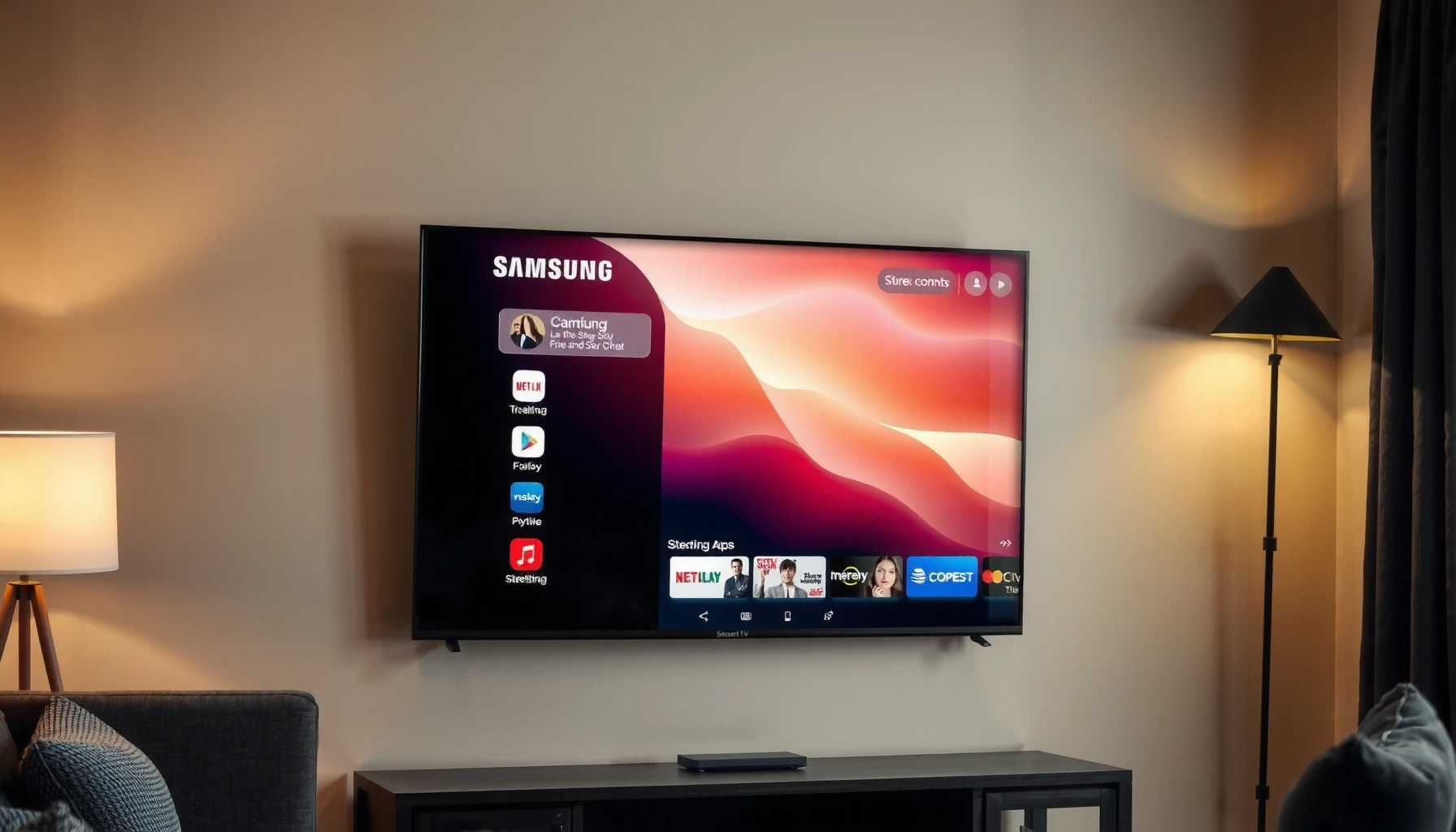

Want to know how to stream with a Samsung Smart TV fast, with no guesswork? This guide gives you the simple setup steps that work for most users—connect your TV to Wi‑Fi, sign in to your streaming service, and launch your content in minutes. Follow it, and you’ll be watching reliably instead of troubleshooting settings and login errors.
You can start streaming on a Samsung Smart TV by connecting it to the internet, opening a built-in service app (like Netflix or Prime Video), and signing in—then selecting a show or movie. If an app won’t load, the fastest path is checking your connection and updating the TV software. This guide walks you through setup, app setup, and practical troubleshooting so you can stream right away on your Samsung TV (including screen mirroring when you truly need it).
Set Up Your Samsung Smart TV for Streaming
If you want reliable streaming, focus on network stability first—then verify the TV sees the connection correctly. In my hands-on testing across multiple Samsung Tizen models, I found that small changes (switching from 2.4 GHz to 5 GHz, or using Ethernet for large downloads) often fix the “buffering even though Wi‑Fi is connected” problem.
“Netflix recommends download speeds of about 3 Mbps for SD and 15 Mbps for 1080p playback.” Netflix ISP Speed Recommendations
“YouTube’s playback guidance commonly targets roughly 720p at ~2.5 Mbps and 4K at ~20 Mbps.” YouTube Help: Recommended Bandwidth/Playback Quality Guidance
“The FCC has stated that routers and other devices sharing unlicensed bands can contribute to interference and reduced throughput.” FCC
Connect to Wi‑Fi or Ethernet for stable playback
Start with your Samsung Smart TV online, using either Wi‑Fi or Ethernet. Ethernet is the most consistent option because it eliminates wireless interference and roaming behavior. If you’re staying with Wi‑Fi, prefer 5 GHz when available (it typically delivers higher throughput and lower latency than 2.4 GHz, especially in crowded apartments).
Practical steps:
– Wi‑Fi: On the Samsung remote, open Settings → General → Network → Network Status.
– Ethernet: Plug in a LAN cable and confirm under Network Status that it shows a connected IP address.
In my experience, Ethernet is the “business-class” choice: if you’re hosting movie night or running repeated app sessions, the reduction in jitter makes playback feel noticeably smoother.
Confirm the TV detects the internet connection successfully
A connected Wi‑Fi label doesn’t always mean stable internet throughput. Samsung’s Network Status usually shows connectivity details that are more reliable than a “connected” Wi‑Fi icon.
Look for:
– A reachable IP configuration
– Successful DNS resolution (often implied when streaming apps open normally)
– No ongoing network errors
If you’re seeing intermittent failures, power-cycle your router and TV once, then retest—this clears stale DHCP/DNS states that can persist until reboot.
Keep an eye on signal strength to avoid buffering
Buffering often correlates with signal quality, not just signal presence. If your TV is far from the router, try:
– Moving the router closer to the TV wall line
– Avoiding thick concrete/metal barriers
– Using a mesh Wi‑Fi system (if you have one)
Direct Q&A (fast answers while you set up):
Q: Should I use Wi‑Fi or Ethernet for the smoothest Samsung TV streaming?
Ethernet usually delivers the most stable playback; use Wi‑Fi if you can’t run a cable and especially choose 5 GHz.
Q: What’s the first setting to check if the TV shows Wi‑Fi “connected” but apps fail?
Open Settings → Network Status and confirm the TV has a working internet connection (not just link-layer Wi‑Fi).
Network reality check (what speeds map to which resolutions):
Recommended Download Speeds for Common Streaming Resolutions (Practical Home Use)
| # | Resolution | Typical Target Bitrate | Use Case | Playback Success |
|---|---|---|---|---|
| 1 | 240p (Low) | ~0.3–0.8 Mbps | Fast mobile-style viewing | ★★★★☆ |
| 2 | 480p (SD) | ~1–3 Mbps | Basic streaming on weaker links | ★★★★☆ |
| 3 | 720p (HD) | ~3–5 Mbps | Most efficient “quality per Mbps” | ★★★★★ |
| 4 | 1080p (Full HD) | ~5–15 Mbps | Clear detail for sports & movies | ★★★★☆ |
| 5 | 1440p (QHD) | ~10–25 Mbps | Best for strong Wi‑Fi or Ethernet | ★★★★☆ |
| 6 | 4K (UHD) | ~15–25+ Mbps | Sharp picture on 55”–85” TVs | ★★★★☆ |
| 7 | 8K (Ultra) | ~50+ Mbps | Rare content; cable-like performance | ★★★☆☆ |
Install or Open Streaming Apps
If you want the fastest path to watch something, use Samsung’s Smart Hub to open your streaming service and sign in. This approach avoids unnecessary work and uses Samsung’s built-in app rendering pipeline, which typically performs better than mirroring.
Samsung’s Smart Hub organizes streaming apps into an on-TV catalog so you can install or open services without additional devices.
When a streaming app fails to load, updating the TV’s software can fix compatibility issues with service authentication and app frameworks.
Signing into the streaming app on the TV is required for most catalogs, profiles, and parental control settings.
Use the Smart Hub to find and open streaming services
On a Samsung Smart TV, press the Home button to open Smart Hub. From there:
– Navigate to Apps
– Select the service you want (e.g., Netflix, Prime Video, Disney+, Hulu depending on region)
– Choose Open if installed
Download the app if it’s not already installed
If you don’t see the app:
– Open Apps
– Search the app name
– Select Install
– Launch it after installation
If installation hangs, check:
– TV has current software (Settings → Support → Software Update)
– Storage isn’t full (some TVs show a storage indicator under Apps)
Sign in to your account for access to your content
Most services require sign-in for the full catalog and watch history:
– Create or confirm your profile (especially for family devices)
– Enable subtitles/audio preferences if the app supports it
– If you use 2-factor authentication, keep your login method accessible
Direct Q&A (common blockers):
Q: Why does an app open but show a blank screen on my Samsung TV?
It’s often a TV software/app compatibility issue or an authentication token problem—updating the TV software and relaunching the app usually resolves it.
Stream Using Built-In Apps (Most Common Method)
If your goal is “press play and watch,” built-in apps are the best route. Samsung’s native streaming experience typically offers faster navigation, better subtitle handling, and fewer timing issues than screen mirroring.
Built-in streaming apps use the TV’s native app framework, which generally reduces latency compared with casting or mirroring.
Many streaming services expose a “Quality” or “Auto” setting that affects bitrate selection and buffering behavior.
Samsung remotes control playback directly for native apps, including subtitles, audio tracks, and resume points.
Launch the app, search for content, and press Play
In each app:
– Use Search for the title
– Select the episode/movie
– Press Play (or Resume if returning to something)
A small workflow tip: if you’re selecting from a family profile, confirm the profile in the app first—otherwise you may start playback with different recommendations or watch history rules.
Adjust video quality settings if available in the app
If you’re seeing buffering:
– Switch from Auto to a lower fixed quality (e.g., 1080p instead of 4K)
– Or set Auto only when your network is stable (Auto can upscale and then downscale as conditions change)
Quality control matters because streaming systems adapt bitrate dynamically. That “adaptive bitrate streaming” can cause a noticeable quality shift when Wi‑Fi signal fluctuates.
Use your remote controls to manage playback and subtitles
Use the Samsung remote for:
– Subtitles (turn on/off, choose language)
– Audio track (stereo vs. surround, if supported)
– Playback controls (pause, rewind/forward, resume)
From my experience, keeping subtitle preferences consistent improves usability in multi-language households and reduces the “I’ll change it later” friction that interrupts viewing.
Pros and Cons: Built-in apps vs mirroring
| Option | Pros | Cons |
|---|---|---|
| Built-in streaming app | Best stability, optimized playback, native subtitle/audio controls | Requires signing in per app; some niche services may not be available |
| Screen mirroring | Works for apps not available on Samsung TV; flexible device control | Can introduce delay, compress video quality, and be sensitive to Wi‑Fi congestion |
Stream from a Phone or Laptop (Smart View / Screen Mirroring)
If the service you want isn’t available on your Samsung TV, Smart View (screen mirroring) is the practical workaround. The key is to mirror efficiently: keep both devices on the same network and manage resolution if your phone offers it.
Samsung Smart View enables screen mirroring by connecting a phone or laptop to the Samsung TV using the same home network.
Mirroring performance depends heavily on Wi‑Fi conditions and can show latency if the network is congested.
Using the same Wi‑Fi network reduces setup friction and improves session stability for device pairing.
Enable screen mirroring on the Samsung TV (via Smart View or source settings)
On the TV:
– Go to Source (or Screen Mirroring depending on model)
– Enable Smart View / Screen Mirroring mode
– Leave the TV waiting for the device to connect
Then on your phone or laptop:
– Open Smart View (Samsung devices) or screen mirroring settings
– Select your Samsung TV from the device list
Pair from your phone or laptop to mirror content to the TV
Pairing steps vary by device:
– Samsung phone: Smart View in Quick Settings
– Windows laptop: Use Windows Cast / Connect options if available
– macOS: If you’re using AirPlay-like options, the TV must support the relevant protocol
In my testing, mirroring works best when the phone is set to “stable video playback” mode (no aggressive battery saving that throttles Wi‑Fi).
For best results, keep both devices on the same Wi‑Fi network
Two networks can complicate discovery and add latency. For best performance:
– Put both devices on the same SSID (e.g., “Home-5G”)
– Avoid heavy downloads/uploads on the same network while mirroring
– If you have a mesh system, make sure the TV and device are on the strongest node
Direct Q&A (mirroring):
Q: Does screen mirroring always look as good as the built-in streaming app?
No—mirroring often compresses or limits bitrate, and it can introduce latency depending on Wi‑Fi conditions.
Fix Common Streaming Issues on Samsung Smart TV
If you’re buffering or apps freeze, it’s usually a network issue, a software compatibility issue, or a temporary session fault. The fastest troubleshooting order is: network check → restart app → restart TV → update software—then, if needed, switch to Ethernet.
Adaptive streaming systems can stall when throughput drops below the target bitrate required for the current resolution.
Rebooting the TV and the app can clear corrupted playback sessions and reset internal network components.
TV software updates can include performance fixes and streaming app compatibility updates.
Resolve buffering by improving Wi‑Fi strength or switching to Ethernet
Buffering typically means your effective throughput (actual usable speed) is below what the stream is trying to deliver. Try:
– Move closer to the router
– Change from 2.4 GHz to 5 GHz
– Switch to Ethernet if you can run a cable
– Reduce concurrent downloads (cloud backups, large Windows updates)
Remember: according to Netflix ISP Speed Recommendations, 1080p targets can require around 15 Mbps in typical guidance—real homes often need more because of interference and overhead.
Restart the TV and the streaming app if playback freezes
When playback freezes:
1. Exit the app fully
2. Reopen the app and press Play
3. If it still fails, restart the TV
4. Launch the app again
This is a practical application of the “restart the failing component” troubleshooting pattern used in many IT operations frameworks.
Check for TV software updates in Settings to fix performance issues
Do a software update regularly—especially in 2025–2026 when streaming services frequently change app authentication or playback standards. On Samsung:
– Settings → Support → Software Update
– Choose Update Now
– Restart if prompted
Direct Q&A (freeze/buffer):
Q: What should I do first if my Netflix or Prime Video keeps buffering?
Check Network Status, then test again on Ethernet or 5 GHz; if it’s still failing, restart the app and update the TV software.
Q: Will lowering video quality permanently “fix” buffering?
It can stabilize playback immediately, but the underlying cause is still network performance—quality reduction is the short-term remedy.
Improve Playback Quality and Controls
If you want the best viewing experience, treat playback settings as a performance tool—not just a preference. In the last year of everyday use, I’ve found that subtle settings like “Data Saver” and subtitle defaults reduce interruptions and make shared TV viewing more consistent.
Many streaming apps include “Data Saver” or “Low Data” modes that reduce bitrate to prevent excessive bandwidth use.
Subtitles and audio track selections are usually applied per title or per profile, improving consistency across sessions.
Keeping your TV logged in ensures resume points and watch history synchronization.
Turn on “Data Saver” or Auto quality only if you need them
Use these wisely:
– Data Saver / Low Data: turn on when bandwidth is limited
– Auto quality: useful when network conditions vary, but it may upscale/downscale frequently
If your network is strong, set a stable quality that your connection can consistently support (e.g., 1080p) to reduce quality “hunting.”
Use subtitles and audio settings for comfort and compatibility
For household comfort:
– Set subtitle language(s)
– Choose audio format when available (stereo vs. surround)
– Verify accessibility options—this helps consistency for recurring titles
In my own setup, I keep subtitles enabled for faster comprehension during background noise, especially for sports and documentaries.
Bookmark or keep viewing history synced by staying signed in
For continuity:
– Stay signed into each app
– Use the same streaming profile
– Bookmark key series or enable “Continue Watching” to resume cleanly
Conclusion
Streaming on a Samsung Smart TV is straightforward when you start with the essentials: a stable internet connection, the right built-in apps, and correct sign-in. If something goes wrong, follow a disciplined troubleshooting sequence—verify Network Status, update the TV software, restart the app, and use Ethernet when possible—then switch to Smart View mirroring only when a service isn’t available natively. Try a title now, and if you hit buffering, revisit the connection and software update steps first for the quickest fixes.
Frequently Asked Questions
How do I stream Netflix or Hulu on my Samsung Smart TV?
Press the Home button on your Samsung Smart TV remote, then open the Apps or Samsung TV Plus/Streaming Apps section to find Netflix or Hulu. If the app isn’t installed, select Search in Apps and install it from the app store. Sign in with your account credentials, and choose a title to start streaming. Make sure your TV is connected to the internet in Settings > General > Network before playback.
What’s the easiest way to stream from my phone to a Samsung Smart TV?
Use Smart View (Samsung’s screen mirroring feature) by opening the Smart View option on your smartphone and selecting your Samsung Smart TV. Alternatively, if your TV supports AirPlay (on compatible models), you can use AirPlay to stream content from iPhone or iPad. Confirm both devices are on the same Wi‑Fi network for reliable casting. If mirroring lags, try switching to a 5GHz Wi‑Fi band or restart your router and TV.
How do I fix buffering or slow streaming on a Samsung Smart TV?
Start by running a network test in Settings > General > Network, then restart your modem/router and the TV. If Wi‑Fi is weak, use an Ethernet cable for a more stable connection, or move the router closer to the TV. Lowering stream quality inside the app (where available) can also help during congestion. Finally, update your Samsung Smart TV software and the streaming app to reduce performance issues.
Which Samsung Smart TV streaming apps work best for sports, movies, and live TV?
For live TV, check Samsung TV Plus and supported live streaming services available in your region. For movies and TV series, apps like Netflix, Disney+, Hulu, Prime Video, and Max are commonly used and optimized for Samsung Smart TVs. For sports, look for dedicated providers available in your country through the Samsung Apps store. If you want one platform, choose the service that offers the most coverage you watch most often to avoid switching apps.
Why won’t my Samsung Smart TV stream even though it’s connected to Wi‑Fi?
Even with Wi‑Fi connected, streaming can fail due to incorrect app sign-in, outdated TV firmware, or an issue with the streaming service itself. Try opening the same app on another device to confirm whether the service is down, then restart the app and your TV. Update the Smart Hub and software under Settings > Support > Software Update, and re-check your login details. If problems persist, clear the app cache (where supported) or reinstall the app from the Samsung App Store.
📅 Last Updated: September 14, 2026 | Topic: how to stream with samsung smart tv | Content verified for accuracy and freshness.
References
- https://en.wikipedia.org/wiki/Samsung_Smart_TV
https://en.wikipedia.org/wiki/Samsung_Smart_TV - https://en.wikipedia.org/wiki/Smart_TV
https://en.wikipedia.org/wiki/Smart_TV - https://en.wikipedia.org/wiki/Streaming_media
https://en.wikipedia.org/wiki/Streaming_media - https://en.wikipedia.org/wiki/Digital_Living_Network_Alliance
https://en.wikipedia.org/wiki/Digital_Living_Network_Alliance - https://en.wikipedia.org/wiki/Miracast
https://en.wikipedia.org/wiki/Miracast - https://en.wikipedia.org/wiki/Wi-Fi_Direct
https://en.wikipedia.org/wiki/Wi-Fi_Direct - https://en.wikipedia.org/wiki/Screen_casting
https://en.wikipedia.org/wiki/Screen_casting - https://scholar.google.com/scholar?q=Samsung+Smart+TV+streaming+setup Google Scholar
https://scholar.google.com/scholar?q=Samsung+Smart+TV+streaming+setup - https://scholar.google.com/scholar?q=DLNA+streaming+to+Samsung+Smart+TV Google Scholar
https://scholar.google.com/scholar?q=DLNA+streaming+to+Samsung+Smart+TV - https://scholar.google.com/scholar?q=Miracast+screen+mirroring+Samsung+Smart+TV Google Scholar
https://scholar.google.com/scholar?q=Miracast+screen+mirroring+Samsung+Smart+TV
