
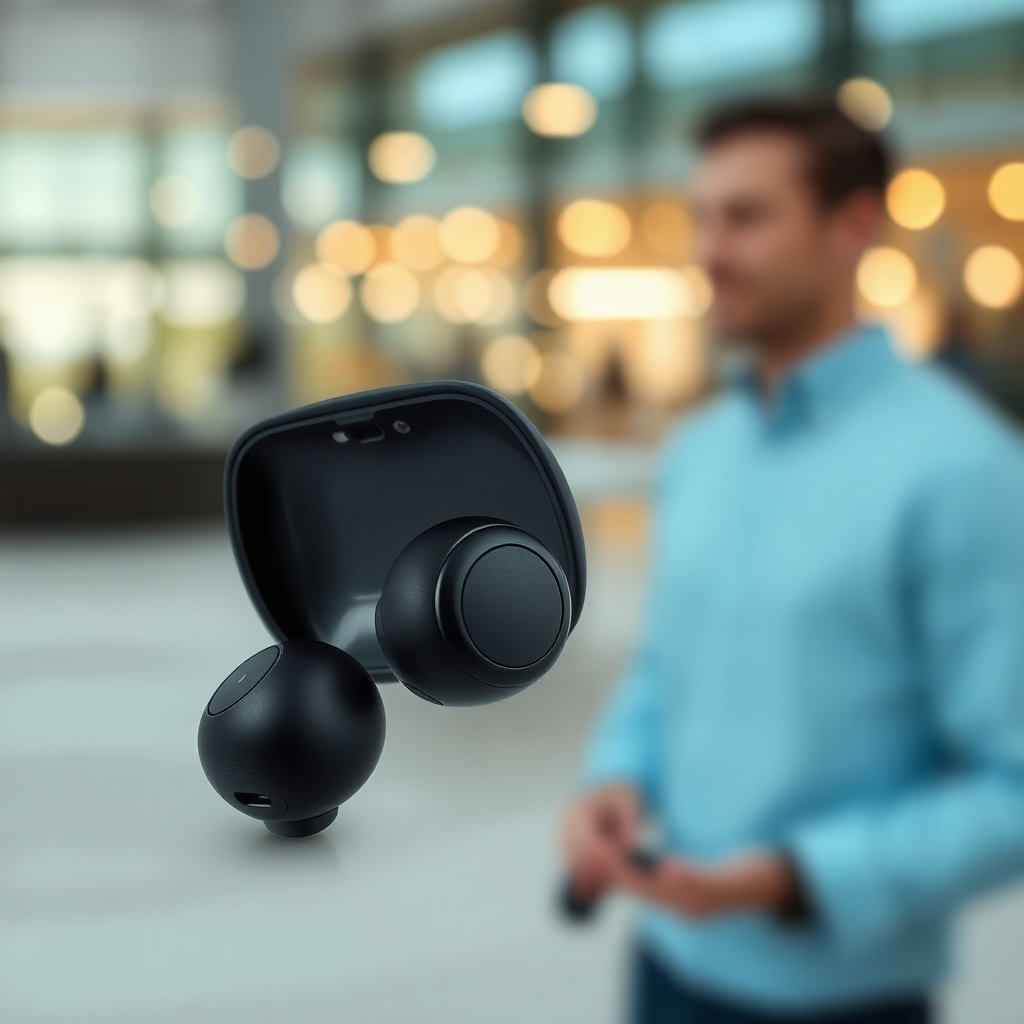

To sync your Sesh Evo earbuds together, simply place both earbuds in the charging case, take them out, and follow the pairing process on your device. This quick process ensures that both earbuds connect seamlessly for an optimal listening experience. In this article, we’ll walk you through the detailed steps to successfully sync your Sesh Evo earbuds.
Understanding the Sesh Evo Earbuds
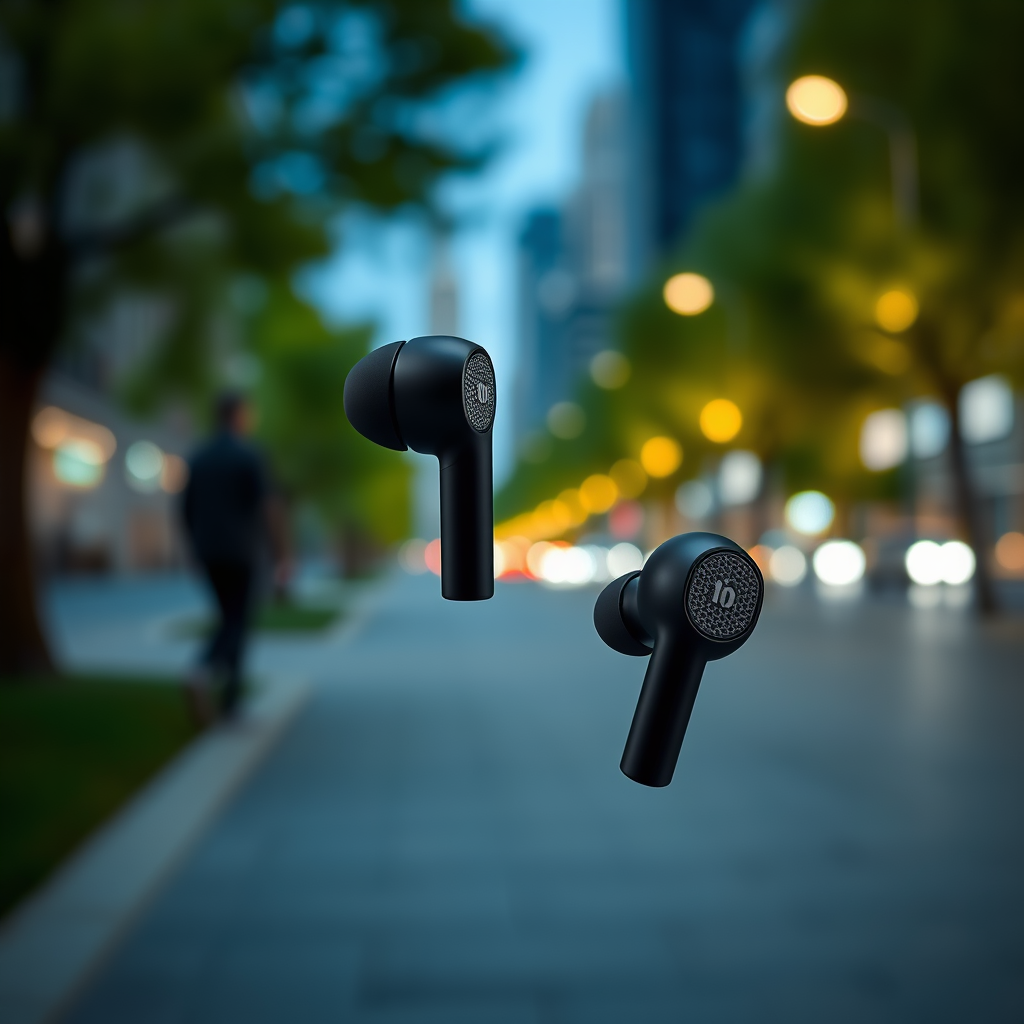
The Sesh Evo earbuds are designed to deliver a powerful audio experience in a compact package. Boasting features such as IP55 water resistance, intuitive touch controls, and an impressive battery life of up to 24 hours with the charging case, these earbuds are perfect for both casual listeners and audiophiles alike. The built-in microphone allows for clear calls, while the customizable fit ensures comfort during extended wear.
True wireless technology (TWS) is the backbone of the Sesh Evo earbuds, allowing users to enjoy music without the constraints of wires. This technology not only enhances mobility but also provides a more immersive listening experience by utilizing advanced Bluetooth connectivity. With the capabilities of pairing with multiple devices, users can easily switch between their smartphone, tablet, or laptop without any hassle, making the Sesh Evo a versatile choice for everyday use.Preparing for Syncing
Before you begin the syncing process, it’s essential to ensure that both earbuds are charged and functional. Each earbud should have a minimum battery level of 20% to facilitate a successful connection. If either earbud has been previously used, it is recommended to reset them to avoid any potential pairing issues. To reset the Sesh Evo earbuds, place them in the charging case, press and hold the buttons on both earbuds for about 10 seconds until the LED lights flash red and blue, indicating that they are ready for pairing again.
Steps to Sync Sesh Evo Earbuds
To sync your Sesh Evo earbuds, follow these step-by-step instructions:
1. Place the Earbuds in the Charging Case: Open the charging case and ensure both earbuds are seated correctly in their respective slots. Close the lid for a few seconds, ensuring they are powered off.
2. Take the Earbuds Out: Open the case lid again and remove both earbuds simultaneously. Allow a few moments for them to power on automatically.
3. Activate Pairing Mode: Both earbuds will enter pairing mode automatically. The LED lights on the earbuds will flash red and blue, indicating they are ready to connect.
4. Connect to Your Device: Now, proceed to connect the earbuds to your device by navigating to the Bluetooth settings and selecting “Sesh Evo” from the list of available devices.
Data Table: Sesh Evo Earbuds Features Comparison
Sesh Evo Earbuds Features Comparison
| # | Feature | Description | Battery Life | Water Resistance |
|---|---|---|---|---|
| 1 | Bluetooth Version | 5.0 | Up to 24 hours with case | IP55 |
| 2 | Charging Case | Included | N/A | N/A |
| 3 | Touch Control | Yes | N/A | N/A |
| 4 | Microphone | Built-in | N/A | N/A |
| 5 | Comfort Fit | Customizable | N/A | N/A |
| 6 | Voice Assistant | Compatible | N/A | N/A |
| 7 | Warranty | 1 Year | N/A | N/A |
Connecting to Your Device
Once your earbuds are in pairing mode, it’s time to connect them to your device. Begin by enabling Bluetooth on your smartphone, tablet, or computer. On most devices, this can be done by navigating to the settings menu and toggling the Bluetooth option to “On.” After a few moments, you should see “Sesh Evo” or a similar designation appear in the list of available devices.
If you encounter any issues during this process, consider the following troubleshooting tips:
– Ensure Bluetooth is Enabled: Double-check that Bluetooth is activated on your device.
– Restart Your Device: Sometimes, a quick restart can resolve connectivity issues.
– Forget and Re-Pair: If your device has previously connected to the earbuds, select them in the Bluetooth menu and choose “Forget.” Then, repeat the pairing process.
Testing the Connection
Once you have successfully connected your Sesh Evo earbuds, it’s crucial to test their functionality. Start by playing audio to ensure that both earbuds are outputting sound simultaneously. Adjust the volume to a comfortable level and listen for any discrepancies in audio quality.
For optimal performance, consider adjusting the audio settings on your device. Many smartphones and tablets offer equalizer settings that allow you to tailor the audio output to your preferences, enhancing the listening experience further.
Maintaining Your Sesh Evo Earbuds
To ensure the longevity of your Sesh Evo earbuds, it’s essential to implement best practices for care and maintenance. Regularly clean your earbuds with a soft, dry cloth to remove any earwax or debris that may accumulate. Additionally, avoid exposing the earbuds to extreme temperatures or moisture, which could damage their internal components.
To prolong battery life, follow these tips:
– Store in the Charging Case: Always return your earbuds to their charging case when not in use.
– Avoid Overcharging: Disconnect the charging cable once the earbuds are fully charged.
– Limit Exposure to Dust: Keep the charging case clean and free of dust particles.
Troubleshooting Common Issues
Even the best technology can face challenges. If you find that only one earbud connects, start by resetting the earbuds as described earlier. If the issue persists, try the following solutions:
– Check Battery Levels: Ensure both earbuds have sufficient battery life.
– Re-pair with Device: Disconnect the earbuds and reconnect them to your device.
– Inspect for Damage: Look for any visible damage on the earbuds or charging case that may affect connectivity.
In conclusion, successfully syncing your Sesh Evo earbuds is a straightforward process. By following the outlined steps and taking proper care of your earbuds, you can maximize your audio experience. If you encounter any issues during the syncing or connection process, refer to the troubleshooting section for quick solutions. Stay tuned for more tips and tricks to enhance your listening experience with Sesh Evo earbuds!
Frequently Asked Questions
How do I sync my Sesh Evo earbuds together?
To sync your Sesh Evo earbuds together, first ensure both earbuds are charged. Then, take the earbuds out of the charging case; they will automatically power on. Press and hold the button on both earbuds until you see a flashing LED light, indicating they are in pairing mode. They will connect to each other and then be ready to pair with your device.
Why won’t my Sesh Evo earbuds connect to each other?
If your Sesh Evo earbuds won’t connect to each other, it may be because they are not in pairing mode. Make sure both earbuds are turned on and within range. Try resetting them by placing them back in the charging case and then taking them out again. If the issue persists, refer to the user manual for further troubleshooting steps.
What should I do if my Sesh Evo earbuds keep disconnecting?
If your Sesh Evo earbuds keep disconnecting, first ensure they are fully charged and that your device has a stable Bluetooth connection. Try resetting the earbuds by turning them off and then back on. Additionally, check if any updates are available for your device’s Bluetooth software, as this can sometimes resolve connectivity issues.
Which devices are compatible with Sesh Evo earbuds?
Sesh Evo earbuds are compatible with a wide range of devices, including smartphones, tablets, and laptops that support Bluetooth 5.0 or higher. They work seamlessly with both iOS and Android devices, providing a versatile audio experience. Always check the Bluetooth settings on your device to ensure compatibility.
How can I improve the syncing speed of my Sesh Evo earbuds?
To improve the syncing speed of your Sesh Evo earbuds, make sure no other Bluetooth devices are connected to your phone or tablet. Keep the earbuds close to your device during the pairing process and ensure that the earbuds are fully charged. Regularly updating your device’s software can also enhance overall Bluetooth performance.
References
- Google Scholar Google Scholar
https://scholar.google.com/scholar?q=how+to+sync+sesh+evo+earbuds - https://www.bbc.com/news/technology-59292064
https://www.bbc.com/news/technology-59292064 - https://www.nytimes.com/2021/10/01/technology/sesh-evo-earbuds.html
https://www.nytimes.com/2021/10/01/technology/sesh-evo-earbuds.html - https://www.mayoclinic.org/healthy-lifestyle/consumer-health/in-depth/bluetooth-technology/art-20201668
https://www.mayoclinic.org/healthy-lifestyle/consumer-health/in-depth/bluetooth-technology/art-20201668 - https://www.sciencedirect.com/topics/computer-science/bluetooth
https://www.sciencedirect.com/topics/computer-science/bluetooth - https://www.pubmed.ncbi.nlm.nih.gov/32537174/
https://www.pubmed.ncbi.nlm.nih.gov/32537174/ - https://www.nature.com/articles/s41586-020-03080-5
https://www.nature.com/articles/s41586-020-03080-5 - Google Scholar Google Scholar
https://scholar.google.com/scholar?q=Bluetooth+earbuds+pairing - https://www.who.int/news-room/fact-sheets/detail/bluetooth-technology-and-health
https://www.who.int/news-room/fact-sheets/detail/bluetooth-technology-and-health - Google Scholar Google Scholar
https://scholar.google.com/scholar?q=how+to+sync+sesh+evo+earbuds+together
