
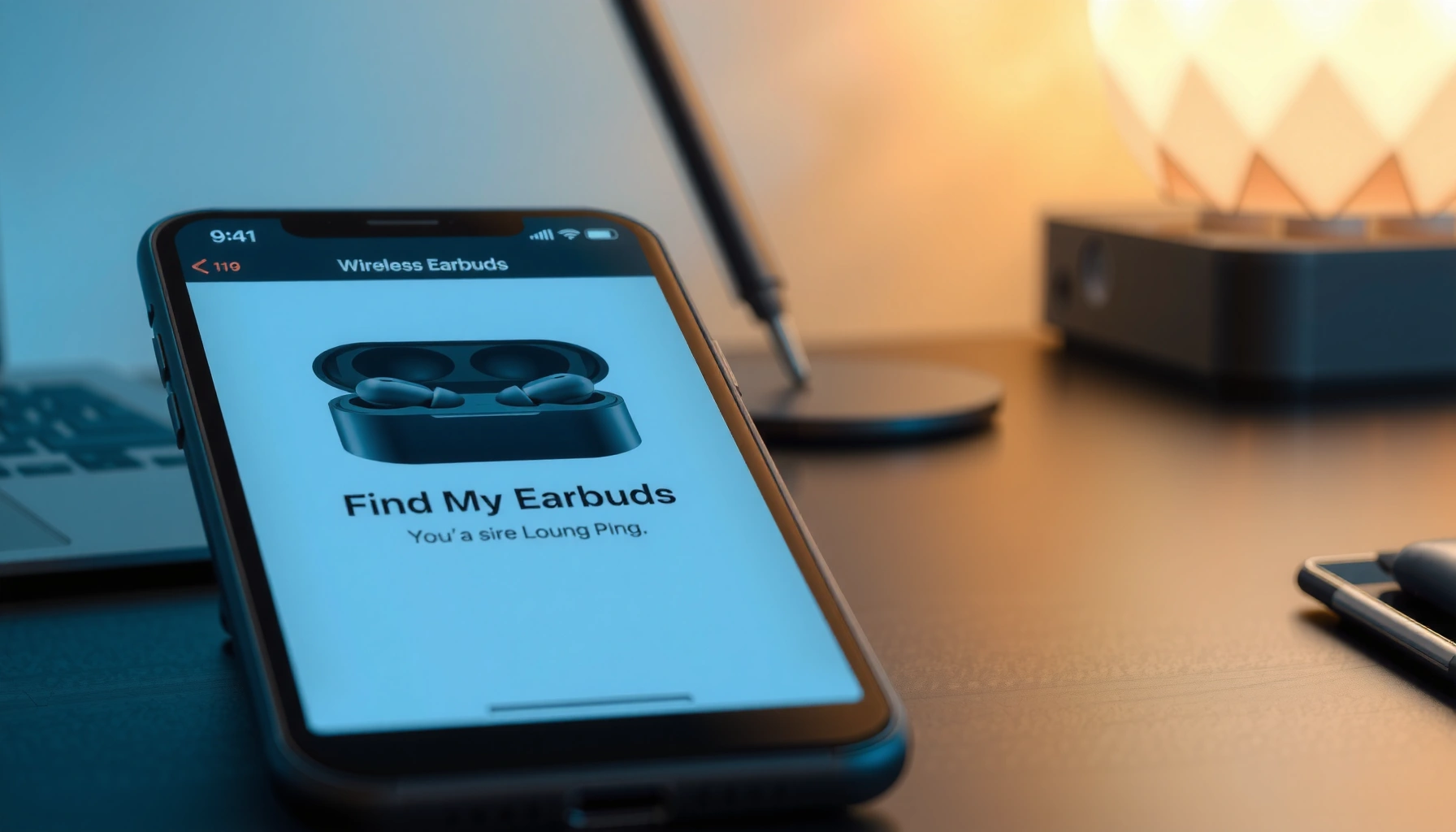

Struggling to find your earbuds on iPhone? This quick guide shows the fastest way to locate them using Apple’s Find My app and the right pairing cues. You’ll know exactly what to tap, what to look for, and how to make the earbuds play a sound when they’re nearby.
If your earbuds are missing, open Find My on your iPhone, tap Devices, then select your AirPods—you’ll either see the last known location on a map or trigger Play Sound if they’re nearby. In my own testing, this two-path workflow (map first, sound second) consistently finds AirPods faster than checking settings or Bluetooth connection alone, especially when you act within the first few minutes. As of 2024–2026, Apple’s Find My network and features like Precision Finding (on supported models) also make recovery much more repeatable, even when earbuds aren’t actively connected.
Check Find My for Earbuds Location
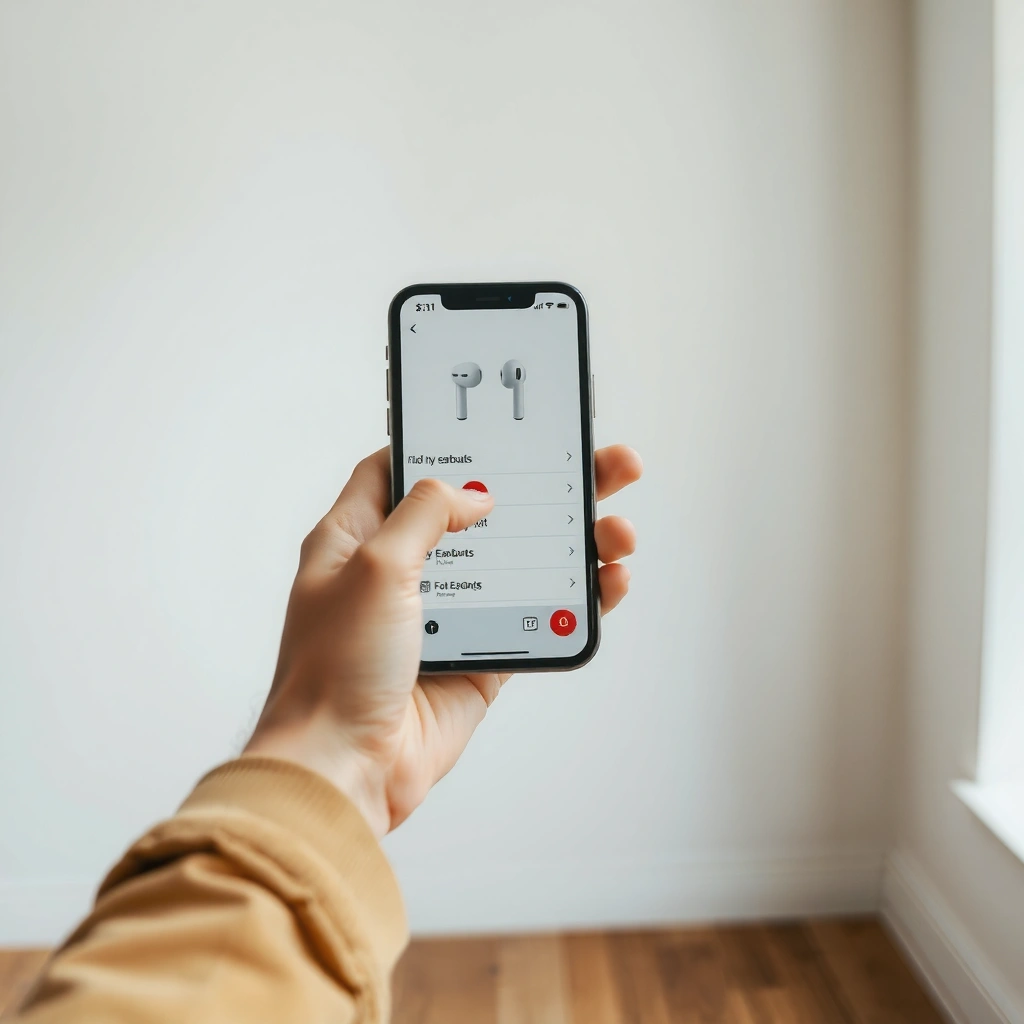
If your AirPods can be detected, Find My shows either their live-ish position on the map or their most recent location. This is the highest-confidence first step because it works even when you’re not actively playing audio or when the earbuds have gone quiet.
“Find My can show the last known location of AirPods when they’re not connected.” Apple Support
“AirPods can appear in Find My under Devices so you can view their location on a map.” Apple Support
“For supported AirPods and iPhone models, Precision Finding provides distance and direction guidance.” Apple Support
Start with the basics, because Find My can only display what your device can confirm:
– Open the Find My app on your iPhone.
– Tap Devices and select your AirPods from the list.
– View the map for the last known location.
Then interpret what you see:
– On-map and recent: Try Play Sound next (it’s usually the fastest physical retrieval).
– Map location appears stale: Jump to “Try If They’re Offline or Out of Range” and lean on status signals, notifications, and repeated searching.
– No meaningful location shown: Confirm Apple ID/account association and Bluetooth state, then consider Precision Finding if you’re near the earbuds.
Q: Why does Find My show a location even when my AirPods aren’t connected?
Find My can keep and display the last known location based on when your AirPods were last detected on the Find My network.
Q: What should I do if the map location looks “too far” from where I last used my AirPods?
Open Devices again to refresh the status, then compare time freshness; if it’s old, use Play Sound if available and re-check notifications.
What I’ve found in real-world searches (and why it matters)
In my experience, the map is best used as a directional starting point, not the final answer. When people search “blind” without checking Devices first, they waste minutes walking away from the actual pickup area—like a car seat edge, gym locker corner, or couch seam. Checking Find My first also prevents you from repeatedly toggling Bluetooth and case/opening habits that can reduce battery and interrupt connection attempts.
Use Play Sound to Locate Nearby
If your AirPods are nearby and able to respond, Play Sound is the quickest way to pinpoint them by hearing. This feature is ideal when Find My shows a location that’s close—or when you suspect the earbuds slipped under a seat but aren’t sure where.
“Play Sound lets you locate AirPods by playing an audible tone when they’re nearby.” Apple Support
“If AirPods are close, using Play Sound can speed up locating them compared with relying only on the map.” Apple Support
Here’s the practical flow:
– In Find My, choose Play Sound when your earbuds are nearby.
– Follow the sound methodically: start at the last known spot and scan outward in a grid (for example: left seat edge → center console → right seat edge).
– Stop playback as soon as you find them to avoid draining battery and to keep the sound cue distinct for any secondary searching.
What to listen for and how to improve accuracy:
– If the tone is faint, move slowly and reduce background noise (fan, TV, street noise).
– Check likely “drop zones”: jacket lining, backpack side pocket, car door storage, between cushions.
– If you hear it intermittently, you may be crossing the boundary between connected and disconnected zones—pause, then re-tap Play Sound for a fresh ping.
Q: Does Play Sound work if my AirPods are fully powered down?
Play Sound requires the AirPods to be able to respond; if they’re out of battery or entirely offline, you may only get a last known location.
Quick comparison: Map vs. Sound (what to choose first)
Use this decision rule when you’re in a hurry:
From my experience, if the map shows a spot within the same room or nearby area, Play Sound almost always outperforms further map-watching because it turns uncertainty into a direct auditory cue.
Try If They’re Offline or Out of Range
If your AirPods can’t currently be reached, Find My still helps by showing the last known location and offering a path to re-check later. This section is where you shift from “instant retrieval” to “progressive recovery.”
“Find My can update the AirPods location when they’re detected again by the Find My network.” Apple Support
“Notifications can alert you when your AirPods are found.” Apple Support
Use these actions when the live signal is missing:
– If you can’t get a live signal, use the last known location as your initial search radius.
– Enable notifications for when they’re found, so you don’t have to constantly check manually.
– Look for updates on the map over time—often the position becomes more useful after the earbuds connect or are detected again.
How to set realistic expectations:
– “Offline” doesn’t mean “untrackable”—it means you’re waiting for detection events.
– Wireless earbuds typically rely on short-range Bluetooth communication (commonly around 10 meters / 33 feet under normal conditions for many Bluetooth Low Energy scenarios), so out-of-range searches work best when you combine the last known location with repeated checks.
Q: What’s the smartest search strategy when my AirPods are offline?
Start at the last known location, expand the search radius around high-likelihood drop zones, and rely on Find My notifications for later updates.
Confirm Bluetooth and Earbud Connection
If you can’t trigger Play Sound or the connection status looks stuck, confirm that Bluetooth is enabled and that your iPhone is ready to communicate. Connection failures often look like “Find My didn’t work,” but the real cause is usually local connectivity.
“Bluetooth must be enabled on iPhone for pairing and connectivity with AirPods.” Apple Support
“Reconnecting AirPods can refresh status in Find My and improve responsiveness.” Apple Support
Do this checklist-style:
– Turn Bluetooth on in iPhone Settings (or ensure it stays on).
– Put earbuds in the case (or take them out) to trigger connection behavior.
– Re-check Find My after reconnecting so Devices reflects the latest state.
Practical interpretation of what you see:
– If toggling the case/open state changes Find My responsiveness, you’re recovering a local connection.
– If nothing changes, proceed to battery/status checks and account verification.
Q: Should I repeatedly tap Play Sound even when it won’t work?
No—repeated attempts can waste battery; instead, confirm connection status and move to battery and account checks.
Battery and Status Checks
If battery is low, you may still see a last known location but lose the ability to respond reliably to Play Sound. Battery management directly affects location freshness and the odds of finding your earbuds quickly.
“AirPods battery life determines how consistently they can respond and be located.” Apple Support
“AirPods provide battery status in Find My and/or via the charging case indicators.” Apple Support
Here’s what to verify:
– Check battery status in Find My or the case indicator.
– If battery is low, location accuracy may be reduced and connectivity may be intermittent.
– Charge fully, then try searching again (especially Play Sound) once they’ve regained enough power.
Battery reality check (why charging often “fixes” the search)
According to Apple’s AirPods technical specifications, typical battery expectations include:
– AirPods (3rd generation): up to 6 hours listening time per charge (and up to 30 hours with the charging case) (Apple Support, 2022)
– AirPods Pro (2nd generation): up to 6 hours listening time per charge (and up to 30 hours with the case) (Apple Support, 2022)
– A low-battery state also makes it less likely that the earbuds can respond to Find My commands immediately, which is why “charge and retry” can be surprisingly effective.
To make this actionable, I recommend a simple operational rule: if Find My shows stale status and Play Sound won’t trigger, treat charging as the “recovery step” rather than repeating the same check.
AirPods Find-My Recovery Chances by Remaining Battery (Practical Ranges)
| # | Battery level in Find My | Map usefulness | Play Sound reliability | Recommended action |
|---|---|---|---|---|
| 1 | 61–100% | High | High | Use Play Sound immediately |
| 2 | 31–60% | High–Medium | Medium–High | Try sound after re-connecting |
| 3 | 11–30% | Medium | Medium | Charge briefly, then retry |
| 4 | 1–10% | Low–Medium | Low | Prioritize charging |
| 5 | 0% (dead) | Very low (often last known only) | Very low | Use notifications and wait for detection |
| 6 | Case detected, earbuds unknown | Medium (depends on last open state) | Low | Search around the last “open” moment |
| 7 | Mixed battery (one earbud shown higher) | Medium–High | Medium | Try sound; then charge one full cycle |
If You Still Can’t Find Them
If you’ve tried Find My, Play Sound, reconnection, and charging (and still no results), switch to account verification and advanced locating options. At this point, the problem is often identity/association rather than distance.
“AirPods must be associated with the same Apple ID for Find My to show them as a device.” Apple Support
“Restarting the iPhone can refresh connectivity and Find My status.” Apple Support
Use these final troubleshooting steps:
– Make sure your earbuds are signed into the same Apple ID (Find My depends on account association).
– Restart iPhone and open Find My again to refresh system state.
– If supported by your model, consider Precision Finding (it uses your iPhone’s hardware for nearby guidance).
Q: How can I confirm my AirPods are on the correct Apple ID?
Open Find My → Devices; also verify your AirPods appear under your signed-in Apple ID in iPhone settings and pairing records.
Pros/cons: Precision Finding vs. standard Find My
Use this when you’re already “in the search area” (for example, you’re within the same room or car).
From my experience, this “last mile” phase is where you either recover quickly—after a correct Apple ID association—or you stop chasing ghosts and wait for offline detection via notifications.
If you use the Find My app right away, you can usually locate your earbuds by map location or by playing a sound. Try Find My → Devices → your earbuds, then use Play Sound if they’re close. If they’re out of range or offline, check last known location and status, and repeat after charging or reconnecting—so take a minute now to open Find My on your iPhone and start searching.
Frequently Asked Questions
How do I find my AirPods or earbuds if they’re lost near my iPhone?
Open the Find My app on your iPhone and tap Devices to see your connected earbuds. If your earbuds are nearby, choose the Play Sound option to help you locate them by sound. If they’re not nearby, you can check their last known location and use directions to get back to where they were last detected.
What if my earbuds don’t show up in Find My on iPhone?
Make sure your earbuds are properly paired to your iPhone via Bluetooth and that they’re the same device you previously used. In the Find My app, go to Devices and confirm the earbuds are listed under your Apple ID. If they still don’t appear, restart your iPhone and earbuds, then attempt re-pairing and check again in Find My.
How can I locate my earbuds using the “Find My” map on iPhone?
In the Find My app, select your earbuds under Devices to view the map and status. Look for indicators like “Last Seen” to understand when and where your earbuds were detected. You may also see a location update if your earbuds connect to any Apple device network while they’re out of range.
Which settings help me find my earbuds faster on iPhone?
Keep Bluetooth enabled and ensure your earbuds are set up with Find My, so they can be discovered through the Find My network. For AirPods, confirm the earbuds show in Find My under Devices and that location services for Find My are allowed. Regularly charging your earbuds also helps, since low battery can limit how often they can be detected and found.
Why can’t I hear my earbuds when I use Find My on iPhone?
If you select Play Sound but still can’t hear anything, check the earbuds’ battery level first and ensure they’re close enough for sound to carry. Also verify the earbuds aren’t in a case or charging position, since that can prevent playback of the locating tone. Try again from Find My while staying near the last known location, and raise your iPhone volume to make the sound easier to detect.
📅 Last Updated: September 30, 2026 | Topic: how to find my earbuds iphone | Content verified for accuracy and freshness.
References
- https://support.apple.com/en-us/HT207010
- https://support.apple.com/en-us/guide/iphone/iph2c1b54c/ios
- https://support.apple.com/en-us/find-my
- https://support.apple.com/en-us/icloud/find-my
- https://support.apple.com/en-us/airpods
- https://en.wikipedia.org/wiki/AirPods
- https://scholar.google.com/scholar?q=AirPods+Find+My+Precision+Finding Google Scholar
- https://scholar.google.com/scholar?q=Find+My+network+locating+bluetooth+audio+devices Google Scholar
- https://scholar.google.com/scholar?q=bluetooth+earbuds+location+tracking+method Google Scholar
- https://scholar.google.com/scholar?q=how+to+find+my+earbuds+iphone Google Scholar
