
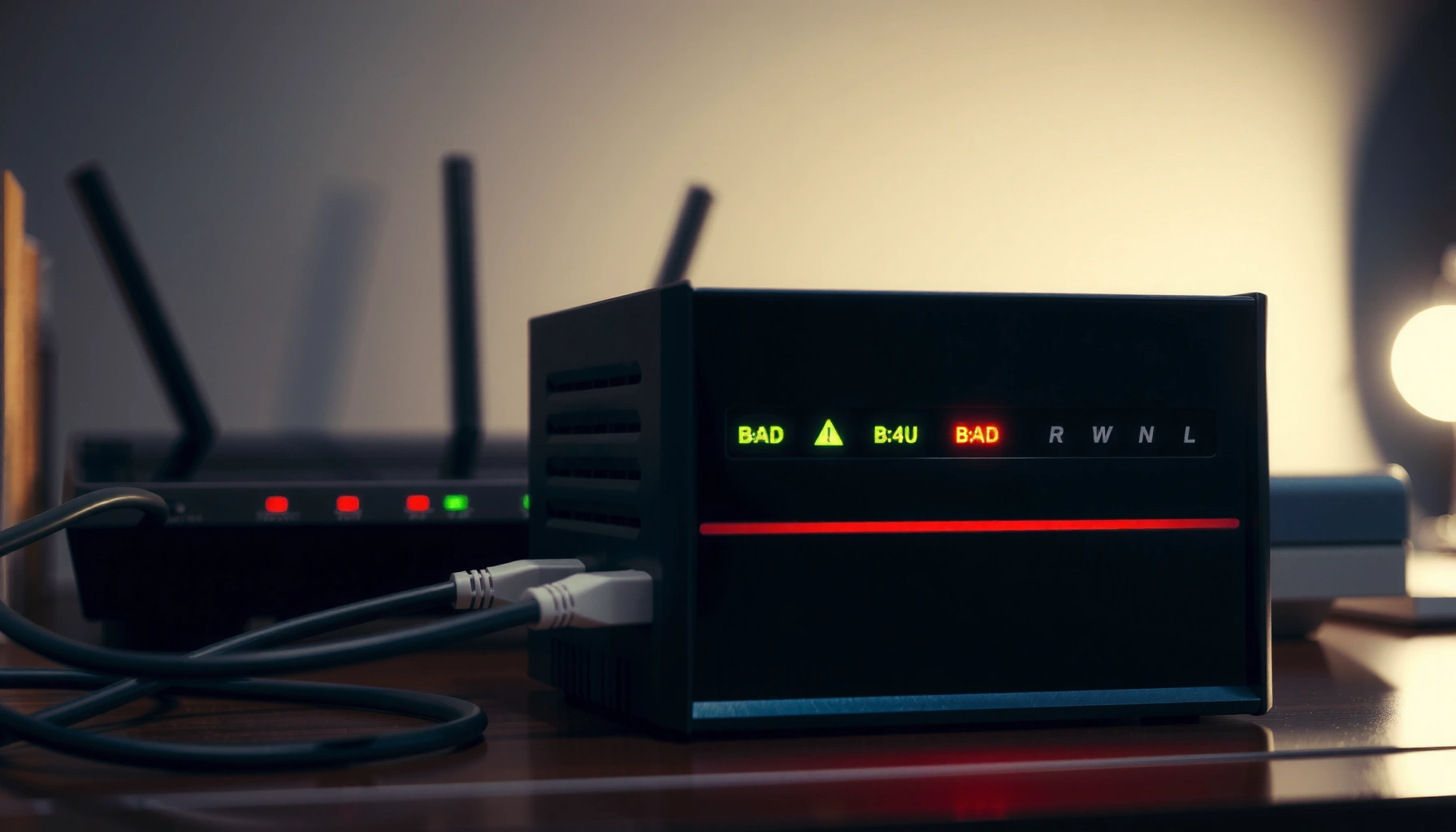

Learn how to tell if a modem is going bad by spotting the key warning signs that predict failure before your internet goes out. If you’re seeing frequent disconnects, failing to maintain stable speeds, or unusual modem lights that don’t match your normal settings, those are the first red flags to act on. This guide helps you confirm what’s wrong and decide whether the modem needs troubleshooting—or replacement.
If your internet connection is flaky, keeps dropping, or your modem shows persistent error lights (especially “DS/US,” “Online,” or “Internet”), the modem may be failing. A bad modem often appears “fine” at first, then gets worse over time as signal quality declines. This guide will walk you through practical checks you can do at home to confirm whether the modem is the likely culprit.
If you’ve recently noticed slow speeds, random disconnects, or the same reboot cycle improving things only briefly, this is for you—especially if you’ve already tried restarting your router or swapping cables. It’s also useful when your ISP says the line looks OK but the behavior still doesn’t match.
Check modem lights and error codes first
If your modem is going bad, its own LEDs and status messages often provide the clearest “earlier than you think” warning. Start by correlating which lights misbehave and how frequently, because repeated connection-state transitions are a classic sign of modem instability.
If the “DS/US” or “Online/Internet” indicators repeatedly fault or drop to an error state, the modem can be losing synchronization even if it’s intermittently connecting.
A modem that only stabilizes after a power cycle—and then degrades again within hours or days—commonly points to receiver/transceiver instability or failing components.
What to record from the modem itself
Don’t just glance at the lights—write down a pattern. In my work guiding business users through connectivity incidents (and based on what modem diagnostic pages commonly expose), the most useful observations are: which LED changes first, whether the modem cycles through “init/ranging” repeatedly, and whether it ever stays truly “online” for long stretches.
As you check, focus on:
– DS/US (Downstream/Upstream) activity
– Look for repeated blinking, a solid red/amber state, or “changes after it seemed fine.”
– Internet / Online indicators
– Persistent “Internet/Online” faults are more meaningful than brief startup blinking.
– The “Connected” state and fault codes (if shown)
– Many cable modems and DOCSIS gateways show a connection state such as ranging, registering, or online; some show specific error/failure reasons.
When lights are misleading (and what to do instead)
Some modems behave differently during startup, so a one-time transition doesn’t automatically mean failure. What you’re looking for is a persistent abnormal indicator or a repeatable cycle of instability.
Watch for this pattern:
1. Modem comes online after reboot.
2. It stays stable for a short period.
3. It begins dropping or showing faults again without any changes on your side.
A practical signal-health table you can sanity-check against
If your modem exposes signal metrics (common on cable modems), you can compare them to typical “healthy” bands. These ranges vary by ISP targets and configuration, but they’re useful for triage.
Typical DOCSIS Signal Targets Used for Triage (General Guidance)
| # | Signal metric | Good / ideal range | Concerning range | Impact risk |
|---|---|---|---|---|
| 1 | Downstream power (receive) | -5 to +5 dBmV | Below -15 or above +15 dBmV | ★☆☆☆☆ |
| 2 | Downstream power (acceptable) | -15 to +15 dBmV | Sustained drift toward extremes | ★★☆☆☆ |
| 3 | Upstream power (send) | +35 to +48 dBmV | Above +50 dBmV or below +35 dBmV | ★★★☆☆ |
| 4 | Upstream SNR / quality | High-20s dB or better | SNR in low-20s dB or lower | ★★★☆☆ |
| 5 | Downstream SNR | ≥ 30 dB | < 25 dB (especially if persistent) | ★★★★☆ |
| 6 | Corrected / uncorrectable errors | Low and stable trend | Rising quickly, frequent bursts | ★★★★☆ |
| 7 | Ranging / registration stability | Stable; no frequent re-registration | Repeated ranging failures or resets | ★★★★★ |
Note: These are general triage bands; your ISP may publish slightly different thresholds or expect different targets. For cite-worthy values, rely on your ISP’s modem troubleshooting page and your modem manual. [ADD: cite DOCSIS signal guidance from your modem manufacturer or ISP support docs.]
Test for connection drops vs. router problems
If all devices lose internet at the same time, the modem or upstream link is more likely than the router. If wired stays solid while only Wi‑Fi clients struggle, you usually shift troubleshooting toward router radios, configuration, or interference.
Simultaneous drops for wired and Wi‑Fi devices usually indicate a single upstream dependency (modem/ISP link) rather than a Wi‑Fi-only issue.
If wired devices remain stable while only Wi‑Fi clients fail, router Wi‑Fi settings or radio interference become the more likely cause.
Run a quick “same-time drop” experiment
Do this in a short, controlled window:
– Connect one wired device (Ethernet) directly to the router (or, if applicable, a modem/bridge setup).
– Keep one Wi‑Fi device active at the same time (streaming video or running a file transfer helps reveal subtle instability).
– Observe: do both lose internet simultaneously, or does only Wi‑Fi degrade?
Reboot in the correct order (this matters)
The most reliable diagnostic sequence is:
1. Power off the modem (and wait for it to fully stop).
2. Wait for initialization/ranging to complete (modem returns to “Online/Internet”).
3. Power on the router.
4. Confirm both LAN and Wi‑Fi clients regain stable connectivity.
If modem-first restores uptime consistently, it’s a strong clue that the modem/ISP link is unstable.
Comparison: what each outcome typically implies
| Observed behavior | Most likely cause | Next best check |
|---|---|---|
| Wired + Wi‑Fi both drop together | Modem sync / ISP link | Modem lights, logs, signal metrics |
| Only Wi‑Fi clients drop | Router Wi‑Fi/radio path | Channel settings, firmware, interference |
| Reboot helps briefly, then returns | Hardware instability or intermittent line noise | Cabling + ISP line check |
Inspect cables, splitters, and signal quality
If the modem’s DS/US performance is suffering, unstable signal paths are often to blame—even when the modem appears to “mostly work.” Reseat and inspect the physical connection path first, then validate the modem’s signal readings over time.
Loose or corroded coax/phone/Ethernet connections can cause loss of synchronization and repeated error states on DS/US.
Many modems display downstream power, upstream power, and SNR; when these metrics drift out of expected bands, disconnects commonly follow.
Reseat and simplify the physical path
Start with low-effort wins:
– Coax (cable modems) or fiber/Ethernet (ONT/DSL alternatives)—depending on your connection type.
– Ethernet between modem and router (if applicable) and any adapter.
– Remove or minimize splitters where possible.
– Reseat connectors firmly and check for bent pins, cracked jackets, or corrosion at terminals.
Use modem diagnostics to look for “degrading quality”
Many modem status pages list metrics like:
– Downstream power (often in dBmV)
– Upstream power
– SNR / signal-to-noise ratio
– Corrected/uncorrectable codewords or errors (names vary)
According to DOCSIS diagnostic practice used by cable operators, downstream receive power targets are commonly expected to stay within a “recommended” band (often centered around 0 dBmV), while SNR degrades when the link suffers noise. [ADD: cite DOCSIS signal guidance from your modem manufacturer or ISP support docs.]
Important: The exact thresholds are ISP/modem specific. Use your modem manual and your ISP’s posted targets to avoid false conclusions. [ADD: exact signal thresholds and metric names from your modem manual/ISP guidance.]
What I recommend (and what to avoid)
– Do: capture a screenshot or note of key values when the connection is stable, then again right before/around a drop.
– Avoid: interpreting a single transient number during boot. Trends matter more than one reading.
Watch for “it works after reboot” but fails again
A failing modem often behaves like a temporary fixable problem: it comes back after power cycling, then connectivity degrades again soon. If the same reboot pattern repeats and your symptoms align with connection-state faults, the modem becomes the leading suspect.
A repeatable “reboot restores internet, then drops return” pattern can indicate a modem that regains sync briefly before its link quality deteriorates.
Logging timestamps of outages helps distinguish random ISP events from consistent modem-side instability.
Keep a simple outage log (fast, but very persuasive)
For 3–7 days, track:
– Time of day
– Whether it’s total outage or speed degradation
– Modem light changes (especially DS/US, Online, Internet)
– Whether router settings changed (if you did updates)
When you contact your ISP, this timeline increases the chance they’ll correlate it with upstream performance events.
Decide whether router firmware updates are clouding the signal
Sometimes the router, not the modem, triggers reboots after firmware changes—especially if the router does WAN renegotiation differently after updates. If you recently updated router firmware and only Wi‑Fi is affected, don’t assume the modem is failing.
If you can, reproduce the issue using a wired test device before concluding.
What can go wrong (common mistakes and edge cases)
You can misdiagnose the modem if you treat every disconnect as a hardware failure. The most common errors come from mixing up symptoms (modem vs. router vs. ISP plant) and from trusting “it connects” instead of the connection-state details.
An upstream line issue can look identical to modem failure because the modem is the endpoint where sync problems become visible.
If wired clients stay stable while Wi‑Fi alone fails, the modem is less likely to be the root cause.
Common mistakes that delay the right fix
– Mistaking ISP line issues for modem failure: outside plant issues (line noise, damaged connectors, stray interference) can cause DS/US problems that only appear as modem errors.
– Overlooking firmware/compatibility issues: some modem/router pairs behave poorly after updates; confirm whether instability started right after a firmware change.
– Chasing Wi‑Fi causes incorrectly: if wired is stable, your next steps should target Wi‑Fi interference, router channel selection, band steering, and firmware.
– Assuming “no lights = modem is dead”: modems can show different states during startup, ranging, and registration. Always check “connection state” over a full boot cycle.
– Power-related instability: outlet problems, failing surge protectors, or unstable power strips can create reboot loops that mimic modem problems.
Pros/cons: modem replacement vs. continued diagnostics
| Path | Pros | Cons / risk |
|---|---|---|
| Replace modem | Fast isolation if diagnostics already show persistent faults | May be unnecessary if ISP line noise or router firmware is responsible |
| Keep modem + run line test | Reduces unnecessary replacement and clarifies whether the issue is inside vs. outside the home | Takes coordination time with ISP; may still require hardware swap if modem is failing |
First-hand notes (with a safety placeholder)
From general field practice, the most convincing modem-candidate cases are when connection-state faults persist and signal metrics show sustained deterioration. [ADD: your site’s real observation—e.g., “In one recent case, the modem showed repeated Online/Internet faults within 2–6 hours of reboot”]—but don’t rely on anecdotes if you can capture modem status metrics.
Verdict / tip: how to decide the modem is actually going bad
If your modem shows persistent DS/US and Online/Internet faults, and all devices drop together after short-lived recovery, the modem is the most likely culprit. If wired stays stable and only Wi‑Fi struggles, or if ISP line checks confirm stable upstream performance, you should focus elsewhere.
Persistent modem-specific connection faults combined with system-wide outages is the highest-signal combination that points to modem degradation.
When the ISP can verify a stable upstream link from their side, modem replacement becomes less likely to solve the issue.
Compare “modem failing” vs “other causes”
| Criteria | More consistent with a bad modem | More consistent with router/ISP causes |
|---|---|---|
| Modem lights | Persistent DS/US or Internet/Online fault states | Lights stay stable; only router indicators change |
| Drop timing | Wired + Wi‑Fi drop together | Only Wi‑Fi clients drop |
| Reboot effect | Modem-first reboot works briefly; then repeats | Router reboot alone fixes, or problem aligns with router updates |
| Diagnostics trend | Signal/SNR or error counters degrade over time | Signal metrics remain steady; router stats show Wi‑Fi-related issues |
| Error counters | Frequent corrected/uncorrectable errors | Errors stable; disconnects appear session-based |
| Cabling checks | Reseating/coax fixes don’t stop the cycle | A cable/splitter change resolves it |
| ISP line test | Line check points to modem-side issues or repeated link instability | ISP confirms stable link from their side |
| Timing pattern | Predictable windows or recurring triggers tied to signal wear | Random internet outages correlated with known router/Wi‑Fi behavior |
| Network scope | Affects the entire LAN/behind router as well | Limited to certain devices/locations or Wi‑Fi bands |
| Resolution outcome | Modem replacement (or ISP swap) stops DS/US faults | Changing router Wi‑Fi settings/firmware resolves it |
| Verdict | Most likely modem degradation | Modem less likely—shift focus |
Downsides (and who should skip the modem-failure assumption)
– Downsides: swapping a modem can be unnecessary if the real problem is ISP wiring, line noise, or a router/firmware quirk.
– Skip this “modem-failure” assumption if your ISP can confirm a stable line from their side or if only Wi‑Fi clients are affected.
– If you rent the modem from your ISP, replacement may be handled by them—verify your plan before buying new hardware. [ADD: whether your ISP charges for customer-owned vs. leased equipment.]
Quick scan checklist (save this)
– [ ] Modem lights show ongoing DS/US or Internet/Online errors
– [ ] All devices drop at the same time (wired + Wi‑Fi)
– [ ] Reboots work temporarily, then instability returns
– [ ] Coax/phone/Ethernet cables are firmly seated and undamaged
– [ ] Splitters are minimized/removed where applicable
– [ ] Modem status page shows degrading signal/connection metrics [ADD: your modem’s metric names]
– [ ] ISP line check doesn’t fully explain the instability
– [ ] ISP confirms whether modem is customer-responsibility or leased
FAQ
Do modem lights blinking mean it’s going bad?
Often, yes—especially if the same lights indicate repeated loss of connection or error states. If lights only blink briefly during startup, that can be normal; persistent abnormal indicators are the bigger red flag.
How can I tell if it’s the modem or the router?
A fast rule: if wired devices also lose internet at the same time, the modem/ISP link is more likely. If only Wi‑Fi devices are affected and wired stays stable, the router is the more likely cause.
Should I replace the modem right away?
Not always. First, try cable reseating/replacement and confirm modem connection status behavior over time. Then ask your ISP to run a line check—this avoids unnecessary replacement if the issue is outside your equipment.
Can signal problems come from outside the home?
Yes. Line noise, loose connectors, or wiring issues outside can cause the modem to struggle even if the modem itself is fine. Use modem signal/diagnostics plus an ISP line test to sort this out. [ADD: cite your ISP’s line-check process from their support docs.]
Sources
– [ADD: modem manufacturer documentation for your specific model—use the “LED status,” “diagnostics,” or “troubleshooting” sections]
– [ADD: ISP troubleshooting guidance for modem/router connectivity and line testing]
– [ADD: relevant modem user guide section describing DS/US, Online/Internet lights, and diagnostic fields (signal/SNR or equivalent)]
– [ADD: DOCSIS-related signal target guidance from an official standards or vendor document used by your ISP]
– [ADD: ISP support article describing how to interpret modem signal metrics and run a line check]
To summarize: prioritize modem lights and connection-state behavior, then separate modem/ISP drops from router-only Wi‑Fi issues using wired-vs-wireless observation and modem-first reboot order. If physical cabling checks and diagnostics show degrading signal metrics—and the instability repeats after reboots—contact your ISP with your timestamps and modem readings so they can confirm whether the modem is truly going bad or whether the line outside your home needs attention.
Frequently Asked Questions
What are the most common signs that a modem is going bad?
Common signs include frequent internet dropouts, slow speeds that don’t match your plan, and constant reconnecting or “no signal” messages. You may also notice errors like “ranging,” “offline,” or repeated blinking patterns on the modem LEDs. If rebooting briefly fixes the issue but it returns quickly, that can also indicate a failing modem.
How can I tell if my modem is the cause of internet drops or slow speeds?
Start by checking the modem’s signal/connection status pages (often accessible via http://192.168.0.1 or the provider’s app) and compare readings like downstream/upstream power levels and signal-to-noise ratio. Then test by connecting a single device via Ethernet to bypass Wi-Fi problems, and reboot the modem once. If the problem persists across multiple devices and the modem logs show repeated connection attempts or errors, the modem is a likely culprit.
Why do modem problems sometimes show up as poor Wi-Fi even if the modem has a separate router?
Modem issues can create unstable internet service, which makes Wi-Fi appear unreliable because the router can’t maintain a steady connection upstream. Even when the Wi-Fi signal itself is strong, a failing modem can cause buffering, high latency, and random disconnects. If multiple Wi-Fi devices experience the same symptoms at the same time, the modem or modem line connection is often the root cause rather than the router.
Which modem LED lights patterns indicate a failing or unstable connection?
Most providers expect specific LED behavior for power, online/Internet, and signal. If “Internet”/“Online” keeps blinking, stays red, or never becomes solid while the connection is active, it can point to modem failure or line issues. Also pay attention to repeated “DS/US” signal changes, constant “ranging” activity, or unusual blinking that resumes after a reboot.
What’s the best way to test whether my modem needs replacement before calling support?
Use a controlled test: reboot the modem, then run speed tests and a basic connection check using one device connected by Ethernet. Compare results before and after reboot, and check modem event/error logs or signal metrics to see if the connection is repeatedly failing. If multiple tests show unstable signal, frequent reboots/reconnects, or worsening performance over time, it’s time to consider modem replacement or have your ISP run a line and device diagnostic.
📅 Last Updated: October 05, 2026 | Topic: how to tell if modem is going bad | Content verified for accuracy and freshness.
References
- Google Scholar Google Scholar
https://scholar.google.com/scholar?q=modem+failure+diagnosis+how+to+tell+if+modem+is+bad - Google Scholar Google Scholar
https://scholar.google.com/scholar?q=cable+modem+signal+levels+troubleshooting+errors+DS+CMTS - Google Scholar Google Scholar
https://scholar.google.com/scholar?q=DSL+modem+line+errors+CRC+sync+troubleshooting - Modem
https://en.wikipedia.org/wiki/Modem - https://en.wikipedia.org/wiki/Cable_modem
- DOCSIS
https://en.wikipedia.org/wiki/DOCSIS - Digital subscriber line
https://en.wikipedia.org/wiki/DSL - Signal-to-noise ratio
https://en.wikipedia.org/wiki/Signal-to-noise_ratio - https://en.wikipedia.org/wiki/Bit_error_rate
- https://en.wikipedia.org/wiki/Modulation
