
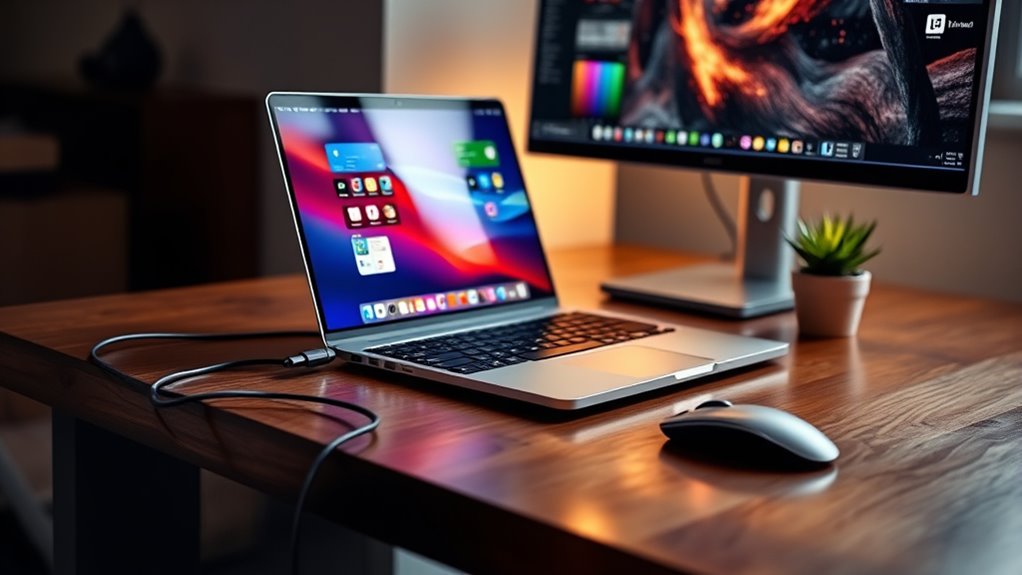

To use your laptop as a desktop monitor, first verify your devices are compatible. Connect via HDMI or DisplayPort for a wired setup, or use the Windows “Project” feature for a wireless option. Adjust display settings to either extend or duplicate screens, enhancing your multitasking capabilities. Don’t forget to optimize resolution and refresh rates for clarity. For troubleshooting common issues, tips await to maintain a seamless experience.
Understanding the Benefits of Using a Laptop as a Monitor
Using a laptop as a monitor can be a game changer, especially if you’re short on space or need a flexible setup. One of the key benefits is laptop versatility; it allows you to repurpose your existing device without needing additional hardware. This setup is perfect for remote work or gaming, providing a larger screen experience while you’re on the go. You’ll find that multitasking becomes easier, as you can run multiple applications side by side, leading to a significant productivity boost. Plus, you can easily switch between your laptop and desktop, giving you the freedom to work from anywhere. Overall, utilizing your laptop this way enhances efficiency and maximizes your available resources. Embrace the possibilities!
Preparing Your Devices for Connection
Before you start connecting your devices, it’s essential to confirm both your laptop and desktop are ready for the setup. First, check for device compatibility; verify that both machines support the same connection types, like HDMI, USB-C, or DisplayPort. If you’re unsure, consult the user manuals or online specifications. Next, make sure your laptop is charged or plugged in, as a stable power source is vital during the connection process. Finally, update your operating systems for peak performance and compatibility. Once you’ve taken these steps, you’ll be well-prepared to create a seamless connection between your laptop and desktop, revealing a new level of flexibility in your workspace.
Utilizing Built-in Windows Features
When you’re ready to transform your laptop into a desktop monitor, utilizing built-in Windows features can make the process straightforward and efficient. Here are some screen mirroring techniques you can use:
- Connect via Project: Use the Windows “Project” feature to connect your devices wirelessly or via HDMI.
- Adjust Display Resolution: Make display resolution adjustments through the Display Settings to guarantee maximum clarity and performance.
- Extend or Duplicate Displays: Choose to extend your display for enhanced multitasking or duplicate it for presentations.
Exploring Third-Party Software Solutions
When it comes to using your laptop as a desktop monitor, third-party software can offer additional functionality beyond built-in options. You’ll find various popular software choices that cater to different needs, each with its own setup and configuration processes. However, it’s important to take into account performance factors to guarantee a smooth experience.
Popular Software Options
While using your laptop as a desktop monitor can enhance your workspace, choosing the right software is crucial for a smooth experience. Here are some popular options that excel in screen sharing and software compatibility:
- Duet Display: It allows seamless integration between your laptop and desktop, providing a high-quality display.
- Splashtop: This option offers excellent performance for remote desktop use, while also being user-friendly.
- ApowerMirror: It’s great for mirroring your screen with additional features like recording and screenshot capabilities.
These tools can help you maximize your productivity and enjoy the freedom of a dual-screen setup. Be sure to check each software for compatibility with your devices to guarantee the best experience.
Setup and Configuration
Setting up your laptop as a desktop monitor can be straightforward with the right approach. You’ll want to explore third-party software solutions that simplify the laptop display configuration. These tools often allow for seamless integration and enhance your external monitor setup.
Here’s a quick comparison of popular software options:
| Software | Features |
|---|---|
| Duet Display | Wireless connection, touch support |
| Splashtop | High performance, multi-device support |
| Air Display | Screen mirroring, easy setup |
| iDisplay | Multiple connections, customizable |
| SpaceDesk | Free version, low latency |
Choose the one that fits your needs best, and you’ll enjoy the freedom of using your laptop as an efficient second monitor.
Performance Considerations
As you explore third-party software solutions for using your laptop as a desktop monitor, it’s essential to reflect on how they can impact performance. Factors like screen resolution and refresh rate can greatly affect your experience. Here are some key considerations:
- Compatibility: Verify the software supports your laptop’s specs to avoid lag or quality loss.
- Network Stability: A stable connection is critical; any interruptions can lead to poor performance or screen tearing.
- Resource Usage: Some programs may consume more CPU or GPU resources, which could slow down your laptop for other tasks.
Connecting via HDMI or Display Ports
To connect your laptop as a desktop monitor, you’ll need the right HDMI or DisplayPort cables and possibly some adapters. Once you have everything set up, you’ll want to adjust your laptop’s display settings for ideal viewing. If you run into any connection issues, troubleshooting steps can help you get back on track.
Required Cables and Adapters
While connecting your laptop as a desktop monitor, you’ll need the right cables and adapters to guarantee a smooth setup. Understanding the various cable types and ensuring adapter compatibility will make the process easier. Here are a few essential components you’ll likely need:
- HDMI Cable: A standard choice for high-quality video and audio.
- DisplayPort Cable: Great for higher resolutions and refresh rates.
- USB-C to HDMI/DisplayPort Adapter: Perfect for modern laptops without traditional ports.
Before you start, double-check your laptop and monitor ports. Having the right cable types and compatible adapters will save you time and hassle, letting you enjoy your new setup without any interruptions.
Laptop Display Settings
Once you’ve connected your laptop to your monitor using the appropriate cables and adapters, it’s time to adjust the display settings for ideal performance. Start by accessing your laptop’s display settings, usually found in the system settings menu. Here, you can modify the laptop resolution settings to match your monitor’s native resolution, ensuring crisp visuals. Don’t forget to check the orientation as well; you might want to set it to landscape for a better viewing experience. Additionally, adjusting brightness levels can greatly enhance your comfort while working or watching content. Tweak these settings until everything feels just right, giving you the freedom to enjoy your newly configured workspace.
Troubleshooting Connection Issues
When you’re connecting your laptop to an external monitor using HDMI or Display Ports, issues can sometimes arise. To guarantee connection stability and avoid signal interference, check the following:
- Cables: Confirm your HDMI or Display Port cable is undamaged and securely connected at both ends.
- Settings: Verify your laptop’s display settings; sometimes, you need to adjust resolution or refresh rates.
- Device Drivers: Make sure your graphics drivers are up to date to support the connection effectively.
If you still face issues, try rebooting your laptop and monitor. This can often reset the connection and resolve minor glitches. With these tips, you’ll be well on your way to enjoying your laptop as a desktop monitor without hassle!
Wireless Connection Options
If you’re looking to use your laptop as a desktop monitor, wireless connection options can simplify the process considerably. One popular method is using Wi-Fi Direct, which allows devices to connect directly without needing a router. This setup is ideal for quick connections and can provide a stable link for streaming your desktop. If your devices support Miracast, you can take advantage of this technology for a seamless mirroring experience. Miracast allows you to project your screen wirelessly, offering freedom from cables while maintaining good performance. Just verify both your laptop and desktop support these options, and you’ll be ready to enjoy a clutter-free workspace. With these wireless methods, you can easily transform your laptop into a functional monitor.
Optimizing Display Settings for Enhanced Performance
To get the best performance when using your laptop as a monitor, optimizing the display settings is essential. Here are some effective display calibration tips and resolution adjustments to enhance your experience:
- Resolution Adjustments: Set your laptop’s resolution to match or exceed the external device’s for crisp visuals.
- Color Calibration: Use built-in calibration tools or software to adjust brightness, contrast, and color balance for accurate colors.
- Refresh Rate: Check and adjust the refresh rate for smoother visuals, especially when gaming or watching videos.
Troubleshooting Common Issues
Even with optimized display settings, you might encounter some common issues when using your laptop as a monitor. Here are a few solutions for common connection problems and display resolution issues:
| Issue | Possible Cause | Solution |
|---|---|---|
| No display | Incorrect connection | Check cables and ports |
| Blurry image | Incorrect resolution | Adjust display settings |
| Flickering screen | Refresh rate mismatch | Match refresh rates |
| Audio not working | Wrong audio output selected | Change audio settings |
| Lag or delay | Low bandwidth or processing | Close unnecessary programs |
If you face these problems, don’t hesitate to refer back to this guide. You can find a solution and enjoy a seamless experience!
Frequently Asked Questions
Can I Use Multiple Laptops as Monitors Simultaneously?
Yes, you can use multiple laptops as monitors simultaneously, but it depends on your network setup and software compatibility. Make sure your chosen software supports multiple displays for a seamless experience and enhanced productivity.
Will Using a Laptop as a Monitor Affect Its Performance?
Using a laptop as a monitor might slightly impact its performance due to resource allocation, but if you manage background processes, you’ll maintain smooth operation. Enjoy the flexibility without sacrificing too much power for your tasks.
Does Screen Resolution Matter When Using a Laptop as a Monitor?
Yes, screen resolution matters when using a laptop as a monitor. Higher resolution settings improve screen quality, ensuring sharper images and better clarity. Adjusting these settings can enhance your overall viewing experience considerably.
Can I Connect My Laptop to a Gaming Console as a Monitor?
Yes, you can connect your laptop to a gaming console, but it often requires specific software or hardware. Check if your laptop supports video input, as most laptops only feature output connections.
Is There a Limit to the Distance for Wireless Connections?
Imagine a signal dancing through the air; however, distance matters. Wireless connections can weaken with distance and obstacles, causing signal strength to drop and increasing wireless interference. Ideally, stay within 30 feet for ideal performance.
