
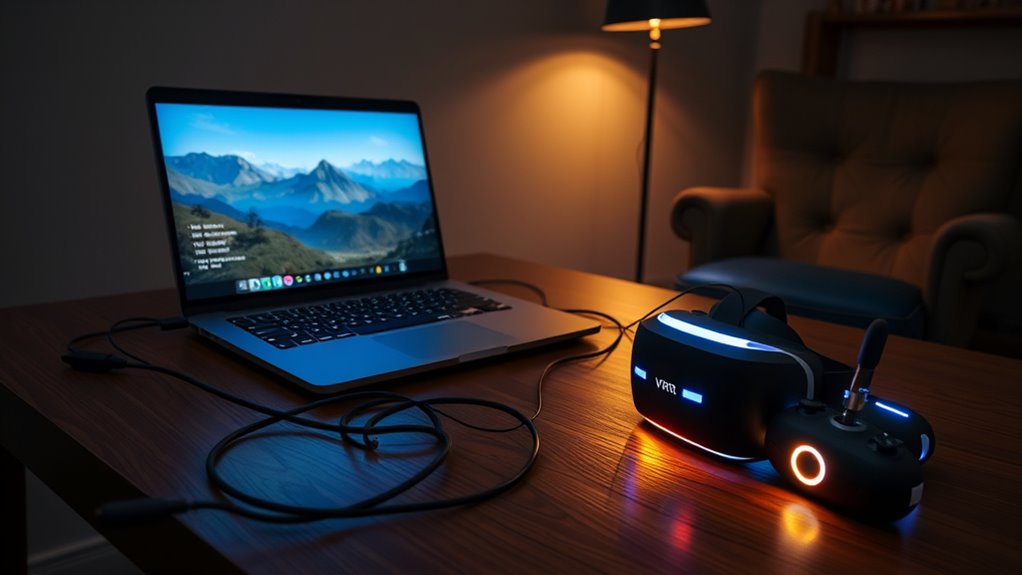

To use your VR headset with a laptop, first verify your system meets the required GPU, CPU, and RAM specifications. Next, choose a headset that fits your budget and comfort preferences. Install necessary software like SteamVR or Oculus on your laptop. Connect your headset, either wired or wirelessly. Set up your VR environment, making sure you have enough space and adjusted settings. If problems arise, troubleshoot by checking connections and updates. Discover more tips for a superior experience.
Checking System Requirements
Before diving into the exciting world of virtual reality, it’s essential to check your laptop’s system requirements. Ensuring system compatibility is key to a smooth VR experience. Start by reviewing the minimum and recommended specifications for your VR headset. This typically includes the GPU, CPU, RAM, and available USB ports.
Next, look at performance benchmarks for your laptop model. Sites like benchmarks and user reviews can shed light on how well your setup can handle VR applications. If you find your laptop falls short, consider upgrades or even investing in a new machine. Remember, the freedom to explore virtual worlds hinges on having the right tech to support your adventures. So gear up and get ready!
Choosing the Right VR Headset
Choosing the right VR headset can be a game-changer for your virtual reality experience, especially since different models cater to various needs and preferences. To help you decide, consider these factors:
Selecting the ideal VR headset significantly enhances your virtual reality journey, tailored to diverse needs and preferences.
- Wireless Capabilities: If you value freedom of movement, opt for a headset with wireless capabilities. This allows for a more immersive experience without the hassle of cords.
- Comfort and Fit: Make certain the headset feels comfortable during extended use. Look for adjustable straps and padding to guarantee a snug fit.
- Budget Considerations: Set a budget before you shop. There are great options at various price points, so you don’t have to break the bank for an awesome VR experience.
Installing Necessary Software
To guarantee your VR headset functions seamlessly with your laptop, you’ll need to install some essential software. Start by checking the headset’s official website for software compatibility with your operating system. This step guarantees you get the right version. Most manufacturers provide detailed installation guides to walk you through the process, making it easy. Download the necessary drivers and applications, which may include platform-specific software like SteamVR or Oculus software, depending on your headset. Follow the instructions closely, and don’t skip any steps. Once installed, restart your laptop to finalize the setup. This preparation will pave the way for an immersive VR experience, allowing you the freedom to explore virtual worlds without a hitch.
Connecting Your VR Headset to the Laptop
With the necessary software installed, you’re ready to connect your VR headset to your laptop. Here’s how you can do it:
With the software set up, it’s time to connect your VR headset to your laptop for an immersive experience.
- Choose Your Connection Type: Decide whether to use a USB hub for wired connections or opt for wireless connections for more freedom of movement.
- Connect the Cables: If you’re going wired, plug the VR headset into the USB hub and verify it’s securely connected to your laptop. For wireless, follow your headset’s instructions for pairing.
- Check for Recognition: Once connected, make certain your laptop recognizes the headset. You can usually find this in your device settings.
Once you’ve completed these steps, you’re one step closer to diving into your VR experience!
Configuring Your VR Environment
Once your VR headset is connected, configuring your VR environment becomes essential for an immersive experience. Start by setting up your space—clear any obstacles and guarantee you have enough room to move freely. Ideally, aim for a minimum play area of 6.5 feet by 6.5 feet. Next, adjust your headset settings to match your preferences, focusing on things like the field of view and audio levels. Don’t forget to optimize performance by closing unnecessary applications on your laptop to free up resources. You may also want to update your graphics drivers for the best visuals. By taking these steps, you’ll create an ideal VR environment that enhances your freedom to explore and enjoy every moment in virtual reality.
Troubleshooting Common Issues
While diving into virtual reality can be exhilarating, you might encounter some common issues that can disrupt your experience. Don’t worry; troubleshooting is part of the journey! Here are a few steps to take:
- Check Hardware Compatibility: Verify your laptop meets the VR headset’s requirements. Incompatible hardware can lead to performance issues.
- Driver Updates: Regularly update your graphics and VR drivers. Outdated drivers can cause lag, crashes, or connectivity problems.
- Connection Troubles: If your headset isn’t recognized, double-check all cables and connections. Sometimes, a simple unplug and replug can work wonders.
Frequently Asked Questions
Can I Use a Wireless VR Headset With My Laptop?
Yes, you can use a wireless VR headset with your laptop, but make sure your laptop meets the performance requirements for ideal wireless headset compatibility. Check specs like CPU, GPU, and RAM before connecting. Enjoy the freedom!
How Do I Clean My VR Headset Properly?
To clean your VR headset properly, use microfiber cloths for lens maintenance and gentle cleaning solutions. Avoid harsh chemicals, and follow cleaning techniques recommended by the manufacturer to keep your headset in top shape.
What Are the Best VR Games for Laptops?
For thrilling VR gaming experiences, try Half-Life: Alyx, Beat Saber, or Boneworks. These VR game recommendations will immerse you in enchanting worlds, offering a sense of freedom and adventure that’ll keep you coming back for more.
Can I Use My VR Headset for Non-Gaming Applications?
Yes, you can absolutely use your VR headset for non-gaming applications! It’s perfect for virtual meetings and immersive education experiences, allowing you to connect and learn in ways that feel more engaging and interactive.
How Can I Improve VR Performance on My Laptop?
If you think your laptop’s a VR powerhouse, think again! Boost performance with hardware upgrades like a better GPU, and don’t forget software optimization—because even your laptop deserves a little TLC for that immersive freedom!
