
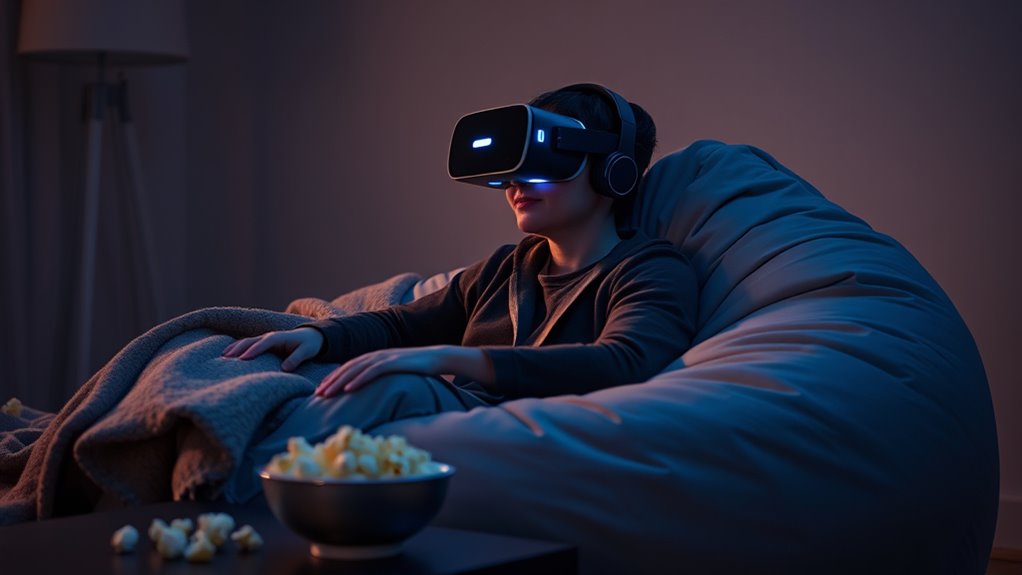

To watch Netflix on your VR headset, choose a compatible model and set it up comfortably. Download the Netflix app from your headset’s app store and log in with your credentials. Navigate through the intuitive interface using your controllers to find shows or movies. Customize your viewing environment for the best experience by adjusting settings and using quality audio. Troubleshoot any connectivity issues if needed. There’s so much more to enhance your VR experience waiting for you!
Choosing the Right VR Headset
When you’re diving into the world of virtual reality for Netflix, choosing the right VR headset is vital for an immersive experience. Consider the VR headset features that matter most to you, like resolution, field of view, and comfort. Higher resolutions can make those Netflix shows look stunning, while a wider field of view enhances the experience. Don’t forget about the weight and fit; you’ll want something comfortable for extended viewing. Budget considerations also play an important role—set a limit before you start shopping. There are great options at various price points, so you can find one that fits your needs without breaking the bank. Prioritize what’s important for your Netflix nights, and you’ll be all set for an unforgettable journey.
Setting Up Your VR Headset
Now that you’ve chosen the right VR headset for your Netflix experience, it’s time to set it up for the best viewing. First, find a comfortable space with ample room to move around, making sure you won’t bump into anything. Adjust the headset straps for a snug fit, and clean the lenses gently to enhance clarity—this is key for VR headset maintenance. Then, position yourself in the ideal viewing position, usually around 1-2 meters away from your virtual screen, to fully immerse yourself in the experience. Make certain your headset’s sensors are unobstructed for smooth tracking. Finally, check for software updates to guarantee the best performance. You’re now ready to plunge into your favorite shows!
Downloading the Netflix App
To start watching Netflix in VR, you’ll first need to download the app on a compatible headset. Access your headset’s app store, and follow the installation steps to get it up and running. Once installed, you’ll be ready to enjoy your favorite shows like never before!
Compatible VR Headsets
As you explore the immersive world of virtual reality, it’s essential to know which VR headsets are compatible with the Netflix app. First up is the Oculus Quest, a popular choice for its standalone capabilities and ease of use. The HTC Vive also lets you immerse yourself in Netflix, offering robust performance and a vast library. If you’re a PlayStation gamer, the PlayStation VR is perfect for streaming your favorite shows. For those seeking high-end graphics, the Valve Index delivers an exceptional viewing experience. Finally, Windows Mixed Reality headsets provide flexibility and access to Netflix as well. Whichever headset you choose, you can enjoy your Netflix binge in a whole new dimension, bringing freedom to your viewing experience.
App Store Access
Before diving into your Netflix binge, you’ll need to download the app, which is a straightforward process across various VR platforms. Depending on your headset, you’ll find different app store features that make this easy. Just verify you check for app store compatibility to avoid any hiccups.
- Navigate to your device’s app store.
- Search for the Netflix app.
- Review the app details for compatibility.
- Hit ‘Download’ and wait for the installation.
- Open the app to sign in and start streaming.
With these simple steps, you’ll access a world of entertainment right in your VR headset. Enjoy your cinematic experience with the freedom to watch anywhere!
Installation Steps Guide
Installing the Netflix app on your VR headset is a quick and easy process that opens the door to immersive entertainment. First, check the installation requirements for your specific headset model to guarantee compatibility. Head over to your device’s app store and search for “Netflix.” Once you find it, hit the download button. Depending on your user preferences, you might need to log in or create an account. After the installation’s complete, launch the app and explore the vast library of content waiting for you. Remember to adjust your settings to enhance your viewing experience. With just a few steps, you’ll be all set to enjoy Netflix like never before, diving into enthralling shows and movies in virtual reality.
Logging Into Your Netflix Account
Once you’ve downloaded the Netflix app on your VR headset, it’s time to log in to your account. You’ll need to enter your account credentials carefully to guarantee a smooth sign-in. After that, steering the user interface will let you explore your favorite shows and movies in an immersive experience.
Accessing Netflix App
Accessing the Netflix app on your VR headset is a straightforward process that lets you plunge into your favorite shows and movies in an immersive environment. To get started, verify your device is compatible with Netflix. Here are some tips to enhance your experience:
- Confirm your headset’s Netflix compatibility.
- Update your VR software for peak performance.
- Connect to a strong Wi-Fi network for seamless VR streaming.
- Navigate to the app store on your headset and download the Netflix app.
- Familiarize yourself with the app’s interface for easier browsing.
Once you’re set up, you’ll be ready to explore Netflix’s vast library in a whole new way, enjoying the freedom of virtual reality entertainment at your fingertips.
Entering Account Credentials
Before you can plunge into your favorite Netflix content, you’ll need to enter your account credentials to log in. Start by selecting the login option within the Netflix app. You’ll be prompted to input your email and password. For ideal account security, make sure you use a strong password that combines letters, numbers, and special characters. If you’re worried about remembering it, consider a password management tool to keep your credentials safe and easily accessible. Once you’ve entered your information, hit the login button. If everything checks out, you’ll be granted access to your Netflix library. Remember, keeping your account secure is vital, so always log out if you’re using a public VR headset. Enjoy your viewing!
Navigating User Interface
Guiding through the user interface on your VR headset while logging into Netflix can feel like a unique experience. The immersive environment shifts how you interact with the platform. Here are some user experience tips to enhance your journey:
- Familiarize yourself with the layout; it’s designed for ease.
- Use voice commands if available; they simplify navigation.
- Look for tutorial prompts; they’ll guide you through features.
- Customize settings to your liking; it enhances user interface design.
- Keep your controller handy; smooth navigation makes a difference.
With these tips, you’ll navigate effortlessly, creating a seamless connection to your favorite shows. Embrace the freedom of virtual reality and let the adventures begin!
Navigating the Netflix Interface in VR
Maneuvering the Netflix interface in VR is a unique experience that immerses you in a digital environment designed for easy exploration. You’ll find that the layout is intuitive, allowing you to effortlessly navigate through categories and recommendations. Using your controllers, you can interact with various elements, enhancing your immersive experience. The interactive features let you hover over titles for quick previews, making it simple to discover new content without the usual distractions. Plus, customizing your viewing environment adds a personal touch, creating a space where you feel right at home. This freedom to explore and engage with Netflix’s vast library transforms your binge-watching sessions into an exciting adventure, making every choice feel like part of the journey.
Selecting Your Show or Movie
After familiarizing yourself with the Netflix interface in VR, the next step is selecting the show or movie you want to watch. You’ll find plenty of options, so consider these tips to streamline your genre selection and get some great show recommendations:
- Explore trending titles for popular choices.
- Use the search feature for specific shows or actors.
- Check out categories like “Action,” “Comedy,” or “Drama” for tailored suggestions.
- Look into Netflix Originals for exclusive content.
- Read user reviews and ratings to gauge what to expect.
Adjusting the Viewing Environment
To enhance your Netflix experience in VR, it is essential to adjust your viewing environment for ideal comfort and immersion. Start by customizing your virtual ambiance. You can choose from various settings, like a cozy cabin or a futuristic cinema, depending on your viewing preferences. Make sure the lighting suits your mood; dim lights can help you focus on the screen.
Next, position your virtual screen at a suitable distance to reduce eye strain. Experiment with different angles to find what feels most comfortable for you. Don’t forget to adjust the scale of the screen; a larger view can make the experience feel more cinematic. By fine-tuning these elements, you’ll create an engaging atmosphere that enhances your enjoyment.
Enhancing Your Experience With Audio
While adjusting your viewing environment sets the stage, audio plays a pivotal role in elevating your Netflix experience in VR. To truly immerse yourself, consider enhancing your audio setup. Surround sound and immersive audio can transport you right into the action, making every moment more engaging. Here are some tips to elevate your auditory experience:
Enhance your Netflix experience in VR by investing in quality audio for immersive storytelling and heightened engagement.
- Invest in high-quality headphones for clear sound.
- Use surround sound systems for a multidimensional experience.
- Adjust audio settings in your VR headset for peak performance.
- Experiment with different genres to appreciate varied soundscapes.
- Mute distractions to fully focus on the content.
With the right audio enhancements, you’ll find yourself more absorbed in the story, enjoying every moment as if you’re part of it.
Troubleshooting Common Issues
Experiencing issues while watching Netflix on your VR headset can be frustrating, but troubleshooting can often resolve these problems quickly. First, check for common connectivity issues; make certain your Wi-Fi is stable and your headset is connected properly. A simple restart of your headset or router might do the trick. If you’re facing video playback problems, make sure your Netflix app is updated. Clear the app’s cache to enhance performance, and if the issue persists, try reinstalling the app. Also, verify that your VR headset meets Netflix’s compatibility requirements. Finally, consider lowering the video quality for smoother playback. By addressing these points, you can get back to enjoying your immersive Netflix experience in no time!
Frequently Asked Questions
Can I Watch Netflix in VR Without a Gaming Console?
Absolutely, you can plunge into Netflix without a console! With various VR headset options available, just verify your device supports Netflix compatibility, and you’ll be enjoying immersive shows in no time. Freedom’s just a headset away!
Is a Stable Internet Connection Necessary for Streaming in VR?
Yeah, a stable internet connection’s essential for streaming in VR. To enjoy high streaming quality, you’ll need a decent connection speed. Without it, you might face buffering or lowered resolution, ruining your immersive experience.
Does VR Netflix Support 4K Resolution?
In your immersive VR world, you’ll find Netflix doesn’t support 4K streaming yet. While the visuals can be stunning, VR compatibility currently limits that crisp 4K clarity. Enjoy the content, but resolution’s still holding back.
Can I Use My Smartphone for VR Netflix Viewing?
Yes, you can use your smartphone for VR Netflix viewing! With smartphone compatibility, you’ll enjoy an immersive viewing experience. Just make sure your device meets the necessary requirements for a seamless and enjoyable time.
Are There Parental Controls Available for Netflix in VR?
Yes, there are parental controls available for Netflix in VR. You can set parental guidelines and content restrictions to guarantee your kids enjoy age-appropriate viewing, giving you peace of mind while they explore virtual entertainment.
