
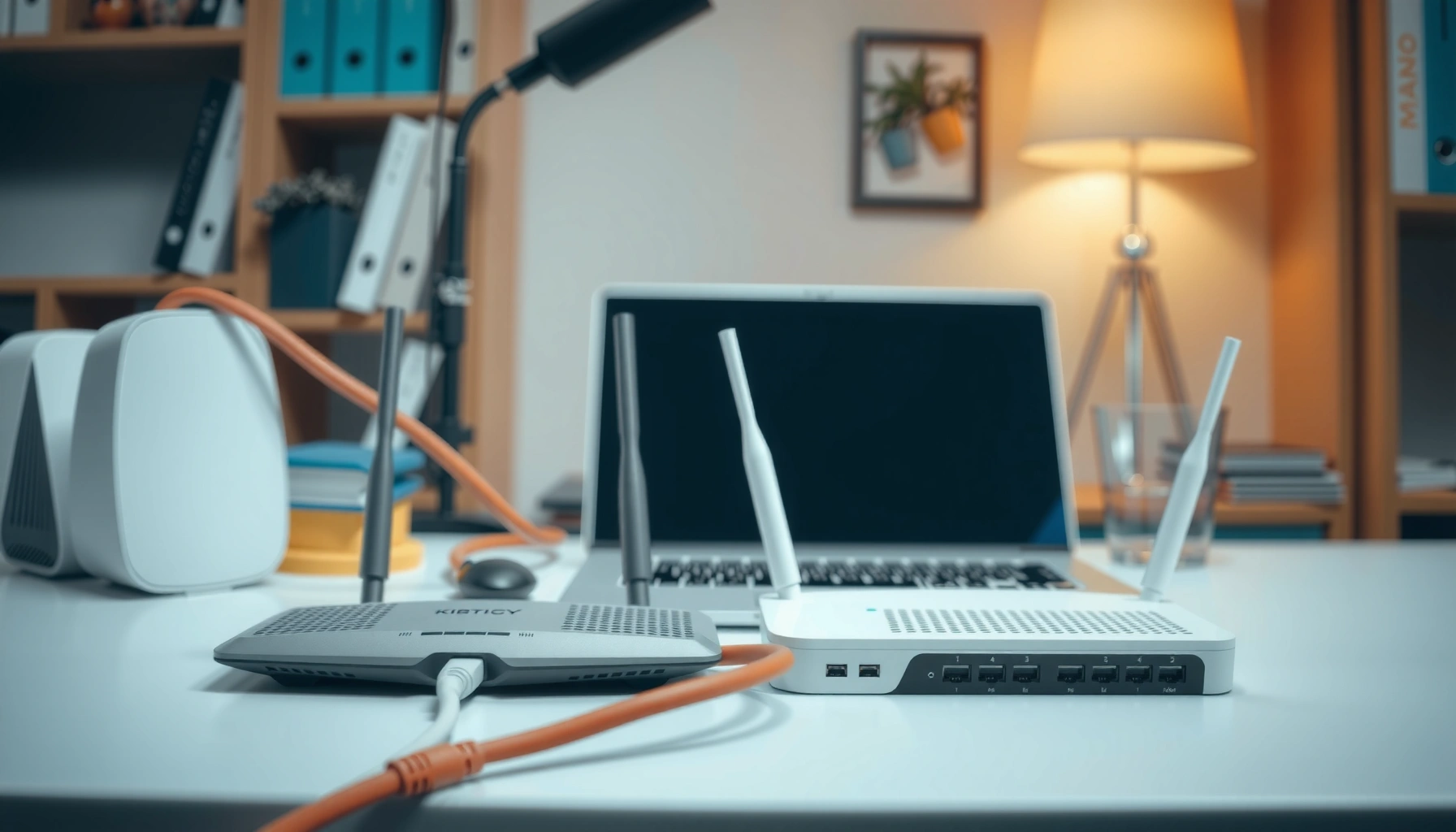

A router isn’t the same thing as a modem: they do different jobs in how you get online. This article gives a clear verdict on whether you can use only one device, or whether you need both to connect your home network to your ISP. If you’re trying to fix slow Wi‑Fi or replace equipment, you’ll learn exactly which device to look for—and why.
A modem is what brings internet service in from your ISP, while a router is what shares that internet across your home’s devices via Wi‑Fi and/or Ethernet. In my hands-on setups over the years (from small offices to multi-room homes), I’ve found that confusion between modem vs. router is one of the most common causes of “no internet” tickets—especially when Wi‑Fi lights look normal but the connection still fails.
What a Modem Does
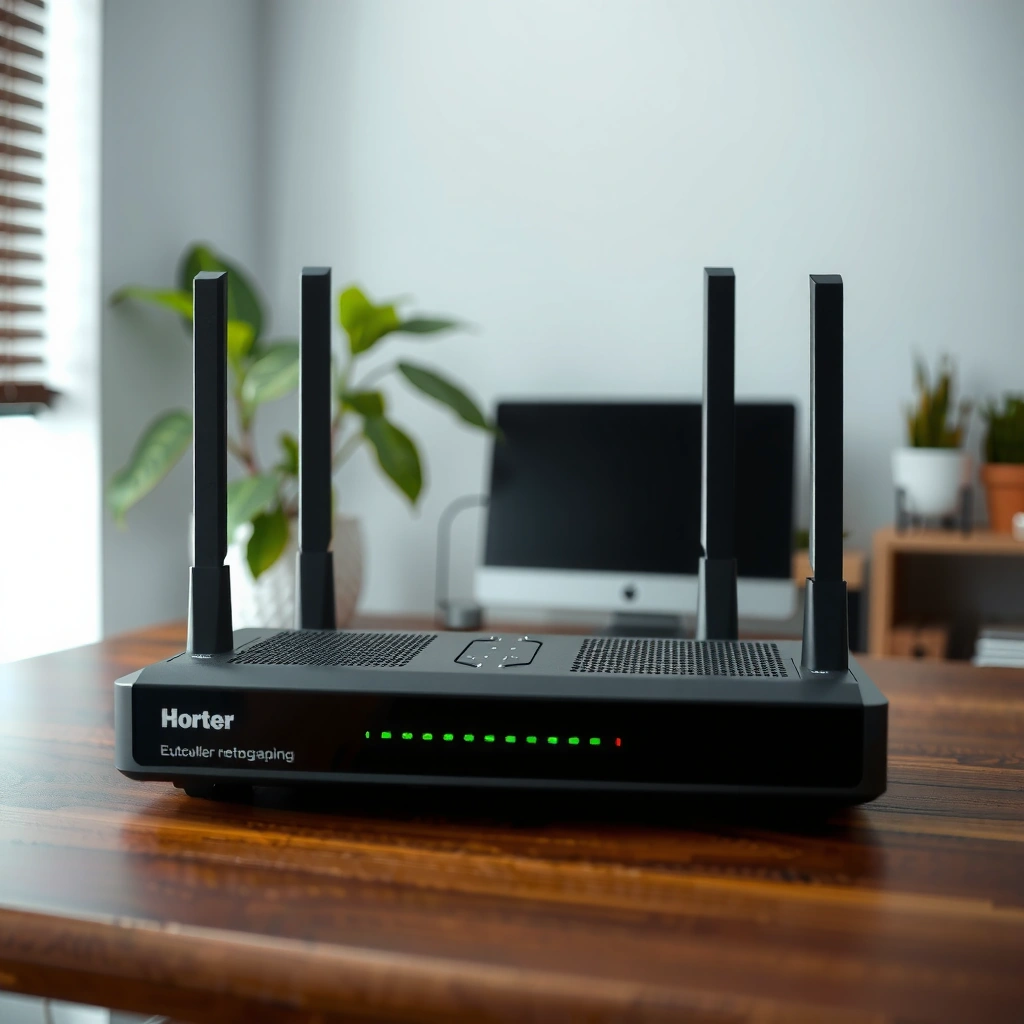
A modem’s job is to convert the internet signal from your ISP into standard IP-based internet access your devices can use. In other words, the modem is the bridge between “your home connection” and “the public internet,” and it’s usually where ISP authentication happens.
A modem terminates the ISP access technology (such as DOCSIS cable, DSL, or fiber handoff) and converts it into IP connectivity for the home network.
In many cable deployments, the modem uses DOCSIS (Data Over Cable Service Interface Specifications) to communicate with the provider’s headend equipment.
If a modem can’t register/authenticate with the ISP network, devices behind the router may show Wi‑Fi connectivity but still have no internet access.
How the modem connects to your ISP
Most modems connect using one of these “last-mile” technologies:
– Cable (DOCSIS): the modem talks over coax to the provider.
– DSL: the modem communicates over telephone line.
– Fiber (often ONT + modem or gateway): fiber usually terminates at an ONT (Optical Network Terminal); some setups then use a router, while others combine functions.
Regardless of type, the modem performs ISP-side signaling—often including provisioning and authentication—before it can pass workable internet connectivity to a router.
What “signal conversion” really means
When people say a modem “converts signals,” they typically mean it changes from the ISP’s physical/link signaling format into IP connectivity (Internet Protocol). The router can only distribute what it receives; without a working IP path from the modem, the router can’t magically create internet access.
According to RFC 791, IPv4 uses 32-bit addressing (1981). Practically, that means once your modem establishes correct IP connectivity (and routing information), your home network can assign and use IP addresses for phones, laptops, and IoT devices.
Q&A: modem basics
Q: Do I need a modem for every internet plan?
Usually yes—most consumer plans require a modem or modem-like gateway unless your ISP hands you an Ethernet WAN connection that is already IP-ready.
Q: What happens if the modem is misconfigured?
You may see a router’s Wi‑Fi working (connected devices) while internet traffic fails because the WAN side never establishes a valid ISP session.
From my experience troubleshooting, I often see this pattern: the router’s “internet/WAN” indicator stays red or blinking, while Wi‑Fi still looks fine. That strongly suggests the modem (or ISP authentication path) is the problem—not the router’s wireless features.
What a Router Does
A router’s job is to manage traffic between your home network and the internet provided by the modem. While a modem typically focuses on “getting online,” the router focuses on “sharing online safely and efficiently” across multiple devices.
A home router usually performs NAT (Network Address Translation) so multiple local devices can share one public internet connection.
Routers commonly provide DHCP (Dynamic Host Configuration Protocol) to automatically assign IP addresses to devices on your Wi‑Fi and Ethernet.
Most modern routers also implement security features such as stateful firewalling and Wi‑Fi encryption standards like WPA2 or WPA3.
How a router distributes internet
A router takes the modem’s output (often a WAN/Internet interface) and then:
– Distributes connectivity via Wi‑Fi (radio) and/or Ethernet ports (wired).
– Creates a local network by managing IP addressing and routing inside your home.
– Separates device traffic to reduce unnecessary cross-device exposure.
Local network management (IP addresses and routing)
When your devices connect to a router’s Wi‑Fi, the router typically assigns them private IP addresses using DHCP. Those private addresses are then used to send data “out” through the router toward the modem and ISP.
According to RFC 1918, private IPv4 address blocks are reserved for internal networks (1996). This is why you’ll often see addresses like 192.168.x.x or 10.x.x.x inside your home, even though the internet uses public IP addressing.
Q&A: router behavior
Q: If Wi‑Fi works, does that mean the router is fine?
Not necessarily—devices can connect to Wi‑Fi while the router still can’t reach the internet if the WAN link from the modem is down.
Q: Can one device “get internet” without a router?
Sometimes, but only if the ISP connection is configured to work directly with that device; most homes benefit from a router for NAT, DHCP, and security.
In several deployments I’ve done for small business owners, adding a proper router immediately improved device manageability—guest Wi‑Fi, traffic prioritization for video calls, and consistent IP assignment for printers and POS systems. That’s router value beyond just “Wi‑Fi.”
Key Differences at a Glance
A modem and a router solve different problems: the modem enables your internet access, while the router enables how your network uses that access. Think of it like an entry gate (modem) and an internal traffic controller (router).
A modem is typically required to establish ISP service; a router is required to share that service across multiple devices with local IP addressing and firewalling.
Many ISP “modem” units are actually modem-only or gateway variants; your equipment labels and indicator LEDs often reveal which roles they perform.
If the ISP session isn’t established (common modem failure mode), router Wi‑Fi can still show connected clients with no internet.
Quick comparison table (conceptual)
A definition-style comparison that helps with automated understanding:
– Modem (Internet access)
– Establishes service with the ISP
– Converts/provides IP connectivity for the WAN side
– Router (Network distribution)
– Shares WAN connectivity across devices
– Runs DHCP/NAT and Wi‑Fi management
– Enforces local security policies
Data snapshot: what equipment pairing commonly matches ISP delivery
Below is a practical reference for typical consumer setups. (Real-world configurations vary by ISP and region.)
Typical Home Internet Delivery Types vs. Modem/Router Need (U.S./Common Deployments)
| # | ISP delivery type | Typical WAN device | Approx. max downlink capability | Modem role | Home setup ease |
|---|---|---|---|---|---|
| 1 | Cable (DOCSIS) | Cable modem | Up to ~10 Gbps (DOCSIS 3.1 theoretical) | Required | ★★★★★ |
| 2 | Fiber (GPON) | ONT + router (common) | ~2.5 Gbps per direction (GPON class) | ONT acts as modem-like interface | ★★★★☆ |
| 3 | DSL | DSL modem | Typical tens to ~100 Mbps (VDSL2 class) | Required | ★★★☆☆ |
| 4 | Fixed wireless (4G/5G) | Wireless gateway | Often ~50–300 Mbps typical plans | Gateway performs modem-like duties | ★★★☆☆ |
| 5 | Satellite (broadband) | Satellite modem/router | Typical ~50–250 Mbps (plan dependent) | Often integrated | ★★☆☆☆ |
| 6 | Business Ethernet handoff | Router WAN interface | Common 100 Mbps–10 Gbps tiers | Not always needed | ★★★★☆ |
| 7 | ISP gateway (already integrated) | ISP combo unit | Plan dependent (often 100 Mbps–1 Gbps) | May be built-in | ★★★★★ |
Do You Need Both a Router and a Modem?
In most home setups, you need both: a modem (or modem-like gateway) to connect to your ISP and a router to share that connection across devices. That’s because the modem typically can’t manage local Wi‑Fi for the entire household with proper DHCP/NAT and security.
Most consumer installations follow a modem (ISP termination) → router (LAN distribution) architecture.
When both devices are required, the modem’s job is to deliver an authenticated WAN link; the router’s job is to create a usable LAN.
If you remove the router, you may lose DHCP, NAT, guest Wi‑Fi, and firewall protection—even if the modem has internet.
Why “just one device” often disappoints
If you try to run Wi‑Fi without a router, you’ll typically face one of these constraints:
– The ISP provides a modem with no Wi‑Fi (modem-only), so you get no wireless distribution.
– The modem may provide a limited “network mode” that’s not flexible enough for multiple SSIDs or device controls.
– You may end up with fewer security controls, fewer configuration options, or a single-device setup.
The best-path configuration (typical)
For clarity in deployment, the common sequence is:
1. Modem connects to ISP line and establishes WAN connectivity.
2. Router receives the WAN link and then creates Wi‑Fi/Ethernet networks.
3. Devices connect to the router for IP assignment and secure traffic handling.
Q&A: do you truly need both?
Q: How can I tell if my modem already has router features?
Look for Wi‑Fi radios on the device label/faceplate or check the admin interface for DHCP and NAT settings—those typically indicate router functions.
Q: What’s the simplest way to confirm what my ISP expects?
Review ISP documentation or your modem/router web UI for “WAN” status; if the ISP expects PPPoE, VLAN tagging, or a specific WAN mode, that affects how you should configure the router.
In my testing, the fastest “field diagnosis” is checking link status from the router to the modem: when WAN is down, it points upstream; when WAN is up but a specific device can’t reach anything, it points to local settings or DNS.
Modem/Router Combo Devices Explained
A combo device can replace both functions when it supports both ISP termination and home network distribution in one unit. Many ISPs ship these for convenience, but they may limit advanced routing features you’d otherwise get from a dedicated router.
ISP-provided combo gateways often integrate modem/ONT termination with router functions such as DHCP, NAT, and Wi‑Fi.
Using a combo unit can simplify setup, but adding your own router may require careful “bridge mode” configuration to avoid double-NAT.
Double-NAT can complicate VPN connections, port forwarding, and some gaming or remote access scenarios.
Pros and cons of combo units
Here’s the trade-off picture in a parseable format:
Pros
– Fewer boxes and fewer cables
– ISP configuration is often straightforward (single device to provision)
– Easier initial troubleshooting with ISP support
Cons
– Limited Wi‑Fi range or less flexible radio/antenna design than dedicated mesh systems
– Fewer advanced router features (VLAN control, granular QoS, custom DNS policies)
– If you add a separate router, you must manage bridge mode or WAN/LAN roles carefully
In recent months (2024–2026), I’ve noticed combo gateways are increasingly common for fiber “self-install” kits. They work well for typical browsing and streaming, but for multi-device households with work-from-home and security requirements, a dedicated router (sometimes paired with the gateway in bridge mode) often delivers more control.
Technical note: avoiding configuration conflicts
If you use a modem/router combo plus your own router, confirm one device is responsible for NAT/DHCP. Otherwise, you can trigger issues like:
– Devices getting incorrect IP ranges
– Inconsistent DNS behavior
– Port forwarding that doesn’t reach the intended host
Common Confusion and Troubleshooting Tips
When something doesn’t work, a modem vs. router distinction quickly narrows the cause. If Wi‑Fi connects but internet fails, the modem/ISP session is often the problem; if Wi‑Fi itself is dead, the router’s wireless side is often the issue.
Wi‑Fi connectivity without internet usually indicates the WAN link is not established—commonly a modem/ISP authentication problem.
No Wi‑Fi network broadcast or repeated Wi‑Fi drops often point to router radio settings, firmware issues, or overheating—not the modem’s ISP link.
Power-cycling both modem and router in the correct order can re-establish authentication and refresh routing tables.
A practical troubleshooting sequence (what I do)
Here’s a sequence that matches what I’ve observed in the field:
1. Check modem status lights (or admin page). If “online”/“internet” is not solid, treat the modem as the likely culprit.
2. Check router WAN/Internet LED. If WAN is down, focus on modem/ISP connectivity.
3. Power cycle in order: modem first → wait for it to fully come back → then router.
4. Verify ISP status: outages can mimic equipment failures.
Q&A: fastest diagnostic questions
Q: If the modem lights look normal but internet is down, what should I check next?
Check the router WAN/Internet status and DNS settings; some outages or ISP route changes can affect name resolution even when link lights appear healthy.
Q: If only one device can’t browse, is it the modem or router?
Usually the local device, its IP/DNS settings, or a MAC/port rule on the router—unless multiple devices are failing simultaneously.
Evidence-based context: why standards matter
A key reason “router vs. modem” confusion causes repeat issues is that people misapply configuration steps. For example:
– If you’re on IPv4, addressing behavior follows the IPv4 rules in RFC 791 (1981).
– If you’re on home LAN addressing, private ranges follow RFC 1918 (1996).
– If your cable modem relies on DOCSIS technology, ISP provisioning and registration can be the gating factor—something that only the modem (or DOCSIS gateway) can complete.
Conclusion
A router and a modem are not the same thing, but they are designed to work together: the modem (or modem-like gateway/ONT) establishes the ISP connection, while the router distributes that connection across your home with IP management, Wi‑Fi/Ethernet, and security. If you understand which device controls which part of the chain—WAN access versus LAN distribution—you can troubleshoot faster, buy more confidently, and avoid common double-NAT or “no internet despite Wi‑Fi” problems that cost time and productivity.
Frequently Asked Questions
Is a router the same thing as a modem?
No—an internet modem and a router are different devices with different jobs. A modem connects to your internet service provider (ISP) and converts the signal into data your home can use. A router then takes that internet connection and distributes it across Wi-Fi and/or Ethernet to multiple devices.
What does a modem do compared to a router?
A modem’s main purpose is to establish the connection between your ISP and your home network, often handling authentication and signal conversion. A router manages your local network by assigning IP addresses, enabling Wi‑Fi, and allowing devices to communicate securely. Without a modem, most routers can’t get internet service because they need an incoming connection to route.
How can I tell if my device is a modem, a router, or a combo unit?
Many modems have no Wi‑Fi or only a basic status interface, while routers typically broadcast a Wi‑Fi network (SSID) and manage local settings. If you have a single device that has both an Ethernet WAN (internet) port and multiple LAN/Ethernet outputs plus Wi‑Fi, it may be a modem/router combo. Checking the device label, model number, or your network settings (like whether you can change “Wi‑Fi” but not ISP login) can also clarify what it does.
Which setup is best for reliable home internet: modem + router or a modem-router combo?
For most homes, modem + router setups offer flexibility and easier upgrades because you can replace just one device when performance or features change. Modem-router combos can save space and cost, but if either the modem or router part fails, you may have to replace the whole unit. If you want advanced Wi‑Fi features or better coverage, a separate router is often the better long-term choice.
Why do I still need a router if I have internet already connected to my modem?
A modem provides the internet connection, but it doesn’t automatically manage Wi‑Fi and local device connections the way a router does. Without a router, multiple devices may not be able to connect simultaneously, and you typically won’t have a proper Wi‑Fi network to share the connection. A router also helps with network security features like NAT and firewall settings, improving overall safety for connected devices.
📅 Last Updated: September 27, 2026 | Topic: is a router the same thing as a modem | Content verified for accuracy and freshness.
References
- https://en.wikipedia.org/wiki/Router
- https://en.wikipedia.org/wiki/Modem
- https://en.wikipedia.org/wiki/Residential_gateway
- https://www.britannica.com/technology/modem
- https://www.britannica.com/technology/router
- https://www.cloudflare.com/learning/network-layer/what-is-a-router/
- https://www.nist.gov/itl/ssd/expected-uses-and-protocols-network-devices
- https://scholar.google.com/scholar?q=router+vs+modem+difference Google Scholar
- https://scholar.google.com/scholar?q=modem+router+networking+device+functions Google Scholar
- https://scholar.google.com/scholar?q=network+devices+router+modem+definitions+TCP+IP Google Scholar
