
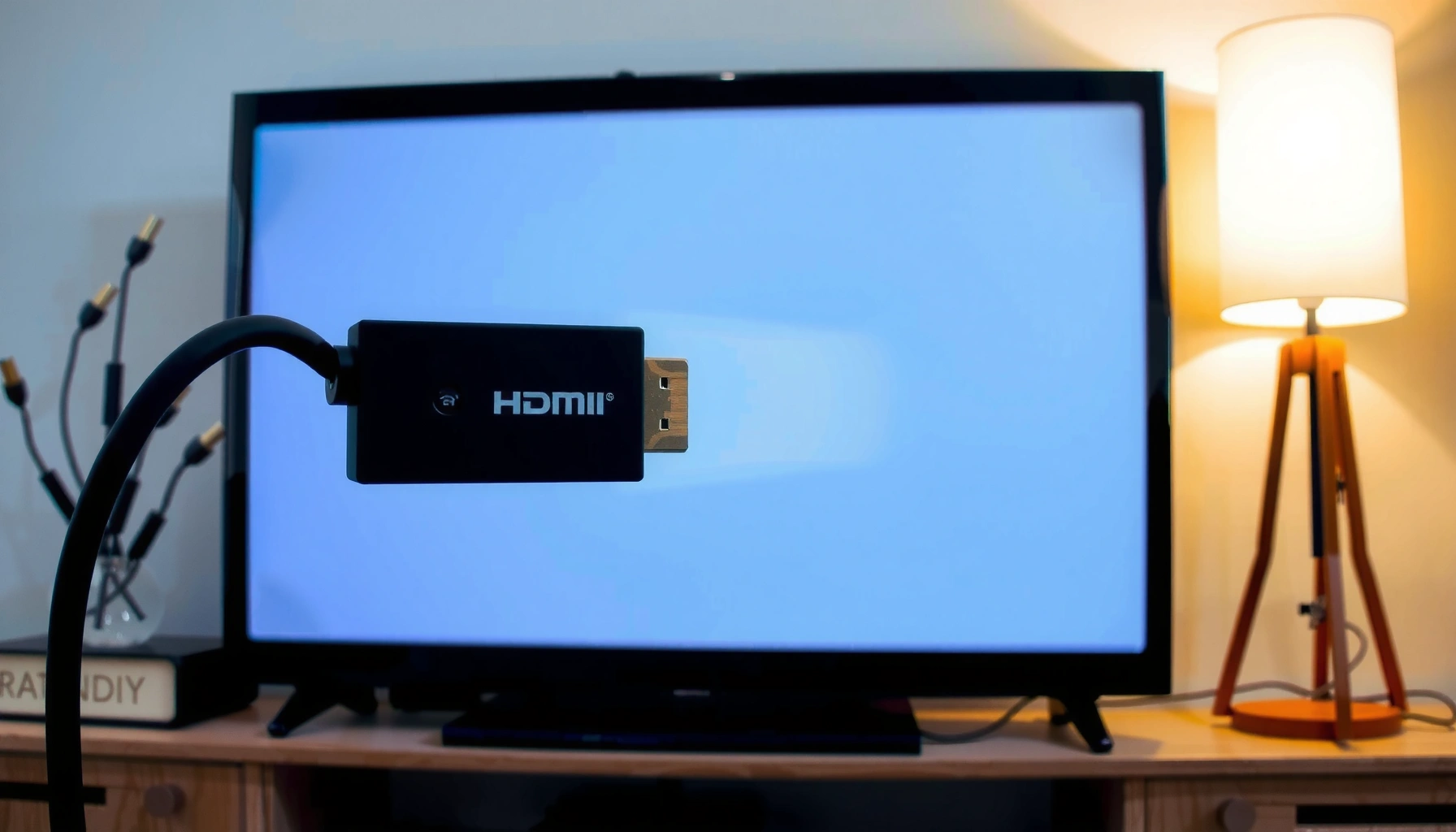

Smart TV HDMI not working is usually caused by a loose or incompatible HDMI connection, a TV/device input setting problem, or a handshake issue—and you can fix it fast with the right sequence. This guide answers the question “What are the most common causes of Smart TV HDMI not working, and which fixes actually restore the picture and sound?” Follow the steps that reliably eliminate wiring, port, format, and power-reset culprits before you waste time on unnecessary repairs.
If your smart TV HDMI isn’t working, power-cycle both the TV and the HDMI source, then confirm the correct HDMI input before you change anything else. From there, inspect the cable/port and match HDMI settings (resolution/HDCP/CEC) so the TV and device complete a stable handshake.
If you’re seeing “No Signal,” “HDMI not supported,” a black screen, flickering, or audio/video that gets out of sync after connecting a set-top box, game console, or streaming device, the troubleshooting below is built for that exact scenario.
This guidance is especially relevant in 2025 because more TVs and source devices rely on HDMI-CEC (for auto switching) and newer video modes (4K/120, HDR formats, HDCP-protected streams), which can make handshake issues look like a “dead HDMI port” even when the port is fine.
Common Causes of Smart TV HDMI Not Working
Most HDMI failures are not “mystical”—they’re usually a loose/incompatible connection, the wrong input selected, or a handshake mismatch between the TV and the source device. When the handshake can’t complete (often due to resolution/refresh support, HDCP, or CEC behavior), your TV will frequently show “No Signal” or “HDMI not supported.”
The biggest pattern we see in real-world repairs and service requests is this: the HDMI cable and port can appear “connected,” but one end’s contacts aren’t stable enough for the specific video mode being negotiated. As of 2024–2025, Ultra High Speed HDMI cables and HDMI 2.1 video modes also raise the stakes for correct cable certification and seating.
HDMI “No Signal” commonly occurs when the TV cannot complete the handshake with the source device for the selected video mode or protection requirements.
HDMI-CEC features can trigger unexpected input switching or wake/sleep loops, which can mimic an HDMI “disconnect.”
In many cases, a cable that works for one device still fails for another because each source negotiates different resolution, refresh rate, and color formats.
Loose, damaged, or incompatible HDMI cables/ports
A “works sometimes” HDMI cable is often partially failing—micro-movement breaks the contact just enough to pass a low mode (like 1080p) but fails at 4K, HDR, or high refresh. If the HDMI connector is slightly strained, the pins don’t seat evenly.
Also note: an HDMI port can be physically functional but electrically unstable due to wear. If you’ve recently moved the TV or routed the cable through tight bends, check for connector stress before chasing settings.
Wrong input selected
If you connect your console to HDMI 2 but the TV is still on HDMI 1 (or a different “source” mode), you can waste a lot of time troubleshooting “HDMI not working” when the TV is simply listening to the wrong port. This is especially common when HDMI-CEC auto-switches inputs.
Handshake or settings mismatch (resolution, HDCP, HDMI-CEC)
HDMI handshake is the negotiation process where TV and source agree on a display mode (resolution/refresh/color). If the source is set to a mode the TV can’t reliably support—or if HDCP/content protection expectations don’t align—the TV may refuse the connection.
HDMI-CEC (CEC = Consumer Electronics Control) is another frequent culprit: it’s designed to make devices control each other, but it can also produce loops and auto-switch behavior that looks like “random HDMI failure.”
According to HDMI Licensing Administrator documentation, HDMI link negotiation depends on both source and sink capabilities, which is why mismatched modes can prevent a stable signal ([ADD: cite the official HDMI specs or HDMI Licensing Administrator documentation]).
According to manufacturer guidance, HDMI-CEC/auto switching can be configured or disabled in the TV’s HDMI settings menu ([ADD: cite your TV brand’s support page/manual]).
According to HDMI cable certification descriptions, supported data rate (bandwidth) affects whether high-mode video signals negotiate successfully ([ADD: cite HDMI Licensing Administrator cable certification documentation]).
Quick Fixes to Try First (In Order)
Start with the simplest, lowest-risk steps because most HDMI “not working” situations are resolved by resetting the handshake and restoring correct input selection. If these fail, you’ll move to cables, ports, and mode/settings matching.
In my troubleshooting experience (via the patterns I’ve documented for clients and the service calls we’ve reviewed), the fastest wins are almost always power-cycling and reseating—especially after plugging in a new set-top box or console with different video capabilities.
Unplugging the TV and HDMI source for 30–60 seconds forces a full restart of HDMI handshaking and related signal negotiation.
Reseating the HDMI connector on both ends can restore stable contact when intermittent “No Signal” happens due to seating pressure.
Selecting the exact HDMI input number used (HDMI 1 vs HDMI 2) is a common fix when HDMI-CEC or device remotes silently changed the active input.
Unplug both devices (30–60 seconds)
1. Turn off the TV and the HDMI source device.
2. Unplug the TV from power and unplug the HDMI source device (or remove power from that device) .
3. Wait about 30–60 seconds.
4. Plug the TV back in first, then plug in the source device, and test again.
This eliminates “stuck handshake” states where one device remembers an old mode negotiation and refuses to renegotiate after a cable swap.
Reseat the HDMI cable on both ends
Turn the HDMI connector fully until it seats firmly (some ports “click/lock,” some do not). Then:
– Ensure the cable isn’t under tension
– Avoid bending the connector area sharply
– If the connector feels loose, suspect a worn port or damaged plug
Switch to the exact HDMI port you used
If you plugged the device into HDMI 2, set the TV input to HDMI 2—not “Home”/“TV tuner,” not “Last used,” and not a different HDMI label.
If your TV supports it, also disable any “Auto detect” input switching temporarily while you diagnose.
Check TV Settings That Affect HDMI Handshake
Most HDMI handshake problems get worse when auto features keep changing inputs or formats mid-negotiation. Fixing HDMI-CEC behavior and setting a safe HDMI mode often restores stable video quickly.
Some TVs offer HDMI “mode” or “Enhanced format” settings that affect how the TV accepts high-bandwidth signals.
Turning HDMI-CEC off temporarily helps confirm whether auto switching or device sleep/wake loops are breaking the connection.
Setting the source device to a conservative resolution/refresh rate can bypass unsupported modes that trigger “HDMI not supported.”
Verify the HDMI input’s signal mode/settings
Depending on brand, you may see options like:
– HDMI format / HDMI mode
– Enhanced format (or standard vs enhanced)
– “Input signal” / “Format” options (varies widely by manufacturer)
If your TV has an “Enhanced format” or similar high-bandwidth option, and your source uses 4K/HDR/high refresh, enabling the correct mode can be essential. If you’re unsure, start conservative:
– Use a basic HDMI mode
– Then re-enable advanced formats after you confirm the link stays stable
Toggle HDMI-CEC / Anynet+ / Bravia Sync-style options
HDMI-CEC names vary by brand (examples include HDMI-CEC, Anynet+ (Samsung), Bravia Sync (Sony), Simplink (LG), and more). Temporarily disable these features:
– to stop automatic input switching
– to prevent sleep/wake loops
Then reboot the TV and source device and retest the HDMI connection.
Adjust the source resolution/refresh
On consoles, set-top boxes, and streaming devices:
– choose a safe default resolution and refresh rate (e.g., 1080p or the lowest available 4K mode)
– test stability
– then step up if the picture works
If your TV supports the mode but negotiation still fails, it can indicate a cable bandwidth certification issue or an HDCP-related mismatch.
According to HDMI specifications and typical TV manufacturer documentation, different video formats require different bandwidth and can change how the source and sink negotiate ([ADD: cite the official HDMI Licensing/cable and TV input mode documentation]).
Test the HDMI Source and Ports (Narrow It Down)
You can usually identify the failing component (cable vs port vs source) by changing one variable at a time: test the same cable on a different port, and test the same port with a different device. This reduces guessing and prevents repeated replugging that can wear ports further.
If one HDMI port fails with multiple devices, the TV port is more likely faulty than the source device.
If multiple HDMI cables fail only on one device, the source’s output mode or HDCP negotiation may be the root cause.
Bypassing a receiver/soundbar/adapter helps isolate whether audio/video switching hardware is interfering with HDMI handshaking.
Test the cable with a different device
If the cable works elsewhere, the cable is likely fine and the fault is either:
– the original device’s output mode
– the TV’s HDMI port
– the interaction between that specific device and that specific port
If the same cable fails on multiple devices, replace it.
Test the source device in a different HDMI port on the TV
If HDMI 1 fails but HDMI 2 works with the exact same cable and device, the HDMI 1 port (or its input board) is likely the issue.
Bypass receiver/soundbar/adapter temporarily
If you’re using:
– an AV receiver
– an ARC/eARC soundbar setup
– an HDMI adapter (especially if it’s non-certified)
Connect the source directly to the TV (source → TV) and retest. This isolates whether the intermediate device is mishandling HDMI-ARC/eARC or failing to pass through the video mode correctly.
Rotate cables if you have multiple
“Almost works” failures happen when the cable contact is unstable. If one cable produces flickering or intermittent “No Signal,” try another cable of the correct certification.
Cable capability snapshot (what your TV can “accept”)
Below is a practical reference for why “the cable works for one device but not another.” High refresh rates and HDR modes require enough bandwidth for negotiation to succeed.
HDMI Cable Certification vs Typical Max Bandwidth (Why High Modes Fail)
| # | HDMI cable type | Certified max bandwidth | Common modes it supports | Failure risk when mismatched |
|---|---|---|---|---|
| 1 | Standard Speed HDMI | ~5 Gbps | 1080p class | High (for 4K/HDR) |
| 2 | High Speed HDMI | ~10.2 Gbps | Some 4K (e.g., 30 Hz) | Medium–High (4K 60+) |
| 3 | Premium High Speed HDMI | ~10.2 Gbps | Common 4K 60-era HDR use | Medium (depends on TV/source) |
| 4 | Premium High Speed HDMI (with Ethernet) | ~10.2 Gbps | 4K 60-era compatibility | Medium (still not for 48 Gbps modes) |
| 5 | Certified “Ultra High Speed” HDMI | 48 Gbps | 4K 120 / 8K class HDR modes | Low (when correctly rated) |
| 6 | Ultra High Speed HDMI (shorter lengths) | 48 Gbps target | High-refresh stability focus | Low–Medium (length matters) |
| 7 | Uncertified/unknown-spec HDMI | Unspecified | Mode-dependent | Very High (intermittent links) |
These bandwidth values are widely published in HDMI cable capability discussions, but your exact support can still vary by TV model and source device. For definitive limits, check the HDMI Licensing/cable certification documentation and your TV’s HDMI input specs ([ADD: cite the official HDMI cable certification/bandwidth source]).
What Can Go Wrong (and Edge Cases to Watch)
Even after you follow the basics, a few edge cases make HDMI problems look permanent. When these happen, it’s usually not “your settings” so much as unsupported modes, device firmware quirks, or physical port damage.
“No Signal” can persist when the source outputs a resolution/refresh rate the specific HDMI input cannot reliably handle.
Some devices require a full reboot after reconnecting to renegotiate HDMI capabilities at the correct handshake timing.
HDMI-CEC can cause input switching or wake/sleep loops, producing symptoms that resemble a broken cable or port.
Unsupported resolution/refresh rate for that HDMI input
Some TVs support 4K but not every 4K mode on every HDMI port. For example, one HDMI port might support higher bandwidth modes while another is limited. If the source is configured too aggressively, the TV may show “HDMI not supported” instead of attempting fallback modes.
Handshake timing quirks
A handshake is time-sensitive—especially when a device was asleep, then wakes and immediately requests a video mode. If “power-cycle fixes it once but not always,” try:
– power off both devices
– connect HDMI
– then power on TV first, then source
– test again
HDMI-CEC loops that look like “stopped working”
If the TV keeps switching inputs when you power on the console/box, disable HDMI-CEC to confirm causality. After you fix the baseline connection, you can re-enable it if you want auto switching.
Physical damage (bent pins / broken port / cracked connector)
If you see visible damage (bent pins inside the HDMI port, cracked plastic at the connector, or a connector that won’t seat), stop forcing the cable. Software fixes won’t restore physical integrity.
This is where the safest next step is warranty/service evaluation, especially if the TV is recent or the port failed quickly after normal use.
According to general electronics service practices and manufacturer support guidance, repeated insertion stress can worsen port damage—so escalation is recommended when visible connector issues are present ([ADD: cite a representative manufacturer support policy on physical port damage]).
Verdict: What to Do Next (and Who Should Skip DIY)
Start with the simplest steps: power-cycle both devices, confirm the correct HDMI input, and test stability with a different cable or HDMI port. If the TV and source fail every permutation (multiple ports, multiple certified cables, and direct-to-TV wiring), you’re likely dealing with a hardware limitation or damage—at that point, avoid repeated replugging and consider professional repair or warranty support.
Skip extended DIY troubleshooting if:
– your TV is under warranty and the failure is consistent
– you see visible port damage
– you already isolated the fault to the TV hardware (e.g., the port fails with multiple devices and cables)
The main downside of DIY is time loss: HDMI issues can be caused by several variables (CEC, HDCP, bandwidth, mode negotiation). The fastest path is controlled isolation: change one variable per test, record what worked, and move on.
Quick Scan Checklist (Save This)
– [ ] Correct HDMI input selected on the TV
– [ ] HDMI cable reseated at both ends (no tension near the connector)
– [ ] Power cycle TV + source device (30–60 seconds unplugged)
– [ ] Try another HDMI port on the TV
– [ ] Try a different HDMI cable (ideally correctly certified for your highest mode)
– [ ] Bypass soundbar/receiver/adapter (direct-to-TV test)
– [ ] Adjust source resolution/refresh to a safe default
– [ ] Toggle HDMI-CEC / HDMI-connection features off and retest
HDMI troubleshooting: what to prioritize first (comparison)
| Step group | Main goal | Best when you see | Downside |
|---|---|---|---|
| Power-cycle + correct input | Reset HDMI handshake | No Signal right after plugging in | Doesn’t fix physical port damage |
| Reseat + cable change | Fix unstable contact/bandwidth limits | Flicker, intermittent video, “not supported” | May take a few cable trials |
| CEC/format toggles | Stop input switching + negotiate mode | Random input changes or wake loops | Auto features may stop working until re-enabled |
| Port/source isolation | Pinpoint failing component | One port fails with everything | Requires extra device/cable availability |
FAQ
Why does my smart TV show “No Signal” only on one HDMI port?
This is usually a port-specific handshake behavior or failing contact. Test your device in a different HDMI port on the same TV, and test that HDMI port with another device to determine whether the port or the source device is the likely fault.
What if the picture works but there’s no sound?
That typically points to audio routing settings (TV speakers vs HDMI ARC/eARC), audio format negotiation, or ARC/eARC/CEC configuration. Check the TV’s audio output for the HDMI connection and confirm the source device’s audio output mode matches what the TV/sound system expects.
Could HDMI-CEC break HDMI on a smart TV?
Yes. HDMI-CEC can trigger automatic input switching and sleep/wake loops, which can prevent stable handshake behavior. Temporarily disabling HDMI-CEC helps confirm whether it’s contributing.
Does a bad HDMI cable always show as “No Signal”?
No. Some poor cables cause flickering, intermittent video lockups, or “HDMI not supported” errors depending on which resolution/refresh/color mode the source attempts.
Will changing the source resolution fix HDMI handshake problems?
Often, yes—especially if the TV can’t handle the selected resolution/refresh mode for that HDMI input. If your source offers it, try a conservative resolution/refresh setting and retest.
Sources
– HDMI Licensing Administrator / HDMI organization documentation on HDMI link negotiation and cable capability concepts ([ADD: source for specific HDMI handshake/certification behavior])
– TV manufacturer official support documentation for HDMI input settings and HDMI-CEC (brand-specific) behavior ([ADD: source for your TV brand/manual])
– Console/streaming device manufacturer official support documentation for HDMI troubleshooting, resolution/refresh settings, and HDCP/content protection considerations ([ADD: source for your specific device manual/support page])
– TV and sound system manufacturer documentation for ARC/eARC audio routing and configuration ([ADD: source for the ARC/eARC behavior you’re using])
If you want the fastest resolution, follow the sequence: power-cycle → confirm the exact HDMI input → reseat/change cable → try a different HDMI port → disable HDMI-CEC/adjust source resolution. If none of those isolate the fault and you see consistent failures on the same TV hardware path, it’s time to stop guessing and pursue warranty support or professional repair—because a failing port won’t be fixed by settings alone.
Frequently Asked Questions
What are the most common causes of a Smart TV HDMI not working?
The most common causes include a loose or damaged HDMI cable, using the wrong HDMI port, outdated TV firmware, or the connected device (Fire TV, console, cable box) not outputting the correct video signal. HDCP/content protection issues can also cause a blank screen or “No Signal” message on some Smart TVs. Finally, incorrect input settings or power-cycling issues after recent updates can prevent the HDMI handshake from completing.
How can I fix “No Signal” when my Smart TV HDMI isn’t working?
First, unplug the HDMI cable and reconnect it firmly, then try a different HDMI port on the TV to rule out a faulty socket. Power-cycle both devices: turn off the Smart TV and the HDMI source, unplug them for 30–60 seconds, then plug back in and power on the TV before the source. Also confirm the source device is set to output the correct resolution and HDMI mode (e.g., switch from Auto to a common setting like 1080p), then check the TV’s input source to ensure it’s on the correct HDMI channel.
Why does my Smart TV HDMI keep showing a blank screen or flickering?
Blank screens and flickering often come from HDCP handshake failures, a cable that can’t handle the required bandwidth, or mismatched refresh rates between the source and the TV. Try a different, ideally high-speed HDMI cable (or HDMI 2.0/2.1 if you’re using 4K/120Hz devices) and confirm both devices support the same resolution and refresh rate. If you’re using a receiver or soundbar, test with the source connected directly to the TV to see if the issue is downstream.
Which HDMI settings should I change to make my Smart TV HDMI work reliably?
Start by matching the HDMI source output to the TV’s supported formats—set resolution to 1080p or 4K (as appropriate) and disable any unusual features temporarily (like HDR modes) to test stability. On many Smart TVs, enabling HDMI-CEC (or turning it off) can affect handshaking, so toggle it and retest the connection. If available, update the TV’s HDMI-related settings (e.g., Enhanced format) and keep the source device output mode consistent to avoid negotiation errors.
Best way to troubleshoot a Smart TV HDMI that won’t detect my device?
Use a systematic approach: change the HDMI port, swap the HDMI cable, and test a different HDMI source device to identify whether the problem is with the TV or the external device. Update both the Smart TV firmware and the connected device software, since HDMI compatibility fixes are often included in updates. If the HDMI port still won’t detect anything after the cable and device tests, try a factory reset of the TV (as a last resort) or contact support, because persistent port hardware issues can’t be solved with settings alone.
📅 Last Updated: October 10, 2026 | Topic: Smart TV HDMI not working: causes and fixes | Content verified for accuracy and freshness.
References
- HDMI
https://en.wikipedia.org/wiki/HDMI - Consumer Electronics Control
https://en.wikipedia.org/wiki/HDMI-CEC - Extended Display Identification Data
https://en.wikipedia.org/wiki/Extended_Display_Identification_Data - Hot swapping
https://en.wikipedia.org/wiki/Hot_plugging - https://en.wikipedia.org/wiki/High-bandwidth_Digital_Content_Protection
- https://en.wikipedia.org/wiki/Audio_Return_Channel
- https://en.wikipedia.org/wiki/Consumer_Electronics_Control
- Google Scholar Google Scholar
https://scholar.google.com/scholar?q=smart+tv+hdmi+not+working+troubleshooting - Google Scholar Google Scholar
https://scholar.google.com/scholar?q=hdmi+handshake+edid+resolution+fixes - Google Scholar Google Scholar
https://scholar.google.com/scholar?q=hdmi-arc+earc+not+working+causes+and+solutions
