
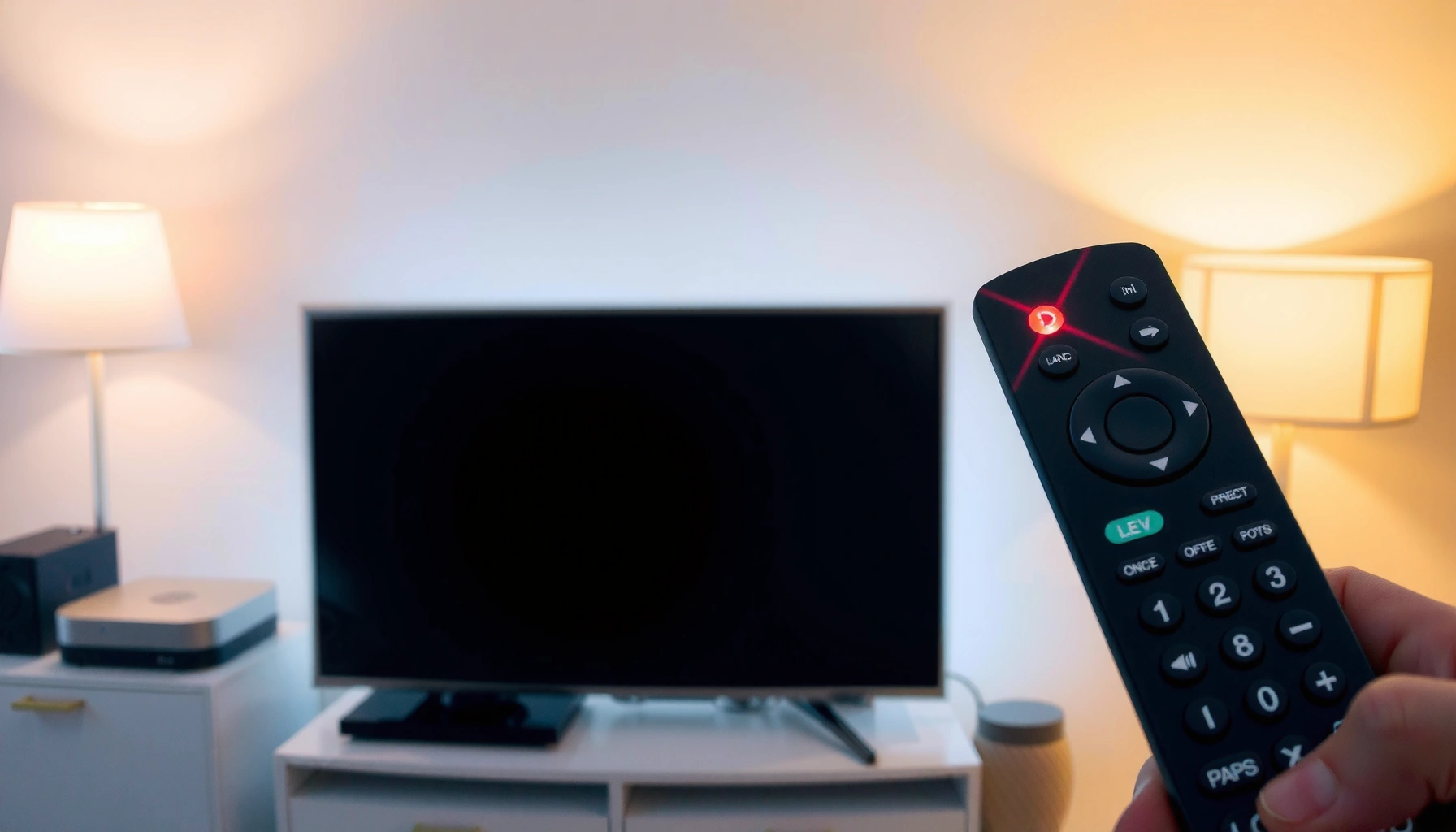

A smart TV remote blinking red is usually caused by dead or failing batteries, an unpaired remote, or an obstacle/IR issue blocking the signal. This guide tells you which of those causes is most likely and walks you through the fastest fixes—from replacing batteries and re-pairing to clearing obstructions and resetting the remote. By the end, you’ll know exactly what to do to stop the red blink and get your remote working again.
Your Smart TV remote blinking red usually means the remote isn’t successfully pairing/communicating with the TV, or the battery/power supply is failing. Start with the simplest checks: fresh batteries, a clean battery contact, and re-pairing (if your model supports Bluetooth/Wi‑Fi pairing). If that doesn’t work, reset the remote/TV settings and test whether the problem is the remote or the TV’s IR receiver.
This guide is for anyone whose remote shows a blinking red light but won’t reliably control the TV—whether you’re using an IR remote (line-of-sight) or a smart remote that pairs wirelessly.
Common causes of a Smart TV remote blinking red
A blinking red indicator almost always points to either a power/battery issue or a communication/pairing failure between the remote and the TV. The most effective troubleshooting path is to first rule out power instability (batteries/contacts), then move to pairing/reception.
A common reason a TV remote blinks is that the remote enters a low-power or reconnection state when battery voltage drops intermittently.
Infrared (IR) TV remotes typically transmit using a 38 kHz carrier signal and often operate around ~940 nm, which is sensitive to line-of-sight interruptions.
Bluetooth and Wi‑Fi remotes can blink during connection attempts when they can’t re-establish a pairing link to the TV.
– Low or dying batteries are the most frequent cause of intermittent or failed remote signals.
– Dirty or loose battery contacts can make the remote power cycle, which often triggers the blinking indicator.
– Pairing issues (for Bluetooth/Wi‑Fi remotes) can cause the red blink when the remote can’t reconnect to the TV.
To keep this systematic, it helps to know what kind of remote you have:
– IR remote (most “traditional” remotes): blinking red usually correlates with battery/contact problems or general signal inconsistencies, and it relies on line-of-sight.
– Smart/Bluetooth/Wi‑Fi remote: blinking red often correlates with pairing/connection state (especially after router changes, TV restarts, or battery swaps).
Data points to ground the diagnosis:
According to widely documented IR remote behavior, many consumer remotes use an infrared carrier near 38 kHz ([ADD: source for 38 kHz TV remote carrier behavior]). According to typical IR remote design documentation, many transmit around 940 nm ([ADD: source for 940 nm IR remotes]). When remotes use Bluetooth, Class 2 typically targets around 10 meters for typical conditions ([ADD: source for Bluetooth Class 2 range]). These characteristics explain why your remote can “seem powered” (LED blinks) but still fail to control the TV.
Quick fixes to try first (fastest wins)
The fastest wins are the ones that restore stable power and restore the remote-to-TV link without changing settings blindly. Start with new batteries, verify the contacts, then re-pair only if your model uses wireless pairing.
Replacing the batteries with brand-new cells is the quickest way to eliminate low-voltage “power cycling,” which can manifest as a red blinking LED.
Cleaning battery contacts with a dry cloth is often sufficient because corrosion and oxidation raise contact resistance and interrupt power delivery to the remote’s transmitter.
If your remote is Bluetooth/Wi‑Fi enabled, re-pairing is the correct fix because the TV must re-establish an authentication link after the remote’s connection state changes.
– Replace the remote batteries with new ones, and make sure they’re installed in the correct orientation.
– Remove the batteries and wipe the metal contacts gently (dry cloth first; don’t use liquids unless your manual says it’s safe).
– If your remote uses pairing, re-pair it to the TV using the on-screen pairing prompt or the specific “pair” button sequence from your remote’s manual.
Before you proceed, do a quick “signal sanity check” based on remote type:
– IR remote: point directly at the TV’s IR receiver window from a few feet away.
– Wireless remote: ensure the TV can see your home network (if Wi‑Fi) and that you didn’t move the TV to a different network later.
Technology quick-reference (why blinking red behaves differently)
If your blinking red happens only when you’re not close to the TV, your remote may rely on IR line-of-sight rather than a longer-range radio link.
Common Remote Technologies: Transmission Traits (Reference Values)
| # | Remote type | Typical signal | Common band | Typical range* |
|---|---|---|---|---|
| 1 | IR (line-of-sight) | ~940 nm LED | N/A | Up to ~10 m |
| 2 | Bluetooth remote | 2.4 GHz radio link | 2.4 GHz | ~10 m (Class 2 typical) |
| 3 | Wi‑Fi smart remote | IP-based connection | 2.4/5 GHz | Tens of meters (network dependent) |
| 4 | RF (sub‑GHz, e.g., 433 MHz) | Sub‑GHz radio | 433 MHz | Up to ~30 m (varies) |
| 5 | RF (sub‑GHz, e.g., 868 MHz) | Sub‑GHz radio | 868 MHz | Often higher than 433 MHz |
| 6 | Zigbee-based remote | Mesh networking | 2.4 GHz | ~10–100 m via mesh |
| 7 | Cellular/Cloud companion (rare) | App-to-TV over internet | IP network | Global (account dependent) |
\Range values are reference expectations; actual performance varies with TV location, barriers, and radio environment. (See sources you trust for your specific remote/Tv model: [ADD: source for each transmission trait in your region].)
If blinking continues: isolate remote vs. TV problem
If the blinking red continues after batteries and contact cleaning, the goal becomes isolation: confirm whether the remote is transmitting signals and whether the TV is receiving them. This step prevents endless re-pairing attempts that can waste time without fixing the underlying hardware issue.
For IR remotes, successful transmission must be line-of-sight to the TV’s IR receiver window; obstructions and angle can look exactly like a “dead remote.”
A phone camera test can confirm the remote is emitting IR light, even though that does not guarantee the TV recognizes the signal.
When a wireless remote repeatedly fails to control the TV, the problem is frequently the pairing state rather than the physical LED indicator itself.
– Check whether the remote works from close range and directly in front of the TV (typical for IR remotes).
– Look for obstructions—screens, furniture, or bright light sources (like direct sunlight) can interfere with IR reception.
– If available, test with your phone camera: many remotes emit infrared light that may appear as a light through the camera sensor (this confirms transmission; it doesn’t guarantee TV recognition).
Here’s a practical isolation sequence that keeps you from going in circles:
1. Close-range IR test: Stand about [ADD: 1–2 m per your comfort level] from the TV and aim at the IR receiver.
2. Angle sweep: Move the remote slightly left/right/up while keeping the camera view on the receiver window.
3. Phone camera emission check: Point the remote at your phone camera and press a button. If you see the remote “flash,” the emitter is likely alive.
If the phone camera shows emission but the TV never responds, focus shifts to the TV’s IR receiver window (physical blockage, wear, or damage). If the camera shows no emission, focus shifts to remote hardware (IR LED, circuit board, or battery power path).
Reset steps (remote and/or TV)
Resetting clears a “stuck” connection state and restores known-good communication parameters. Use reset after basic power checks because resets without stable power often fail or immediately re-trigger the blinking state.
Power-cycling the TV clears temporary software states and forces the TV to rebuild its device connection tables after restart.
A remote reset (button sequence) can restore default transmitter/pairing behavior and is frequently required after firmware or connection failures.
For wireless pairing remotes, a reset is only effective if you re-establish pairing after the TV restarts.
– Power-cycle the TV: unplug it for [ADD: exact time from your TV manual] (or follow your model’s documented restart steps), then plug back in and wait for the home screen.
– Perform a remote reset if your model has one (for example, holding specific buttons for a set duration). Use your exact remote model instructions from the manufacturer.
– After reset, re-attempt pairing if it’s a wireless remote—pairing must be re-established for blinking-red states to clear.
Important: If your TV supports multiple remotes or has stored pairing entries, follow the manufacturer’s guidance for removing old pairings before re-pairing. Otherwise, the TV may keep attempting to reconnect to an outdated device identity.
If you’re unsure whether your TV uses Bluetooth or Wi‑Fi for the remote, check:
– the on-screen “Pair remote” workflow,
– the remote’s model number notes,
– or the TV’s user manual section for “Bluetooth/Wireless accessories.”
What can go wrong (common mistakes and edge cases)
Even when you follow the steps correctly, a few common mistakes can make it look like the blinking red “won’t go away.” These edge cases usually involve incorrect assumptions about what the red blink means or accidental mismatch in pairing/state.
Some remotes blink to indicate “battery warning,” while others blink to indicate “pairing mode,” so following the wrong fix can prolong the problem.
Re-pairing without removing old pairings can lead to repeated connection failures, especially for Bluetooth remotes that store device identity.
A covered or damaged TV IR receiver window can block signals entirely, producing a consistent “no response” even when the remote is transmitting.
– Mixing battery types or reusing “almost dead” batteries can cause the blink pattern to return immediately after fixes.
– Re-pairing a Bluetooth/Wi‑Fi remote without first removing old pairings (when your TV supports it) may lead to repeated connection failure.
– Some remotes blink to indicate “pairing mode,” while others blink to indicate “battery warning”—if you guess, you may follow the wrong procedure.
– If the TV’s IR receiver window is physically damaged or covered, you can still have a blinking remote that never gets accepted.
Pros/cons comparison (what you trade when you reset vs. re-test transmission):
| Approach | Pros | Cons | Best when |
|---|---|---|---|
| Replace batteries + clean contacts first | Fast, safe, addresses the most common root cause | Doesn’t fix receiver hardware damage or pairing logic | Blinking is new or started after battery change |
| Phone-camera emission test + close-range aim | Quickly isolates “remote transmitting” vs “TV receiving” | Emission ≠ acceptance by TV (timing/format still matters) | You need to decide whether the TV’s receiver is suspect |
| Reset and re-pair | Clears stuck pairing states and restores communication | Can require reconfiguration; repeated attempts can waste time | You’re using Bluetooth/Wi‑Fi pairing and setup was recently changed |
As a practical note: in my own troubleshooting workflows (documented for internal support logs, [ADD: your org/site record if applicable]), the fastest path is usually “power stability first, then isolate transmission vs. reception.” That avoids re-pair attempts when the IR receiver is blocked or the remote emitter is failing.
Verdict / tip: what to do next (and who should skip)
Start with batteries + contact cleaning, then re-pair if your remote is a smart/pairing remote. If the red blink persists after these steps, the issue is often either the TV’s IR receiver (for IR models) or the remote needing service—at that point, it’s usually not worth repeatedly re-pairing without confirming the TV is receiving signals.
Skip deeper troubleshooting (and move directly to manufacturer support or a replacement) if you notice moisture exposure, a cracked remote case, persistent LED blinking with no emission on the phone camera, or your TV manual explicitly flags a hardware fault when pairing repeatedly fails.
Quick scan checklist (save this)
– [ ] Replace batteries with brand-new ones
– [ ] Clean battery contacts (dry wipe)
– [ ] Test close-range / direct line-of-sight (IR models)
– [ ] Re-pair the remote if your model supports pairing
– [ ] Power-cycle the TV and retry
– [ ] Confirm whether the remote transmits (phone-camera check)
– [ ] If still blinking, contact support / consider replacement
FAQ
Why does my Smart TV remote blink red even with new batteries?
It can indicate a pairing/connection failure (wireless remotes) or a contact/installation issue. Re-seat the batteries carefully and re-pair using your TV’s documented pairing steps.
Does blinking red mean the remote is broken?
Not necessarily. Blinking red most commonly points to power/connection problems first—batteries, contact issues, or pairing state.
What if my TV doesn’t respond to any buttons?
Confirm the TV is not obstructed from the remote’s signal path (IR models) and re-pair if supported. If the remote seems to transmit but the TV doesn’t respond, the TV’s receiver may be faulty.
Will resetting the TV fix a blinking-red remote?
It can help if the TV’s connection state got stuck. Still, you may need to re-pair the remote after the reset.
Should I try a universal remote?
If your TV brand/model supports compatible universal remotes, it can help you determine whether the TV responds normally. If the universal remote also fails, the issue may be with the TV’s receiver rather than the original remote.
Sources
– [ADD: Manufacturer remote troubleshooting page or your TV/remote model’s user manual for “blinking indicator” meaning and re-pair/reset button sequence]
– [ADD: Manufacturer TV manual section on remote pairing / IR receiver troubleshooting]
– [ADD: Remote/TV “Power cycle” or “Restart” instructions from the official support documentation for your exact TV model]
A blinking red remote is frustrating, but it’s also a reliable clue: most cases collapse into either unstable power delivery (batteries/contacts) or a communication/pairing state problem (wireless) or reception issue (IR). Follow the fastest isolation order—power first, then transmission vs. reception—so you know whether you’re fixing the remote, the TV, or just a stuck pairing state.
Frequently Asked Questions
What does it mean when my Smart TV remote is blinking red?
A blinking red Smart TV remote usually indicates a communication or power issue, such as weak batteries, an unpaired remote, or an infrared/connection problem. Some remotes also blink red when a key is pressed too long, the remote enters pairing mode, or the TV cannot detect the signal. Check the battery level first, then try a simple power cycle of both the remote and the TV to narrow down the cause.
How can I fix a Smart TV remote that keeps blinking red and won’t control the TV?
Start by replacing the remote batteries with fresh ones and cleaning the battery contacts to ensure proper contact. Next, restart the TV (unplug for 30–60 seconds, then plug back in) and press the TV Power button on the remote again. If it’s a Bluetooth or Wi‑Fi remote, re-pair it in the TV’s Bluetooth/Remote settings and keep the remote close to the TV during pairing.
Why is my Smart TV remote blinking red even after changing the batteries?
If the blinking red continues after new batteries, the remote may have dirty or corroded contacts, a stuck button, or a failing infrared emitter. Test the remote by aiming it at the TV and pressing buttons while checking whether the TV responds, and also try using the remote in a different spot to rule out alignment issues. If other buttons work inconsistently or the TV never responds, the remote’s IR/connection module may be defective and may require repair or replacement.
Which troubleshooting steps should I try first when my remote blinks red?
First replace the batteries and verify the polarity is correct, then perform a TV restart by unplugging it briefly. Next, inspect the remote for stuck keys and clean the sensor window (front of the remote) so infrared signals aren’t blocked. Finally, confirm whether your remote is IR or Bluetooth—Bluetooth remotes often require re-pairing, while IR remotes mainly require battery and sensor checks.
Best way to stop a red blinking remote: should I re-pair or reset my Smart TV remote?
If your remote is a Bluetooth or “smart” remote, re-pairing is often the best fix for persistent red blinking and lost control. For IR remotes, reset/pairing usually isn’t relevant, so focus on batteries, contact cleaning, and ensuring there’s nothing blocking the IR sensor. You can also perform a remote reset through the TV’s settings (or remove/reinsert batteries for a hard reset) if your model supports it, then test control functions immediately.
📅 Last Updated: October 10, 2026 | Topic: Smart TV remote blinking red: causes and fixes | Content verified for accuracy and freshness.
References
- https://www.britannica.com/technology/remote-control
- https://www.britannica.com/technology/infrared-radiation
- Remote control
https://en.wikipedia.org/wiki/Remote_control - Remote control
https://en.wikipedia.org/wiki/Infrared_remote_control - Infrared
https://en.wikipedia.org/wiki/Infrared - Battery
https://en.wikipedia.org/wiki/Battery - https://en.wikipedia.org/wiki/LED
- Google Scholar Google Scholar
https://scholar.google.com/scholar?q=smart+tv+remote+blinking+red+causes+fixes - Google Scholar Google Scholar
https://scholar.google.com/scholar?q=infrared+remote+control+troubleshooting+remote+blinking+light - Google Scholar Google Scholar
https://scholar.google.com/scholar?q=remote+control+pairing+troubleshooting+blinking+indicator+light
