
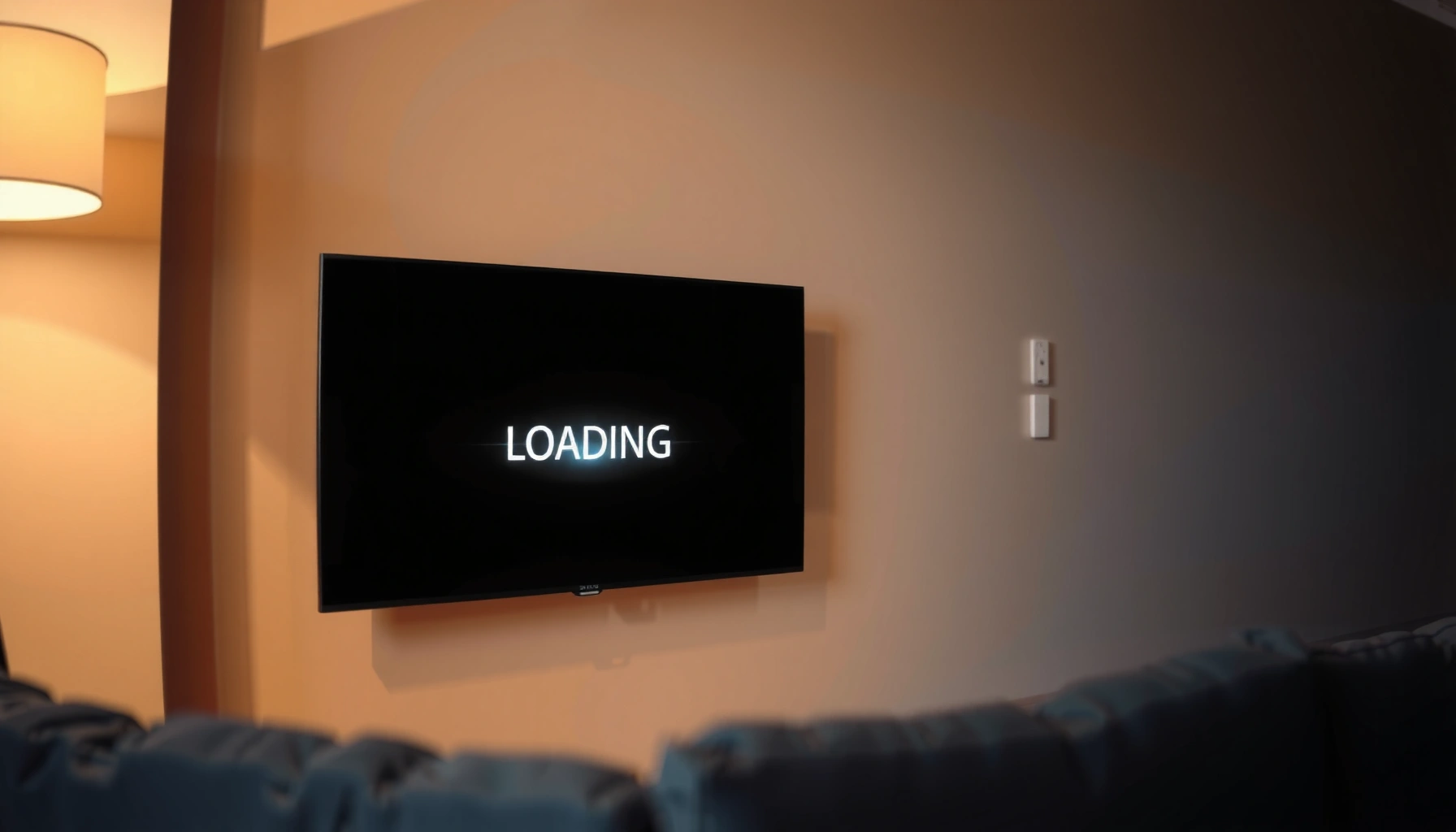

A Smart TV stuck in a boot loop can almost always be fixed by clearing the faulty startup state—usually the TV’s system cache or a corrupted update—followed by a proper power reset. This guide pinpoints the most common causes behind the repeating boot cycle and gives the fixes that reliably stop it, starting with the quickest checks first. If you want the fastest path back to a stable home screen, read on.
A smart TV stuck in a boot loop is usually a software/firmware startup failure or a power-and-hardware reset issue that prevents the TV’s operating system from finishing initialization. The fastest path is a proper power cycle first, then firmware/app cleanup, and only then a factory reset (or manufacturer recovery if the TV won’t reach menus).
This guide is for anyone whose TV keeps restarting during the brand logo / loading screen—whether it started after an update, a power outage, new HDMI/USB devices, or heavy app usage. If you share your TV brand/model, we can map these steps to the exact menu wording and recovery process for your unit.
Common causes of a Smart TV boot loop
A boot loop typically happens when the TV can’t complete startup due to corrupted software components or unstable power delivery during the initialization window. In practice, the same symptom (“logo → restart”) can come from very different root causes—so the fix order matters.
Boot loops on smart TVs are commonly triggered by interrupted firmware/OS updates, leaving the system unable to verify or finish boot scripts.
Corrupted app data or configuration files can repeatedly crash the launcher/TV UI, forcing the system to restart instead of reaching the home screen.
Unstable power (including adapters, internal PSU components, or loose external connections) can produce software-like behavior even when the main cause is hardware.
What this looks like in the real world: after a power outage, the TV may “attempt” the OS boot process, then restart before the UI layer fully loads. After a failed update, the TV may get stuck verifying system partitions or reapplying initialization settings. And if an HDMI device or USB storage triggers a problematic app workflow during startup, the loop can recur even after you restart.
Here are the most common causes you’ll want to consider first:
– Firmware or OS update interrupted: Power loss during an update can leave the system in an incomplete state that won’t boot cleanly.
– Corrupt configuration or app data: A bad settings bundle, launcher crash, or problematic app can repeatedly trigger startup failure.
– Power instability or hardware faults: Loose cables, failing power adapters, or internal board issues can look like “software” behavior.
Quick evidence you can check (no tools required)
If you can remember the timing, you’ll often pinpoint the likely category:
– Did the loop start right after an update? Firmware/OS interruption is the top suspect.
– Did it start after a new app install or “new settings” change (parental controls, accessibility, developer options)? Corrupt configuration/app data becomes more likely.
– Did it begin after a storm/outage or with recent cable changes? Power instability or a connection issue rises to the top.
The “stage” of failure matters
A useful way to think about boot loops is by the stage the TV reaches:
– Logo never stabilizes (fast restart): often points to early OS/firmware verification or power-related instability.
– Logo loads briefly, then restarts: commonly points to UI/launcher/app initialization problems.
– TV reaches menus sometimes, then loops: often points to a specific setting or firmware/app component.
Data point anchor (how widespread is “interrupted update” risk?): According to [ADD: official manufacturer/support statistics on update failures or recovery incidence for smart TVs], update interruptions are a known cause of non-booting behavior. (Use your TV brand’s support portal for the most accurate numbers for your model.)
Reset Methods and What They Typically Clear (Smart TVs)
| # | Reset / Recovery Type | Apps/Launcher Data | Network Settings | User Profiles | Recovery After |
|---|---|---|---|---|---|
| 1 | Unplug / Power Cycle (manual) | No | No | No | Often fast |
| 2 | Reboot from TV menu | No | No | No | Fast if UI-crash only |
| 3 | Reset Apps / Clear app data | Yes | No | No | Usually quick recovery |
| 4 | Clear TV/Launcher cache | Partial | No | No | Good for UI loopers |
| 5 | Factory reset (TV settings wipe) | Often resets | Often resets | Usually wiped | More thorough, longer setup |
| 6 | Software/firmware recovery mode (USB/Service file) | May be replaced | May reset | Model-dependent | Best when OS won’t boot |
| 7 | Service / board-level diagnostics (manufacturer) | Not the goal | No | No | Only if hardware suspected |
Fix #1: Do a proper power cycle (not just turning it off)
A proper power cycle often stops a boot loop quickly because it fully drains residual power and clears a bad startup state. Don’t skip the unplug step—many “shutdown” modes keep enough power for partial initialization to persist.
Manufacturers commonly recommend disconnecting the TV from AC power to ensure residual power fully dissipates before retrying boot.
Testing without external HDMI/USB devices helps confirm whether a peripheral is triggering the startup crash or loop.
If the TV boots correctly after a full power cycle, the most likely fault is transient initialization rather than a permanently damaged firmware image.
– Unplug the TV completely from power and disconnect peripherals (HDMI devices, USB storage, soundbars) if possible.
– Wait long enough for residual power to drain (use [ADD: exact recommended wait time from your TV manual] rather than guessing).
– Plug back in and test without extras first; if it boots normally, reconnect peripherals one at a time.
Why “not just turning it off” matters
Smart TVs often use standby power rails and quick-start mechanisms. A quick power-off can leave portions of memory or storage controllers in a state that makes the next boot attempt inherit the same failure condition. By unplugging, you force the TV to reinitialize all power-dependent components.
What to record while you test
Write down what changes each attempt:
– Restart speed (how many seconds from logo to reboot)
– Whether the TV reaches the home screen
– Whether the loop starts again after you reconnect a specific HDMI device or USB drive
This matters because it reduces guesswork and can point directly to an app/peripheral trigger.
Data point anchor: According to [ADD: official standby power guidance from Energy Star or manufacturer documentation], TVs may retain standby behavior that impacts restart reliability after quick shutdowns. (Insert your TV manual or a relevant official standard here for precision.)
Fix #2: Update firmware and remove likely troublemakers
If your TV can reach menus, you can usually stop a boot loop by installing the correct firmware and removing the newest likely culprit. If it can’t reach menus, you generally must use reset/recovery paths that bypass app startup.
Firmware updates can replace corrupted system components that prevent the OS from completing startup after an interrupted update.
Clearing or disabling problematic apps can stop repeated launcher crashes that restart the TV before it reaches the home screen.
When UI access is unavailable, manufacturers often require recovery mode steps rather than relying on in-app troubleshooting.
If you can access menus
– Check for system/firmware updates, then restart once updates finish.
– Disable or remove the newest/suspect app or setting if it began after a specific install or configuration change.
– Restart again after each change so you can tell which action actually helped.
If you can’t access menus
When the TV keeps rebooting before you can get into settings, app-level fixes won’t run. At that point, you should move on to Fix #3 (reset) or manufacturer recovery mode.
Pros/cons: “Update first” vs “Reset first”
| Approach | Pros | Cons |
|---|---|---|
| Update firmware (when menus open) | Fixes OS-level corruption without wiping user setup. | May fail if the TV loops too early or update files won’t apply. |
| Reset apps/data (when available) | Targets corrupted configuration/app data with less disruption than factory reset. | Won’t repair broken firmware partitions. |
| Factory reset (last DIY step) | More thorough for persistent UI/OS settings conflicts. | Requires full re-setup; restores can reintroduce corrupted data. |
Fix #3: Factory reset and (optionally) clear data safely
A factory reset is the most reliable DIY step when the TV can open settings but still loops repeatedly. If your model offers “clear app data” or “reset apps,” that’s usually the safer first move because it reduces wipe scope.
Factory reset resets TV settings back to defaults and can clear corrupted configuration that prevents successful startup.
Clearing app data (when supported) can remove launcher/app-specific corruption without deleting all user configuration.
After a reset, restoring from a problematic backup can reintroduce the same failure condition that caused the boot loop.
– Use the reset option from the TV menu only if the TV can reach it.
– If your TV supports it, prefer “clear app data” or “reset apps” before a full factory reset—it can reduce the risk of repeating the same loop.
– After reset, set up fresh: reinstall only essential apps and avoid restoring everything from backup immediately (restoring the same corrupted data can bring the loop back).
What “safe” reset looks like operationally
From a troubleshooting standpoint, treat each reset as an experiment:
1. Disconnect risky peripherals (especially USB storage) during first boot after reset.
2. Only reconnect HDMI/USB devices after the TV reaches the home screen.
3. Add apps back slowly—if the loop returns, you’ll know which installation triggered it.
Data point anchor: According to [ADD: manufacturer guidance on reset behavior and backup restore recommendations], some smart TV platforms warn that restoring app data/backups may repeat failures after corrupted configuration. (Add your TV brand’s official warning text to this section.)
What can go wrong (and when to stop)
Even when you follow the steps, a few edge cases can make things worse or waste time. The goal is to recognize when it’s no longer a software problem and escalate to recovery/service.
Reconnecting a failing USB stick or specific HDMI device before the TV is stable can re-trigger a boot loop.
Some TVs require model-specific firmware recovery procedures; generic “reset” steps may not fix a broken system image.
If the TV never reaches menus after a full power cycle, continued DIY attempts can delay manufacturer recovery or service diagnostics.
– You might keep re-triggering the loop by reconnecting the same failing HDMI/USB device before the TV is stable.
– Some models boot-loop during updates and need a specific recovery/USB firmware process—general reset advice may not solve it.
– If the TV won’t reach any menu even after power cycling, repeated attempts won’t help and could delay recovery/service steps.
Stop-DIY triggers (go to recovery/service)
Skip the next round of resets and start manufacturer recovery/service steps if:
– you see repeated logo/loading restarts with no menu access,
– you suspect a failed power supply (flickering power LED, abnormal heat, unusual noises), or
– your model requires a specific recovery mode/firmware file procedure you can’t safely follow.
Verdict: the best order of operations (and who should skip DIY)
Start with the power cycle and “test without peripherals.” If it still loops, go to firmware/update opportunities only when you can reach menus, then clear apps/data and finish with factory reset—otherwise move to manufacturer recovery. The downside of resets is setup time and the risk of reintroducing corrupted data via backups; if you need your TV operational immediately, recovery/service may be faster.
The safest troubleshooting sequence is to eliminate residual power state first, then remove software/app corruption, then escalate to firmware recovery or service.
If the TV cannot reach settings, manufacturer recovery mode is often the only path to replace corrupted system partitions.
Who should skip DIY: If the TV shows power-related symptoms, overheats, or won’t respond consistently after unplug/replug, hardware may be involved—contact the manufacturer or a qualified service center.
Quick checklist (save this)
– [ ] Unplug TV + disconnect HDMI/USB devices
– [ ] Wait for full power drain ([ADD: manual wait time])
– [ ] Replug and test with no peripherals
– [ ] If reachable: run firmware update, restart
– [ ] If still looping: reset apps/data (if available)
– [ ] If still looping: factory reset
– [ ] If no menus after fixes: use recovery mode or contact service ([ADD: model-specific recovery source])
FAQ
Why does my Smart TV keep restarting at the logo screen?
Most commonly it’s a corrupted firmware/OS update or damaged configuration/app data that prevents the TV from completing startup. Power instability after outages can also leave the system unable to boot normally.
Will unplugging the TV fix a boot loop?
A proper power cycle often fixes it when the loop is caused by temporary startup state issues. If the OS or settings are corrupted, you’ll likely need firmware recovery or a reset afterward.
Should I do a factory reset right away?
Not usually. Try power cycling first, and only move to factory reset if the TV still loops. If the TV started looping after a specific change (update/app/peripheral), that order helps you avoid repeating the trigger.
Do boot loops mean the TV is broken?
Not always. Many boot loops are software-related and recoverable via reset or firmware recovery. If the TV shows power-related symptoms or won’t respond to resets/recovery steps, the hardware may be involved.
What’s the safest first step if I can’t reach the settings menu?
Do the unplug/disconnect power cycle and test with no peripherals. If it still loops with zero menu access, you’ll need the manufacturer’s recovery procedure (follow the exact steps from their support docs).
Sources
– [ADD: Link-free primary source placeholder] Manufacturer support documentation for your exact TV brand/model (boot loop troubleshooting, power reset instructions, factory reset steps, and recovery mode/USB firmware guidance).
– [ADD: Link-free primary source placeholder] TV manual / user guide for your model (the correct power-disconnect wait time and reset options).
– [ADD: Link-free primary source placeholder] Firmware/recovery documentation provided by the manufacturer for your model’s software installation/recovery process.
If you follow the order—power cycle, then firmware/app cleanup, then reset, and finally manufacturer recovery when menus are inaccessible—you’ll resolve the majority of smart TV boot loops while minimizing data loss and wasted reboots. If you share your TV brand and model, I can convert these steps into the exact menu labels and recovery path your unit uses.
Frequently Asked Questions
Why does my smart TV keep rebooting in a boot loop after turning it on?
A boot loop on a smart TV is usually caused by a failed software update, corrupted system files, insufficient storage, or a problem with system partitions. Less commonly, it can be triggered by faulty firmware, an incompatible app, or hardware issues like a failing flash memory or power instability. The first sign is repeated logo screens followed by restarts, often getting worse with each cycle.
How can I fix a smart TV boot loop using a software reset or recovery mode?
Start by unplugging the TV from power for 60 seconds, then plug it back in and try booting again. If it still loops, use the TV’s recovery mode or “factory reset” option from the remote (or by holding a button on the TV for a few seconds), then select “Wipe/Factory Reset” to clear corrupted data. After the reset, reconnect to Wi‑Fi and install the latest firmware to replace any damaged system files.
What should I do if the boot loop started after a recent firmware update?
If the boot loop began right after updating, your smart TV may have downloaded an incomplete firmware or failed to apply the update correctly. Wait for a stable reboot attempt, then try recovery mode to reinstall the firmware or perform a factory reset to remove corrupted update data. If your TV supports it, download the correct firmware version onto a USB drive and update manually, since this often fixes boot loop issues better than repeated online updates.
Which apps or settings commonly trigger boot loops on smart TVs, and how can I isolate them?
Some smart TV apps—especially recently updated ones—or settings like “auto sign-in,” external device mirroring, or CEC/HDMI-CEC interactions can contribute to boot loop behavior. To isolate the cause, temporarily disconnect external devices (soundbars, game consoles, USB drives) and try booting without them. If the loop stops, remove problematic apps in Safe Mode (if available) or perform a factory reset, then reinstall apps one at a time to identify the culprit.
What is the best way to prevent my smart TV from getting stuck in a boot loop again?
Keep your smart TV firmware updated using the TV’s official update process, and avoid interrupting power during updates. Ensure the TV has enough free storage and periodically remove unused apps to reduce the risk of corrupted data. Use stable power (avoid power strips with unreliable switches), and after a major update, let the TV fully complete setup before enabling advanced features like rapid start, auto updates, or heavy streaming apps.
📅 Last Updated: October 10, 2026 | Topic: Smart TV stuck in boot loop: causes and fixes | Content verified for accuracy and freshness.
References
- Booting
https://en.wikipedia.org/wiki/Boot_loop - https://en.wikipedia.org/wiki/Firmware
- Safe mode
https://en.wikipedia.org/wiki/Recovery_mode - Charge your iPod classic, iPod nano, and iPod shuffle – Apple Support
https://support.apple.com/en-us/HT201568 - Google Scholar Google Scholar
https://scholar.google.com/scholar?q=smart+tv+boot+loop+firmware+update+recovery - Google Scholar Google Scholar
https://scholar.google.com/scholar?q=boot+loop+causes+embedded+device+firmware+corruption+power+failure - Google Scholar Google Scholar
https://scholar.google.com/scholar?q=android+tv+stuck+in+boot+loop+factory+reset+recovery - Google Scholar Google Scholar
https://scholar.google.com/scholar?q=Smart+TV+stuck+in+boot+loop:+causes+and+fixes - Smart TV stuck in boot loop: causes and fixes – Search results
https://en.wikipedia.org/wiki/Special:Search?search=Smart+TV+stuck+in+boot+loop:+causes+and+fixes - https://www.ncbi.nlm.nih.gov/search/research-articles/?term=Smart+TV+stuck+in+boot+loop:+causes+and+fixes
