
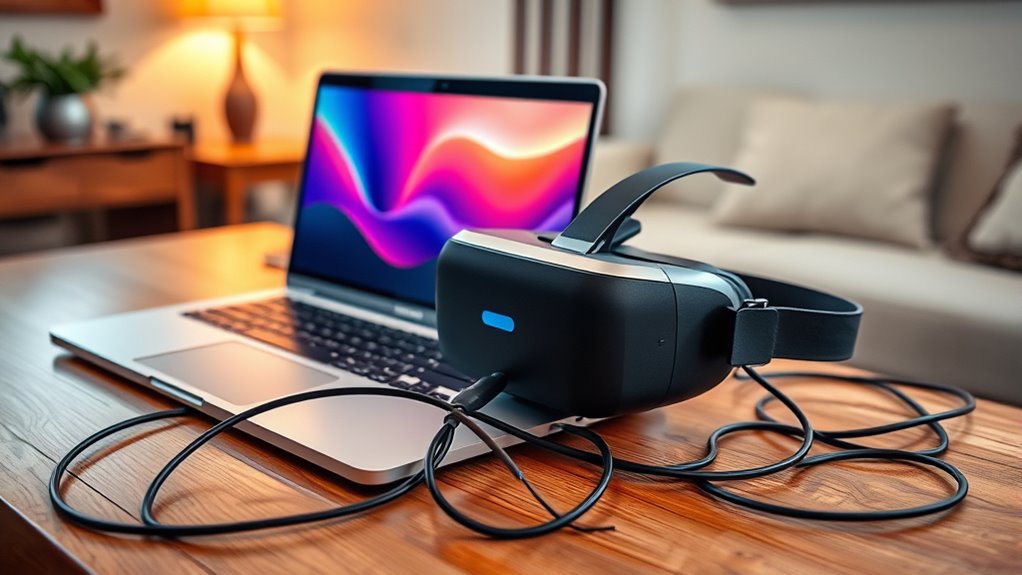

To use a VR headset with your laptop, verify your hardware meets the minimum specs: a compatible GPU, a quad-core CPU, and at least 8GB of RAM. Choose a headset that suits your laptop’s capabilities, like the Oculus Quest 2 or Valve Index. Don’t forget to install the latest software and drivers for peak performance. With the right accessories and setup, you’ll enhance your experience. Learn more about configuring everything for the perfect VR setup.
Minimum Hardware Specifications for VR
When you’re considering using a VR headset with your laptop, it’s vital to know the minimum hardware specifications required to secure a smooth experience. Start by checking your laptop’s GPU; it should meet or exceed VR performance benchmarks, as a powerful graphics card is fundamental for rendering immersive environments. You’ll also need a fast processor—ideally, a quad-core CPU—and at least 8GB of RAM to handle the demands of VR applications. Don’t forget to verify your laptop has sufficient USB ports and HDMI outputs. Conducting laptop compatibility tests can help you identify any potential issues before diving into VR. By confirming your laptop meets these requirements, you’ll open up a world of virtual experiences without frustrating lag or performance drops.
Recommended VR Headsets for Laptop Use
As you explore the world of virtual reality, choosing the right headset for your laptop can greatly enhance your experience. For seamless VR headset compatibility, consider options like the Oculus Quest 2 and the Valve Index. These headsets offer excellent performance and are designed to work well with a variety of laptop specifications. If you’re after wireless freedom, the Quest 2’s standalone capability is a game-changer, but make sure your laptop meets the connection requirements. To maximize laptop performance optimization, a powerful GPU is essential, especially with graphics-intensive games. The HP Reverb G2 is another solid choice, offering high resolution and comfort. Ultimately, pick a headset that aligns with your laptop’s specs to guarantee immersive VR adventures.
Essential Software and Drivers
Before diving into the virtual reality experience, it’s essential to verify your laptop is equipped with the necessary software and drivers. Start by installing the latest graphics card drivers to guarantee peak VR performance optimization. Check for software updates from your VR headset manufacturer, as these often improve compatibility and performance. Conduct software compatibility checks to confirm your operating system and hardware meet the requirements for the VR applications you plan to use. Additionally, consider downloading VR platforms like SteamVR or Oculus, which offer a range of experiences tailored for various headsets. Keeping your software and drivers up to date not only enhances your experience but also prevents frustrating issues while immersing yourself in the virtual world.
Accessories to Enhance Your VR Experience
To truly immerse yourself in the virtual reality world, investing in the right accessories can make all the difference. Consider enhancing your setup with these essential items:
- Cable Management Solutions: Keep your play area tidy and prevent tripping hazards with cable clips or sleeves.
- Ergonomic Accessories: Opt for a comfortable VR headset strap or cushioned face pads to reduce fatigue during long sessions.
- VR Gloves or Controllers: Elevate your experience with more intuitive controls that allow for natural interactions.
These accessories not only improve your comfort but also enhance your overall VR experience. By focusing on cable management and ergonomic accessories, you can explore virtual worlds freely without distractions or discomfort. Get ready to enjoy every moment!
Setting up Your VR Headset With Your Laptop
Setting up your VR headset with your laptop can be a straightforward process if you follow the right steps. First, verify your laptop meets the compatibility checks for your specific VR headset model. This usually involves checking your GPU, CPU, and RAM specifications. Once you’ve confirmed compatibility, plug in your headset using the appropriate cables, keeping cable management in mind to avoid tangles and maintain a clean setup. Position your laptop and headset in a way that allows for free movement during your VR experience. Finally, install any necessary drivers or software that come with your headset. With everything set up correctly, you’re ready to plunge into immersive virtual worlds and enjoy the freedom that VR offers!
Frequently Asked Questions
Can I Use a VR Headset Wirelessly With My Laptop?
Yes, you can use a VR headset wirelessly with your laptop by using a wireless adapter. However, be aware that performance limitations might affect your experience, especially regarding lag and visual quality.
Will Using VR Drain My Laptop’s Battery Quickly?
Using VR’s like pouring your laptop’s battery into a bottomless pit—it’ll drain quickly. High power consumption during immersive experiences can greatly impact battery life, so it’s wise to stay plugged in when you can.
How Do I Maintain My VR Headset?
To maintain your VR headset, clean the lenses with a microfiber cloth, avoid using harsh chemicals, and store it in a cool, dry place. Use a protective case for added safety and longer lifespan.
Can I Connect Multiple VR Headsets to One Laptop?
Like juggling flaming torches, connecting multiple VR headsets to one laptop’s tricky due to headset limitations. While some systems offer multi-device compatibility, performance may suffer, so check your laptop’s specs before diving in.
Is VR Gaming Safe for My Eyes?
VR gaming can be safe for your eyes if you take breaks, adjust settings, and guarantee proper fit. However, prolonged use may lead to eye strain, so always prioritize your vision safety while enjoying the experience.
