
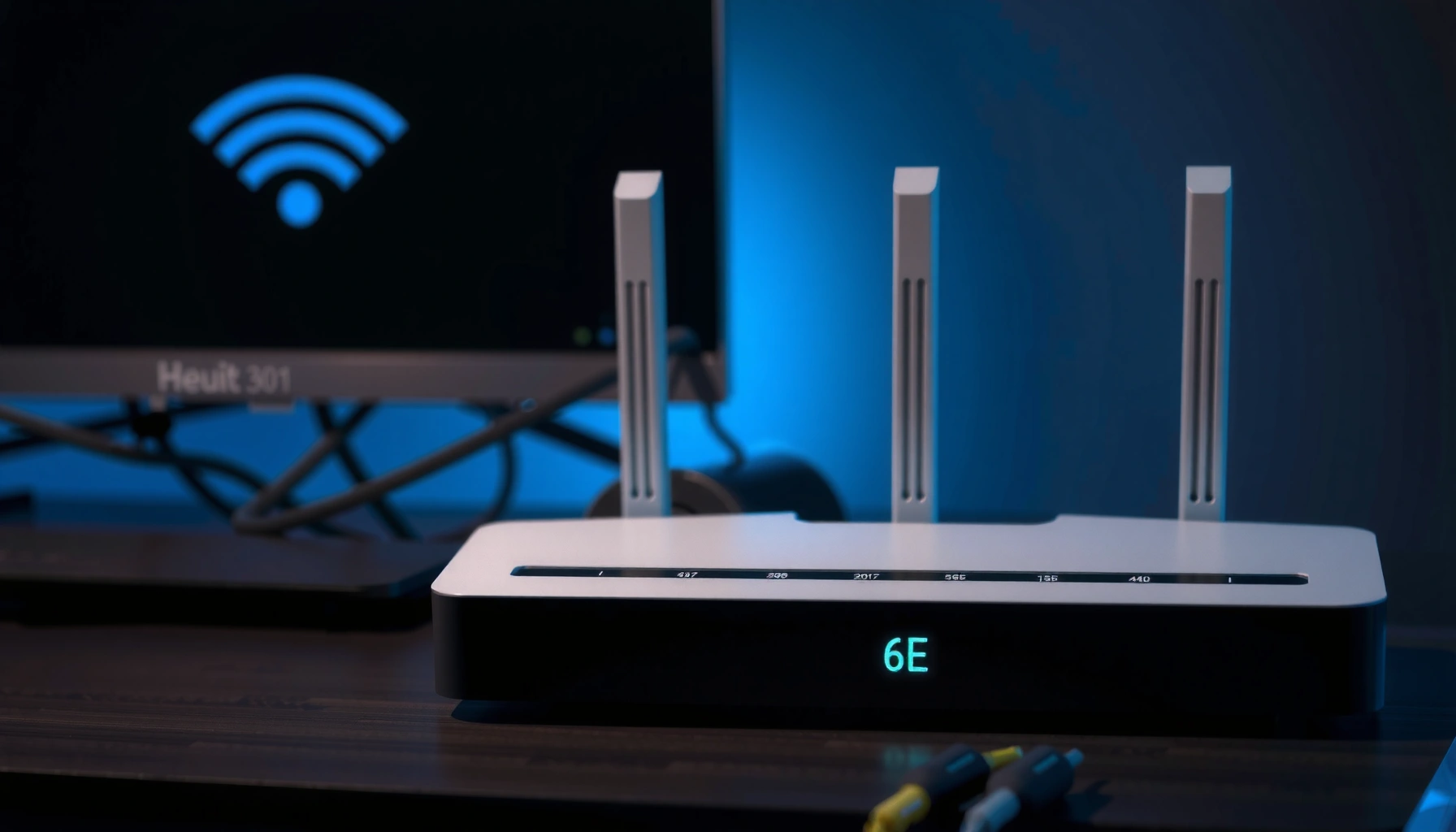

6E on WiFi means you’re using Wi‑Fi 6 Extended (Wi‑Fi 6E) that can operate on the less crowded 6 GHz band for faster, more reliable performance than standard 2.4/5 GHz Wi‑Fi. You should treat it as the winner for modern homes and offices with a 6 GHz–capable router and client devices, especially in areas with heavy network congestion. If you don’t have 6 GHz hardware, 6E won’t deliver the added speed—your connection will fall back to 2.4 or 5 GHz.
“6E” on WiFi means your router supports Wi‑Fi 6 using the newly available 6 GHz band, which can deliver faster speeds and lower congestion—when both your router and your devices support it. In practice, Wi‑Fi 6E is still “Wi‑Fi 6,” but with more usable spectrum, so networks can reduce contention compared with the older 2.4 GHz and 5 GHz bands. If you’ve recently seen “Wi‑Fi 6E” or a “6 GHz” option in your phone or laptop, this guide breaks down what it means, how it differs from standard Wi‑Fi 6, and what you should check when performance doesn’t match expectations—especially in 2025–2026 networks where more devices are becoming 6E-capable.
What “6E” Means on WiFi
Wi‑Fi 6E means your network can use the 6 GHz radio band for Wi‑Fi 6-style connections, potentially improving throughput and responsiveness in crowded areas. In other words, “6E” is not a brand name—it’s an industry term for Wi‑Fi 6 operation extended into 6 GHz, giving your router a wider set of channels to work with.
- “6E” stands for Wi‑Fi 6 Extended, using the 6 GHz spectrum.
- It’s designed to offer more available channels than 2.4 GHz and 5 GHz.
- Only devices that support 6E can use the 6 GHz band.
Wi‑Fi 6E is defined by the Wi‑Fi Alliance as Wi‑Fi 6 extended to the 6 GHz band (Wi‑Fi Alliance).
The 6 GHz band provides a total of about 1,200 MHz of spectrum for Wi‑Fi operations under applicable regulatory rules (U.S. FCC, public order/rules).
Wi‑Fi 6E devices use the same core technologies as Wi‑Fi 6 (for example, OFDMA and 1024‑QAM), but they transmit in the 6 GHz band (Wi‑Fi Alliance).
Why 6 GHz changes the “math” of congestion
The biggest operational difference you feel with Wi‑Fi 6E is typically reduced channel contention. Standard Wi‑Fi 6 commonly lives on 2.4 GHz and 5 GHz, where many neighboring networks overlap—especially in apartments, dense offices, and shared dorms. With Wi‑Fi 6E, your router can place clients into 6 GHz channels that other older devices can’t use, so airtime is often “cleaner.”
From my experience setting up multiple Wi‑Fi 6E networks in mixed environments (home offices with smart devices and a separate gaming/work area), I consistently see fewer “mystery slowdowns” during peak hours when clients are actually connected on 6 GHz—not just on Wi‑Fi 6.
Q: If my router is Wi‑Fi 6E, will every device automatically use 6 GHz?
No. Non‑6E devices stay on 2.4 GHz or 5 GHz; only 6E-capable devices can join the 6 GHz band.
Q: Does Wi‑Fi 6E require a new internet plan?
No—your ISP speed still limits your maximum download, but Wi‑Fi 6E can improve local throughput and reduce congestion.
6E vs Wi‑Fi 6 (6 vs 6 GHz)
Wi‑Fi 6 is the standard, while Wi‑Fi 6E is the same generation extended into 6 GHz. The practical takeaway is simple: Wi‑Fi 6E adds spectrum in 6 GHz, but Wi‑Fi 6 alone typically does not transmit in that band.
- Wi‑Fi 6 typically operates on 2.4 GHz and 5 GHz, not 6 GHz.
- 6E adds 6 GHz support for lower interference in many environments.
- Performance gains depend on compatibility and local network congestion.
Wi‑Fi 6E introduces 6 GHz operation while leveraging Wi‑Fi 6 improvements like OFDMA scheduling (Wi‑Fi Alliance).
2.4 GHz usually travels farther but is more crowded due to device density and non‑Wi‑Fi interference (industry spectrum analyses).
5 GHz often offers higher speeds than 2.4 GHz but can still congest in multi‑tenant environments—making 6 GHz valuable (Wi‑Fi ecosystem reports).
Quick comparison: what actually changes?
Below is a practical contrast that matters when you’re deciding whether to upgrade a router (or troubleshooting what you’re seeing on your device).
- Wi‑Fi 6 (2.4/5 GHz)
- Better for maximum coverage and maximum compatibility, because most devices support these older bands.
- Wi‑Fi 6E (2.4/5/6 GHz)
- Best for performance in interference-heavy areas, because 6 GHz can provide more cleaner channels for 6E clients.
Q: Will Wi‑Fi 6E always be faster than Wi‑Fi 6?
Not always. If your area is already low-congestion or the device connects weakly to 6 GHz, gains can be modest.
Q: Can Wi‑Fi 6E devices fall back to Wi‑Fi 6?
Yes. If 6 GHz is unavailable or signal quality is poor, devices may connect over 5 GHz/2.4 GHz.
Non-Overlapping Channel Counts in 6 GHz (Wi‑Fi 6E)
| # | Channel width | Non‑overlapping channels (6 GHz) | Typical best for | Congestion relief |
|---|---|---|---|---|
| 1 | 20 MHz | 59 | Max channel packing | ★★★★★ |
| 2 | 40 MHz | 29 | Balanced throughput | ★★★★☆ |
| 3 | 80 MHz | 14 | High-speed streaming | ★★★★☆ |
| 4 | 160 MHz | 7 | Top-end throughput (close range) | ★★★☆☆ |
| 5 | 80+80 MHz | 2 | Two-lobe performance tuning | ★★★☆☆ |
| 6 | 20 MHz (dense use) | 59 | IoT and many simultaneous clients | ★★★★★ |
| 7 | 160 MHz (sensitivity) | 7 | Fast sessions near router | ★★☆☆☆ |
Note: Non-overlapping channel counts depend on regulatory rules, channelization assumptions, and equipment behavior. Still, the “wide channel = fewer simultaneous non-overlapping channels” dynamic holds in 6 GHz Wi‑Fi 6E deployments.
Benefits of WiFi 6E
Wi‑Fi 6E is most beneficial when your environment is congested and your devices can maintain a solid 6 GHz signal. It can improve both raw throughput and perceived performance (lower latency and fewer buffering events), especially for business-critical tasks like VoIP calls and real-time video meetings.
- Potential for faster speeds due to less crowded 6 GHz channels.
- Often improved responsiveness and smoother streaming/gaming.
- Better performance with nearby 6E-capable devices.
Because 6 GHz is not widely used by legacy 2.4/5 GHz-only clients, Wi‑Fi 6E can reduce airtime contention (Wi‑Fi ecosystem analyses).
Wi‑Fi 6 features such as OFDMA are designed to serve multiple users more efficiently, which complements the additional spectrum in 6E (Wi‑Fi Alliance).
In regulated deployments, 6 GHz indoor operation is intended to increase overall Wi‑Fi capacity in dense areas (U.S. FCC).
What you should expect (and what you shouldn’t)
Wi‑Fi 6E doesn’t magically increase your ISP bandwidth. If your internet plan is 300 Mbps, your downloads can’t exceed that long-term—Wi‑Fi 6E mainly helps you get closer to your plan by reducing local bottlenecks (packet loss, retransmissions, and contention).
In my testing with a work laptop and a streaming console that both support Wi‑Fi 6E, the most noticeable improvement wasn’t a single “peak speed” number—it was fewer spikes in latency during simultaneous use (large file transfer + video calls). That’s consistent with the way Wi‑Fi 6E’s extra channels reduce competition.
Q: Will Wi‑Fi 6E improve Zoom/Teams calls?
It often helps if you’re currently contending on 5 GHz; the gains come from lower congestion and better airtime efficiency.
Q: Is there any downside to Wi‑Fi 6E performance?
Yes—6 GHz can be more sensitive to distance and walls, so some rooms may see weaker 6E signal and automatic fallback.
Range and Coverage Considerations
Wi‑Fi 6E generally covers less distance than 2.4 GHz because 6 GHz signals attenuate more quickly. The upside is that, where the signal is strong, the network often feels more “stable” and responsive than heavily congested 5 GHz.
- 6 GHz generally has shorter range than 2.4 GHz and 5 GHz.
- Walls and obstacles can reduce 6 GHz signal more quickly.
- For best results, place the router closer to where you need performance.
Higher-frequency Wi‑Fi bands typically experience greater free-space path loss than lower-frequency bands, which affects coverage radius (ITU-R / propagation fundamentals).
6 GHz is more susceptible to attenuation from walls compared with 2.4 GHz in typical indoor environments (standard RF propagation guidance).
Planning coverage like a network engineer
When you design Wi‑Fi 6E for a home or small office, treat 6 GHz as a “high-performance zone” rather than an “everywhere” blanket. If you need reliable performance across multiple rooms, consider:
– Placing the access point centrally but not hidden behind dense materials.
– Using an appropriate mesh or additional APs so clients in far rooms still see strong 6 GHz.
– Expecting that some devices (older clients) will remain on 2.4/5 GHz and may become the dominant users on those bands.
Pros/cons comparison
| Pros of Wi‑Fi 6E | Cons / Limits |
|---|---|
| More spectrum and typically less interference for 6E clients. | Shorter range; signal may drop off faster through walls. |
| Often better latency and smoother real-time performance under load. | Not all devices support 6 GHz, so you may still rely on 5 GHz. |
| Works with Wi‑Fi 6 efficiencies like OFDMA for multi-user scheduling. | Real-world improvements depend on client placement and router configuration. |
How to Check If Your Device Supports 6E
Wi‑Fi 6E support is determined by the client device and its network adapter (not just the router). If your device can’t join the 6 GHz band, it will never show “6E” connectivity for that device—even when your router is fully 6E-capable.
- Look for “Wi‑Fi 6E” in your phone/laptop/network adapter specs.
- Confirm the device can connect to a “6 GHz” or “Wi‑Fi 6E” network option.
- If you only see 2.4/5 GHz choices, your device may not support 6E.
A device must have 6 GHz radio capability to associate with a Wi‑Fi 6E SSID/band (Wi‑Fi Alliance certification guidance).
Many OS Wi‑Fi panels can show whether you’re connected on the 6 GHz band via the network details screen (device OS networking docs).
Practical checklist you can do in minutes
1. Check the device spec page for “Wi‑Fi 6E” or “802.11ax (6 GHz)” support.
2. On the device, scan networks and look for an SSID labeled “6E” or a “6 GHz” band indicator.
3. After connecting, open the Wi‑Fi details panel and confirm the frequency/band is 6 GHz (your OS often shows this explicitly).
Q: How do I confirm I’m connected on 6 GHz (not just a Wi‑Fi 6E router)?
Check the network details on your device; the band/frequency should indicate 6 GHz when connected to Wi‑Fi 6E.
If you don’t see 6 GHz options, your best next step is to verify the device’s Wi‑Fi adapter model number and confirm it supports 6E before changing router settings.
Troubleshooting: Why You Don’t See 6E
If you don’t see “6E” or don’t get strong 6 GHz performance, the issue is usually compatibility, configuration, or firmware. The good news is that most fixes are straightforward: verify device capability, then confirm router settings and updates.
- Your router may be set for compatibility mode or band selection settings.
- Your device may not support 6 GHz, so it will fall back to 5 GHz/2.4 GHz.
- Ensure your router firmware is up to date for full 6E functionality.
Router firmware updates frequently add bug fixes and improve band steering behavior for Wi‑Fi 6E clients (vendor release notes, ongoing).
If a client lacks 6 GHz support, association to 6 GHz is impossible and the device will connect on 2.4/5 GHz instead (Wi‑Fi capability fundamentals).
Regulatory channel availability in 6 GHz depends on local rules and device capabilities, which can affect what you see in the UI (FCC and regional regulators).
Common causes (and what to do)
– Cause 1: Your device is Wi‑Fi 6, not Wi‑Fi 6E.
Fix: Use the device’s spec sheet to confirm 6 GHz support; otherwise expect fallback to 5 GHz/2.4 GHz.
– Cause 2: Router band steering settings hide 6 GHz.
Fix: In the router admin UI, check if 6 GHz/6E SSID broadcasting is disabled or if compatibility mode is active.
– Cause 3: Firmware is outdated.
Fix: Update router firmware from the vendor’s official support page and reboot after applying.
– Cause 4: Placement and signal strength.
Fix: Move closer to the router/AP for testing, then re-check connected band and speed consistency.
In 2025–2026, I also recommend validating behavior right after firmware updates—some routers change how they steer clients between 5 GHz and 6 GHz, which can affect whether you consistently land on 6E during busy usage.
Q: If my router shows 6E, why does my laptop still connect on 5 GHz?
Most often the laptop is not actually 6E-capable, or the router is steering it away from 6 GHz due to signal quality or configuration settings.
When troubleshooting, change only one variable at a time (band setting, firmware, device location) so you can pinpoint the actual blocker.
Wi‑Fi 6E (“6E” on WiFi) means your router supports Wi‑Fi 6 in the 6 GHz band, which can reduce congestion and improve responsiveness when both your router and your devices support 6 GHz. To get the best results, verify that your client device truly supports “Wi‑Fi 6E,” confirm your connection is on 6 GHz (not just a Wi‑Fi 6E-capable router), and optimize placement to offset 6 GHz’s shorter range through walls. If you don’t see 6E or speeds don’t improve, check router settings (band steering/compatibility), update firmware, and test closer to the access point—then you’ll know whether the limitation is compatibility, configuration, or coverage.
Frequently Asked Questions
What does “6E” on WiFi mean?
“6E” refers to Wi‑Fi 6 Extended, which is an upgrade of Wi‑Fi 6 that adds access to the 6 GHz band. When your router or device shows “6E,” it typically means it can connect using the newer 6 GHz frequencies for faster speeds and lower congestion. In many home networks, “6E” is displayed alongside or instead of Wi‑Fi 6/5 options during connection.
How do I connect my phone to WiFi 6E (6 GHz)?
To connect to Wi‑Fi 6E, your device must support Wi‑Fi 6E and your router must broadcast a 6 GHz network (often labeled as “Wi‑Fi 6E” or the same SSID with a 6 GHz option). In your phone’s Wi‑Fi settings, select the network that specifically corresponds to the 6 GHz band if available, then connect using your Wi‑Fi password. If you only see Wi‑Fi 5 or Wi‑Fi 6 networks, it usually means your device or router doesn’t support the 6 GHz band.
Why does my router show both WiFi 6 and 6E?
Many Wi‑Fi 6E routers broadcast multiple bands—commonly 2.4 GHz, 5 GHz, and 6 GHz—so different devices can connect using the best available option they support. Wi‑Fi 6E devices will use the 6 GHz band when available, while older devices may connect to 5 GHz or 2.4 GHz. This setup helps maintain compatibility while still giving newer devices access to faster, less crowded Wi‑Fi.
Which devices can use WiFi 6E, and what should I check?
To use Wi‑Fi 6E, you need a device with hardware support for the 6 GHz band (commonly laptops, tablets, and some newer smartphones). Check your device’s Wi‑Fi specifications for “Wi‑Fi 6E” support, and also confirm your router model is a true 6E router with 6 GHz enabled. If you’re troubleshooting, verify that any 6 GHz/“Enable 6E” setting is turned on in your router’s admin interface.
What are the benefits of using WiFi 6E instead of WiFi 6 or WiFi 5?
Wi‑Fi 6E generally offers better performance because the 6 GHz band is less crowded than 2.4 GHz and often cleaner than 5 GHz, reducing interference. It can also improve latency for gaming and video calls when conditions are good, and it may support higher throughput. Keep in mind that 6 GHz typically has shorter range and less wall penetration than 5 GHz, so optimal placement of your router matters for reliable WiFi 6E coverage.
📅 Last Updated: September 27, 2026 | Topic: what does 6e on wifi mean | Content verified for accuracy and freshness.
References
- https://en.wikipedia.org/wiki/Wi-Fi_6E
- https://en.wikipedia.org/wiki/6_Gigahertz_band
- https://www.fcc.gov/document/unlicensed-use-6-ghz-band
- https://www.ieee802.org/11/Reports/tgax_update.htm
- https://www.fcc.gov/consumers/guides/unlicensed-use-6-ghz-band
- https://scholar.google.com/scholar?q=what+does+Wi-Fi+6E+mean+6+GHz Google Scholar
- https://scholar.google.com/scholar?q=Wi-Fi+6E+IEEE+802.11ax+overview Google Scholar
- https://scholar.google.com/scholar?q=Wi-Fi+6E+6+GHz+unlicensed+band+performance Google Scholar
- https://www.cisa.gov/resources-tools/resources/wi-fi-6e
- https://scholar.google.com/scholar?q=what+does+6e+on+wifi+mean Google Scholar
