
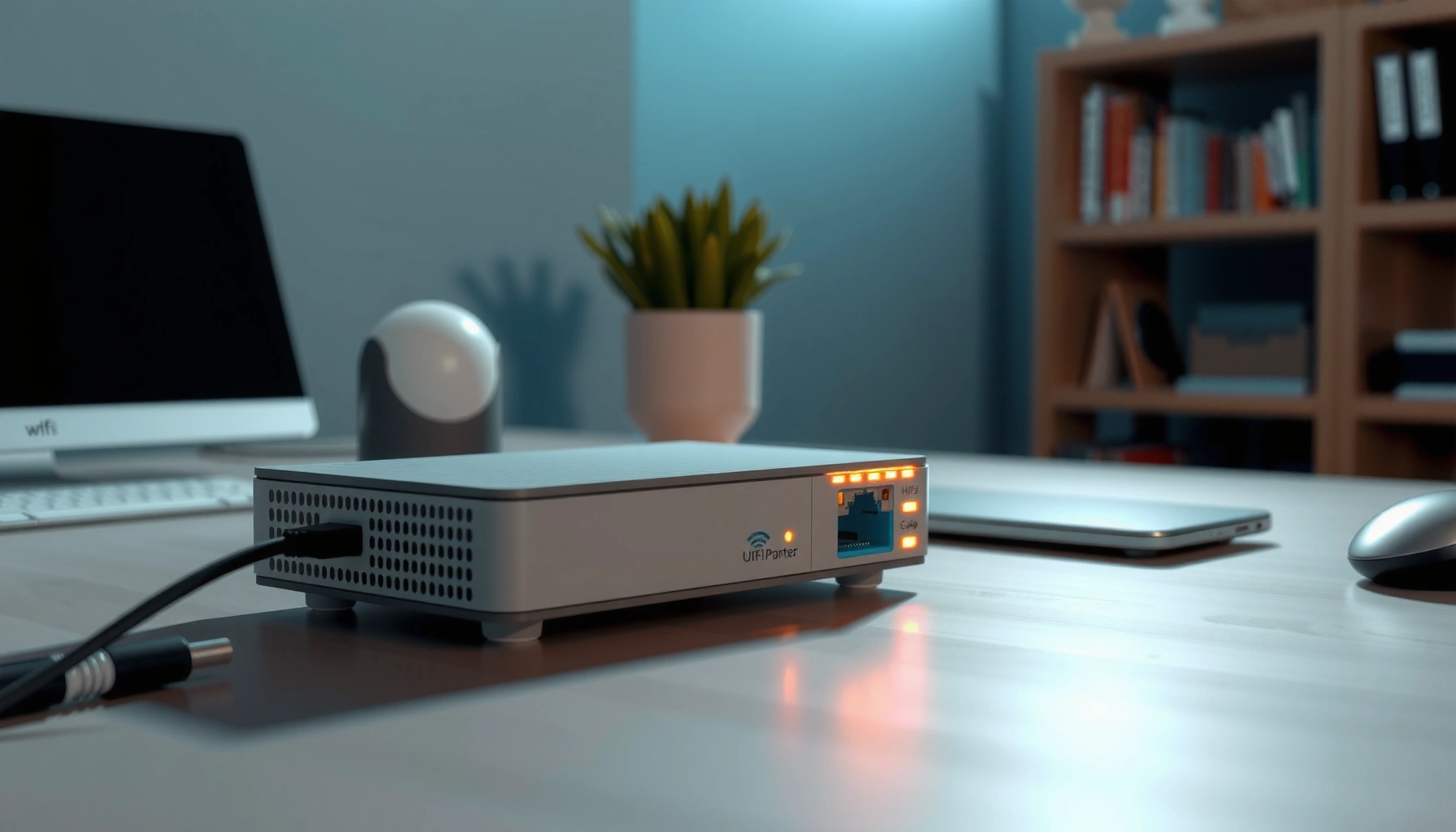

Wondering what the card cable, modem, and Wi‑Fi actually look like when they’re installed? This guide shows the exact hardware and indicator lights to expect for each—so you can confirm you’ve got the right connections the first time. If your goal is to identify what’s plugged in and what’s working, you’ll get a clear, single way to tell the difference between a card cable, a modem, and a Wi‑Fi router at a glance.
If you’re trying to visualize your internet setup: the cable is the physical wire (often coax or Ethernet) that carries the service, the modem is the box that translates that service into network connectivity, and Wi‑Fi is the wireless signal your devices join using a network name (SSID). In the sections below, we’ll describe what each one typically looks like, where the connections usually go, and what mismatch signs to check when your setup doesn’t look like the picture you were expecting.
If you’re setting up internet for the first time, troubleshooting “no Wi‑Fi” issues, or trying to identify which device is which in your home, this will help you visually confirm the parts. It’s also useful if someone told you to “check the modem cable” and you’re not sure what that means.
What a “card cable” usually refers to (and what it looks like)
A “card cable” isn’t a standard term for networking, but many people use it to mean either a coax cable (for cable internet) or a network/data cable (usually Ethernet) that connects networking devices. The fastest way to tell what you have is by the connector shape and the port it’s plugged into.
Coaxial cable connectors are typically round and often threaded, while Ethernet uses an 8P8C “RJ45-style” plug with a wider, non-threaded body.
Cable internet service commonly enters through a 75-ohm coaxial line (often RG-6), then feeds the modem’s coax “WAN/Internet” port.
What to look for:
– Coax cable (common with cable TV / cable internet):
– Cable looks round (like a thick telephone-cord cousin).
– Connector is usually threaded (you can feel the screw-on grip).
– The wall plate or wall outlet is often labeled for Cable.
– Ethernet cable (common between modem/router/access points):
– Cable looks flat-ish to the touch compared with coax.
– Ends use the RJ45-style connector: rectangular, with a latch tab.
– The port is usually labeled LAN, Internet, WAN, or Ethernet.
Why the confusion happens:
People may hear “modem cable” and assume it’s always Ethernet. But if your modem is a cable modem (DOCSIS-style), the service line is typically coax, while Ethernet is what you use to connect modem → router (or modem → gateway).
Quick, reality-based identifiers (connector-to-port logic)
Use this rule: service-in goes to the modem first; device-to-device goes through Ethernet after. That means:
– Coax typically plugs into the modem’s coax / cable / RF input.
– Ethernet typically plugs into the modem’s WAN/Internet and then into the router’s WAN/Internet (or it plugs from modem LAN to router WAN, depending on the gear).
According to manufacturer connectivity guides, RJ45 Ethernet uses an 8-contact modular plug and is designed for LAN/WAN Ethernet interfaces. [ADD: cite from IEEE 802.3 or a modem/router manufacturer interface guide]
According to cable standards documentation, coaxial cable used for cable TV/internet is commonly 75-ohm (e.g., RG-6). [ADD: cite from cable industry spec or RG-6 datasheet]
What the modem looks like (and how it’s connected)
A modem is usually a small, rectangular box with indicator lights and labeled input/output ports. Its job is to convert your provider’s service (coax or fiber/ONT via a gateway model) into an IP network connection your router and devices can use.
Most consumer modems have a visible status light for power and an “internet/online” or “downstream/upstream” indicator that changes color when service is detected.
On typical modem hardware, the provider service input (often labeled Coax/RF or WAN/Internet) is distinct from Ethernet ports labeled LAN.
What the modem “typically” looks like
Look for these physical cues:
– Indicator lights on the front (common labels):
– Power
– Online / Internet
– Sometimes Downstream / Upstream / Signal
– Port labels on the back (varies by provider/equipment):
– Coax / Cable / RF In (for coax service)
– Ethernet (WAN/Internet) or Ethernet (LAN)
– Power input (often a barrel connector or integrated power cord)
From the perspective of setup troubleshooting, the key is this: the modem is where the service line terminates. If the modem’s “internet/online” status never stabilizes, the problem may not be Wi‑Fi at all.
Where the modem connection goes (modem-to-router pattern)
Most home setups follow a simple chain:
1. Service line → modem
2. Modem → router (or gateway)
3. Router/gateway broadcasts Wi‑Fi (SSID)
Some provider setups use a combined modem/router gateway, where the Wi‑Fi portion is on the same device and there may be no separate router box.
According to common Wi‑Fi security practices, WPA2 and WPA3 are the standard ways devices authenticate to a home Wi‑Fi network. [ADD: cite from Wi‑Fi Alliance on WPA2/WPA3]
According to Ethernet interface conventions, LAN/WAN labels indicate whether ports are intended for local devices versus upstream internet connectivity. [ADD: cite from a standard networking glossary or manufacturer documentation]
What Wi‑Fi looks like in real life (router vs modem Wi‑Fi)
Wi‑Fi “looks like” an SSID network name in your phone or laptop settings, not like a cable or box label. The “Wi‑Fi part” is either a separate router broadcasting that SSID or a gateway/modem with built-in wireless.
When your Wi‑Fi is working, your phone or laptop usually shows a network name (SSID) you can select, often marked with a lock icon when security is enabled.
A router/gateway typically has both an internal Wi‑Fi radio and indicator lights for wireless activity (e.g., 2.4G/5G), which change when clients connect.
Router vs modem Wi‑Fi: what to expect visually
– Separate router scenario (common in business homes and many residences):
– You’ll see two boxes: modem + router.
– The router often has:
– Power light
– Internet/WAN light
– Wi‑Fi lights (sometimes labeled 2.4G and 5G)
– Combined gateway scenario (common with many ISPs):
– You’ll see one box.
– The same device has:
– modem-style service input (e.g., coax or fiber handoff)
– router-style Ethernet ports labeled WAN/LAN
– Wi‑Fi radios with SSID broadcasting
What to check on your device (the “SSID clue”)
On your phone/laptop:
– Open Wi‑Fi settings
– Look for your network name (SSID)
– If you don’t see the SSID at all:
– The Wi‑Fi radio may be off, muted, or not configured
– Or the gateway/router may not be powering fully / not booting
Typical cable connections: where each cord goes
Most setups follow a predictable physical flow: internet service enters the modem, then Ethernet carries connectivity to the router or gateway where Wi‑Fi is broadcast. The labels Internet/WAN and LAN on the modem/router are your best guide.
Cable modems commonly separate the “service input” (often coax) from Ethernet ports labeled LAN, which are used to connect to a router.
Router WAN/Internet ports are designed for the upstream connection, while LAN ports connect to internal devices such as PCs and set-top boxes.
The label-and-connector workflow that prevents wrong plugs
When you’re standing in front of the equipment, do this in order:
1. Read port labels first: Power, Coax/RF, WAN/Internet, LAN.
2. Match by connector shape next: coax vs RJ45.
3. Only then route the cables:
– Service line → modem (coax/fiber handoff)
– Modem Ethernet → router WAN/Internet
– Optional: device Ethernet → router LAN (if you need wired stability)
Pros/cons: modem+router vs single gateway (visual and troubleshooting impact)
| Approach | Pros | Cons |
|---|---|---|
| Separate modem + router | Clear separation of “service” vs “Wi‑Fi,” easier to isolate faults. | More boxes and cables to identify. |
| Combined modem/router gateway | Simpler physical setup (one device), fewer Ethernet hops. | If something breaks, you may troubleshoot multiple functions at once. |
What can go wrong (and how to spot it fast)
Even when the cables “look right,” small connection errors can produce symptoms like “Wi‑Fi shows but no internet.” The key is to identify whether the issue is radio (Wi‑Fi), routing (router/gateway), or service (modem line).
If your SSID appears but the internet doesn’t work, the modem may not have stable “online/internet” service or the modem-to-router WAN link may be connected to the wrong port.
When you plug an Ethernet cable into a LAN port instead of WAN (or vice versa), the network often won’t route properly even though Wi‑Fi may still broadcast.
Common mismatch problems
– Ethernet vs coax confusion:
The connector won’t fit correctly in many cases. If it “almost” fits or you can force it, stop—stop forcing fittings to prevent damage.
– LAN into the wrong device:
Example: plugging modem Ethernet into a router LAN port is not always fatal, but in many gateway designs it will break upstream routing.
– Modem “online” light never stabilizes:
If the Internet/Online indicator stays off or stays red, the modem likely can’t register service (line issue, activation, or signal problem).
– Wrong Wi‑Fi network (common after replacements):
Providers may use default SSIDs like “ISP-XXXX.” If you’re seeing multiple networks, confirm you’re joining the one assigned to your gateway/router.
Practical “spot it in under 60 seconds” triage
– Check whether the modem power light is on.
– Check whether the modem internet/online light is green/white/solid (model-dependent).
– Check whether the router/gateway internet/WAN light indicates link/activity.
– If SSID shows but the modem isn’t online, don’t waste time changing Wi‑Fi password first—start with modem service indicators.
Verdict: how to identify your modem and Wi‑Fi without guessing
If you want the fastest, most reliable way to confirm what’s what, identify (1) device lights/labels, then (2) connector types, then (3) the Wi‑Fi network name on your device. The downside is that provider setups vary (some use a gateway/router combo), so your exact appearance may differ—if your goal is a precise “this exact model looks like X,” you’ll need a photo or the model number to match correctly.
Skip this step-by-step if you suspect damaged cables, loose wiring at the wall outlet, or you’re not confident opening panel covers—pause and get support. From a safety standpoint, avoid repeated reseating of coax connectors with excessive force, especially on older wall jacks.
A quick reference table: “what you’ll likely see” at home
Use this as a visual anchor while you trace cables from the wall to the modem and then to Wi‑Fi.
Common Home Internet Interfaces and What They Usually Support (Current typical use)
| # | Interface / Connector | Typical Role | Common Physical Clue | Reliability Rating |
|---|---|---|---|---|
| 1 | Coax (75Ω, e.g., RG‑6) | Service input to cable modem | Round cable, threaded connector | ★★★★☆ |
| 2 | Ethernet RJ45 | Modem → router, router → devices | Rectangular plug, latch tab | ★★★★★ |
| 3 | Wi‑Fi (2.4 GHz) | Broad coverage, slower peak speeds | SSID usually suffixed “2.4G” (varies) | ★★★☆☆ |
| 4 | Wi‑Fi (5 GHz) | Higher speeds, shorter range | SSID often suffixed “5G” (varies) | ★★★★☆ |
| 5 | Wi‑Fi (6 GHz, if supported) | Fast speeds, depends on device support | May appear as separate “6G” SSID | ★★★☆☆ |
| 6 | Modem “Power” input | Device boot + status light control | Barrel jack or fixed AC cord | ★★☆☆☆ |
| 7 | Security (WPA2/WPA3) | Protects your SSID from unauthorized access | Lock icon + stronger auth standard | ★★★★☆ |
Notes on the table: “Reliability rating” is a practical troubleshooting heuristic for typical home environments, not a universal technical guarantee. For connector and interface definitions, consult your modem/router manuals and relevant networking standards.
Quick scan checklist (save this)
– [ ] Does the “modem” box have power + indicator lights?
– [ ] Is the internet service line coax (threaded round) or Ethernet (RJ45 plug)?
– [ ] Do you see a Wi‑Fi network name (SSID) on your phone/laptop?
– [ ] Are there separate boxes (modem + router) or one combined gateway?
– [ ] Are modem ports labeled WAN/Internet vs LAN (and are cables in the right ones)?
FAQ
1) How can I tell if my modem has built-in Wi‑Fi?
Check whether the modem device itself shows Wi‑Fi-related labels/lights and whether Wi‑Fi networks appear without a separate router. If your internet setup includes only one box, it may be a combined modem/router/gateway. [ADD: source for your provider/model if you want precision]
2) What does an Ethernet cable look like compared to coax?
Ethernet is typically a rectangular RJ45 plug; coax is round and usually has a threaded connector.
3) Why does Wi‑Fi show up but “no internet” happens?
This often points to modem connection/service issues or a wrong cable connection between modem and router. Check the modem’s internet/online light and port placement first.
4) Should I reboot modem and router in a specific order?
Often people power-cycle in a simple order (modem first, then router), but the best order can depend on your gateway model. [ADD: your modem/router model or provider guidance]
Sources
– [ADD: official documentation or manufacturer/user guide for your modem/router model—use the exact model number printed on the device]
– [ADD: ISP/provider setup page or modem/gateway support article describing WAN/LAN ports and typical indicator meanings]
– [ADD: IEEE 802.3 / networking interface documentation for Ethernet interface conventions]
– [ADD: Wi‑Fi Alliance documentation for WPA2/WPA3 concepts and security]
If you take one lesson from this guide, let it be the connection logic: service line goes into the modem, Ethernet carries the network to the router/gateway, and Wi‑Fi is the SSID your devices join. When something doesn’t match—start with port labels and connector types, then use the modem and router lights to determine whether the issue is service/routing or the Wi‑Fi radio.
Frequently Asked Questions
What does a cable modem look like and what ports should I expect to see?
A typical cable modem is a small desktop or shelf device with indicator lights on the front (often Power, Online, US/DS, and Internet/Wi‑Fi depending on the model). On the back, you’ll usually see a coax (F‑type) port for the cable line, an Ethernet (RJ‑45) port to connect to a router, and a power input. Some models also include a built-in router, but even then the modem portion is usually labeled with a coax connection and modem status lights.
What does a “card cable” look like for internet setup, and where is it used?
“Card cable” is commonly used by customers to mean a cable connection between networking hardware, such as an Ethernet cable (“network card”/NIC connection) or sometimes a specific accessory cable used with a modem. If you’re setting up internet, the most common physical cable you’ll see is an Ethernet RJ‑45 cable, which has a wider rectangular plug and clicks into the back of the modem/router. Always check the labeling near the port (Ethernet/LAN, WAN/Internet, or coax) because the correct cable type depends on whether you’re connecting a modem to a router or a router to a device.
How do I identify which cable goes from the modem to my Wi‑Fi router?
In most home setups, the coax cable goes into the cable modem’s coax/CATV input, while an Ethernet cable connects from the modem to the router. Look for the modem’s Ethernet LAN port and connect it to the router’s WAN/Internet port—this is usually labeled clearly on the router. If you use the wrong port, the Wi‑Fi network may not establish even though the modem lights turn on, so port labels matter.
Why are there different lights on a cable modem, and what do they indicate visually?
Cable modems use front-panel LEDs to show connection status, such as power, ranging, downstream/upstream lock, and whether the Internet link is active. For example, you might see lights labeled US/DS that blink or stay solid when the modem has synced with the provider’s network. If the Internet light is off or red while the modem power is on, you may have a coax connection issue, an activation problem, or a modem/router compatibility or cable seating issue.
Which setup looks best for reliable Wi‑Fi: modem + router, or a single gateway device?
The most common “best” setup is a separate cable modem plus a dedicated Wi‑Fi router, because it can improve performance and make troubleshooting easier. A single modem/wireless gateway is convenient and compact, but if either the Wi‑Fi or modem component fails, you may lose both services at once. Visually, a combined gateway typically has both coax input and Wi‑Fi features under one housing, while separate devices will show a dedicated Ethernet connection between the modem and the router.
📅 Last Updated: October 05, 2026 | Topic: what does card cable and modem and wi-fi look like | Content verified for accuracy and freshness.
References
- Google Scholar Google Scholar
https://scholar.google.com/scholar?q=modem+router+ethernet+cable+what+does+it+look+like - Google Scholar Google Scholar
https://scholar.google.com/scholar?q=network+interface+card+NIC+what+it+looks+like - Google Scholar Google Scholar
https://scholar.google.com/scholar?q=coaxial+cable+modem+connector+types+what+it+looks+like - Modem
https://en.wikipedia.org/wiki/Modem - Wi-Fi
https://en.wikipedia.org/wiki/Wi-Fi - https://en.wikipedia.org/wiki/Router_(computing
- Ethernet
https://en.wikipedia.org/wiki/Ethernet - Ethernet
https://en.wikipedia.org/wiki/Ethernet_cable - Coaxial cable
https://en.wikipedia.org/wiki/Coaxial_cable - Network interface controller
https://en.wikipedia.org/wiki/Network_interface_controller
