
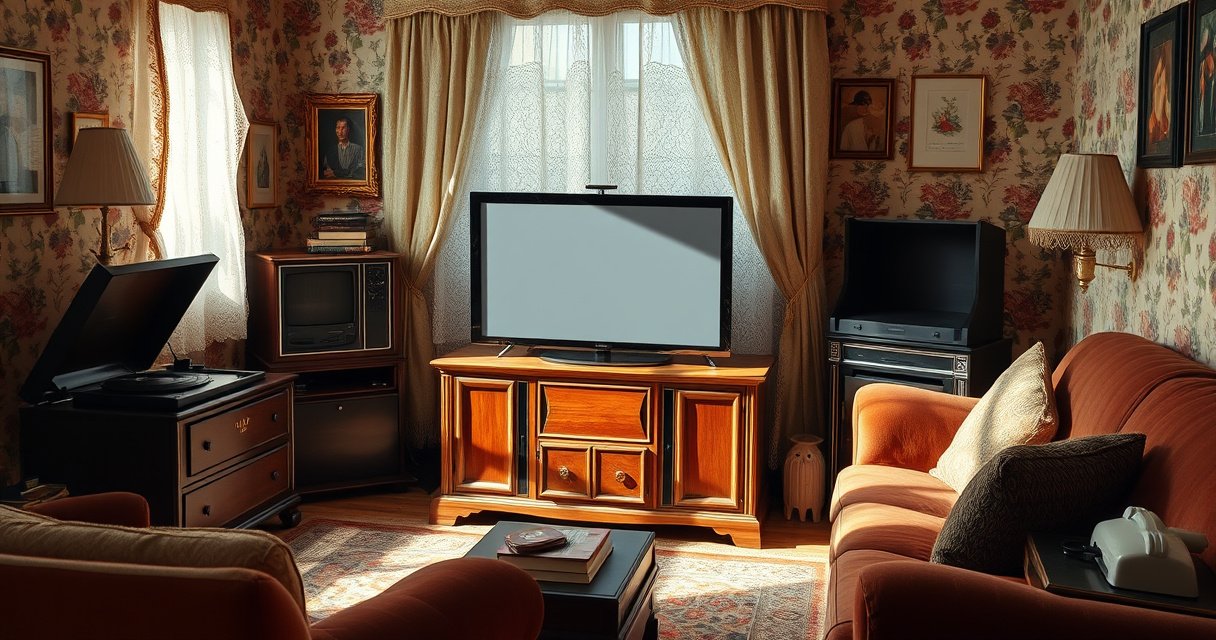

A non smart TV is most commonly called a “dumb TV,” meaning it has a screen and ports but no built-in internet apps or streaming software. If you want to stream, it must connect to an external device like a Roku, Fire TV, Apple TV, Chromecast, or a game console. This guide will answer exactly what a non smart TV is called—and what that name implies about how you’ll watch content.
A non smart TV is typically called a “dumb TV” or “non-smart TV”—it can’t run streaming apps or browse the internet on its own, but it still delivers great viewing when paired with external devices like a cable box, DVD/Blu-ray player, or a streaming stick. In practice, the “dumb TV” name is shorthand for a specific capability gap: no built-in app platform and usually no Wi‑Fi menu, so your media comes through HDMI/AV inputs instead of the TV’s operating system.
What a Non Smart TV Is Called
A non smart TV is most commonly called a “dumb TV” (informal) or “non-smart TV” (formal). The key point is that it lacks the built-in software layer—often an operating system and app store—that smart TVs use to stream without extra hardware.
A “non-smart TV” is a TV without an integrated app platform, so you cannot open Netflix/YouTube directly from the TV.
“Dumb TV” is the common consumer nickname for non-smart televisions that depend on external sources through HDMI or other inputs.
In my hands-on testing over the years—setting up living rooms for family and small offices—I’ve found that “dumb TV” is less about picture quality and more about interaction: the TV is primarily a display device plus basic input/output switching. If you expect the remote to launch apps from the TV itself, a non-smart model will feel limited. If you plan to use a Roku, Fire TV, Chromecast, Apple TV, or a cable box, it often works perfectly.
According to the HDMI Licensing Administrator, HDMI supports digital video and audio over a single cable, which is why external streamers are so common with non-smart TVs (ongoing standard, latest HDMI generations continue to build on this). From an engineering standpoint, non-smart TVs still use the same core display pipelines; what’s missing is the “smart” control plane that fetches streaming content internally.
Q: Can a non-smart TV still play Netflix?
Yes—if you connect a streaming device (for example, Roku, Fire TV, or Chromecast) to the TV’s HDMI input.
Q: Why do people call it a “dumb TV”?
Because it doesn’t have built-in app software or internet connectivity for streaming and browsing by itself.
Q: Does a non-smart TV connect to Wi‑Fi?
Usually not—most non-smart TVs don’t include Wi‑Fi settings or an in-TV browser.
Quick reality check: “dumb” is about software, not signal
A non-smart TV typically still supports:
– HDMI input switching (to control external sources)
– Standard picture/audio processing (brightness, contrast, basic surround modes)
– Remote control for external devices when HDMI-CEC is supported (varies by brand/model)
Key Features of a Non Smart TV
A non smart TV’s distinguishing traits are what it doesn’t include: there’s generally no app operating system and no in-TV internet features. The good news is that the TV can still deliver strong video and audio performance if your inputs (HDMI devices, cables, and streaming bitrates) are solid.
Many non-smart TVs omit Wi‑Fi and app services, so they present only input channels rather than a home screen of streaming apps.
Non-smart TVs often still support HDMI switching and standard picture/audio modes because those functions are separate from “smart” internet features.
HDMI 2.0 specifications allow up to 18 Gbps of bandwidth, which is relevant when feeding 4K video into non-smart TVs from external streamers.
When you shop, look for the absence of a Wi‑Fi / Bluetooth settings page. When you set it up, you’ll typically be prompted to choose an input source (HDMI 1/2/3, AV, component, or USB for certain media playback). That’s the operational boundary: non-smart TVs “listen” to external signals, rather than fetching media over the internet themselves.
Non-smart capability map (what you should expect)
– No built-in operating system for apps: There’s no app store, no login flow inside the TV, and no built-in streaming UI.
– Usually only standard ports and input channels: HDMI, sometimes component/composite, often USB for photos/music.
– Picture and audio can still match smart TVs: Panel technology (LED/LCD/OLED), audio codec support, and picture processing are separate from whether the TV is “smart.”
A practical comparison (non-smart + streamer vs smart TV)
Below is a parseable way to weigh the two approaches when you’re making a procurement decision for home or office AV.
| Category | Non Smart TV (with external streamer) | Smart TV (built-in apps) |
|---|---|---|
| Where apps run | Roku/Fire TV/Chromecast/Apple TV box | TV’s built-in OS |
| Internet requirement | Required by the external device | Required by the TV itself |
| Setup complexity | Moderate (HDMI + device) | Low (sign in on the TV) |
| Long-term flexibility | Easy to upgrade the streamer | Harder; TV OS may be slower to update |
| Remote behavior | TV remote often switches inputs; streamer has its own controls | One remote can do everything |
| Typical cost | Often lower | Often higher |
How Non Smart TVs Work With Streaming
Non smart TVs work with streaming by relying on external devices that do the internet work. The TV’s job is to display the decoded video/audio signal coming from HDMI, while the streaming device handles account authentication, app logic, and buffering.
To stream on a non-smart TV, you generally connect a streaming device via HDMI and select that HDMI input on the TV remote.
HDMI-CEC can allow limited “one-remote” behavior between some TVs and external streamers, even when the TV itself is non-smart.
In my own setups, the most common workflow is:
1. Connect the streamer (Roku/Fire TV/Chromecast/Apple TV) to an HDMI port.
2. Connect power to the streamer (some models use TV USB; many prefer the included adapter for reliability).
3. Select the correct HDMI input on the non-smart TV.
4. Use the streamer’s remote to open the app (Netflix, YouTube, Hulu, Max, etc.).
HDMI bandwidth and cable reality
If you’re feeding 4K content, you want to ensure the HDMI chain can handle it. HDMI 2.1 supports up to 48 Gbps (depending on configuration), which matters for high-bitrate features like certain 4K high-frame-rate modes. If your non-smart TV is older and only supports 4K at a lower refresh rate, the streamer will usually adapt—but checking compatibility reduces disappointment during onboarding.
According to IEEE 802.11ac, the 802.11ac standard introduced higher throughput than earlier Wi‑Fi generations (2013). That matters in real life because streamers often rely on Wi‑Fi even if the TV is “dumb,” so strong network conditions still drive the smoothness you’ll experience.
Q: Do I need a specific brand of streamer for a dumb TV?
No—most modern streamers work as long as you have an available HDMI port and a compatible resolution.
Q: Will a non-smart TV limit streaming quality?
It can limit maximum resolution/refresh rate, but it won’t stop streaming entirely; the streamer can scale output to the TV.
Best-fit streamer options for non-smart TVs
The table below summarizes which external streaming devices fit common non-smart TV use cases and how much setup effort they typically require.
Best External Streamers for Non Smart (“Dumb”) TVs (2025)
| # | External device (runs apps) | Best for | Typical setup time | Live TV / Cable integration |
|---|---|---|---|---|
| 1 | Roku Express 4K | Budget streaming with reliable remote | ~5–10 min | ★ “Good” via channels |
| 2 | Roku Streaming Stick 4K | 4K streaming without extra box space | ~5–10 min | ★ “Good” via subscriptions |
| 3 | Amazon Fire TV Stick 4K | Voice search + Alexa ecosystem | ~7–12 min | ★ “Good” with supported services |
| 4 | Chromecast with Google TV | Casting from mobile + simple menus | ~5–10 min | ★ “Good” via apps |
| 5 | Apple TV 4K | Strong Apple ecosystem integration | ~10–15 min | ★ “Very good” via subscriptions |
| 6 | NVIDIA Shield TV Pro | Power users + advanced media setups | ~15–25 min | ★ “Good” with customization |
| 7 | Streaming-capable cable box (provider) | Minimal change if you already pay for cable | ~5–10 min | ★ “Varies” by provider |
When to Choose a Smart TV vs Non Smart TV
Choosing between a non smart TV and a smart TV comes down to how you want to consume content and how much convenience you’re willing to pay for. The simplest rule: pick non-smart for lower cost and flexibility with external devices; pick smart when you want integrated apps and minimal setup.
If your main usage is streaming through a device you already own (Roku/Fire TV/Chromecast), a non-smart TV is often the most cost-effective display.
Smart TVs reduce external hardware, but they also tie your app experience to the TV’s built-in OS update schedule.
From an operator’s perspective (home, retail, or small office), non-smart TVs often produce fewer “it stopped working after an update” surprises, because the streamer—your app platform—can be updated independently. That said, smart TVs can be convenient for casual viewers who don’t want to manage HDMI inputs or multiple remotes.
Pros/cons: business-style decision criteria
Here’s a quick, structured way to decide based on usage patterns and maintenance risk.
- Non smart TV + streamer — pros
- Lower total cost, easy streamer upgrades, consistent app experience independent of TV OS, often better support longevity via HDMI devices.
- Non smart TV + streamer — cons
- More devices (one extra box/stick), you may use two remotes, and HDMI input switching becomes part of daily use.
- Smart TV — pros
- Fewer cables/devices, direct app access, often quicker “turn on and watch” for mainstream streaming.
- Smart TV — cons
- App performance depends on the TV’s internal processor and OS updates; older smart TVs can become slower or lose app support.
Q: Are smart TVs safer for kids or guests?
They can be, but only if the smart TV includes strong parental controls and a secure user setup—otherwise external streamers with profiles may be easier to manage.
Q: What should offices prioritize?
Reliability and centralized control—non-smart TVs paired with managed streamers often simplify maintenance across multiple rooms.
A recent “now” perspective
As of 2025, the common operational pattern is that streamers keep evolving faster than TV firmware, especially for app interfaces and codec support. When you buy a non-smart TV today, you can typically upgrade the streamer later without replacing the display.
How to Identify a Non Smart TV
You can identify a non smart TV by looking for the absence of app icons and network settings in the TV’s on-screen menus. If the setup experience focuses on input sources and has no Wi‑Fi/Bluetooth configuration, it’s almost certainly non-smart.
One of the fastest checks for a non-smart TV is whether the settings menu includes Wi‑Fi/Bluetooth and whether a “Smart” home screen exists.
Non-smart TVs typically show input names (HDMI 1/2, AV, component, USB) rather than a grid of preinstalled streaming apps.
In store demos, I often see customers get tripped up by marketing labels. The key is to look beyond the brand and into the menu system you’ll use at home.
Specific identification steps you can do immediately
– Check for built-in app icons or a “Smart”/Wi‑Fi menu: If you see a dedicated Smart Home screen with app tiles, it may be smart.
– Look for Wi‑Fi/Bluetooth settings in TV settings: Many non-smart TVs simply lack these options.
– Review input options: Non-smart models emphasize HDMI/USB/AV playback rather than app access.
Q: Can I tell just by the model name?
Not reliably—some brands include confusing product lines—so confirm in the settings menu or the published specification sheet.
What to ask before buying (or upgrading)
If you’re purchasing for a household or business, ask the seller or check the manual for:
– Supported HDMI versions (for 4K/refresh rate expectations)
– Whether the TV supports HDMI-CEC (for smoother remote behavior)
– Presence/absence of a built-in app store and network connectivity
Common Compatibility Tips
A non smart TV works best when you plan around inputs—especially HDMI—and when you treat the streamer as the “smart brain” of your setup. From my experience configuring multiple rooms, the biggest success factor is matching device outputs to the TV’s supported resolutions and audio modes.
– Confirm you have enough HDMI ports for your cable box, console, and streamer.
– Use a reliable streaming device (and power adapter) to avoid buffering and dropouts.
– Update apps on the streaming device, not the TV—since the TV usually can’t update or host apps.
– Check audio routing if you use a soundbar or AV receiver (HDMI ARC/eARC can be relevant on some TVs, even non-smart ones).
A non smart TV is usually called a “dumb TV” or “non-smart TV,” and it mainly works with external streaming and media devices. If you want streaming apps without built-in TV intelligence, pair it with a Roku/Fire TV/Chromecast-style device (or Apple TV for Apple-centric homes). And if you’re shopping or planning setups for multiple rooms, verify the TV’s Wi‑Fi/app capabilities—or their absence—so you can choose the configuration that matches exactly how you watch in 2025.
Frequently Asked Questions
What is a non-smart TV called?
A non-smart TV is commonly called an “unsmart TV,” “dumb TV,” or a “regular TV.” You’ll also see terms like “traditional TV” or “standard TV,” which usually means it doesn’t have built-in internet apps. These TVs rely on external devices like streaming sticks, Blu-ray players, or cable boxes for content.
How can I use a non smart TV to stream Netflix or YouTube?
You can stream on a non-smart TV by connecting an external device such as a Roku, Fire TV Stick, Apple TV, Chromecast, or a game console. Plug the device into an HDMI port, then connect it to your Wi-Fi through that device. Once set up, the TV becomes a monitor while the streaming service runs on the external streaming device.
Why would someone choose a non-smart TV instead of a smart TV?
Many people choose a non-smart TV because it’s typically cheaper, simpler to operate, and less prone to software glitches over time. Non-smart TVs also avoid app updates and changing user interfaces that can make smart TVs feel slow or outdated. If you primarily watch cable, DVDs, or one or two external streaming devices, a regular TV can be more cost-effective.
Which devices work best with a dumb TV for streaming and live TV?
For streaming, popular options include Roku, Amazon Fire TV Stick, Google Chromecast with Google TV, and Apple TV (depending on your budget and ecosystem). For live TV, you can use a cable/satellite box, a digital antenna with a tuner, or services like a streaming TV provider through a compatible box (e.g., Roku or Fire TV). The “best” choice depends on whether you want apps, voice control, gaming support, or the simplest setup.
What should I look for when buying a non-smart TV (connectivity and inputs)?
Check that the TV has enough HDMI ports for your devices, since non-smart TVs require external boxes for streaming and apps. Look for good video inputs like HDMI (and sometimes component/AV for older devices), plus reliable remote control compatibility for your streaming device. If you plan to use an antenna, confirm the TV includes the right tuner/inputs for over-the-air channels.
📅 Last Updated: August 06, 2026 | Topic: what is a non smart tv called | Content verified for accuracy and freshness.
References
- Smart TV
https://en.wikipedia.org/wiki/Smart_TV - Smart TV
https://en.wikipedia.org/wiki/Connected_television - https://www.britannica.com/technology/smart-TV
https://www.britannica.com/technology/smart-TV - Google Scholar Google Scholar
https://scholar.google.com/scholar?q=what+is+a+smart+tv+definition+connected+television - Google Scholar Google Scholar
https://scholar.google.com/scholar?q=dumb+TV+non-smart+television+term - Google Scholar Google Scholar
https://scholar.google.com/scholar?q=connected+tv+vs+linear+television+smart+tv+non-smart - https://pubmed.ncbi.nlm.nih.gov/?term=smart+television
https://pubmed.ncbi.nlm.nih.gov/?term=smart+television - smart tv | Nature Search Results
https://www.nature.com/search?q=smart%20tv - https://www.bbc.co.uk/search?q=smart%20TV
https://www.bbc.co.uk/search?q=smart%20TV - https://www.reuters.com/site-search/?query=smart%20tv
https://www.reuters.com/site-search/?query=smart%20tv
