
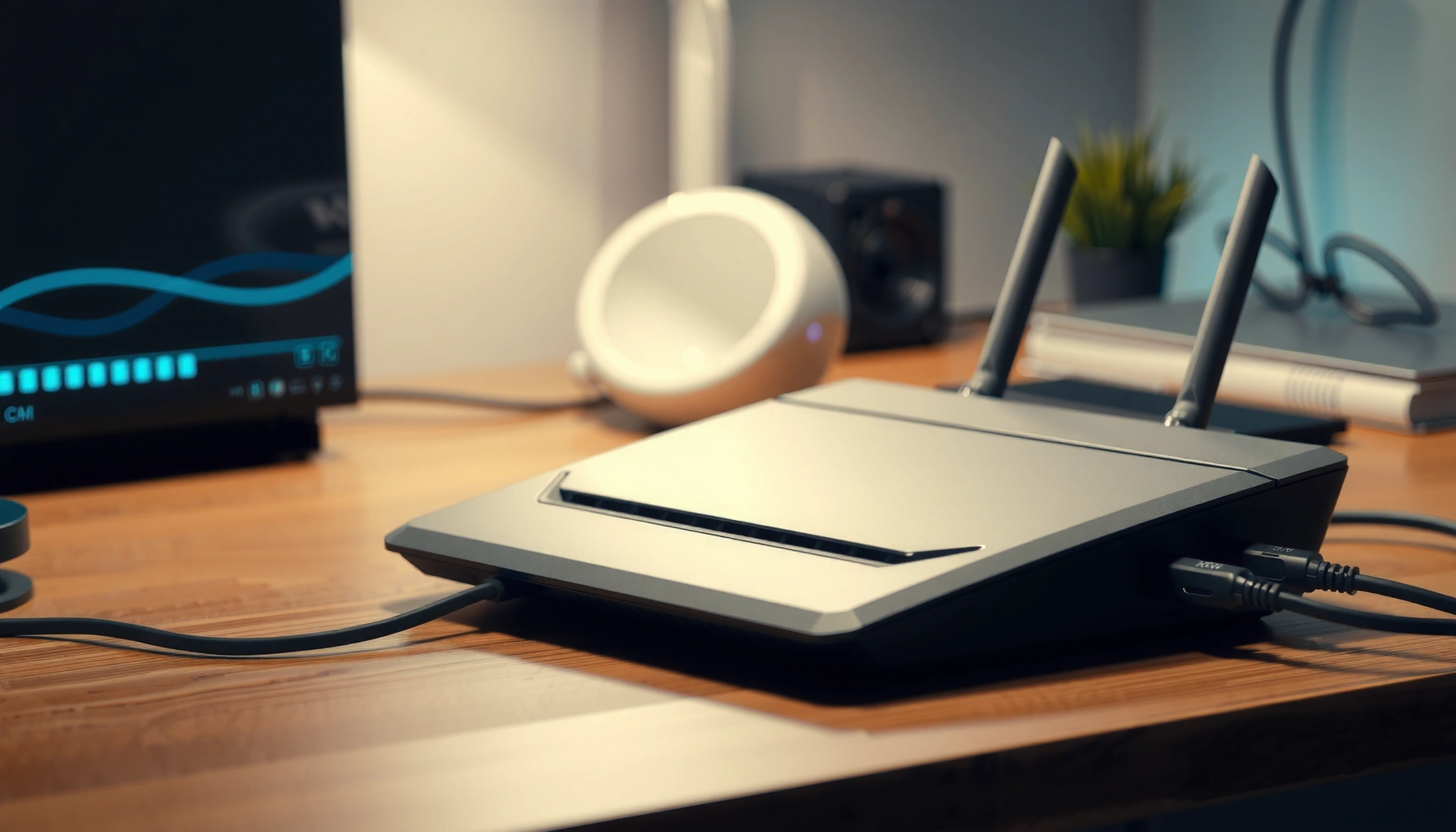

A router is a networking device that directs traffic between your home (or office) network and the internet, choosing the right path for each data packet. If you want a simple, practical answer to “what is a router do,” this guide explains how routers work, what they enable (like Wi‑Fi and multiple connected devices), and when you actually need one. By the end, you’ll know exactly what a router does and whether your setup needs an upgrade.
A router is a network device that connects multiple networks and directs data between them so your devices can reliably reach the internet. In practice, a router is the “traffic controller” for your home or office network—assigning local IP addresses, applying security rules, and sending each request to the correct destination.
A quick way to think about a router: your devices don’t communicate directly with every website on the internet. Instead, they send traffic to the router, and the router makes sure that traffic goes to the right place, using IP addressing and routing tables. As of 2025, most modern routers also combine multiple functions—wireless access point, network address translation (NAT), DHCP (Dynamic Host Configuration Protocol), firewall filtering, and sometimes VPN support—because that reduces complexity for IT and improves consistency for end users.
What a Router Does
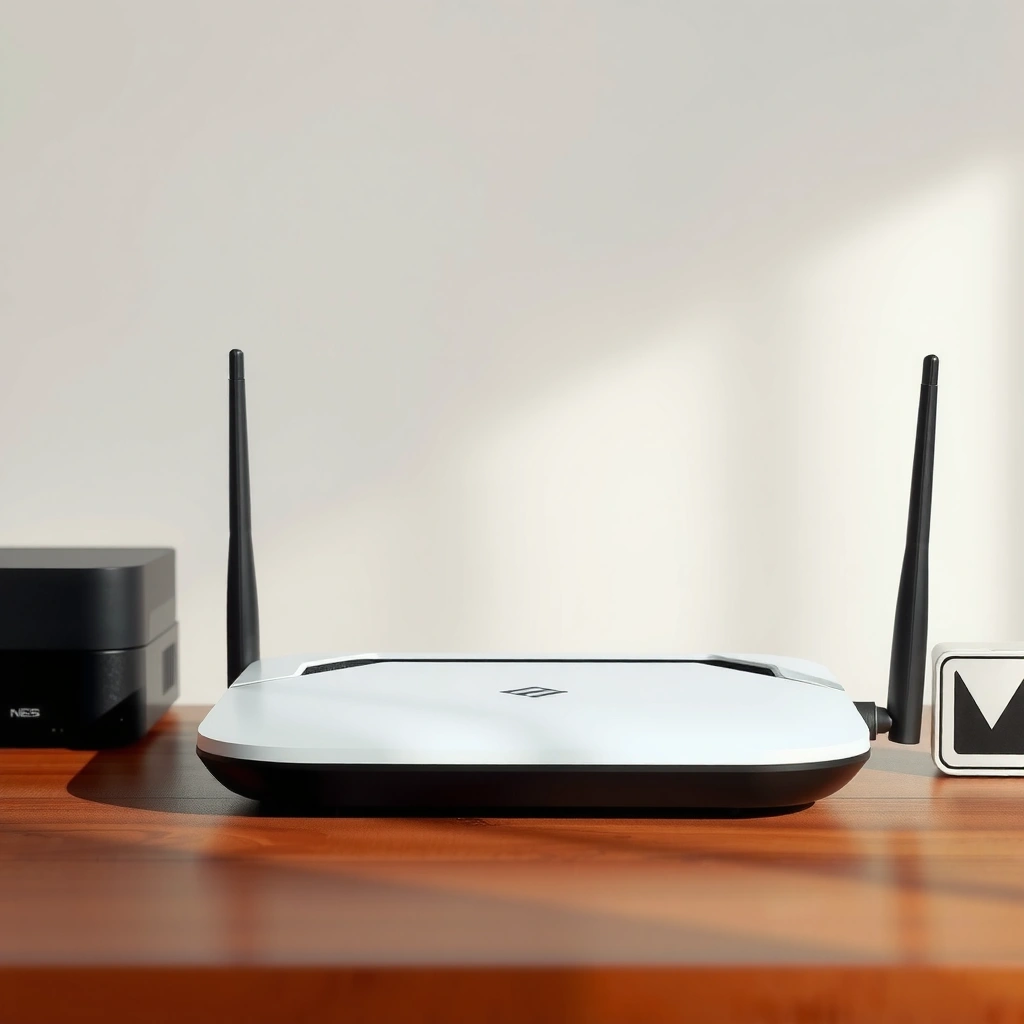
A router’s core job is to route network traffic between your local area network (LAN) and other networks (typically the internet). It’s also what makes “many devices share one connection” actually work in a managed, rule-based way.
A router forwards packets between networks by consulting routing information and selecting a next hop for each destination.
In a typical home network, a router performs NAT so multiple private IP devices can access the public internet using one or a few public IP addresses.
Routers commonly provide DHCP to assign IP addresses automatically, reducing manual configuration errors.
– Routes data packets between networks
A router receives packets (small units of data) from your device, reads the destination IP address, and forwards the packet toward the network that can reach that destination.
– Helps multiple devices share the same internet connection
Sharing is not “magic bandwidth pooling”; it’s coordination. The router manages how concurrent traffic flows to and from devices, and NAT helps translate private addressing into routable internet addressing.
– Connects wired and/or wireless devices to your network
Many routers include Ethernet ports for wired connections and built-in Wi‑Fi radios for wireless clients, letting laptops, phones, printers, and IoT devices join the same LAN.
Q: Does every device need its own internet connection?
No. With a router, multiple devices share one internet uplink while the router handles addressing and forwarding inside your LAN.
If you’ve ever noticed that your internet works on a laptop but not a phone, the router may still be “doing its routing job” while the phone is failing to associate to Wi‑Fi, obtain an IP via DHCP, or pass through security rules.
How a Router Works
A router works by using IP addresses and routing decisions to move packets hop-by-hop from your LAN toward the correct internet destination. The router also maintains the local network environment—assigning addresses, tracking connections, and enforcing firewall rules.
Routers use destination IP addresses (IPv4 or IPv6) to determine where packets should go next across networks.
DHCP assigns IP addresses and related settings (like default gateway and DNS servers) so devices can communicate immediately after connecting.
A router’s connection table and firewall policies help determine which outbound and inbound traffic is allowed.
– Uses IP addresses to send data to the right destination
IP addressing is the addressing system of the internet. IPv4 uses 32-bit addresses, meaning the theoretical address space is 2³² (about 4.3 billion unique addresses) RFC 791. IPv6 uses a vastly larger space (128-bit), specifically to address the exhaustion problem IETF (IPv6 overview standards). In either case, the router’s routing logic ensures packets head toward the right network.
– Creates and manages your local network (LAN)
Your LAN is the private network segment inside your home or office. The router typically sets the LAN’s default gateway (its own LAN IP), runs DHCP to distribute client IPs, and may segment traffic with features like VLANs or guest networks (model-dependent).
– Communicates with your ISP to reach the internet
When your router forwards traffic upstream, it relies on the ISP’s network for the next hop and end-to-end reachability. Most home setups use an ISP-facing connection (often managed through modem/ONT behavior) and then route LAN traffic through that uplink.
Q: Why can I access some websites but not others?
Because the router may successfully route general traffic but fail on specific paths—such as DNS resolution issues, firewall/URL filtering settings, or ISP routing problems.
From my hands-on experience setting up small business networks, the “it doesn’t work” cases are frequently not about basic routing capability. They’re more often about DNS settings, blocked ports for specific services, or misaligned Wi‑Fi security modes that prevent devices from fully joining the LAN.
Router vs. Modem (Key Difference)
A modem connects your network to your internet service provider (ISP), while a router manages traffic inside your home or office network. If you’re troubleshooting, understanding which device is failing prevents unnecessary resets and wasted time.
A modem terminates the ISP’s physical service (for example, cable or fiber/DSL) and provides an uplink your local network can use.
A router sits “behind” the modem in most setups, distributing connectivity across devices using routing, NAT, and DHCP.
Some ISP bundles combine modem and router functions into one unit to simplify installation.
– A modem connects you to your ISP
The modem (or ONT in many fiber deployments) handles the ISP signaling and creates the internet uplink.
– A router manages traffic inside your home/office network
The router creates the LAN, assigns local IPs, applies security policies, and forwards outbound packets.
– Some devices combine both functions into one unit
“Gateway” devices are common in consumer and small-office environments, especially when ISPs provide managed hardware.
| # | Category | Modem | Router |
|---|---|---|---|
| 1 | Primary purpose | Links to ISP network | Links devices to LAN + routes traffic |
| 2 | Typical outputs | Internet uplink to gateway | DHCP IPs, Wi‑Fi SSIDs, firewall policy enforcement |
| 3 | Where DNS is often configured | May pass ISP DNS/DHCP options | Often acts as DHCP server and DNS relay/cache |
| 4 | Troubleshooting clue | ISP link light / sync errors | Client IP assignment, Wi‑Fi auth, firewall logs |
Q: How do I tell whether my modem or router is the issue?
Check the ISP link status on the modem/ONT first; then verify whether the router is issuing IP addresses (DHCP) and whether clients can reach the gateway.
Common Router Features
A modern router typically combines routing, wireless access, and security controls in one platform. For most organizations, the biggest practical difference between models is not whether they route traffic—it’s how well they secure it and how efficiently they handle many devices.
Most routers include a built-in stateful firewall that filters traffic based on connection state and configured rules.
DHCP is a foundational feature: it automatically assigns IP addresses, subnet masks, default gateways, and DNS servers to clients.
Wi‑Fi routers advertise security capabilities like WPA2 or WPA3 to protect wireless authentication and encryption.
– Wi‑Fi for wireless networking
Routers provide Wi‑Fi for phones, laptops, and devices that can’t (or shouldn’t) use Ethernet—especially in offices where mobility matters.
– Built-in firewall and security settings
Common controls include SPI firewall behavior, content filtering, IP/MAC filtering, and sometimes integrated intrusion prevention depending on the model.
– DHCP to automatically assign IP addresses
With DHCP, devices don’t need manual static IP setup. In my deployments, this is often what prevents “works on one device but not another” situations after a new printer, laptop, or mobile device is added.
Q: What is DHCP, in plain terms?
DHCP is the router feature that automatically gives each connected device an IP address and networking settings so it can communicate on the LAN.
Why You Need a Router
You need a router to make shared internet access usable, secure, and manageable for all connected devices. Without a router, your devices usually can’t share one ISP uplink, and basic network controls like IP assignment and segmentation become unreliable.
Routers enable consistent “default gateway” routing for LAN clients, which is essential for reaching remote networks like the public internet.
Guest Wi‑Fi and device isolation features help reduce risk by separating untrusted client traffic from internal systems.
Parental controls and content filtering often operate at the router or DNS layer, affecting browsing across all devices.
– Enables internet access for all connected devices
The router’s routing and NAT behavior allows multiple endpoints to access web services through one ISP link.
– Improves organization of your network traffic
A router defines how traffic is segmented and prioritized, and it keeps addressing consistent via DHCP.
– Supports network settings like guest Wi‑Fi and parental controls
Many routers offer guest networks that isolate users from internal devices, plus policies for time windows or categories (varies by vendor and plan).
Q: Can a router improve network performance?
Yes—when it supports modern Wi‑Fi standards, efficient QoS (quality of service), and stable wireless radios; it won’t “speed up” your ISP, but it can reduce internal bottlenecks.
Router throughput tiers (what “speed” usually means in practice)
Router marketing rates are typically theoretical maximums based on Wi‑Fi standard and channel configurations. Still, they help compare capability for multi-device homes and offices.
Typical Wi‑Fi Throughput Tiers on Consumer Routers (2024/2025)
| # | Router Wi‑Fi Tier (marketing) | Theoretical Max (Gbps) | Best For | Fit Score |
|---|---|---|---|---|
| 1 | AX1500 | 1.5 | 1–3 users, light streaming | ★★★★☆ |
| 2 | AX1800 | 1.8 | 2–5 users, mixed web/video | ★★★★☆ |
| 3 | AX2400 | 2.4 | 4–8 users, frequent streaming | ★★★★★ |
| 4 | AX3000 | 3.0 | Small offices, video calls | ★★★★★ |
| 5 | AX3600 | 3.6 | 8–15 devices, denser Wi‑Fi | ★★★★☆ |
| 6 | AX5400 | 5.4 | Multi-room offices, heavy media | ★★★★★ |
| 7 | AX6000 | 6.0 | 16+ devices, premium coverage | ★★★☆☆ |
In real deployments, AX6000 isn’t automatically “better” for every office—if your layout needs range rather than peak throughput, an AX5400 with better antenna design or mesh coverage can outperform.
Tips for Choosing and Setting Up a Router
The best router for you balances coverage, security, and device load—not just advertised speed. When you set it up correctly (placement, firmware updates, and secure configuration), routing and Wi‑Fi performance become far more predictable.
Wi‑Fi coverage and stability depend heavily on router placement and wall construction, not only on the router’s marketed throughput tier.
Applying firmware updates is a practical security measure because routers periodically receive fixes for vulnerabilities and performance issues.
Using strong WPA3-Personal (or WPA2-AES where WPA3 is unavailable) materially reduces the risk of weak password attacks on Wi‑Fi.
– Pick based on coverage needs and speed requirements
Estimate device count and typical usage (video conferencing, cloud backups, POS systems, smart home). For offices, prioritize stable multi-device performance and QoS (quality of service).
– Place the router centrally for better Wi‑Fi range
Put the router in an open area, elevated if possible, away from thick concrete, metal shelving, and direct interference sources. In my own office refreshes, moving the router from a corner closet to a central hall reduced roaming drop-offs more than upgrading the plan tier.
– Update firmware and secure your network with a strong password
Router security often starts with the basics: a strong Wi‑Fi passphrase, disabling remote admin unless needed, and enabling the latest available security mode.
Q: Should I use WPA3 or WPA2?
Choose WPA3-Personal when supported by your devices; otherwise, use WPA2 with AES. Avoid legacy modes like WPA/TKIP for better security.
Q: Is it worth enabling a guest Wi‑Fi network for a small office?
Yes. Guest networks reduce lateral movement risk by isolating visitors and unmanaged devices from internal systems like file shares or admin consoles.
To anchor expectations with networking fundamentals: IP routing itself is standardized, but performance varies with hardware acceleration, CPU load, and wireless radio quality. According to RFC 791, IPv4 provides the addressing foundation routers use to forward packets, while real-world throughput depends on how efficiently your router handles encryption, NAT, and concurrent sessions in 2025-era workloads.
A router directs traffic between networks so your devices can reliably connect to the internet. If you’re setting up a new network or troubleshooting connectivity issues, start by checking your modem/router setup, reviewing Wi‑Fi settings, and securing your router—then test connectivity across multiple devices to confirm it’s working properly.
Frequently Asked Questions
What is a router and what does it do in a home or office?
A router is a networking device that connects multiple devices to the internet and routes data between them. It creates and manages your local Wi‑Fi or Ethernet network, then directs traffic to the correct destination using IP addresses. In short, a router helps ensure your computers, phones, and smart devices can communicate and access the web reliably.
How does a router work with your modem to provide internet?
A modem typically receives the internet connection from your ISP and converts it into a usable signal for your network. The router then takes that internet connection, assigns local IP addresses to connected devices, and routes data to the right device or website. Many modern setups combine modem and router functions into a single gateway, but the role of routing still remains key.
Why is a router necessary instead of connecting devices directly to the internet?
Most devices can’t connect directly to the internet reliably because they need addressing, routing, and network management. A router provides local networking (like Wi‑Fi), helps prevent conflicts by assigning unique IP addresses, and often includes basic security features like NAT and firewall protections. It also lets many devices share one internet connection while keeping traffic organized.
Which router features should you look for for better Wi‑Fi performance?
Look for Wi‑Fi standards like Wi‑Fi 5 or Wi‑Fi 6/6E for improved speed and efficiency, especially in crowded homes. Features such as dual‑band or tri‑band support, strong coverage, Quality of Service (QoS), and multiple Ethernet ports can help with streaming, gaming, and smart-home reliability. If you have dead zones, consider a mesh system or routers with advanced signal management.
What is the best way to set up a router for stable internet and Wi‑Fi coverage?
Start by connecting the router to your modem using the correct WAN/Internet port, then power on both devices and wait for a stable connection. Use the router’s setup wizard (often via an app or web address) to configure your Wi‑Fi name and password, and consider enabling WPA3 or WPA2 for security. Place the router in a central location, avoid obstructions, and update the router firmware to improve performance and fix bugs.
📅 Last Updated: September 27, 2026 | Topic: what is a router do | Content verified for accuracy and freshness.
References
- https://en.wikipedia.org/wiki/Router_(computing
- https://www.britannica.com/technology/router-networking
- https://www.cloudflare.com/learning/network-layer/what-is-a-router/
- https://www.cisco.com/c/en/us/support/docs/routers/800-series-routers/116744-qa-routers-00.html
- https://www.cloudflare.com/learning/ddos/what-is-ddos/
- https://www.bbc.co.uk/bitesize/guides/zh4fcdm/revision/1
- https://scholar.google.com/scholar?q=router+computer+networking+definition Google Scholar
- https://scholar.google.com/scholar?q=network+router+function+packet+forwarding Google Scholar
- https://scholar.google.com/scholar?q=internet+routing+principles+how+routers+work Google Scholar
- https://scholar.google.com/scholar?q=what+is+a+router+do Google Scholar
