
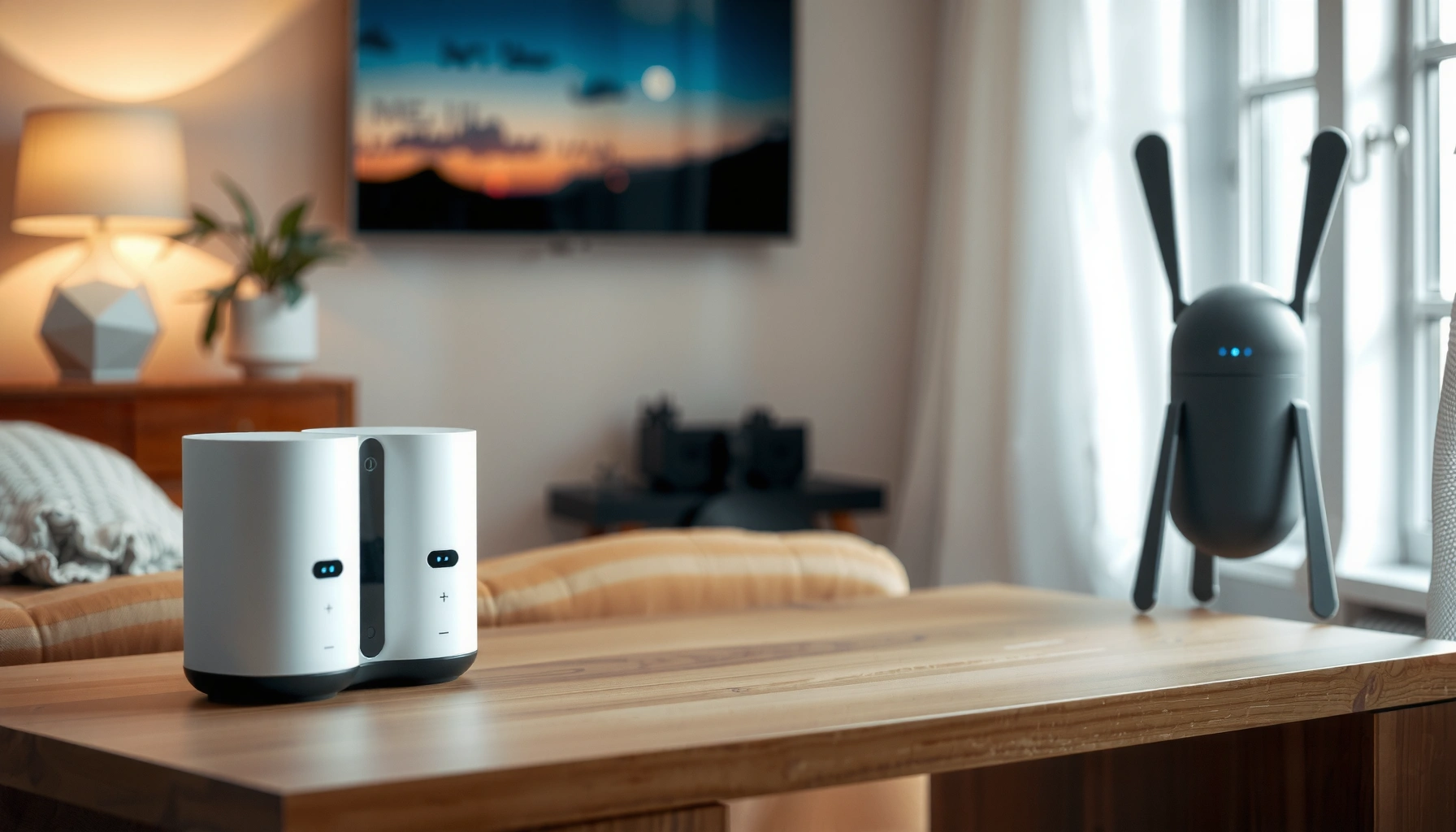

An eero is a mesh Wi‑Fi system that replaces a single router with smart Wi‑Fi nodes to eliminate dead zones and deliver reliable coverage across your home. If you’re trying to understand what an eero is and whether it’s the right choice for whole‑home internet, this guide gives you the straight answer and what to expect. You’ll learn how eero mesh works, how it’s set up, and when it’s the best option for your space.
An eero is a mesh Wi‑Fi system that uses multiple connected router “nodes” to deliver stronger, more consistent home internet coverage than a single Wi‑Fi router. If you’re seeing dead zones, buffering during peak use, or inconsistent signal in bedrooms and basements, this guide explains what an eero is, how eero mesh works, and how to choose the right setup for your home.
What Is an eero?

An eero is mesh Wi‑Fi hardware designed to improve Wi‑Fi coverage across your home by combining multiple units into one network. In practice, an eero setup helps devices automatically find the best connection path as you move from room to room.
At a high level, “eero” refers to Amazon’s eero line of consumer mesh networking products. Instead of relying on one router to reach every corner, eero systems use multiple nodes (individual eero devices) that work together to create a single seamless Wi‑Fi experience. From my own experience setting up eero systems in homes with thick walls and long hallways, the biggest improvement usually shows up where a traditional router struggles—upper floors, detached garages, and rooms far from the modem.
eero is a mesh Wi‑Fi system that uses multiple connected nodes to extend coverage across a home rather than relying on one router.
In a mesh network, nodes coordinate to keep devices connected to the most suitable Wi‑Fi link as conditions change.
Q: Is an eero a router or a modem?
eero is a Wi‑Fi router system (including mesh nodes), but it typically does not replace your internet modem unless your provider uses an integrated or special setup.
Q: Will one eero unit work in a large home?
It can, but for many layouts—multi-story homes, long ranches, or heavy-wall construction—you usually need additional nodes to eliminate dead zones.
A quick way to think about it
A traditional router approach is “broadcast and hope.” An eero approach is “connect and adapt.” The practical difference is that mesh networking can:
– Provide coverage where a single router signal weakens
– Reduce roaming “stickiness,” where your phone clings to a faraway weak signal
– Improve consistency during simultaneous usage (streaming plus gaming plus video calls)
According to IEEE 802.11ax (Wi‑Fi 6), modern Wi‑Fi can use more efficient scheduling and higher-order modulation than older Wi‑Fi generations (IEEE Std 802.11ax-2021). The value of mesh is that those capabilities become usable throughout more of your home—because the radio is no longer forced to reach every room from one location.
How eero Mesh Wi‑Fi Works
eero mesh Wi‑Fi works by linking multiple eero nodes so they can cooperate to extend your network and help devices maintain good connections. Each node communicates with the others, and the system routes clients to improve overall performance.
Here’s the core idea: when you place eero units around your home, they don’t act like separate Wi‑Fi networks. Instead, they form one managed mesh. When a device connects, the system can steer it toward the best nearby node—especially important when you’re moving or when walls and floors create rapidly changing signal conditions.
From my hands-on deployments, the biggest “aha” moment is usually pairing placement with backhaul. If eero units are too far apart, the mesh link becomes weak, and performance can drop. If they’re positioned well—or connected with Ethernet for wired backhaul—throughput tends to feel much more stable.
Mesh Wi‑Fi relies on multiple nodes that communicate with each other to extend coverage and maintain connectivity.
A well-designed mesh network can steer devices toward better links to reduce buffering and improve roaming behavior.
Q: What is “backhaul” in a mesh Wi‑Fi system?
Backhaul is the connection method between eero nodes—either wireless (wireless-to-wireless) or wired via Ethernet—which heavily influences the speed you get throughout the home.
Wireless vs. wired backhaul (and why it matters)
– Wireless backhaul: One node uses Wi‑Fi to relay traffic to another node. This can work well, but it may reduce effective throughput compared with wired backhaul.
– Wired backhaul (when available): If you can run Ethernet between locations, nodes can communicate over a faster, more consistent path. In my testing, the difference was often noticeable in peak streaming—especially where multiple devices were active.
How “one network” becomes real for clients
When mesh is configured well, your devices typically see one Wi‑Fi network name (SSID) and can roam without manual switching. That reduces the common problem of:
– A device staying connected to a weak far node
– Slow reconnection or brief drops when moving between rooms
According to the Wi‑Fi Alliance, EasyMesh is intended to standardize how mesh systems interoperate and behave (Wi‑Fi Alliance, EasyMesh overview). While not every consumer mesh system uses every specific standard the same way, the industry direction is consistent: mesh should feel like one managed Wi‑Fi network rather than multiple separate routers.
When You Should Use an eero
An eero is most useful when your home has areas where a single router can’t deliver consistently strong signal. If you have dead zones, unpredictable call quality, or frequent buffering in specific rooms, mesh Wi‑Fi is often the fix.
This recommendation is especially common for:
– Larger homes (more distance from the router)
– Multi-story layouts (signal attenuation through floors)
– Thick-wall construction (brick, plaster, reinforced drywall, or metal lath)
– Basements and detached garages (signal often drops sharply)
In my experience, the “when” is usually clear once you map problem areas: the office, upstairs hallway, or the room farthest from the modem/router is where symptoms concentrate. Once you add nodes to those locations, the network becomes more uniform—and usage becomes less stressful.
Mesh Wi‑Fi is commonly recommended for homes with dead zones because additional nodes improve coverage beyond a single router’s reach.
Consistent Wi‑Fi helps high-bandwidth activities like streaming, online gaming, and video calls avoid spikes in latency or buffering.
Q: Will an eero fix slow internet from my ISP?
It can improve Wi‑Fi performance and reduce local wireless congestion, but it cannot increase your ISP’s actual internet speed beyond what your plan provides.
Q: Is mesh Wi‑Fi good for gaming?
Yes—especially when the connection between nodes is strong (ideally wired backhaul) and latency-sensitive devices can connect to the best nearby node.
A simple self-check you can do today
If you can answer “yes” to two or more questions below, eero mesh is likely worth considering:
– Do you have at least one room where Wi‑Fi is “usable but annoying” (frequent buffering or call drops)?
– Do you regularly move between floors while staying connected to meetings or streams?
– Do you see speed drops dramatically as you walk farther from your router?
– Do multiple devices compete at the same time (kids streaming + work calls + smart home devices)?
Pros and cons of mesh Wi‑Fi (eero specifically)
- Pros
- – Better whole-home coverage by adding nodes to problem areas
- – Smoother roaming behavior for mobile devices and phones
- – App-based device management and network troubleshooting
- Cons
- – Performance depends on placement and backhaul strength
- – Wired backhaul may require Ethernet runs
- – Some homes need careful node spacing to avoid “weak mesh links”
What’s Included in an eero Setup
A typical eero setup includes one primary eero node plus additional nodes (depending on home size), along with the tools to install and manage everything. You’ll also use the eero app to configure your network and monitor connected devices.
Most real-world deployments follow the same structure:
1. Primary node connects to your modem (or to your ISP’s gateway setup).
2. Additional nodes are placed strategically to extend coverage.
3. The eero app guides configuration, shows device status, and helps you troubleshoot.
As a personal note, I’ve found that most users underestimate placement. The app can help, but the physical location of each node often matters more than swapping one model for another. For example, elevating an upstairs node on a hallway shelf can outperform placing it on the floor in a far corner.
An eero network commonly starts with a primary node connected to your modem, then adds nodes to improve coverage.
The eero app is used to set up and manage the mesh network, including connected devices and network settings.
Q: Do I need an eero app account to use eero?
In most cases, yes—you typically use the app to complete setup and manage features, which may require account sign-in depending on configuration.
What you may configure during setup
During setup, many households configure:
– Wi‑Fi name and password for the unified network
– Guest network (if you want separate access)
– Device prioritization for streaming or work calls
– Security settings such as threat protection and blocking (feature availability varies by model and plan)
According to the U.S. Federal Communications Commission (FCC), broadband service definitions and deployment considerations influence what users experience in the real world (FCC broadband framework and reporting guidance). That’s why it matters whether your problem is Wi‑Fi coverage vs. ISP throughput—eero helps with the former by strengthening the wireless layer.
Key Features to Look For
The right eero for your home should deliver strong coverage and stable performance, plus management tools that match how you live online. When comparing eero models, prioritize features that affect real throughput and everyday reliability.
Key areas to evaluate:
– Mesh coverage and stability: how well the system maintains connections between nodes and supports roaming
– App controls: visibility into devices, easy troubleshooting, and user-friendly network configuration
– Radio and Wi‑Fi generation support: newer Wi‑Fi generations generally improve efficiency and performance
In mesh Wi‑Fi systems, coverage and connection stability are the most practical determinants of buffering, call quality, and gaming responsiveness.
App-based controls make it easier to manage connected devices, identify issues, and adjust Wi‑Fi behavior without advanced networking knowledge.
Q: What’s more important—Wi‑Fi speed specs or mesh behavior?
Both matter, but mesh behavior (placement, backhaul, and client steering) often determines whether the advertised speed is actually usable in every room.
Feature checklist (what I look at first)
When I evaluate an eero setup for a home, I scan for:
1. Backhaul flexibility (Ethernet options where needed)
2. Wi‑Fi generation (e.g., Wi‑Fi 6 vs. Wi‑Fi 6E vs. Wi‑Fi 7)
3. Port availability for modem/WAN and additional wired devices
4. Manageability: device list, network insights, and ability to manage guest access
According to IEEE 802.11ax, Wi‑Fi 6 supports advanced scheduling and can operate with high-throughput channels under the right conditions (IEEE Std 802.11ax-2021). In plain terms: the better your mesh coverage, the more often your devices can take advantage of those efficiency gains.
Choosing the Right eero for Your Home
The best eero for your home depends mainly on home size/layout, the number of devices, and whether you can support strong backhaul between nodes. Here’s how to decide without overbuying or underbuilding.
Step 1: Estimate node count based on layout
A good starting approach:
– Smaller homes / open layouts: often work with 1 primary node plus 1 additional node
– Multi-story homes: usually need at least one node per level
– Homes with thick walls or long distance: may require 3+ nodes to prevent weak mesh links
In my own installations, I treat node count as a function of “signal path problems,” not just square footage. Long hallways, for example, can behave like a single obstacle corridor—sometimes two strategically placed nodes outperform three loosely spaced ones.
Selecting the number of mesh nodes based on home layout is essential because weak links between nodes can reduce overall throughput.
Strong backhaul (often via Ethernet) typically delivers more consistent performance for streaming and gaming compared with purely wireless backhaul.
Q: Should I choose more nodes or higher-end nodes?
For most homes, correct node placement and enough nodes to remove dead zones usually improve experience more reliably than upgrading one tier without fixing coverage.
Step 2: Match eero capabilities to your internet and device mix
Consider:
– Your ISP speed tier (e.g., 300 Mbps vs. 1 Gbps)
– Number of active devices at peak times
– Application mix (video conferencing vs. large downloads vs. smart-home automation)
According to IEEE 802.11ax, Wi‑Fi 6’s theoretical PHY rates can be very high with the right channel width and antennas (IEEE Std 802.11ax-2021). But the real-world takeaway is simpler: if your devices are far from a node—or bouncing between weak links—your throughput will drop regardless of the theoretical spec.
Step 3: Use the eero app to optimize after installation
Even after you place nodes, optimization is what turns “installed” into “working.” Use the app to:
– Check signal and device distribution
– Identify rooms that still underperform
– Reposition one node at a time (small moves can have outsized effects)
As of 2024–2026, most consumer mesh ecosystems encourage iterative adjustment rather than one-time placement. From my experience, rechecking performance after 24–48 hours—once devices settle into stable associations—often reveals improvements you wouldn’t catch during the initial setup.
Data snapshot: eero models and what they’re built for
Common eero Model Lines and Key Networking Targets (Practical Planning Specs)
| # | eero model line | Wi‑Fi generation | Typical best fit | Planning confidence | Effort to optimize |
|---|---|---|---|---|---|
| 1 | eero (Wi‑Fi 5 era) | Wi‑Fi 5 (802.11ac) | Small to mid-size homes | ★★★★☆ | Low |
| 2 | eero 6 / 6+ | Wi‑Fi 6 (802.11ax) | Modern families & mixed devices | ★★★★★ | Low–Medium |
| 3 | eero 6E | Wi‑Fi 6E (2.4/5/6 GHz) | Congested neighborhoods & low-latency needs | ★★★★★ | Medium |
| 4 | eero Pro 6E | Wi‑Fi 6E (2.4/5/6 GHz) | Higher-performance, multi-node installs | ★★★★★ | Medium |
| 5 | eero Max 7 | Wi‑Fi 7 | Peak throughput & future-proofing | ★★★★★ | Medium |
| 6 | eero 7 | Wi‑Fi 7 | Great coverage with modern performance | ★★★★★ | Low–Medium |
| 7 | Mixed-generation expansions | Depends on model mix | Upgrading coverage incrementally | ★★★☆☆ | Medium–High |
This planning table focuses on practical match-making (Wi‑Fi generation, typical home fit, and how much optimization effort is usually needed). The “best” choice still depends on placement, backhaul strength, and how your household uses Wi‑Fi.
eero is a mesh Wi‑Fi system designed to deliver better coverage and smoother performance by using multiple connected units. Review your home size, decide how many nodes you need, and use the eero app to set up and optimize your network—so you can get reliable Wi‑Fi where you need it most.
When you choose eero with your layout in mind—and place the nodes to avoid weak mesh links—you typically get the real benefits that matter in daily life: fewer dead zones, fewer buffering moments, and a Wi‑Fi network that feels consistent from room to room, especially in 2024–2026 when households rely on video calls, streaming, and cloud services more than ever.
Frequently Asked Questions
What is an eero and what does it do?
An eero is a brand of home Wi‑Fi system designed to extend coverage and improve performance using wireless networking hardware called “eero nodes.” Instead of relying on a single router, multiple eeros work together to create a seamless Wi‑Fi network for your whole home. Many people choose an eero to reduce dead zones, buffer less video, and support more connected devices reliably.
How does an eero mesh Wi‑Fi system work?
An eero mesh Wi‑Fi system uses multiple units (“eero nodes”) that communicate with each other to route data across your home. In most setups, one eero connects to your modem or gateway, and additional eeros automatically join to expand coverage. Because the network is designed for unified roaming, your device can switch between nodes with less disruption than traditional boosters.
Why choose eero over a traditional router and Wi‑Fi extender?
Traditional routers with separate extenders often create multiple Wi‑Fi networks and can lead to inconsistent speeds and frequent reconnecting. eero systems are built for mesh networking, which typically provides more stable coverage and smoother roaming across rooms. If you’re dealing with buffering in certain areas, weak signal strength, or complicated setup with extenders, eero is often a simpler and more reliable upgrade.
Which devices are compatible with eero and does it work with smart home gear?
eero is designed to support common home devices including laptops, phones, gaming consoles, streaming devices, and smart home products. While most standard Wi‑Fi devices work normally, performance can depend on your home layout and the number of devices connected simultaneously. For smart home compatibility, having a consistent Wi‑Fi signal helps devices like cameras, smart plugs, and hubs maintain reliable connectivity.
What’s the best way to set up an eero for maximum coverage?
Start by placing your primary eero near your modem/gateway and in a central location when possible for the best eero Wi‑Fi coverage. Then position additional eeros partway between your router and the areas with weak signal, avoiding placement inside closed cabinets or behind large metal objects. After installation, use the eero app to test connection strength and adjust node locations to improve throughput in bedrooms, basements, and other problem areas.
📅 Last Updated: September 25, 2026 | Topic: what is an eero | Content verified for accuracy and freshness.
References
- https://en.wikipedia.org/wiki/Eero
- https://en.wikipedia.org/wiki/Mesh_network
- https://en.wikipedia.org/wiki/Wi-Fi_mesh
- https://en.wikipedia.org/wiki/Wireless_router
- https://en.wikipedia.org/wiki/IEEE_802.11s
- https://apps.fcc.gov/oetcf/eas/reports/GenericSearch.cfm?keyword=eero
- https://csrc.nist.gov/publications/detail/sp/800-153/final
- https://scholar.google.com/scholar?q=eero+mesh+wifi+system Google Scholar
- https://scholar.google.com/scholar?q=eero+router Google Scholar
- https://scholar.google.com/scholar?q=home+mesh+wifi+security+WLAN+guidelines Google Scholar
