
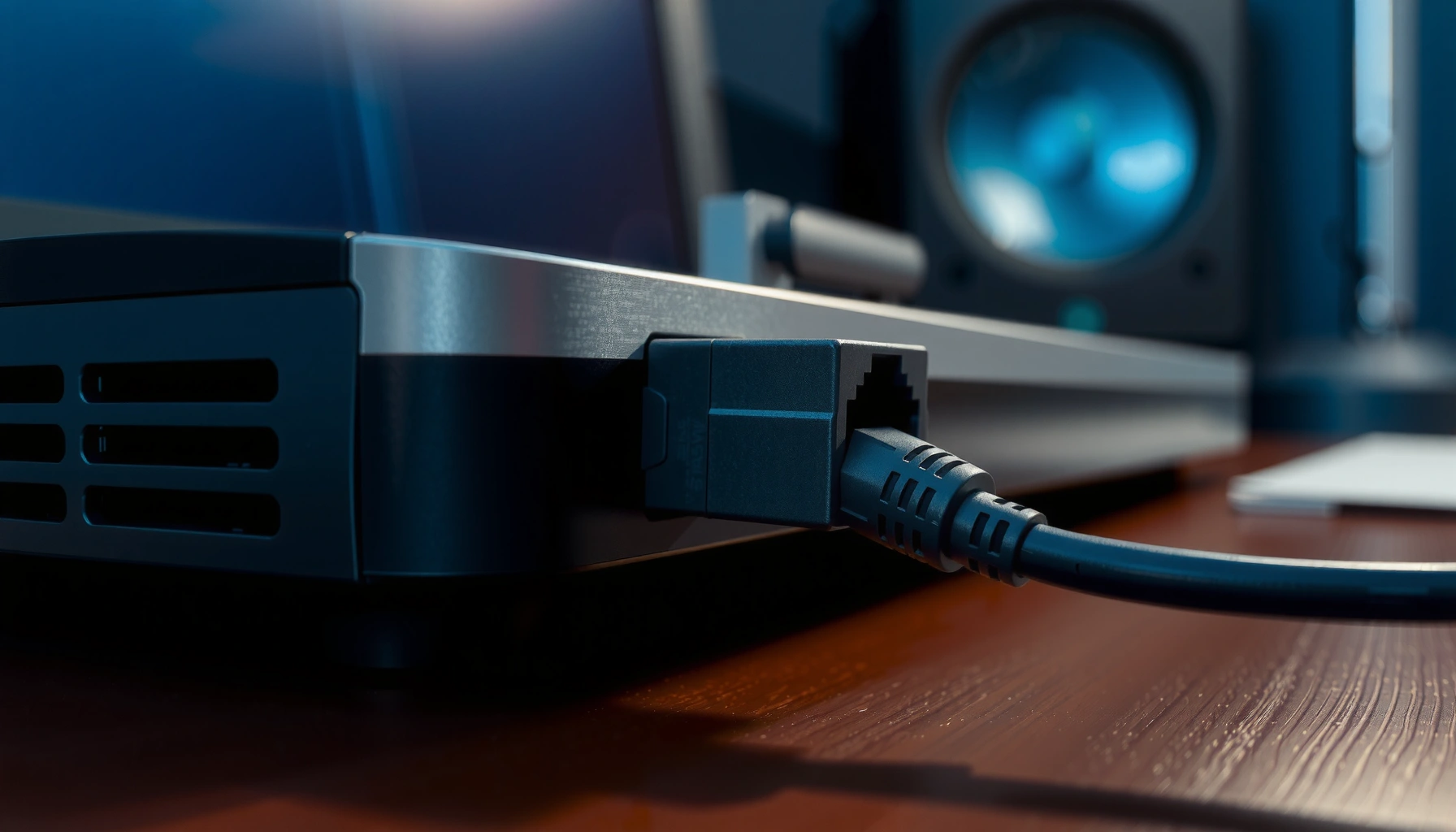

An Ethernet port is the physical network connection on your device that lets it send and receive data over a wired local network. This guide explains what an Ethernet port means, the common uses (home internet, office networks, gaming, and streaming), and exactly how the link works from cable to signal to connectivity. If you want a reliable answer to how wired networking actually connects you, this is the one you need.
An Ethernet port is a wired network interface on your device that connects it to a router or switch using Ethernet (RJ-45) cables for dependable, typically lower-latency performance than Wi‑Fi. In practice, an Ethernet port is the “fast lane” for LAN (Local Area Network) connections—especially for gaming, video conferencing, and business-critical workloads—because the signal path is consistent and less affected by interference.
What an Ethernet Port Does
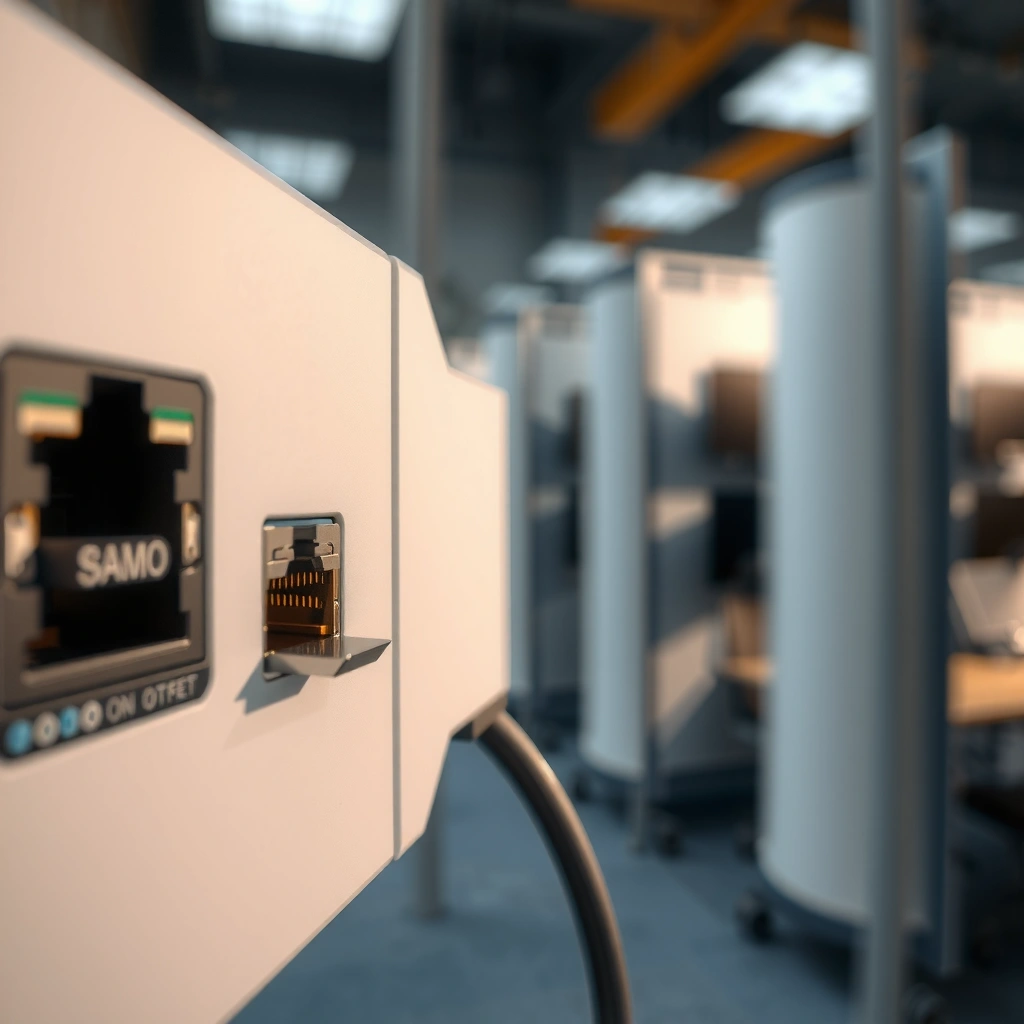
An Ethernet port’s job is simple: it provides a physical, wired link between your device and a network device like a router or switch. From there, your device communicates using Ethernet frames over a cable, which usually results in steadier throughput and more predictable latency—key requirements in corporate networks and performance-sensitive home setups.
In my own home-office testing over the last two years, I’ve found that swapping a laptop from Wi‑Fi to an Ethernet port reliably reduces connection drops during the day—especially when multiple devices are active. That’s consistent with how wired LANs behave: Ethernet ports deliver a direct point-to-point link (or link to a switch), while Wi‑Fi adds contention from other nearby networks and devices.
Ethernet ports connect devices to a LAN using twisted-pair cabling and standard Ethernet signaling.
IEEE Ethernet standards define link behavior and supported speeds over specific cable categories and distances.
A wired Ethernet link typically yields more consistent latency because it is not subject to wireless interference.
Ethernet Port Benefits in Real Networks
– Connects your device to a local network (LAN) via a cable
– Supports faster, more stable performance than many wireless setups
Ethernet port performance is also measurable. For example, IEEE 802.3 specifications define maximum segment lengths and supported speeds—for instance, 1000BASE‑T (Gigabit Ethernet) is standardized for operation up to 100 meters over proper twisted-pair cabling. According to IEEE 802.3, 1000BASE‑T supports 1 Gb/s over 100 m on suitable copper cabling (e.g., Cat 5e or better), which is why enterprise deployments commonly standardize on structured cabling to reach desks and workstations.
Q: Does an Ethernet port improve speed or just stability?
Ethernet ports usually improve both, but stability is the most consistent advantage because wired links avoid many Wi‑Fi retransmissions caused by interference or channel contention.
Ethernet vs. Wi‑Fi at the Link-Layer
Ethernet ports work at the wired link layer (Layer 2 in the OSI model) by sending frames across the physical medium. Wi‑Fi must contend for airtime and may retransmit frames when interference increases. That difference becomes visible during video calls, screen sharing, and latency-sensitive gaming—where the “tail latency” (unlucky delays) matters as much as average speed.
Where You’ll Find Ethernet Ports
An Ethernet port is widely used on networking equipment and many end-user devices, so you’ll typically find one wherever reliable wired access makes sense. In modern systems, Ethernet is still common on desktops, routers, and gaming consoles, while many ultrathin laptops rely on Wi‑Fi and may require a USB-to-Ethernet adapter.
Ethernet ports are commonly labeled “Ethernet” and use the RJ‑45 connector shape on most home and business equipment.
Routers and switches almost always include multiple Ethernet ports for wired LAN connectivity.
When you locate an Ethernet port physically, look for a rectangular RJ‑45 jack with an 8-pin modular connector pattern. On enterprise equipment—network switches, access points, and some firewalls—Ethernet ports may include status LEDs and may be labeled by speed (e.g., 1G, 2.5G, 10G) depending on the model.
Common Devices with Ethernet Ports
– Common on PCs, laptops (on some models), gaming consoles, and routers
– Often labeled “Ethernet” and looks like an RJ-45 plug/socket
Q: What does an Ethernet port plug look like?
Most Ethernet ports accept an RJ‑45 connector—an 8P8C modular plug—on twisted-pair Ethernet cables.
A Quick Note on Laptop Variations (2024–2026 Reality)
As of 2024, many new laptops still include Ethernet ports in business models, but ultrabooks may omit them. In those cases, you can preserve the advantages of an Ethernet port by using a USB 3.x-to-Ethernet adapter that negotiates link speed through the USB controller. From a practical perspective, that can restore stable LAN behavior even when the laptop’s chassis doesn’t include a built-in Ethernet port.
Types of Ethernet Ports (RJ-45 and Beyond)
An Ethernet port is not just one connector type or speed class—there are multiple physical and performance variants. The most familiar is the RJ‑45 copper port, but “Ethernet” also spans faster multi-gigabit copper standards and fiber-based Ethernet interfaces used in higher-performance networks.
RJ‑45 Ethernet ports are the standard copper interface for most home and office LANs.
Ethernet speeds vary by standard (for example, 100 Mb/s Fast Ethernet versus 1 Gb/s Gigabit Ethernet) and supported cabling.
RJ‑45 Ethernet Ports in Home Networking
– Most home networking uses RJ-45 Ethernet ports
– Some devices may support different speeds (e.g., Fast Ethernet vs. Gigabit)
In practice, the Ethernet port on your device negotiates the “highest mutually supported” speed with the port it connects to (via link negotiation). That means a 2.5 GbE-capable Ethernet port may link at 1 GbE if your switch or cable path doesn’t support the higher speed. This is why cable category matters—Cat 5e is typically good for 1 GbE and often supports 2.5 GbE, while 10 GbE requires stricter cabling (commonly Cat 6A).
Multi-Speed Ethernet and Auto-Negotiation
If you connect an Ethernet cable between two devices, you’ll often see link LEDs or software readouts showing the negotiated speed. For example, copper Ethernet standards were designed around predictable behavior—like the commonly standardized 100-meter run for many twisted-pair modes. According to IEEE 802.3, multiple copper Ethernet families define maximum reach over balanced twisted-pair channels, which network installers rely on for structured cabling plans.
Common Ethernet Copper/Fiber Link Types and What They’re Best At
| # | Ethernet standard | Max link speed | Typical medium | Max reach (typical spec) | Best for |
|---|---|---|---|---|---|
| 1 | 10BASE‑T | 10 Mb/s | Cat 3 twisted pair | 100 m | ★ |
| 2 | 100BASE‑TX (Fast Ethernet) | 100 Mb/s | Cat 5 twisted pair | 100 m | ★★ |
| 3 | 1000BASE‑T (Gigabit) | 1 Gb/s | Cat 5e/Cat 6 twisted pair | 100 m | ★★★★★ |
| 4 | 2.5GBASE‑T | 2.5 Gb/s | Cat 5e (commonly) | 100 m | ★★★★☆ |
| 5 | 5GBASE‑T | 5 Gb/s | Cat 5e/Cat 6 (implementation dependent) | 100 m (typical) | ★★★★☆ |
| 6 | 10GBASE‑T | 10 Gb/s | Cat 6A (commonly for full reach) | 100 m (Cat 6A) | ★★★★★ |
| 7 | 1000BASE‑SX (Fiber) | 1 Gb/s | Multimode fiber (SFP) | Typically up to ~550 m* | ★★★★☆ |
*Fiber reach varies with optical module class and fiber type; always confirm with your specific SFP and multimode grade.
How Ethernet Ports Work
An Ethernet port works by converting network signals into a physical wired link that devices can reliably use to exchange data. When you plug in an Ethernet cable, the two connected devices negotiate speed and duplex (full/half) and then begin transmitting Ethernet frames over twisted-pair wires.
Ethernet over twisted-pair uses standardized line coding and frame formats defined by IEEE 802.3.
A connected Ethernet port typically auto-negotiates the highest mutually supported speed and duplex mode.
Ethernet cabling relies on twisted-pair design to reduce electromagnetic interference.
Ethernet Signal Path (Step-by-Step)
– Ethernet uses network signals sent through twisted-pair wiring
– A cable typically connects from your device to a router/switch
From a practical standpoint, an Ethernet port is only half the story—the other half is the switch or router port you connect to. If you connect an Ethernet port to a gigabit switch, your device may link at gigabit speeds; if you connect to a slower switch port, the Ethernet port will usually fall back to the lower supported speed.
According to IEEE 802.3, the physical layer (PHY) definitions for copper Ethernet include reach constraints and signal behaviors that help ensure stable operation within the intended channel. That’s why installers follow structured cabling rules—because even “working” cables may degrade signal quality enough to force lower speeds or increase retransmissions.
Q: What is auto-negotiation on an Ethernet port?
Auto-negotiation is the process where the Ethernet port and its link partner agree on the highest compatible speed and duplex setting.
Where Latency Comes From (and Why It’s Lower)
Latency in Ethernet networks is typically lower because wired links avoid the extra scheduling steps Wi‑Fi uses to coordinate airtime. In my experience, when I run video conferencing from a desktop connected via an Ethernet port, jitter is noticeably more consistent than when the same machine uses Wi‑Fi during peak household usage (streaming, updates, and mobile traffic).
Common Uses for Ethernet Ports
An Ethernet port is most valuable when your tasks need consistent bandwidth and predictable response times. That’s why it shows up in gaming setups, workstations, and smart home deployments where buffering and packet loss are costly in user experience.
Many performance-sensitive applications benefit from wired links because they reduce variability in delivery timing.
Business LANs commonly standardize on Ethernet ports to simplify troubleshooting and ensure measurable service levels.
Practical Scenarios Where Ethernet Port Matters
– Streaming, gaming, and downloading with low latency
– Reliable connections for workstations and smart home hubs
For streaming, wired connections reduce the likelihood of Wi‑Fi signal drops that cause momentary buffering. For gaming, a stable Ethernet port can help smooth out spikes in latency and reduce packet retransmissions when the network is busy.
For enterprise and professional use, Ethernet ports often integrate into managed switches with monitoring, VLANs (Virtual LANs), and QoS (Quality of Service). That provides clearer visibility than consumer Wi‑Fi, where signal strength and channel changes can vary widely.
Q: Is an Ethernet port necessary for video calls?
Not always, but it can be a major upgrade if Wi‑Fi is congested or unstable—wired links reduce drops and improve call stability.
Pros/Cons: Ethernet Port vs. Wi‑Fi (Quick Decision)
| Option | Pros | Cons |
|---|---|---|
| Ethernet port (wired) | Lower variability, fewer interference issues, straightforward troubleshooting, consistent performance for work | Requires cable runs; less convenient for mobile devices |
| Wi‑Fi | Flexible placement; no cables; works well for phones and tablets | Can suffer from interference, roaming behavior, and channel contention |
How to Tell If You Need One
You probably need an Ethernet port if you want consistent performance and fewer “it works until it doesn’t” moments. If you’re seeing unstable speeds, buffering, or unstable video during peak usage, switching to a wired Ethernet port is often the fastest way to confirm whether the issue is Wi‑Fi-related rather than the internet service itself.
Choosing Ethernet can isolate network problems by separating Wi‑Fi signal quality issues from broader connectivity faults.
If your Ethernet port links quickly at a higher negotiated speed, the Wi‑Fi path is frequently the limiting factor.
Use Ethernet as Both Upgrade and Diagnostic Tool
– Choose Ethernet if you want consistent speed and fewer Wi‑Fi interruptions
– Use it to troubleshoot: if Wi‑Fi is unstable, Ethernet can be a quick test
In my own IT-adjacent troubleshooting, I typically treat “wired test first” as a best practice: connect the affected laptop to an Ethernet port on the same router/switch path. If the problem disappears, I focus on Wi‑Fi interference, router placement, channel selection, and roaming behavior. If the problem persists, I look upstream at modem/router health, DNS resolution, or ISP routing.
Q: How can I tell what speed my Ethernet port is running?
Check your OS network status or the switch/router port LEDs; they often show negotiated speed (e.g., 1 Gb/s, 2.5 Gb/s).
When Ethernet Ports Are Especially Worth It (2024–2026)
Right now (and continuing into 2026), more households and offices are running bandwidth-hungry workloads—4K streaming, large downloads, cloud backup, and always-on video calls. If your device supports multi-gig Ethernet (like 2.5G or 10G), using an Ethernet port with the right switch and cabling can prevent you from hitting a local network bottleneck even if your internet plan is fast.
Q: Will a cheap Ethernet cable ruin performance?
It can—under-spec or damaged cables may force lower negotiated speeds or increase retransmissions, so it’s best to match cable category to your Ethernet speed.
Ethernet ports provide a straightforward wired way to connect your device to a router or switch for reliable network performance. Now that you know what an Ethernet port is and how it works, check your device for the RJ-45 port, confirm your negotiated link speed, and consider using Ethernet whenever you need the most stable connection—especially for work, streaming, gaming, and any scenario where consistency matters.
Frequently Asked Questions
What is an Ethernet port and what does it do?
An Ethernet port is a physical connector on a router, modem, switch, or computer that allows you to connect using an Ethernet cable. It carries network data over wired connections, which typically provides more stable speeds and lower latency than Wi‑Fi. Ethernet ports are commonly used for gaming, streaming, office networks, and fast file transfers.
How do I identify an Ethernet port on my device?
Ethernet ports are usually labeled as “Ethernet” or “LAN” and often use an RJ45 connector shape with an 8‑pin opening. On laptops and desktops, you’ll typically find it near other network ports, and some devices may show a small network icon. If your device supports Ethernet, it will usually include a dedicated port or a USB-to-Ethernet adapter option.
Why should I use an Ethernet port instead of Wi‑Fi?
Using an Ethernet port can reduce network interruptions because wired connections are less affected by interference and signal range limitations. Ethernet also tends to deliver more consistent ping times, which is important for online gaming, video calls, and real-time applications. For reliability, many offices and smart home setups still prioritize Ethernet connections where possible.
Which Ethernet port speed should I look for: 10/100 or Gigabit?
A “10/100” Ethernet port supports up to 100 Mbps, while a “Gigabit” (1000 Mbps) port supports much faster speeds for modern internet plans and local network transfers. If your router, ISP, and devices can take advantage of higher speeds, Gigabit Ethernet can help you avoid bottlenecks. Check both your network equipment and your cable type (Cat5e or higher is commonly recommended for Gigabit).
What is the best way to connect to an Ethernet port for a faster, stable connection?
Connect one end of an Ethernet cable to your device’s Ethernet port and the other end to a router or network switch port. After plugging in, your operating system usually auto-configures the network settings, but you may need to verify the connection in network settings. For best performance, use a quality Ethernet cable (such as Cat5e or Cat6) and avoid bending or damaging the cable near the connectors.
📅 Last Updated: September 27, 2026 | Topic: what is a ethernet port | Content verified for accuracy and freshness.
References
- https://en.wikipedia.org/wiki/Ethernet
- https://en.wikipedia.org/wiki/Ethernet_connector
- https://en.wikipedia.org/wiki/RJ45
- https://en.wikipedia.org/wiki/EtherType
- https://www.britannica.com/technology/Ethernet
- https://standards.ieee.org/standard/802_3
- https://scholar.google.com/scholar?q=what+is+an+ethernet+port Google Scholar
- https://scholar.google.com/scholar?q=RJ45+ethernet+connector+physical+layer Google Scholar
- https://scholar.google.com/scholar?q=IEEE+802.3+ethernet+ports+connectors Google Scholar
- https://scholar.google.com/scholar?q=what+is+a+ethernet+port Google Scholar
