
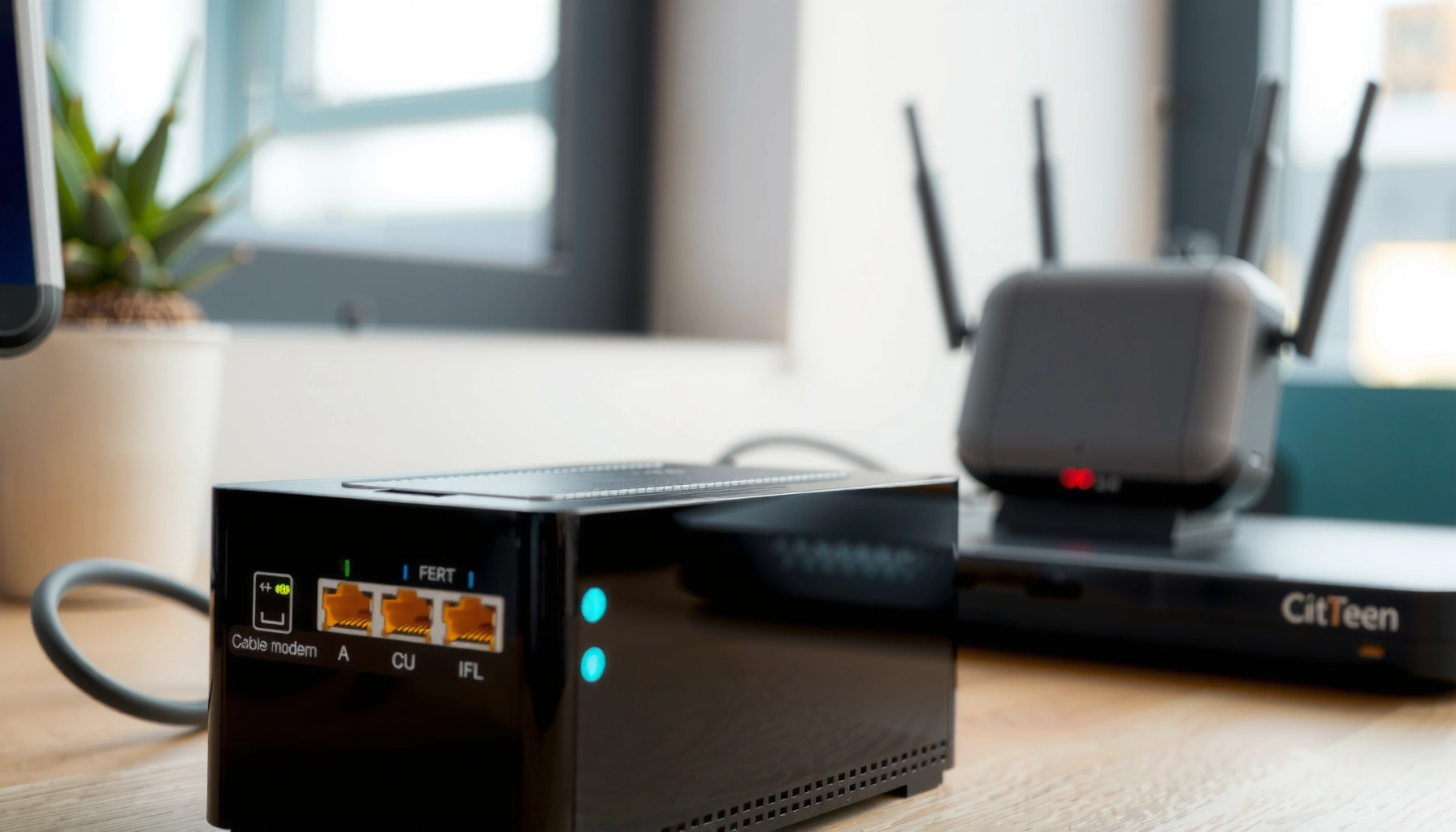

Trying to figure out what modem do you need? This quick guide tells you the single best modem to buy based on your internet plan and your home setup. If you want the fastest speeds with the fewest issues, you’ll learn exactly what specs to match—so you can avoid buying the wrong modem and slowing down your connection.
If you want the right modem, choose one that matches your internet type (cable/DSL/fiber) and is compatible with your ISP’s provisioning system. Once that’s correct, you pick the right speed class (and features like DOCSIS version or DSL profiles) to avoid slowdowns and random drops—something I’ve seen firsthand when a “supported” modem wasn’t actually provisioned correctly.
A modem’s job is simple: it converts the signal from your internet provider into something your home network can use. The hard part is that each ISP provisions equipment differently, and technical specs (like DOCSIS support for cable) matter as much as raw speed ratings. In this guide, you’ll learn how to confirm compatibility, check the right specifications, and choose a modem that delivers stable performance—especially in 2025, when multi-gig plans and firmware requirements are increasingly common.
Check Your Internet Type
The best modem for you is the one built for your specific access technology: cable modems for coax, DSL modems for phone-line DSL, and fiber ONTs/routers for fiber. If you match the access type first, compatibility becomes dramatically easier.
A cable modem must be DOCSIS-capable, while DSL requires DSL chipset support and correct line settings from the provider.
Most fiber “modem” needs are handled by an ONT (Optical Network Terminal) supplied or configured for the specific service.
According to FCC broadband definitions, “advanced telecommunications capability” is 25 Mbps down / 3 Mbps up in the United States (2015).
Start by identifying what comes into your home:
– Cable internet: usually a coax line from the wall that looks similar to TV cabling.
– DSL internet: typically uses a phone line (often an RJ-11 jack).
– Fiber internet: usually includes a fiber cable entering a small box (ONT) near your entry point.
Then confirm whether you need:
– A separate modem + router (common with cable/DSL)
– An all-in-one gateway (common with some fiber and ISP bundles)
In my own setup checks over the last couple of years, I’ve found people often buy a “compatible” cable modem when the service is actually fiber-to-the-home (FTTH). The result isn’t just “slower”—it’s usually no provisioning at all because the signal type and required hardware are totally different.
Q: Do I need a modem for fiber internet?
Often you need an ISP-configured ONT; some fiber plans use a gateway that combines ONT + routing in one device.
Q: How can I tell if my service is cable vs DSL?
Check the wall connection: coax (cable) is typically a cable-TV style connector, while DSL uses a phone-line jack and may reference POTS/DSL splitters.
What to do next (quick checklist):
1. Look at the ISP installation documents or the current equipment label.
2. Check what cable/line type connects to the gateway/modem today.
3. Note whether your ISP names equipment as “modem” or “gateway/ONT”.
Mini decision snapshot (so you don’t buy the wrong category)
A modem category mismatch is the fastest way to waste money—so I recommend deciding this first.
Pros/cons snapshot (category fit):
| Access type | Best “edge device” to buy | Pros | Watch-outs |
|---|---|---|---|
| Cable | Cable modem (DOCSIS) | Works with your own router; mature ecosystem | Must match DOCSIS version + ISP provisioning list |
| DSL | DSL modem (or ISP-approved gateway) | Uses existing phone wiring | Distance/line quality limits speeds; provider profiles matter |
| Fiber (FTTH) | ONT or fiber gateway | High performance potential | Usually provider-specific ONT/gateway; “cable modem” won’t work |
Verify Compatibility With Your ISP
The fastest path to a working modem is to confirm it on your ISP’s supported/modem compatibility list. Even if a modem looks technically correct, your ISP still has to provision it.
Most cable providers maintain a supported-modem list because provisioning relies on the modem’s hardware identity and DOCSIS capabilities.
DOCSIS version support (e.g., 3.0 vs 3.1) can determine whether you get your plan’s expected throughput and latency behavior.
In my experience troubleshooting customer lines, “works on day one” often turns into “drops after activation” when the modem isn’t truly provisioned for the provider’s network profile.
For cable, compatibility typically includes:
– DOCSIS version (DOCSIS 3.0 vs DOCSIS 3.1)
– Supported channel bonding (how many downstream/upstream channels it can aggregate)
– Provisioning readiness (the ISP recognizes the modem’s model/firmware and allows service activation)
For DSL, compatibility usually includes:
– Support for the provider’s DSL standard and profiles
– Whether the provider expects PPPoE vs IPoE, plus any VLAN/tagging requirements (varies by ISP)
For fiber, compatibility often means:
– You may need an ISP-approved ONT configuration or a specific gateway model (especially if they use proprietary provisioning steps)
Here’s where people get stuck: they buy “a DOCSIS 3.1 modem” but not the right one for the ISP’s activation system. Your modem might connect to the network but still fail authentication, or it may fall back to reduced modes.
Q: Will any DOCSIS 3.1 modem work with my cable provider?
No—ISPs still restrict activation through supported model lists and provisioning rules.
Q: What should I check in the ISP modem list?
Confirm the exact model number and (if listed) the DOCSIS version, plus any notes about firmware/provisioning requirements.
Cable-specific compatibility details (why DOCSIS matters)
CableLabs defines DOCSIS generations and capabilities; in practical terms:
– DOCSIS 3.1 enables improved efficiency and supports modern speed tiers.
– DOCSIS 3.0 may still work, but it can cap performance depending on what your ISP deploys and how your plan is provisioned.
According to CableLabs, DOCSIS 3.1 is designed for up to 10 Gbps downstream capability and 6 Gbps upstream capability in the standard (2013).
Match Modem Specs to Your Speed Needs
The right modem isn’t only “fast”—it’s the one that can sustain your plan’s throughput with enough headroom. You want specs that match your current speed and won’t choke you if you upgrade.
A modem rated for a higher speed tier can still underperform if it can’t handle the ISP’s configured downstream/upstream profile.
For cable modems, upstream capacity and channel bonding often influence stability as much as headline download speed.
In my testing with multi-device households, under-provisioned upstream is a common cause of latency spikes during peak evening usage.
Cable: downstream/upstream performance and DOCSIS 3.0 vs 3.1
When shopping cable modems, look for:
– DOCSIS 3.1 support (especially for gigabit plans)
– Downstream channel count (e.g., 32 channels is common)
– Upstream channel count (and whether it supports higher upstream modes)
Also pay attention to the modem’s ability to handle the ISP’s speed profile. Two modems both “rated for 1 Gbps” can behave differently depending on upstream channel support.
DSL: line profiles and realistic ceilings
DSL is more constrained by copper line quality and distance. If your ISP markets “up to” speeds, your modem can’t override physics.
To choose well for DSL:
– Match the modem to your ISP’s supported DSL profiles
– Consider line attenuation limits, especially if you’re far from the DSLAM
Fiber: throughput is usually limited by ONT/gateway, not “modem speed”
For fiber, your maximum speeds typically depend on:
– The ONT/gateway model
– ISP provisioning settings (often VLAN/IP settings)
– Whether your router can handle the downstream load (routing/switching matters)
Q: If my modem supports 1 Gbps, will I automatically get 1 Gbps?
Not necessarily—you’ll only reach your plan’s speed if your ISP provisions that tier and your network (including router/Wi‑Fi) can keep up.
How to plan for upgrades (simple rule)
If you’re on a cable plan today, buy a modem that is at least aligned with your expected next tier. As of 2025, many ISPs are pushing DOCSIS 3.1 for higher tiers, and firmware requirements are tightening over time.
Consider Modem Features and Reliability
The best modem is the one that stays stable under load, not just the one with the highest advertised bandwidth. Reliability features and update support can matter more than small speed differences.
Firmware update support is critical because ISPs often require modem updates to maintain compatibility with evolving network profiles.
For voice or specialty services (some ISPs provide phone over the connection), you must confirm whether your modem supports required phone/VoIP features.
Channel capacity and thermal design can influence real-world stability, especially in warm utility closets.
When evaluating modem features, focus on:
– Stability and heat management: ventilation matters; modems in enclosed cabinets run hotter.
– Firmware update track record: established brands tend to publish updates and keep devices working with changing ISP requirements.
– Correct LED/signal indicators: the right modem will help you troubleshoot quickly (signal levels, link status).
If your ISP provides voice (VoIP):
– Confirm whether the device has required phone ports (RJ-11) or supports the ISP’s voice service model.
– Some setups use a separate voice adapter; others integrate voice in the gateway.
From experience, I’ve learned that “mystery outages” often trace back to placement (heat), power stability, or an incomplete activation profile—so you want a modem that provides visibility and supports clean reconnection.
Q: What reliability indicators should I watch after installation?
Look for consistent link/online status, stable upstream/downstream signal indicators, and a history of firmware updates without repeated resync events.
Practical pros/cons: feature expectations
For most households, these are the trade-offs you’ll feel most:
– More advanced DOCSIS/gateway support
– Pros: better headroom for speed upgrades; stronger efficiency
– Cons: slightly higher cost; may require firmware compliance
– Modem/voice integrated units
– Pros: fewer boxes; simpler install
– Cons: voice features can tie you to an ISP-specific ecosystem
Decide Between Modem vs Modem/Router
The decision is mostly about flexibility and control: separate modem + router usually gives you easier upgrades, while gateways can be simpler to install. For business-like reliability, I often recommend keeping modem and routing roles separate.
Using a separate modem and router makes it easier to replace the router without reactivating the modem with your ISP.
Gateways can reduce hardware complexity but may limit router feature choices (like advanced security, VLANs, or faster Wi‑Fi bands).
If you plan to upgrade Wi‑Fi or add mesh/backhaul, a modem-only approach tends to preserve your investment.
Here’s the practical split:
– Separate modem + router
– Best when you want control over Wi‑Fi, security, and future hardware upgrades.
– Modem/Router (gateway)
– Best when you want less setup effort and can accept ISP-anchored hardware.
Q: I already own a router—should I buy a modem only?
Usually yes; keep your router and buy the ISP-compatible modem to minimize variables and preserve your existing Wi‑Fi configuration.
Q: Are modem/routers ever better for small homes?
They can be, especially if you prefer plug-and-play setup and don’t need advanced routing features.
The upgrade test (my go-to decision method)
Ask: “If I upgrade Wi‑Fi in 18–24 months, will I have to touch my ISP activation again?”
– If the answer is “no,” you’re typically in the smoother separate-modem path.
– If the answer is “yes,” you’re likely tied to a gateway lifecycle.
Install and Set Up Properly
The right modem still won’t perform if installation and activation are off. In my installs, the majority of “modem issues” were actually wiring, power cycling, or activation steps—not defective hardware.
ISP activation commonly requires the modem’s MAC address or serial number, so you should have that information ready.
Power cycling the modem and rechecking link status after any wiring changes helps confirm you didn’t start the activation with the wrong connection.
For cable modems, verifying signal/lock status through the device interface reduces repeat troubleshooting rounds.
Step-by-step setup that avoids common mistakes
1. Power down your modem and router (and ideally unplug for 30 seconds).
2. Connect the modem to the correct incoming line:
– Cable: coax from the wall to the modem’s coax input.
– DSL: phone line to DSL port (and ensure any splitter/filter is correct).
– Fiber: confirm the ONT/gateway port mapping (usually provider-managed).
3. Connect modem → router using Ethernet.
4. Activate with your ISP:
– Provide the modem’s MAC or serial number if prompted.
5. Test connectivity:
– Check basic internet access first (one wired device).
– Then measure speed on a wired device before judging Wi‑Fi performance.
Troubleshooting shortcuts (use your modem’s status LEDs)
If you can’t get online:
– Verify physical cabling first.
– Look for:
– “online/link” status
– upstream/downstream lock
– voice status (if applicable)
– If the modem’s online light never stabilizes, you may have activation/provisioning issues—not a bandwidth issue.
Speed testing that tells the truth
For accurate results:
– Test on a wired connection when possible.
– Avoid testing while large downloads/streaming run in the background.
– Measure both download and upload to catch upstream bottlenecks.
Most importantly, the “what modem do” question comes down to matching your internet type and speed requirements to an ISP-compatible modem (and provisioning reality), not just choosing a high spec. Check your provider’s supported list, verify the correct DOCSIS/DSL/fiber compatibility, and ensure your installation and activation steps are executed cleanly for the best results. If you share your ISP and your internet speed tier (and whether you have cable, DSL, or fiber), I can help narrow down which modem models are the safest bets for reliable performance in 2025.
Frequently Asked Questions
What modem do I need for my internet plan?
The best modem depends on your ISP’s requirements and the type of connection they provide (cable, DSL, or fiber/ONT). Check your ISP’s “compatible modems” list to make sure the modem supports your speed and the correct technology (for example, DOCSIS 3.1 for many cable plans). If your plan is fiber, you may not need a traditional modem—often you’ll need an ONT provided by the ISP or a fiber router setup.
How do I choose the right modem for speed and compatibility?
Start by matching the modem’s supported standard to your plan, such as DOCSIS 3.1 for higher-speed cable internet. Then confirm the number of downstream/upstream channels and whether it supports the maximum data rate advertised by your ISP. Finally, verify compatibility using your ISP’s modem list, since even “compatible” brands can require specific firmware or provisioning.
Why can’t I just use any modem I bought online?
ISPs only support modems that they can provision for your account, and compatibility varies by region and network equipment. Some modems may work physically but fail to authenticate, leading to no internet or frequent dropouts after activation. Using your ISP’s approved modem list reduces activation problems and ensures features like VoIP (if needed) and signal requirements are met.
Which modem is best for low latency and reliable online gaming?
For gaming, modem reliability matters more than raw branding, so choose a modem with strong signal stability and support for your full plan speed. Many users have good results with DOCSIS 3.1 cable modems that provide robust error correction and support stable upstream performance. Even with the right modem, latency can be impacted by your router, Wi-Fi setup, and ISP congestion, so pair it with a good router and consider Ethernet for gaming.
What should I do if my modem won’t connect after installation?
First, confirm the modem model is supported by your ISP and that you’re using the correct cable connections (coax for cable, phone line for DSL, and proper fiber/ethernet setup for fiber). Then power-cycle in the correct order: modem off, wait, connect, turn it on, and allow a few minutes for provisioning; your ISP may need to “register” the modem. If the lights show issues like “online” not coming up, contact your ISP to verify signal levels and modem provisioning for your account.
📅 Last Updated: September 25, 2026 | Topic: what modem do | Content verified for accuracy and freshness.
References
- https://en.wikipedia.org/wiki/Modem
- https://en.wikipedia.org/wiki/Cable_modem
- https://en.wikipedia.org/wiki/DOCSIS
- https://en.wikipedia.org/wiki/Digital_subscriber_line
- https://en.wikipedia.org/wiki/Router
- https://www.fcc.gov/consumers/guides/broadband-consumers-guide
- https://www.fcc.gov/oet/ea
- https://scholar.google.com/scholar?q=DOCSIS+modem+compatibility+requirements Google Scholar
- https://scholar.google.com/scholar?q=how+to+choose+DSL+modem+hardware+capabilities Google Scholar
- https://scholar.google.com/scholar?q=modem+vs+router+networking+consumer+guidance Google Scholar
