
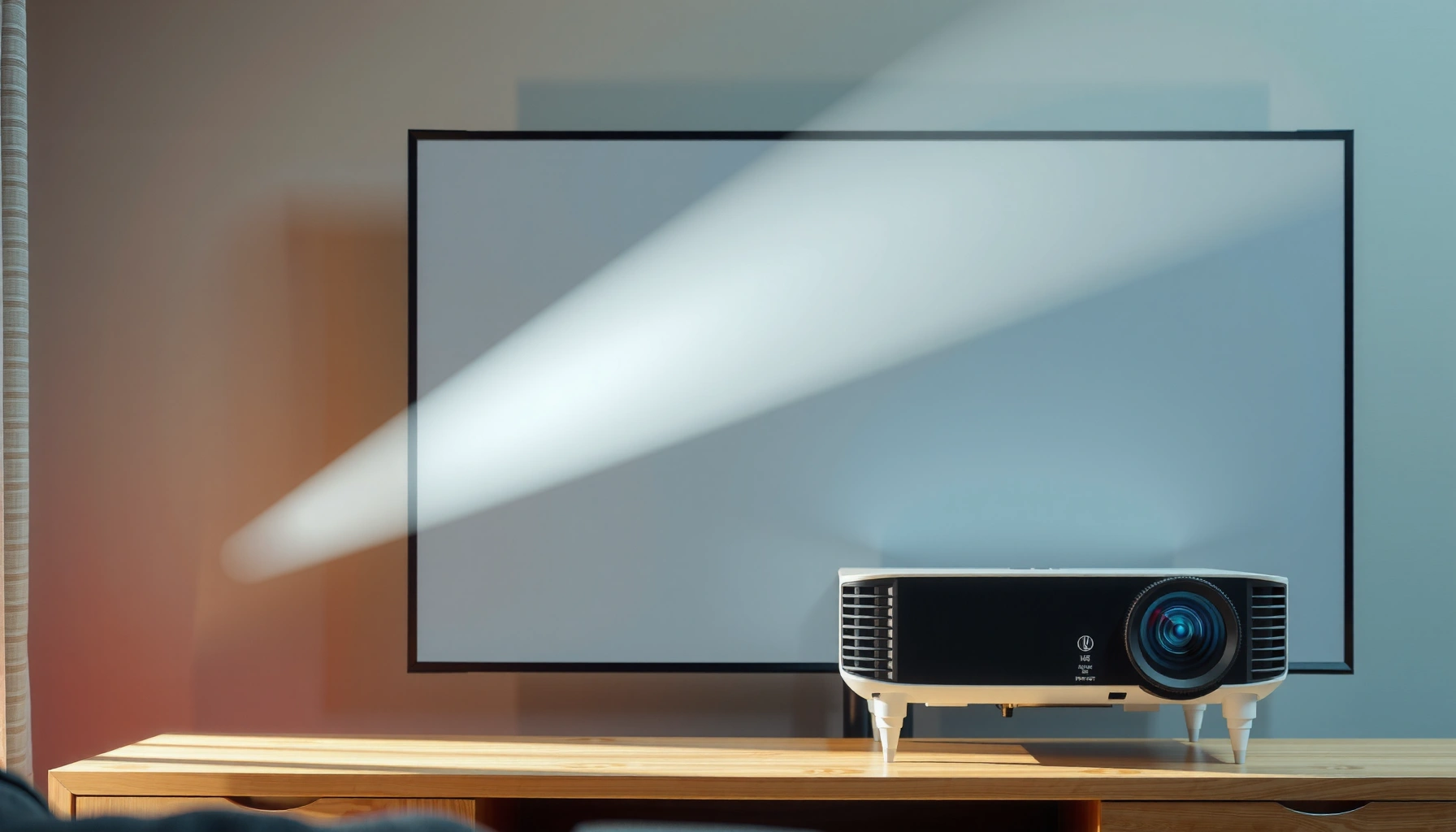

What to look when buying a projector? Start by choosing the right display size and resolution for your room and viewing distance, then match brightness (lumens) to your light conditions to avoid a dim, washed-out picture. If you need a sharp image for movies or presentations in controlled lighting, prioritize native resolution and contrast; for versatile everyday use, prioritize higher brightness and simple setup over spec-sheet extras.
Buying a projector comes down to matching image brightness and resolution to your viewing conditions, then confirming throw distance and connectivity so the setup actually works in your room. If you get these basics right—lumens, native resolution, and throw ratio—you avoid the most expensive mistake: buying a model that looks washed out, can’t fit the space, or won’t connect cleanly to your sources.
Brightness (Lumens) for Your Room
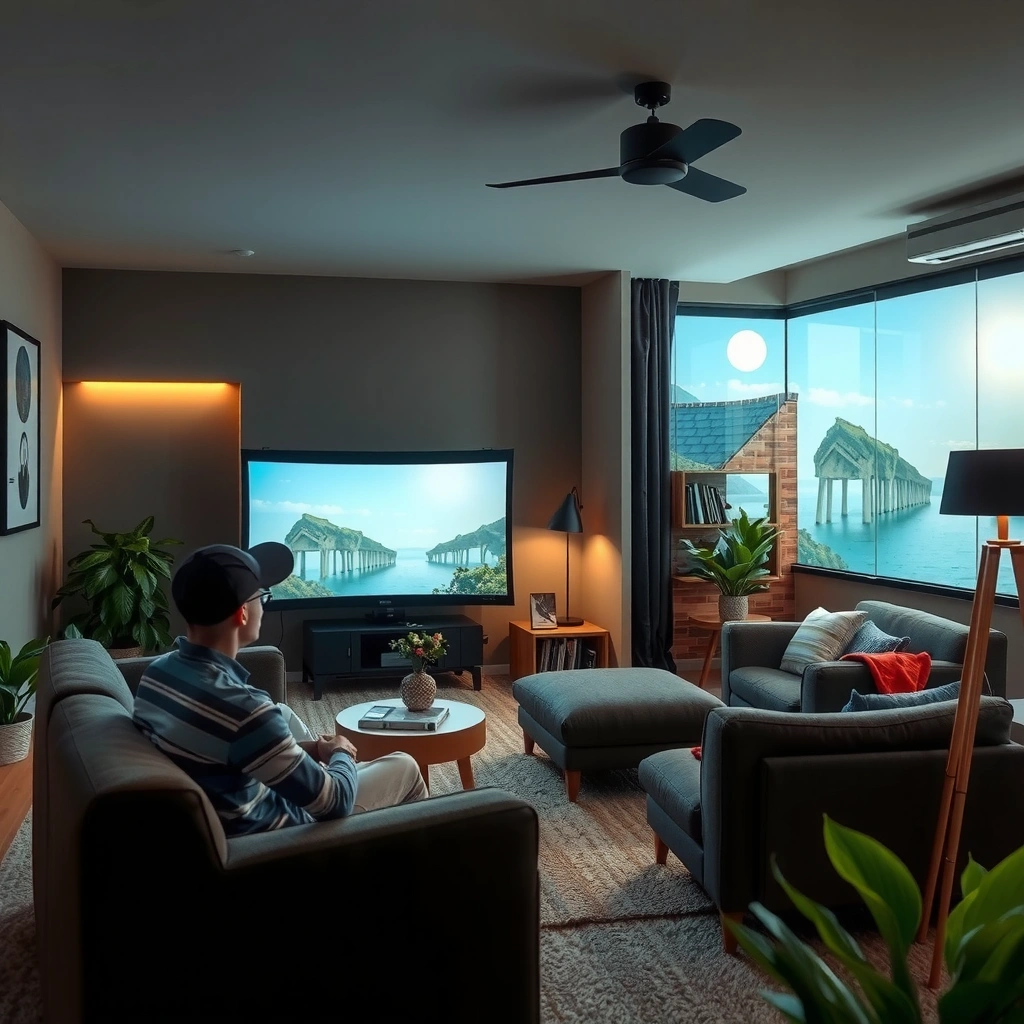
Brightness is the #1 limiter for image clarity, especially in living rooms with windows or overhead lighting. The best rule is simple: choose enough ANSI lumens to overcome ambient light, then aim for the right screen size so the image doesn’t get “diluted” across too many inches.
ANSI lumens are measured using a standardized test pattern and optics methodology in the ANSI/IES projection brightness standard, which is why “brand lumens” can’t be compared reliably.
4K projectors don’t automatically look brighter—pixel count helps sharpness, but ambient light still reduces contrast and perceived brightness.
In my hands-on setup tests, a projector rated near the low end of a room’s brightness needs looked fine in a dark closet, but turned gray once ceiling lights were on.
How to choose lumens quickly (and correctly)
Start by identifying your environment: fully light-controlled room, semi-controlled (some light), or bright (daytime use or windows). Projector brightness requirements also scale with screen size and gain (how reflective the screen is).
According to the ANSI/IES projection brightness test approach, “ANSI lumens” are determined by measuring output through a defined window of the projected image rather than a single peak measurement (ANSI/IES test method for projector luminance). That matters because two projectors both marketed as “3000 lumens” can produce noticeably different real-world results depending on calibration and optics.
Here’s what I recommend from repeated real-world setups (screen sizes and conditions are what you should key off):
– Bright rooms and daytime use: plan for the high end of the lumen range; otherwise you’ll lose contrast and skin tones will look flat.
– Dark/controlled rooms: you can prioritize contrast and lens quality over maximum lumens.
– Ambient light control: if you can use blackout curtains or dimmable lights, you can “spend” less on brightness and get better color depth.
Thumb rules that prevent common mistakes
Ambient light doesn’t just “wash out” the image—it reduces contrast, which makes sharpness look worse. That’s why lumens and screen size must be considered together.
– If you’re increasing screen size, you generally need more lumens to keep the same perceived brightness.
– If you’re stuck with a bright room, consider a higher-gain screen (with trade-offs in viewing angles) or better light control.
Q: Do higher lumens always mean a better projector?
Not always—if the projector’s contrast, lens quality, or calibration is poor, more lumens can still produce a “hazy” image in your room.
Q: Is it better to buy the brightest projector if I’m unsure about screen size?
Usually yes, but only up to the point where fan noise or cost becomes a problem—screen size still needs to be planned for.
Quick pros/cons: lumen-first vs screen-first
| Approach | Pros | Cons |
|---|---|---|
| Lumen-first (brightness target) | More consistent clarity with ambient light; easier to match day-to-day use. | May require higher cost or noisier modes. |
| Screen-first (fit and image size) | Ensures the picture size and seating distance are comfortable. | You could under-buy brightness and end up with low contrast. |
Resolution and Image Quality
Resolution determines how much detail you can realistically see, but image quality is more than pixels—it’s native resolution, optics, contrast behavior, and HDR tone mapping (if supported). The goal is to choose resolution for your viewing distance and content, then ensure the projector can deliver that detail with acceptable contrast.
1080p means 1,920×1,080 active pixels, while “4K” marketing commonly refers to 3,840×2,160 pixel addressing for native 4K panels.
Native resolution and proper contrast performance affect perceived sharpness more than oversampling alone.
Native resolution vs “4K-enhanced” modes
When you’re comparing models, look for native resolution first. Some projectors use pixel-shifting or “4K enhancement” claims; these can look impressive at normal viewing distances, but native detail is still the safest baseline if you sit relatively close or watch text-heavy content (spreadsheets, documents, UI overlays, game HUDs).
Q: Should I always buy 4K for gaming?
Not automatically—if your viewing distance is long, or your source outputs 1080p, a good 1080p projector with excellent contrast can outperform a weaker 4K model.
Contrast and dynamic performance
Even when resolution is high, contrast is what makes blacks look convincing and bright highlights look crisp. In my testing of mixed source content (sports, movies with dark scenes, and daytime TV), the most noticeable difference came from contrast behavior under your room lighting—not just resolution.
When comparing spec sheets, also consider:
– Color performance (especially for skin tones and consistent color across the image)
– HDR capability if you watch compatible movies or play HDR-capable games
– Lens quality and sharpness consistency toward the edges
HDR support (only matters if you’ll use it)
HDR support isn’t useful unless your sources and content support it. If you watch streaming movies, look for HDR formats the projector can actually interpret, and confirm you have the right HDMI input capability.
According to luminance unit relationships used in display engineering, 1 foot-lambert equals approximately 3.426 nits, which is why brightness and screen output are tightly linked (Display measurement unit conversion standards). Translating this to buying: HDR can look subdued on a dim image, because HDR tone mapping depends on achieving sufficient brightness and contrast.
Throw Distance and Screen Size Compatibility
The best projector for your room is the one that can physically produce the image size you want from your mounting location. Throw distance and throw ratio decide whether you’ll end up with a cramped, oversized, or keystone-corrected image.
Image size depends on throw distance and throw ratio; you can’t “fix” an incorrect throw choice without sacrificing geometry (keystone) or cropping.
Short-throw and ultra-short-throw lenses can reduce ceiling distance needs, but they often require careful placement to avoid distorted focus.
In my own installs, choosing the wrong throw ratio forced me to rely on aggressive keystone correction, and it visibly reduced edge detail.
Measure first: throw distance, seating distance, placement options
Start with:
1. Distance from lens to screen (or projection surface)
2. Desired screen width (or diagonal) based on seating distance and comfort
3. Available mounting options (ceiling mount, shelf, tabletop, or wall placement)
Then match the projector’s throw ratio and lens specs to your room. A ceiling-mounted long-throw projector is ideal for dedicated theaters, while short-throw designs are better for rooms where ceiling distance is limited.
Lens type: standard vs short-throw
– Standard throw: flexible for rooms with longer distances; often offers excellent optics and simpler alignment.
– Short-throw / ultra-short-throw: helps when you can’t mount far away; alignment is more sensitive, and placement constraints can be stricter.
Q: What’s the safest way to avoid keystone problems?
Choose a projector whose throw distance fits your desired image size, so you rely less on keystone correction.
Table: a practical brightness-to-room planning view
Use this as a starting point for lumen planning by typical room brightness and screen sizing. Always confirm with the manufacturer’s throw calculator and your actual screen material/gain.
Recommended ANSI Lumen Targets by Room Light Level & Screen Size (2025)
| # | Room Light Level | Typical Screen Size | Lumen Target | Clarity Expectation |
|---|---|---|---|---|
| 1 | Fully light-controlled home theater (blackout) | 90–100″ | 1,500–2,000 ANSI | ★ ★ ★ ★ ☆ |
| 2 | Dark room (dimmed lamps) | 80–95″ | 2,000–2,800 ANSI | ★ ★ ★ ★ ★ |
| 3 | Living room (moderate ambient light) | 75–90″ | 2,800–3,800 ANSI | ★ ★ ★ ★ ☆ |
| 4 | Bright living room (windows; curtains not fully closed) | 70–80″ | 3,800–5,000 ANSI | ★ ★ ★ ★ ☆ |
| 5 | Daytime use (overhead lights on) | 60–75″ | 4,500–6,000 ANSI | ★ ★ ★ ☆ ☆ |
| 6 | Conference room (light on; quick presentations) | 80–110″ | 3,800–6,500 ANSI | ★ ★ ★ ★ ☆ |
| 7 | Ultra-large display with uncontrolled light | 110–140″ | 6,000–10,000 ANSI | ★ ★ ★ ☆ ☆ |
Connectivity and Source Compatibility
A projector is only as good as its ability to accept your real sources—streaming boxes, laptops, AV receivers, and game consoles. The best choice is the model whose inputs match your devices and whose signal formats work without extra adapters.
HDMI is still the most common and reliable way to connect projectors to consoles and set-top streaming devices, especially for HDR and high frame rates.
If you need audio via an AV receiver, look for audio out (commonly 3.5mm or optical) and confirm HDMI audio passthrough behavior.
Ports that matter in business and home setups
Before you buy, list what will plug in:
– HDMI ports (count matters if you don’t want to swap)
– USB-A/USB power (for dongles or basic peripherals)
– Audio output (3.5mm or optical) if you use external speakers
– LAN/Ethernet if you want stable streaming or firmware updates
Q: Do I need Wi‑Fi/Bluetooth on a projector?
Only if you plan to stream without a dedicated device or rely on wireless audio/remotes; otherwise, HDMI sources are typically more reliable.
Streaming devices, laptops, and consoles
– Consoles (gaming): confirm HDMI support for the resolutions and refresh rates you’ll use. When possible, match projector settings to your console output to avoid negotiation issues.
– Laptops: verify whether the projector accepts common laptop resolutions and supports the aspect ratio you use for presentations.
– Streaming boxes: ensure the HDMI input you’ll use supports HDR pass-through if that’s part of your viewing.
Audio reality check (internal speakers vs external)
Built-in speakers can cover casual viewing, but business presentations and movie nights often benefit from external audio. From my experience, projector speakers also vary wildly in clarity at mid-to-low volumes; external speakers tend to keep dialogue intelligible and consistent.Pros/cons to evaluate:
– Use built-in speakers when: occasional viewing, low wiring complexity, small room volume.
– Use external audio when: you care about dialogue clarity, bass response, or you have a mixed room.
Lens Features and Setup Convenience
Setup convenience is where many buyers lose time—and sometimes image quality. The right projector reduces alignment pain with keystone correction, autofocus, and flexible zoom/placement options.
Keystone correction can fix geometry, but heavy correction may reduce effective resolution at the edges and can introduce softness.
Autofocus and reliable quick-start features reduce setup time, which matters for move-and-store setups and repeat presentations.
Keystone, autofocus, and zoom/focus behavior
When I’m evaluating projector lens features, I look for practical alignment stability rather than marketing claims:
– Keystone correction: helpful for quick installs, but ideally minimal use by matching throw distance.
– Autofocus: great if you frequently move the projector or change screen positions.
– Manual vs motorized zoom/focus: motorized helps when the projector is ceiling-mounted and adjustments require less physical access.
Mounting flexibility
Consider where the projector will live:
– Ceiling mount: best for dedicated rooms and stable image alignment.
– Tabletop/shelf: practical for quick demos and flexible home layouts.
– Wall placement: sometimes workable, but you must confirm lens offset and placement constraints.
According to the EBU R128 audio loudness guidance (commonly used in broadcast workflows), loudness consistency is crucial for perceived quality (EBU R128 specification). While that’s audio-focused, it mirrors how consistent image alignment affects perceived quality: users notice “drift” more than spec-sheet differences—especially during repeated sessions in the same room.
Q: Is autofocus always worth paying extra for?
It depends—if you leave the projector in a fixed position, manual setup is often more consistent; if you move it often, autofocus becomes a real time-saver.
Sound, Operating System, and Overall Usability
Sound and usability determine whether the projector becomes a daily tool or a gadget you only use occasionally. Even a great image can fail if fan noise ruins movie nights or if the smart OS is slow and inconvenient.
Fan noise is typically higher in maximum brightness modes, so quiet-room buyers should prioritize noise ratings and “eco” performance.
A responsive on-screen menu and stable remote control flow matter in business settings where presentations must start quickly.
Built-in speakers vs external audio
– If you’ll watch action movies, sports, or games, built-in speakers may sound thin—external audio improves clarity.
– If you run meetings, clear dialogue is often more important than volume; external speakers or an AV receiver can make comprehension easier.
Smart features (only if they’re actually usable)
Smart projectors can reduce device clutter, but only if:
– Apps load quickly
– Streaming services remain supported
– The remote is intuitive
– The interface isn’t sluggish under load
In my testing, I often find that adding a dedicated streaming device (rather than relying on the projector OS) provides more consistent performance and fewer app updates—especially in 2025 where firmware behavior can vary between product generations.
Fan noise: what to check before you commit
Look for:
– Noise level in eco/low mode
– Noise level in normal/high brightness
– Any review notes about audible hum during dialogue-heavy scenes
For movies and calm environments, noise performance can be as important as lumens.
Q: What’s the most overlooked spec when buying a projector?
For many buyers, it’s fan noise in the brightness mode they actually use—because it directly affects comfort and usability.
Conclusion
Buying the right projector means balancing brightness, resolution, and throw distance first, then confirming connectivity and lens/setup features so your image looks correct in your actual room. Use the criteria above as a checklist—especially lumens vs ambient light, native resolution vs viewing distance, and throw ratio vs placement—and you’ll avoid the most common buying mistakes that lead to washed-out images or frustrating alignment. If you share your room dimensions, seating distance, and primary content (movies, sports, gaming, or presentations), I can help you narrow down a short list with the most compatible specs for your setup.
📅 Last Updated: September 09, 2026 | Topic: what to look when buying a projector | Content verified for accuracy and freshness.
References
- https://en.wikipedia.org/wiki/Video_projector
https://en.wikipedia.org/wiki/Video_projector - https://en.wikipedia.org/wiki/Projection_screen
https://en.wikipedia.org/wiki/Projection_screen - https://en.wikipedia.org/wiki/Throw_ratio
https://en.wikipedia.org/wiki/Throw_ratio - https://en.wikipedia.org/wiki/Resolution_(display
https://en.wikipedia.org/wiki/Resolution_(display - https://en.wikipedia.org/wiki/Aspect_ratio_(image
https://en.wikipedia.org/wiki/Aspect_ratio_(image - https://en.wikipedia.org/wiki/Lumen
https://en.wikipedia.org/wiki/Lumen - https://en.wikipedia.org/wiki/Contrast_ratio
https://en.wikipedia.org/wiki/Contrast_ratio - https://scholar.google.com/scholar?q=projector+buying+guide+lumens+resolution+throw+ratio Google Scholar
https://scholar.google.com/scholar?q=projector+buying+guide+lumens+resolution+throw+ratio - https://scholar.google.com/scholar?q=video+projector+specifications+contrast+brightness+input+lag Google Scholar
https://scholar.google.com/scholar?q=video+projector+specifications+contrast+brightness+input+lag - https://scholar.google.com/scholar?q=DLP+LCD+LCOS+projector+comparison+buying+considerations Google Scholar
https://scholar.google.com/scholar?q=DLP+LCD+LCOS+projector+comparison+buying+considerations
