
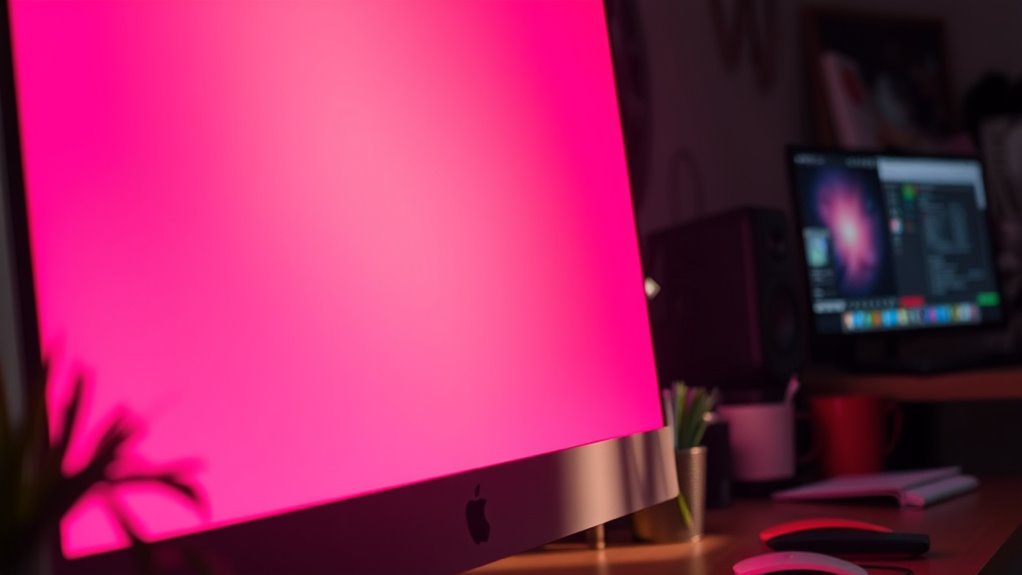

If your monitor is displaying pink, it’s often due to color calibration errors or faulty cables. Check your connections first; verify cables are secure and undamaged. You might also need to adjust display settings or update your graphics drivers for better color accuracy. Test the monitor with another device to isolate the issue. If the pink tint persists, you might be facing hardware malfunctions. There are more troubleshooting steps to explore for resolution.
Common Causes of a Pink Monitor Display
When your monitor suddenly displays a pink hue, it can be frustrating, especially if you rely on it for work or gaming. This issue often stems from color calibration errors or monitor malfunctions. Color calibration might be off due to incorrect settings or outdated drivers, causing the red channel to dominate. Alternatively, a malfunction in the monitor’s internal circuitry or a failing panel can produce unwanted color shifts. Another possibility is the graphics card outputting signals improperly, leading to distorted colors. To address this, check your display settings and update your graphics drivers. If issues persist, consider testing the monitor on another device or connecting a different monitor to your system for troubleshooting.
Checking Cable Connections
One of the first steps in troubleshooting a pink monitor display is to check your cable connections. Confirm you’re using the correct cable types—HDMI, DVI, VGA, or DisplayPort—as each has different capabilities and compatibility. Loose or damaged cables can compromise connection stability, leading to color distortions like a pink hue. Make sure all connections are secure and fully seated in their ports. Inspect the cables for any visible wear or fraying that may indicate failure. If possible, swap out the cable with a known-good one to rule out cable issues. A stable connection is vital for peak display performance, so don’t overlook this simple yet effective troubleshooting step. Your monitor’s color accuracy hinges on it.
Adjusting Display Settings
Although improper display settings might not be the first thing that comes to mind, they can greatly affect your monitor’s color output. Start by accessing your display settings through your operating system. Look for options like display calibration and color profiles. Adjusting these settings can help correct the pink tint. Make sure you’re using the right color profile for your monitor; sometimes, a generic profile can skew colors. Use calibration tools or software to fine-tune brightness, contrast, and color balance. Remember, even minor adjustments can make a significant difference. If you’re not getting the desired results, consider resetting to default settings and recalibrating. With the right tweaks, you’ll regain control over your display’s color fidelity, guaranteeing a vibrant viewing experience.
Testing With a Different Device
If adjusting display settings hasn’t resolved the pink tint, testing your monitor with a different device can help isolate the issue. Connect your monitor to another computer, laptop, or gaming console to evaluate its performance. This step lets you determine if the problem stems from monitor compatibility or the original device. If your monitor displays correctly with the second device, the issue likely lies with your initial setup, such as outdated drivers or faulty connections. Conversely, if the pink tint persists, the monitor itself may be at fault. Always verify your cables are secure and functioning. By systematically testing different devices, you’ll gain clarity on whether the problem is hardware-based or related to your original device’s configuration.
Troubleshooting Hardware Issues
To effectively troubleshoot hardware issues causing a pink monitor display, start by examining the physical connections. Verify the video cable’s securely connected at both ends; a loose connection can distort colors. Next, test the cable with another monitor or device to rule out cable failure. If the cable’s fine, check for any bent pins on the connector.
After confirming connections, explore your monitor’s settings. Perform monitor calibration to reset color profiles that might have been altered. Access the on-screen display menu and restore factory settings if necessary. Finally, if the issue persists, consider potential hardware failures, like a malfunctioning graphics card. Remember, resolving these issues can restore the vibrant display you desire.
Frequently Asked Questions
Can a Virus Cause My Monitor to Display Pink?
A virus typically won’t cause a pink display; it usually affects software, not monitor calibration. Check your connections, update drivers, and recalibrate your monitor to troubleshoot any color issues effectively without virus interference.
Does Screen Burn-In Affect Monitor Color Accuracy?
Screen burn-in can negatively impact color accuracy, distorting hues like a faded painting. If you notice persistent images, it’s likely affecting your monitor’s performance. Regular calibration can help mitigate these issues and restore visual fidelity.
How Do I Know if My Monitor Is Failing?
If you notice monitor symptoms like flickering, discoloration, or unexpected shutdowns, it’s time for troubleshooting steps. Check connections, update drivers, or test with another device to determine if your monitor’s failing.
Can Ambient Lighting Influence Monitor Color Perception?
Yes, ambient light can greatly affect your monitor’s color perception. In fact, studies show that 60% of users notice color shifts under varying lighting conditions, impacting your visual experience and accuracy in tasks.
What Role Do Graphics Drivers Play in Display Color Issues?
Graphics drivers manage your monitor’s color settings. If they’re outdated or incorrectly configured, it can cause display issues. Regular driver updates guarantee ideal graphics settings, resolving color inaccuracies and enhancing your overall viewing experience.
