
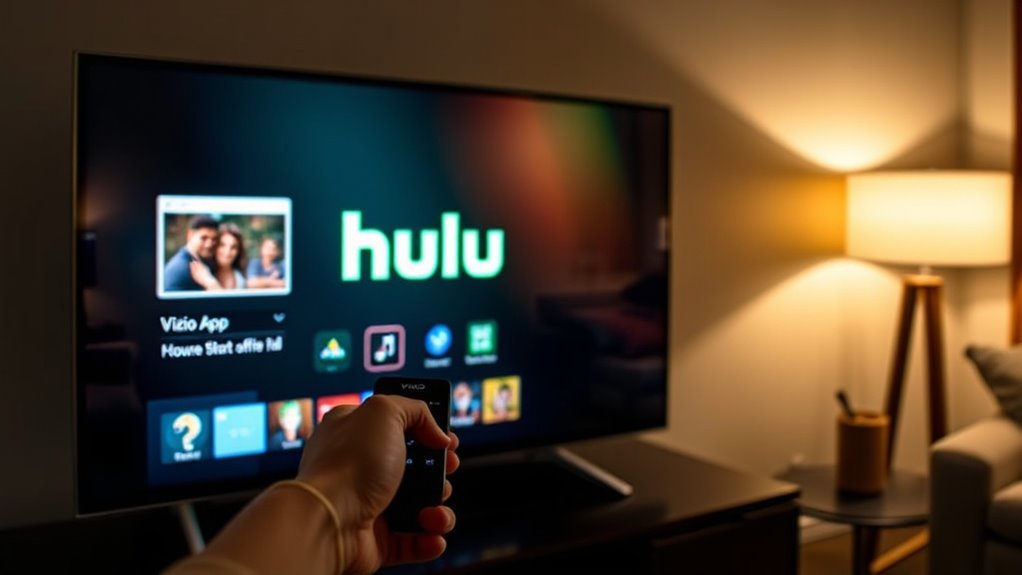

To uninstall Hulu on your Vizio Smart TV, start by pressing the “V” button to access the Home Screen. Navigate to the “Apps” section and scroll through the list to find the Hulu app. Once you’ve located it, highlight the app and open the Options Menu by pressing the “V” button again. Select the “Uninstall” option to remove it. This will erase access to Hulu content. For a smoother experience, you might want to know more about managing your apps effectively.
Accessing the Home Screen
To begin uninstalling Hulu from your Vizio Smart TV, you’ll first need to access the Home Screen. This is your starting point for effective home screen navigation. Simply press the “V” button on your remote, which will bring up the smart TV interface. Once you’re on the Home Screen, you can easily find all the installed apps. Familiarize yourself with the layout, as this will help you move seamlessly through the options. It’s designed for quick access so you can enjoy your freedom to customize your viewing experience. Remember, getting to the Home Screen is essential before proceeding to the app section where you’ll find Hulu ready for uninstallation. Let’s move on to that next step!
Navigating to the App Section
Finding your way to the app section on your Vizio Smart TV is a straightforward process. First, grab your remote and press the “Home” button, which takes you to the main interface layout. From there, look for the “Apps” option—this is usually located in the menu bar. If you don’t see it right away, use the arrow keys to navigate; this is where those app navigation tips come in handy. Scroll through the available apps until you find what you need. The interface is designed for easy exploration, so you shouldn’t have any trouble locating the Hulu app or any other app you’re interested in. Enjoy the freedom to customize your viewing experience!
Selecting the Hulu App
Now that you’re in the app section, it’s time to locate the Hulu app on your Vizio Smart TV. Once you’ve found it, check if the app’s functioning properly before accessing its settings. This will guarantee a smooth uninstallation process if you decide to proceed.
Locate Hulu App
Locating the Hulu app on your Vizio Smart TV is a straightforward process. First, grab your remote and press the “Home” button. This takes you to the main screen, where you’ll see various apps. Scroll through the app list to find the Hulu icon, which showcases its unique logo. If you’ve used Hulu before, it may be easier to spot due to its recognizable interface highlighting Hulu features. Once you’ve located it, select the app to access its content. Keep in mind that app performance can vary; if you notice any lag or issues, this could affect your viewing experience. Now that you’ve found the Hulu app, you’re one step closer to enjoying your favorite shows!
Check App Functionality
How does the Hulu app perform once you select it on your Vizio Smart TV? You’ll want to check the app performance to guarantee everything runs smoothly. If you experience any lag or glitches, it might be time to troubleshoot those issues. Here’s a quick reference to help you assess the Hulu app’s functionality:
| Aspect | Expected Performance | Troubleshooting Tips |
|---|---|---|
| Load Time | Fast | Restart the app |
| Streaming Quality | High Definition | Check internet connection |
| User Interface | Smooth Navigation | Clear cache |
| Audio/Video Sync | Perfect | Update the app |
Access App Settings
After ensuring that the Hulu app is functioning properly, the next step is to access its settings for any necessary adjustments. To do this, start by steering to your Vizio Smart TV’s home screen. Locate the Hulu app icon and highlight it. Press the “OK” button on your remote to open the app. Once the app is open, look for a gear icon or a settings menu option, typically found in the app’s interface. Here, you can manage app permissions, adjust playback settings, or check for updates. Adjusting these settings can enhance your viewing experience, giving you the freedom to tailor Hulu to your preferences. Once you’re done, simply exit the settings menu to return to watching your favorite shows.
Opening the Options Menu
To begin the process of uninstalling Hulu, you’ll need to access the Options Menu on your Vizio Smart TV. Start by pressing the “V” button on your remote control. This will bring up the main menu where you can navigate easily. From there, scroll to the “Apps” section, where you’ll find all installed applications. Highlight the Hulu app, and you’ll be prompted to open the Options Menu. This menu allows you to modify user preferences and manage your apps. Look for settings related to app management, which will guide you towards uninstalling Hulu. By accessing this options menu, you gain control over your viewing experience, ensuring you only keep the apps that best serve your entertainment needs.
Choosing the Uninstall Option
Once you’ve accessed the Options Menu and highlighted the Hulu app, it’s time to choose the uninstall option. Look for the “Uninstall” command, usually presented clearly within the app management settings. Selecting this option will initiate the uninstall process, allowing you to remove the app without any hassle. Make sure you’re confident in your decision, as uninstalling Hulu means you’ll lose access to its content and features. This step is essential if you’re seeking to free up space or switch to a different streaming service. Remember, app management is all about tailoring your entertainment experience to fit your preferences, so don’t hesitate to take control and make the necessary changes.
Confirming the Uninstallation
After you’ve chosen to uninstall Hulu, it’s important to verify that the app has been removed successfully. You should check your remaining storage to ascertain there’s been a difference, and restarting your Smart TV can help refresh the system. This way, you’ll make certain everything is in order and ready for your next viewing experience.
Verify App Removal
Verifying that Hulu has been successfully uninstalled from your Vizio Smart TV is an essential final step. This guarantees that your app functionality is ideal and your storage management is improved. To confirm the removal, navigate back to your app list. If Hulu’s icon is missing, you’ve successfully uninstalled it.
| Emotion | Action |
|---|---|
| Relief | Enjoy more space |
| Freedom | Choose new apps |
| Satisfaction | No more clutter |
| Control | Manage content |
| Empowerment | Streamline choices |
Check Remaining Storage
Checking your remaining storage on the Vizio Smart TV is a straightforward way to confirm that Hulu has been uninstalled. Proper storage management is essential for peak app performance. Here’s how to check your storage:
- Navigate to the “Settings” menu on your TV.
- Select “System” and then choose “About.”
- Look for “Storage” to see how much space is available.
After uninstalling Hulu, you should notice an increase in your available storage. This not only confirms the uninstallation but also enhances your Smart TV’s performance. Keeping track of your storage helps you maintain a clutter-free environment, allowing you the freedom to download new apps or content as desired.
Restart Your Smart TV
One effective way to confirm that Hulu has been uninstalled from your Vizio Smart TV is to restart the device. Restarting isn’t just about checking the uninstallation; it’s also a vital part of smart TV maintenance. When you restart, your TV clears temporary files and can improve overall performance. After the reboot, navigate to the app section and see if Hulu is still listed. If it’s gone, you’ve successfully uninstalled it. Additionally, restarting can enhance your TV’s responsiveness and fix minor glitches, contributing to a smoother viewing experience. Embrace these restart benefits to keep your smart TV running efficiently, ensuring you enjoy your freedom to choose the content you want without any unwanted apps lingering around.
Frequently Asked Questions
Can I Reinstall Hulu After Uninstalling It?
Yes, you can easily reinstall Hulu after uninstalling it. Once you’ve freed up space, simply download the Hulu app again to enjoy its features, like streaming your favorite shows without a hitch. Enjoy your viewing!
Will Uninstalling Hulu Delete My Account?
No, uninstalling Hulu won’t delete your account. Your subscription details and account management remain intact, allowing you to reinstall anytime. You’re free to manage your account as you wish without losing any information.
How Can I Reset My Vizio Smart TV?
To tackle troubles, you can factory reset your Vizio Smart TV. Simply access the settings menu, select “System,” then “Reset & Admin.” Follow the troubleshooting steps, and you’ll regain your TV’s freedom in no time!
Are There Alternative Streaming Apps for Vizio?
Yes, you’ve got plenty of streaming options! Consider app recommendations like Netflix, Amazon Prime Video, Disney+, and YouTube. Each offers diverse content, giving you the freedom to choose what you want to watch.
What if I Encounter an Error During Uninstallation?
When you hit a bump in the road during uninstall steps, don’t fret. Start with error troubleshooting: restart your TV, check for updates, and try again. Sometimes a simple refresh is all it takes!
