
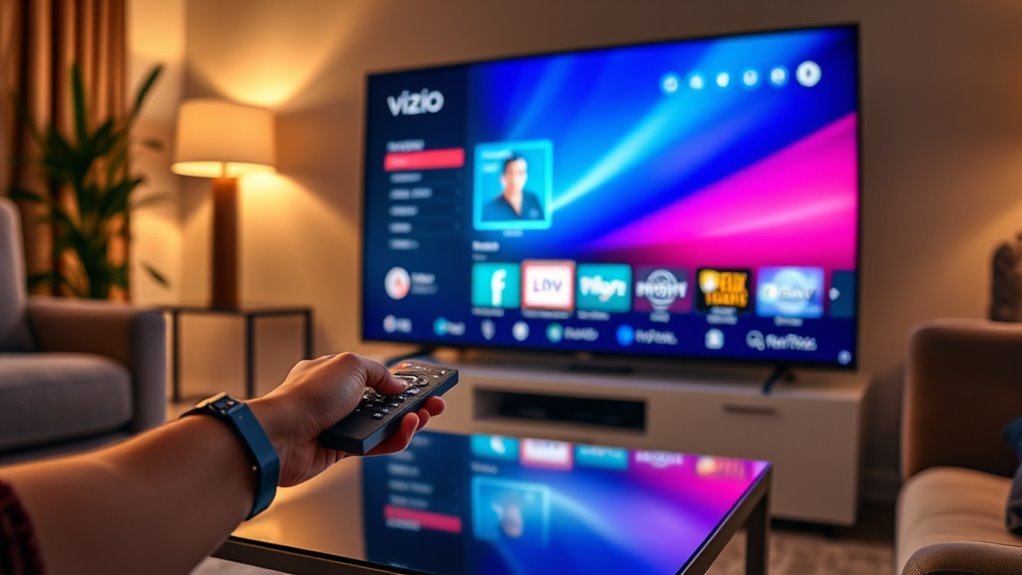

To get the Spectrum app on your Vizio Smart TV, first, check that your TV model is compatible and connected to the internet. Access the home screen, then navigate to the app store by pressing the “V” button on your remote. Search for the Spectrum app, then download and install it. Finally, sign in to your Spectrum account to start streaming. If you want to troubleshoot or enhance your experience, there’s more to explore.
Check Your Vizio Smart TV Model
Before you plunge into downloading the Spectrum app, it’s vital to check your Vizio Smart TV model. Not all Vizio models are compatible with the app, so knowing your specific model will save you time and frustration. Look for the model number on the back of your TV or in the settings menu. Once you’ve got your model number, you can easily check online or refer to Vizio’s official website for compatibility details. This step is important, as it guarantees you won’t waste effort on an unsupported model. By confirming your TV’s compatibility, you’re paving the way for a seamless streaming experience with the Spectrum app, giving you the freedom to enjoy your favorite content without hassle.
Ensure Your TV Is Connected to the Internet
Before you can get the Spectrum app on your Vizio Smart TV, you need to make sure it’s connected to the internet. Start by checking your network settings to confirm the connection. If you’re unsure, run a test on your internet connection to troubleshoot any issues.
Check Network Settings
To enjoy the Spectrum app on your Vizio Smart TV, it’s vital to confirm your TV is connected to the internet. Start by checking your network settings to verify proper network connectivity. Go to the settings menu on your TV, select the network option, and confirm it’s connected to your Wi-Fi. If you see any issues, take note of the error messages, as they can provide useful troubleshooting tips. You might need to restart your router or reconnect to the network if things aren’t working smoothly. Remember, a stable internet connection is fundamental for streaming content seamlessly. By verifying these settings are in check, you’ll be one step closer to enjoying the Spectrum app without interruptions.
Test Internet Connection
Testing your internet connection is vital to ascertain your Vizio Smart TV can run the Spectrum app smoothly. Begin by accessing the network settings on your TV. Look for an option to test your connection. This will help you confirm whether your TV is connected properly. Next, you might want to test speed to verify you’re getting the bandwidth you need for streaming. A reliable network connection is essential for uninterrupted viewing. If your speed is slower than expected, consider rebooting your router or checking for any interference. Remember, a stable connection enhances your viewing experience, giving you the freedom to enjoy your favorite shows without frustrating interruptions. So, keep your network reliability in check!
Access the Vizio Smart TV Home Screen
To access the Vizio Smart TV home screen, you’ll need to navigate the TV interface. Start by pressing the Home button on your remote, which brings up all your smart TV features. From there, you can easily find and open the Spectrum app.
Navigating the TV Interface
While getting familiar with your Vizio Smart TV, accessing the home screen is your first step. This interface is where you’ll find your apps and settings. Use the remote to navigate through the options. Here are some TV navigation tips to enhance your experience:
| Action | Button | Purpose |
|---|---|---|
| Navigate Apps | Arrow keys | Move between apps |
| Open Settings | Menu button | Customize interface |
| Quick Access | Home button | Return to home screen |
With the home screen, you can also explore interface customization options. Adjust your layout to prioritize the apps you use most. Embrace your Vizio Smart TV’s flexibility, and enjoy a tailored viewing experience!
Accessing Smart TV Features
Accessing the Smart TV features on your Vizio is straightforward once you’re on the home screen. This is where you can explore various smart features and enjoy seamless app integration. Here’s how you can make the most of your Vizio Smart TV:
- Browse through apps: Access a wide range of streaming services and download your favorites.
- Customize settings: Adjust picture, sound, and network settings to enhance your viewing experience.
- Use voice commands: If your model supports it, utilize voice control for easier navigation.
With these options, you’ll reveal the true potential of your Vizio Smart TV. Embrace the freedom of choosing what you want to watch, when you want to watch it!
Finding the Home Button
Finding the Home button on your Vizio Smart TV is essential for maneuvering its features and apps. It’s usually located in the center of your remote control, often marked with a house icon. Once you locate it, just press the Home button to access the main menu. This screen gives you a quick overview of all installed apps and settings, allowing you to easily navigate to the Spectrum app or any other service you want to use. If you’re ever lost, remember that the Home button is your gateway back to familiar territory. With just one press, you can regain control and explore all the entertainment options your Vizio Smart TV has to offer.
Navigate to the App Store
To begin downloading the Spectrum app on your Vizio Smart TV, you’ll first need to navigate to the App Store. The Vizio interface makes this process straightforward. Here’s how you can do it:
- Press the “V” button on your remote to access the app store navigation.
- Look for the “Apps” option on your screen and select it.
- Browse through featured apps or choose the “Search” option to find the Spectrum app.
Once you’re in the App Store, you’ll have a world of entertainment at your fingertips. Enjoy exploring various apps, and soon, you’ll be ready to download the Spectrum app and enjoy its offerings right on your Vizio Smart TV!
Search for the Spectrum App
How can you quickly locate the Spectrum app on your Vizio Smart TV? Start by accessing the App Store on your TV. Once you’re in, look for the search function, often represented by a magnifying glass icon. Type in “Spectrum” to filter the results. This step is vital, as the app offers a range of Spectrum features, including live TV and on-demand content, enhancing your entertainment experience. If your Vizio TV is compatible, you should see the app appear in the search results. Remember, Vizio compatibility is important for smooth functionality, so verify your model supports it. Keep an eye out for the app, as finding it is the first step towards enjoying your favorite shows.
Download and Install the App
Once you’ve located the Spectrum app in the App Store, downloading and installing it is a straightforward process. First, verify your Vizio Smart TV meets the app compatibility requirements. Then, follow these steps for a smooth installation process:
- Click on the Spectrum app icon in the App Store.
- Select the “Download” or “Install” button to begin the process.
- Wait for the app to install, which usually takes just a few moments.
Once installed, you’re one step closer to enjoying your favorite shows and channels. Just remember, keeping your TV updated can enhance app performance. With the Spectrum app ready, you’ll have the freedom to access your entertainment anytime!
Sign In to Your Spectrum Account
After you’ve successfully installed the Spectrum app, signing in to your Spectrum account is the next important step. This allows you to access your favorite shows and manage your account easily. Here’s a quick guide to help you through the process:
| Step | Description |
|---|---|
| Open the App | Launch the Spectrum app on your Vizio TV. |
| Enter Credentials | Input your Spectrum account username and password. |
| Access Features | Once signed in, enjoy seamless account management and streaming. |
Make sure your credentials are correct to avoid any login issues. If you encounter any problems, consider resetting your password or checking your internet connection. Enjoy the freedom of streaming all your favorite content!
Frequently Asked Questions
Can I Use the Spectrum App Without a Cable Subscription?
You can’t use the Spectrum app without a cable subscription. Though it offers great streaming options and features, you’ll need an active subscription to access its full potential and enjoy your favorite shows.
What if My Vizio TV Doesn’T Support the Spectrum App?
If your Vizio TV doesn’t support the Spectrum app, consider streaming devices like Roku or Amazon Fire Stick. These Vizio alternatives provide Spectrum solutions, letting you enjoy your favorite content without limitations.
Is There a Fee for Downloading the Spectrum App?
You’ll be relieved to know there aren’t any downloading fees for the Spectrum app. However, be mindful of potential spectrum app pricing related to subscriptions or service plans you might choose later on.
How Do I Update the Spectrum App on My Vizio TV?
To update the Spectrum app on your Vizio TV, go to Vizio settings, select “Apps,” and check for updates. If available, choose the Spectrum app and follow the prompts to complete the update process.
Can I Stream Multiple Devices Using the Spectrum App?
You can stream on multiple devices using the Spectrum app, but it’s essential to know the streaming limits and device compatibility. Balance your viewing like a juggler, ensuring every device gets its moment.
