
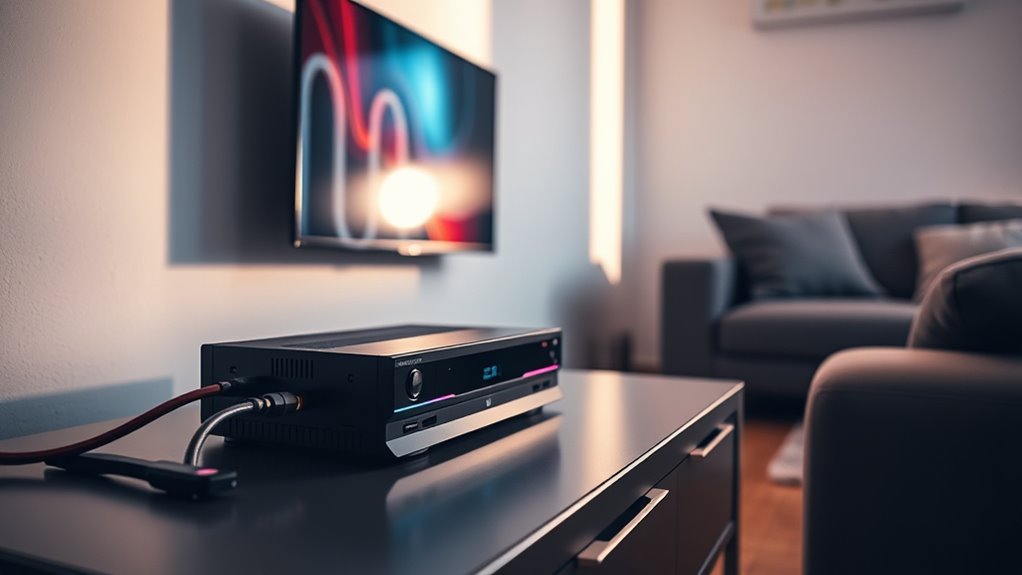

To hook up your DVD player to a smart TV, first, gather the necessary equipment like HDMI or composite cables. Check both devices for compatible ports before making connections. Plug the cable from the DVD player into the TV, then power both devices on. Use your TV remote to select the correct input source, like HDMI or AV. Finally, play a DVD to test everything. If you want more tips for optimizing your setup, there’s more to explore.
Gather the Necessary Equipment
To get started with hooking up your DVD player to a smart TV, you’ll need a few essential pieces of equipment. First, confirm you have the right cable types—most commonly, HDMI or composite cables. HDMI offers better picture and sound quality, while composite is suitable for older devices. Check for compatibility issues as not all smart TVs support every DVD player connection. If you’re using an older DVD player, you might need an adapter to connect it to your smart TV. It’s also wise to have a power source for both devices. Once you’ve gathered these items, you’re one step closer to enjoying your favorite DVDs on your smart TV. Getting the right equipment makes the process smooth and hassle-free.
Identify the Connection Ports
Identifying the connection ports on both your DVD player and smart TV is essential for a successful setup. Start by examining your DVD player; common connection types include HDMI, composite (red, white, yellow), and sometimes component (red, green, blue). Next, check your smart TV for compatible ports. Most modern TVs have multiple HDMI inputs, while older models might have composite or component inputs. Verify the connection types on both devices match for ideal port compatibility. If you’re using HDMI, you’ll enjoy higher quality, but if you’re limited to composite, it’ll still work. Recognizing these ports will make connecting your DVD player to your smart TV straightforward, enabling you to enjoy your favorite movies without a hitch.
Connect the DVD Player to the Smart TV
Connecting your DVD player to your smart TV is a straightforward process that can usually be completed in just a few steps. First, verify your DVD player is compatible with your TV, checking the connection ports for HDMI, composite, or component options. Once you’ve confirmed compatibility, connect the appropriate cable from your DVD player to the corresponding port on the smart TV. After making the connection, power on both devices. You’ll need to adjust your smart TV settings to recognize the DVD player. This typically involves steering to the settings menu and selecting the correct input source for your DVD player. Following these steps will have you enjoying your favorite DVDs on the big screen in no time!
Select the Correct Input Source
How can you make certain your smart TV recognizes your DVD player? The key is in the input selection. After connecting the DVD player, grab your TV remote and press the “Input” or “Source” button. This will bring up a list of source options available on your TV. Look for the HDMI or AV input that corresponds to the port you used when connecting the DVD player. Select the correct option, and your TV should switch to that input, displaying the DVD player’s interface. If you don’t see it immediately, try cycling through all the source options until you find the right one. With the right input selected, you’re ready to enjoy your favorite films!
Test Your Setup and Enjoy Your Movies
Once you’ve selected the correct input source on your smart TV, it’s time to test your setup. Start by playing a DVD and check the movie quality. Adjust the sound settings to match your preferences for an immersive experience. Take note of your viewing habits—do you prefer low lighting or a cozy couch setup?
Here’s a quick table to help you optimize your experience:
| Aspect | Tips | Benefits |
|---|---|---|
| Movie Quality | Use HDMI for best clarity | Crisp visuals |
| Sound Settings | Set up surround sound | Enhanced audio experience |
| Viewing Habits | Arrange seating comfortably | Better engagement |
| Cable Management | Tidy cables with clips | Clean look, less distraction |
Now, sit back, relax, and enjoy your movies!
Frequently Asked Questions
Can I Use an Old DVD Player With a New Smart TV?
Yes, you can use an old DVD player with a new smart TV. Just check for compatibility concerns and available connection options, like HDMI or composite cables, to guarantee a proper setup for your viewing experience.
What if My DVD Player Has No HDMI Output?
If your DVD player lacks HDMI output, don’t worry—over 30% of households still use older formats. You can connect using component cables or digital adapters, allowing you to enjoy your classics on a modern screen.
Do I Need Special Cables for 4K Smart TVS?
You don’t need special cables for 4K smart TVs, but using high-speed HDMI cables guarantees 4K compatibility. They’ll provide the best quality for your viewing experience, so it’s worth investing in them.
Will My Smart TV Upscale the DVD Video Quality?
Yes, your smart TV can work magic, enhancing DVD quality through upscaling. It’ll transform those classic flicks into a sharper, more vibrant experience, letting you enjoy your favorites with a touch of video enhancement.
How Do I Fix Audio Sync Issues Between Devices?
To fix audio sync issues, start with sync troubleshooting. Check settings on both devices for audio delay options. If needed, adjust the delay settings until the audio matches the video for a smoother experience.
