
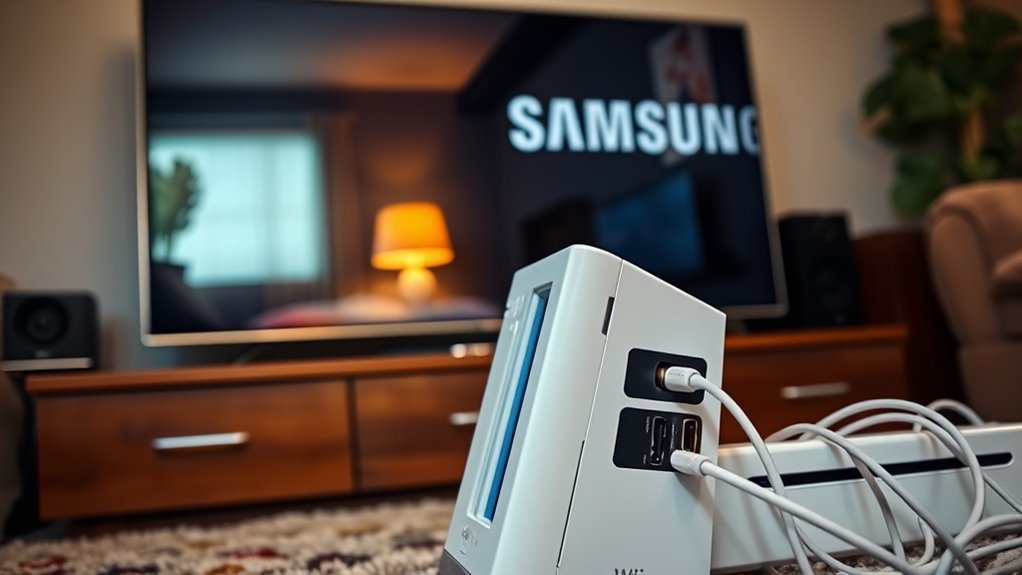

To plug your Wii into a Samsung Smart TV, first gather your Wii console, power adapter, and AV cables. Connect the AV cable to the Wii and match the color-coded connectors to the TV’s input ports. Switch the TV to the correct input source, and you should see the Wii menu on your screen. Adjust the TV settings for best performance, and if you encounter any issues, you’ll find helpful troubleshooting tips just ahead.
Checking Your Equipment
Before you plunge into connecting your Wii to your Samsung Smart TV, it’s essential to make certain you’ve got all the right equipment on hand. First, check your Wii accessories; you’ll need the console, power adapter, and AV cables. There are different cable types: the standard composite cables with yellow, red, and white connectors, or you might opt for component cables for better picture quality. If you want a more seamless experience, consider using an HDMI adapter, which simplifies the connection and enhances your gaming freedom. Don’t forget to verify your TV has the appropriate input ports. Taking a moment to gather these items will save you time and frustration, making your gaming setup a breeze!
Connecting the Wii to the Samsung Smart TV
Now that you’ve gathered all the necessary equipment, connecting your Wii to your Samsung Smart TV is straightforward. First, locate the AV Multi Out port on your Wii. Plug in the AV cable, ensuring the color-coded connectors match the corresponding ports on the back of your TV. You’ll typically find yellow for video and red and white for audio. If you’ve got component cables as Wii accessories, use those for enhanced gaming performance. Simply connect them to the appropriate ports on your TV. Once everything’s plugged in, switch your TV to the correct input source. Voila! You’re all set to enjoy your favorite Wii games on that big screen. Get ready for some fun gaming sessions!
Configuring the TV Settings
Configuring your TV settings is vital for optimizing your gaming experience on the Samsung Smart TV. Start by heading to the picture settings in your TV menu. Here, you can adjust brightness, contrast, and color saturation to enhance the visuals of your Wii games. Don’t forget to enable the Game Mode feature, which reduces input lag for smoother gameplay. Next, move on to adjusting audio options. Verify the audio output is set to the correct format for your speakers or sound system, and consider turning on any surround sound features for an immersive experience. Finally, check that the volume levels are balanced to avoid missing those significant sound cues while you’re deep into your gaming adventure. Enjoy your freedom to play!
Testing the Connection
Once you’ve set up your Wii and connected it to your Samsung Smart TV, it’s time to test the connection to confirm everything is working smoothly. Start your Wii and check if the TV recognizes the input. You should see the Wii menu displayed. If it’s not visible, double-check the HDMI or AV connections and verify the correct input source is selected on your TV. For thorough testing procedures, try launching a game to see if the graphics and audio function properly. If the game runs without issues, your connection verification is successful! Enjoy your gaming experience, knowing you’ve set everything up right. If problems arise, you can look forward to troubleshooting them in the next section.
Troubleshooting Common Issues
What should you do if your Wii isn’t displaying on your Samsung Smart TV? First, check your connections. Confirm the HDMI adapter is securely plugged in, and if you’re using component cables, verify they’re correctly connected. Sometimes, Wii compatibility issues arise due to incorrect settings.
Here’s a quick troubleshooting guide:
| Issue | Solution |
|---|---|
| No picture on TV | Check input source on TV |
| Poor image quality | Try different HDMI adapter options |
| Wii not powering on | Inspect power adapter and cable |
| Game not loading | Clean the game disc |
If problems persist, consider resetting your TV or testing your Wii on another display. Don’t let compatibility issues hold you back!
Frequently Asked Questions
Can I Use a Wii With Any Samsung Smart TV Model?
Absolutely, you can use a Wii with nearly any Samsung Smart TV model! With fantastic Wii compatibility, you’ll enjoy all those classic games while leveraging Samsung’s amazing features for an unforgettable gaming experience. Immerse yourself!
Do I Need Any Special Adapters for the Connection?
You won’t need special adapters for your Wii connection. Just make certain your TV supports the Wii’s AV or component cables. Compatibility issues might arise with newer TVs, so check those input options before connecting.
Will Using the Wii Affect My Tv’s Warranty?
Using your Wii shouldn’t void your warranty coverage, but always check your TV’s manual for device compatibility. Just imagine the vibrant colors and exciting gameplay without worrying about unexpected repair costs—freedom to enjoy your gaming!
Can I Connect Multiple Consoles to the Same TV?
Yes, you can connect multiple consoles to the same TV. Consider using a gaming switch for a smooth multi-console setup, allowing you to easily switch between your favorite systems without constantly unplugging and replugging cables.
Is There a Specific HDMI Port I Should Use?
You don’t need a specific HDMI port, but check your TV’s port labeling for HDMI compatibility. Any available HDMI port should work, allowing you to easily connect your console and enjoy gaming without limitations.
