
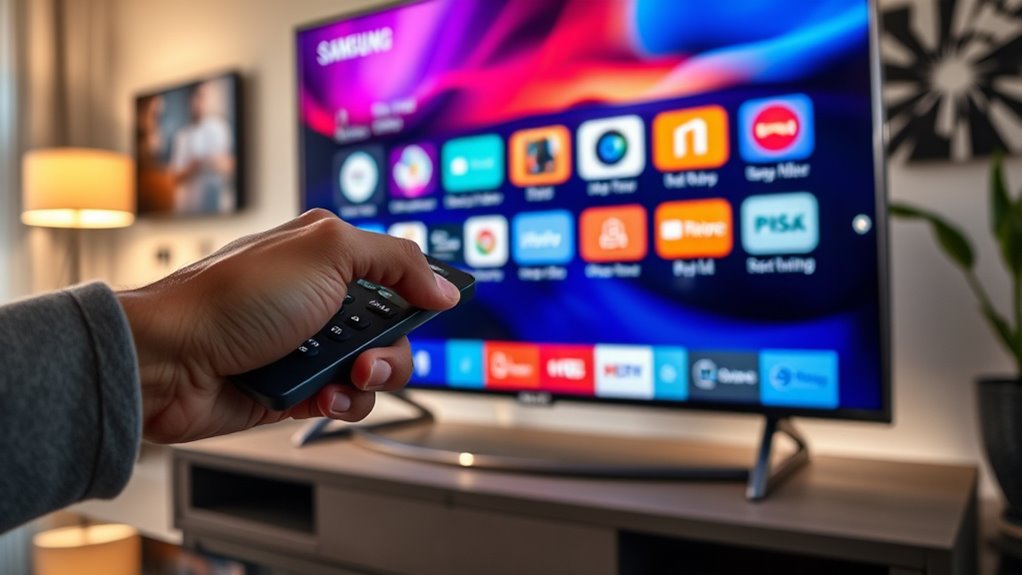

To upgrade the Smart Hub on your Samsung TV, first, check your current software version in the Settings menu. Make sure your TV is connected to a stable internet connection and disconnect any unnecessary devices. Then, navigate to the “Support” section and select “Software Update.” Click “Update Now” and confirm the process. After the update, restart your TV to explore new features and apps. If you encounter any issues, you’ll find helpful troubleshooting tips ahead.
Understanding the Smart Hub
The Smart Hub is the heart of your Samsung TV experience, integrating various apps, streaming services, and features into one user-friendly interface. With the Smart Hub, you’ll enjoy numerous smart hub benefits, such as easy access to your favorite content and personalized recommendations based on your viewing habits. The smart hub functionality allows you to seamlessly navigate between apps, live TV, and external devices—all from one place. You can also customize your home screen to prioritize what you love most, giving you full control over your entertainment choices. Whether you’re streaming movies, catching up on shows, or browsing for new apps, the Smart Hub enhances your viewing experience, making it more enjoyable and tailored to your preferences.
Checking Your Current Smart Hub Version
Before upgrading your Smart Hub, it’s essential to check which version you currently have installed on your Samsung TV. This step guarantees you’re aware of the updates you might need. Here’s how to check your current version:
- Press the Home button on your remote.
- Navigate to Settings.
- Select Support.
- Click on About This TV.
Preparing for the Upgrade
As you get ready to upgrade your Smart Hub, it’s vital to confirm your TV is prepared for the process. Start by completing a pre-upgrade checklist to verify everything runs smoothly. First, check your current software version and make certain it’s eligible for the upgrade. Next, disconnect any unnecessary devices that might interfere during the upgrade. Remember to backup data, especially any apps or settings you want to keep. This step is significant, as it prevents data loss in case something goes wrong. Finally, make sure your TV is plugged into a reliable power source to avoid interruptions. By taking these steps, you’ll set yourself up for a hassle-free Smart Hub upgrade experience.
Connecting Your TV to the Internet
Connecting your TV to the internet is essential for accessing all the features and content available on the Smart Hub. You can enjoy a world of entertainment and seamless streaming without limits. Here’s how to get started:
- Choose your connection type: Decide between Wi-Fi setup or Ethernet connection.
- Wi-Fi setup: Select your network from the list, enter your password, and connect.
- Ethernet connection: Plug the Ethernet cable into your TV and router for a stable, wired connection.
- Test your connection: Make sure everything’s working smoothly for the best experience.
Once your TV’s connected, you’ll gain endless possibilities and enjoy your favorite shows with the freedom to explore more!
Accessing the Settings Menu
Now that your TV is connected to the internet, it’s time to access the Settings Menu to manage your Smart Hub features. To get started, grab your remote and press the Home button. This will open the Smart Hub interface, where you can begin your settings navigation. Look for the gear icon, which represents the Settings Menu, and select it. Here, you’ll find various menu options to customize your experience, including network settings, picture quality adjustments, and application management. Take your time exploring these options to guarantee your Smart Hub runs smoothly and aligns with your preferences. Empower yourself by diving into the settings that enhance your viewing experience and allow you to enjoy your content freely.
Initiating the Smart Hub Update
To initiate the Smart Hub update on your Samsung TV, head back to the Settings Menu you accessed earlier. This step is essential for unblocking the full potential of your Smart Hub. Here’s what you need to do:
To unlock the full potential of your Smart Hub, navigate to the Settings Menu and initiate the update process.
- Select the “Support” option.
- Choose “Software Update.”
- Tap on “Update Now” to start the process.
- Confirm the update when prompted.
Confirming the Update Process
How can you be sure that the update process on your Samsung TV is successfully confirmed? First, navigate to the Smart Hub and open the settings menu. Look for the “About” section, where you’ll find the current software version. This is your chance for version verification. If the version number matches the latest one provided by Samsung, you’ve achieved update confirmation.
Additionally, keep an eye on the update history in the settings. It’ll show you the status of recent updates, confirming whether the process completed successfully. If everything checks out, you can enjoy the enhanced features of the Smart Hub. Embrace the freedom of knowing your TV is up-to-date and ready for your viewing pleasure!
Restarting Your Samsung TV
After confirming that your Smart Hub is updated, you might find that restarting your Samsung TV can help resolve any lingering issues or refresh the system. Here are some effective restarting methods you can try:
Restarting your Samsung TV can help fix lingering issues and refresh the system for an improved viewing experience.
- Power Cycling: Unplug the TV from the wall, wait about 30 seconds, then plug it back in.
- Remote Restart: Use the remote’s power button to turn off the TV, then turn it back on after a few seconds.
- Smart Hub Reset: Go to Settings > Support > Self Diagnosis > Reset Smart Hub.
- Factory Reset: If all else fails, consider a full factory reset through Settings > General > Reset.
These methods can help restore your TV’s performance and give you a better viewing experience. Enjoy the freedom of a well-functioning device!
Exploring New Features and Apps
As you explore your upgraded Smart Hub, you’ll discover a variety of new features and apps designed to enhance your viewing experience. You’ll find new app recommendations that cater to your interests, whether you’re into streaming, gaming, or fitness. With an enhanced user experience, maneuvering through your favorite content becomes effortless. The redesigned interface allows for quicker access to apps and settings, making your daily usage more enjoyable. Plus, the integration of voice commands means you can control your TV without lifting a finger. Don’t forget to check the app store regularly for updates and new arrivals. Embrace the freedom these innovations bring, and transform how you enjoy your favorite shows and movies.
Troubleshooting Common Update Issues
When updating your Smart Hub, you might run into connection problems or software compatibility issues. These can interrupt the process and prevent you from accessing new features. Let’s explore how to troubleshoot these common update challenges effectively.
Connection Problems
If you’re experiencing connection problems while trying to upgrade your Smart Hub on a Samsung TV, it can be frustrating. Here are a few steps to tackle those pesky connection issues and improve your network stability:
- Check your internet connection – Verify your Wi-Fi is working and other devices can connect.
- Restart your router – A simple reboot can resolve many connectivity problems.
- Update your router’s firmware – Outdated firmware can lead to connection hiccups.
- Position your router closer – Signal strength matters; moving the router can enhance connectivity.
Software Compatibility Issues
Connection issues can sometimes mask deeper problems, particularly when it comes to software compatibility during an upgrade. If you’re using older models of Samsung TVs, you might run into firmware requirements that aren’t met, leading to failed updates. Always check the current firmware version against the requirements for the new Smart Hub. If your TV is outdated, it may not support the latest features, limiting your experience. You can usually find firmware information in the settings menu or on the Samsung website. If you face issues, consider resetting your TV or checking for compatibility updates. Staying informed about your model’s specifications will help you navigate compatibility challenges and guarantee a smooth upgrade process.
Frequently Asked Questions
Can I Downgrade My Smart Hub After Upgrading?
You can’t easily downgrade your Smart Hub after upgrading. Imagine being stuck in a digital maze—those downgrade options are limited due to software compatibility. Always check for updates before making changes to guarantee smooth sailing.
Will Upgrading Smart Hub Erase My Apps and Settings?
No, upgrading Smart Hub won’t erase your apps or settings, but it’s wise to perform settings backup beforehand. Proper app management guarantees you maintain your preferences, keeping your viewing experience smooth and enjoyable.
How Long Does the Smart Hub Update Process Take?
The update duration for Smart Hub usually takes a few minutes, but it can vary. Samsung frequently updates the software, so you might notice updates more often, ensuring your TV runs smoothly and efficiently.
Are There Any Costs Associated With Upgrading Smart Hub?
Upgrading Smart Hub doesn’t usually cost you anything, so it’s like finding a hidden treasure. The upgrade benefits, like improved features and performance, far outweigh any potential cost comparison you might worry about. Enjoy your freedom!
What Should I Do if My TV Fails to Connect After the Update?
If your TV fails to connect after the update, try network troubleshooting steps like restarting your router and checking software compatibility. Ensuring your firmware’s current can also help restore your connection and enhance performance.
