
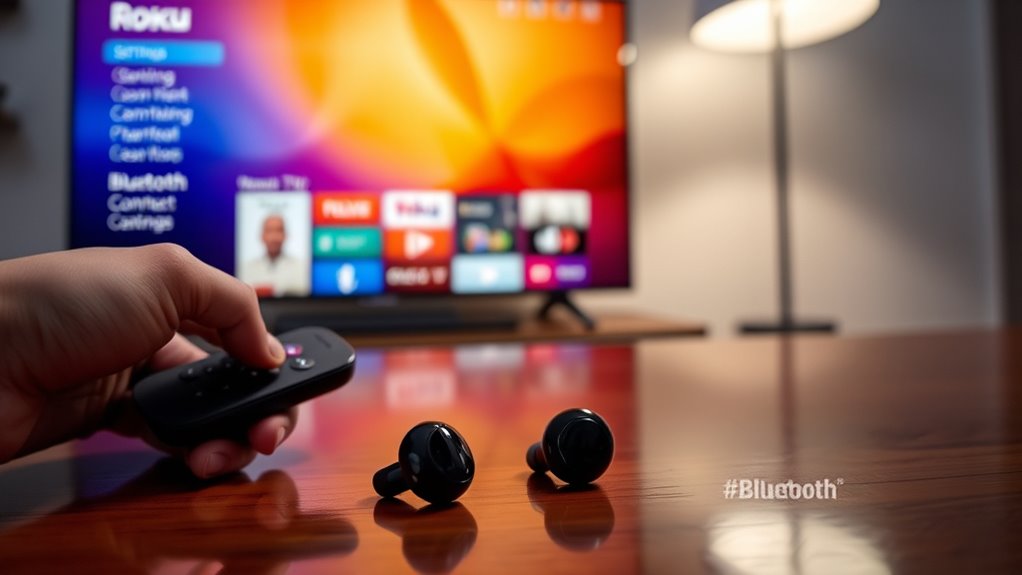

To connect your earbuds to a Roku TV, make sure your TV supports Bluetooth. First, check if your earbuds are fully charged and in pairing mode. Then, navigate to the Roku settings, select “Remotes & devices,” and choose your earbuds from the list of available devices. Confirm the connection, and you should hear audio through your earbuds. If you want to optimize your audio experience further, there are more settings and tips to explore.
Understanding Roku TV Audio Options
When you want to enhance your Roku TV experience, understanding the audio options is essential. Roku TVs support various audio formats, giving you flexibility in how you enjoy sound output. You can choose between stereo, surround sound, and even advanced formats like Dolby Atmos, depending on your setup.
To get the best audio experience, check your TV settings to guarantee they match your audio system. If you’re using external speakers or soundbars, make sure they support the audio formats you prefer.
Additionally, adjusting the sound output settings can improve clarity and depth. Whether you’re streaming movies or playing games, knowing your audio options empowers you to customize your experience and enjoy every moment to the fullest.
Preparing Your Wireless Earbuds
To enjoy audio from your Roku TV through wireless earbuds, you’ll first need to prepare your earbuds for pairing. Begin by checking your earbud compatibility with your Roku device, as not all models may work seamlessly together. Verify your earbuds are fully charged to avoid interruptions during use. Next, activate the pairing mode on your earbuds, usually done by pressing and holding a specific button until you see a blinking light. This step signals that your earbuds are ready to connect via wireless technology. Keep them near your Roku TV during this process to establish a stable connection. By following these simple steps, you’ll set the stage for a smooth audio experience that grants you the freedom to enjoy your favorite shows.
Accessing the Roku TV Settings
To connect your earbuds, you’ll first need to access the Roku TV settings. Start by exploring the Roku TV menu to find the audio options. Once you’re in the right place, you can easily connect your Bluetooth devices.
Navigating Roku TV Menu
Accessing the Roku TV settings is straightforward and only takes a few steps. First, grab your Roku remote and press the Home button to bring up the Roku interface. From there, use the arrow keys to navigate the menu. Highlight the “Settings” option and select it. You’ll find various categories like System, Audio, and Display, allowing you to customize your viewing experience. For smooth menu navigation, take your time to explore each option, ensuring you understand what settings fit your preferences. Remember, the Roku interface is designed to be user-friendly, so don’t hesitate to jump in and adjust settings as needed. This freedom to customize makes your Roku experience even better!
Selecting Audio Options
Selecting audio options on your Roku TV is essential for optimizing your listening experience. To access these settings, go to the Home screen and navigate to the Settings menu. From there, select “Audio” to explore various audio formats available, such as stereo or surround sound. You can also enable sound enhancements, which can improve clarity and richness, depending on your preferences. Don’t forget to experiment with options like volume leveling and night mode to further tailor your audio experience. By customizing these settings, you can guarantee your earbuds deliver the best sound quality, making every show or movie more enjoyable. Make the most of your Roku TV by taking control of your audio options!
Connecting Bluetooth Devices
While you might be enthusiastic to connect your Bluetooth earbuds to your Roku TV, getting to the right settings is crucial. Start by pressing the Home button on your remote. Navigate to Settings, then select “Remotes & devices.” Here, you’ll find the option to add Bluetooth devices. Once you select that, your TV will search for available devices. Verify your earbuds are in pairing mode and within the Bluetooth range for successful connection. If your earbuds have specific compatibility requirements, check those to verify seamless pairing. Once connected, you can enjoy your favorite shows without disturbing anyone else. Remember to adjust your audio settings for the best experience!
Pairing Your Earbuds With Roku TV
To pair your earbuds with Roku TV, you first need to verify your TV supports Bluetooth connectivity. Once you’ve confirmed this, you can follow a straightforward pairing process to connect your earbuds. After pairing, adjusting the audio settings will help enhance your listening experience.
Roku TV Bluetooth Compatibility
If you want to enjoy a private listening experience with your Roku TV, understanding its Bluetooth compatibility is essential. Roku TVs support Bluetooth audio, allowing you to connect your earbuds seamlessly. However, it’s crucial to recognize that not all Roku TVs have Bluetooth capabilities, so check your model’s specifications. When connecting, keep in mind the Bluetooth range, which typically extends up to 30 feet. This means you can move freely within that distance without losing sound quality. Once paired, you’ll experience crisp Roku audio directly through your earbuds, enhancing your viewing experience. Enjoy the freedom of watching your favorite shows without disturbing others, making your Roku TV truly personal.
Earbud Pairing Process
Connecting your earbuds to a Roku TV is a straightforward process, and once you get the hang of it, you’ll enjoy an enhanced audio experience. Start by ensuring your earbuds are in pairing mode; different earbud types may have varying instructions, so check the manual if needed. On your Roku TV, navigate to the “Settings” menu, then select “Remotes & devices.” Choose “Bluetooth” and search for available devices. Your earbuds should appear on the list—select them to connect. Once paired, you’ll notice an improvement in sound quality, making your shows and movies even more enjoyable. Remember, this process works for most Bluetooth earbuds, so feel free to explore different options to find the perfect fit for your listening needs!
Audio Settings Adjustment
Once your earbuds are successfully paired with your Roku TV, adjusting the audio settings can enhance your listening experience even further. Navigate to the settings menu on your Roku, and select “Audio.” Here, you’ll find options to tweak audio quality and activate sound enhancement features. Experiment with settings like “Night Mode” to balance volume levels or “Speech Clarity” to make dialogue more distinctive. If your earbuds support surround sound, enable that option for a richer experience. Remember, every earbud model may deliver different results, so take some time to find what works best for you. By fine-tuning these settings, you’ll enjoy a more immersive audio experience tailored to your preferences.
Adjusting Audio Settings for Optimal Experience
To guarantee the best listening experience when using earbuds with your Roku TV, you’ll want to adjust the audio settings accordingly. Start by checking the audio formats supported by your TV and confirm they match your earbuds’ capabilities. This can greatly enhance sound quality. Next, explore the audio settings menu to fine-tune the volume control. If your Roku TV has options for surround sound or stereo, experiment with both to see which suits your preferences best. Don’t forget to adjust the balance settings if you notice uneven audio between your earbuds. These adjustments can transform your viewing experience, allowing you to savor each sound detail while enjoying your favorite shows or movies.
Troubleshooting Common Connection Issues
If you’re experiencing issues connecting your earbuds to Roku TV, there are several common problems you can troubleshoot to guarantee a seamless experience. First, make sure your earbuds are in pairing mode and close to the TV. If you’re still facing earbud connectivity issues, check for any bluetooth signal interference. Other devices, like microwaves or Wi-Fi routers, can disrupt the connection, so try moving away from them. Restarting your Roku TV and your earbuds can also help reset the connection. Additionally, verify that your Roku software is up to date for peak performance. If all else fails, consider unpairing and re-pairing your earbuds to see if that resolves the issue. Enjoy the freedom of wireless audio!
Frequently Asked Questions
Can I Use Wired Earbuds With Roku TV?
Yes, you can use wired earbuds with Roku TV. Consider your wired connection options, and remember that audio quality can vary. Enjoy clear sound and freedom from distractions while immersing yourself in your favorite shows.
Do All Roku TVS Support Bluetooth Audio?
Not all Roku TVs support Bluetooth audio. Check your model’s specifications for Bluetooth compatibility. If it does, you can enjoy wireless sound with compatible devices, enhancing your viewing experience with more freedom and convenience.
What Is the Maximum Range for Bluetooth Earbuds?
Bluetooth technology typically offers a maximum range of about 30 feet, letting you roam freely while enjoying your favorite wireless audio. Imagine dancing around your space, completely untethered, lost in the sound of your favorite tunes.
Can I Connect Multiple Bluetooth Devices to Roku TV?
You can’t connect multiple Bluetooth devices to Roku TV simultaneously. The Bluetooth device compatibility allows only one earbud connection method at a time, so you’ll need to disconnect before pairing a new device.
Are There Specific Brand Recommendations for Compatible Earbuds?
While brand compatibility varies, consider brands like Sony, Apple, or Bose for excellent sound quality. These options often work seamlessly with devices, ensuring you enjoy your audio experience without hassle or interruptions.
