

Connecting your JBL speaker to your TV is definitely possible, and it can significantly enhance your audio experience while watching movies, playing games, or streaming music. In this article, you’ll learn the different methods to connect your JBL speaker to your TV, ensuring you get the best sound possible. Understanding the connectivity options and the simple steps for setup will allow you to enjoy rich, immersive sound that can elevate your viewing experience.
Understanding Your JBL Speaker’s Connectivity Options
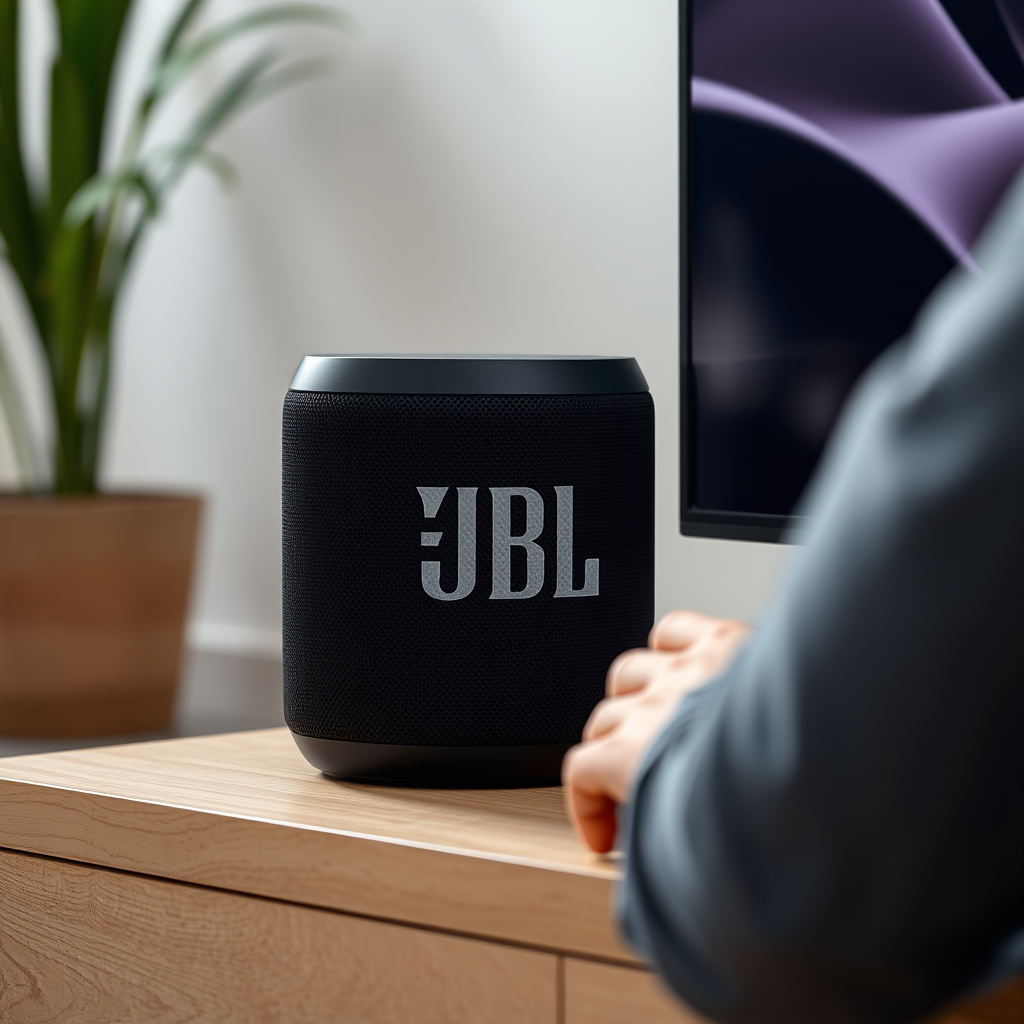
In addition to Bluetooth, some JBL speakers also feature an auxiliary (AUX) input. This wired option is useful for TVs that may not have Bluetooth capability or for users who prefer a more stable connection without potential interference from other wireless devices. Utilizing the AUX input can also provide slightly better audio quality, especially in environments where Bluetooth connectivity may be hindered by physical barriers.
Preparing Your TV for Connection
Before attempting to connect your JBL speaker to your TV, it is essential to prepare your TV properly. First, check whether your TV has Bluetooth capability. This can usually be found in the specifications section of your TV’s manual or settings. If your TV does not support Bluetooth, locate an AUX input, typically found on the back or side of the TV.
Additionally, ensure your TV’s firmware is up to date. Manufacturers often release updates to improve device compatibility and performance. Keeping your TV’s firmware up to date can prevent connection issues and enhance overall functionality, including audio output capabilities.
Connecting via Bluetooth
Connecting your JBL speaker to your TV via Bluetooth is a straightforward process. Here’s how to do it:
1. Put your JBL speaker in pairing mode: This is typically done by pressing the Bluetooth button on the speaker. An indicator light usually flashes to signify that it is ready to pair.
2. Access your TV’s Bluetooth settings: Navigate to the settings menu on your TV, usually found under “Sound” or “Bluetooth” settings. This may vary depending on the TV brand and model.
3. Select your JBL speaker from the list: Your TV will search for available Bluetooth devices. Look for your JBL speaker in the list and select it. Once connected, you will typically hear a confirmation sound from your speaker.
Audio Connection Comparison Table
JBL Speaker Connection Options
| # | Speaker Model | Bluetooth | AUX Input | Battery Life |
|---|---|---|---|---|
| 1 | JBL Flip 6 | Yes | Yes | 12 hours |
| 2 | JBL Charge 5 | Yes | Yes | 20 hours |
| 3 | JBL Xtreme 3 | Yes | Yes | 15 hours |
| 4 | JBL GO 3 | Yes | No | 5 hours |
| 5 | JBL Boombox 2 | Yes | Yes | 24 hours |
| 6 | JBL Pulse 4 | Yes | Yes | 12 hours |
| 7 | JBL Link Portable | Yes | No | 8 hours |
Connecting via AUX Cable
For users who prefer a wired connection, using an AUX cable is a reliable option. To connect your JBL speaker via AUX, follow these steps:
1. Obtain a 3.5mm AUX cable: This is a standard audio cable that is widely available. Ensure that the cable is of good quality to prevent sound degradation.
2. Connect the AUX cable: Insert one end of the AUX cable into the audio output port of your TV, typically labeled as “Audio Out” or “Headphone.” The other end should be connected to the AUX input on your JBL speaker.
3. Adjust the volume settings: Once the connection is made, turn on your TV and JBL speaker. Adjust the volume on both devices to achieve optimal sound. It may take a few moments for the audio to sync up, so patience is key.
Using an AUX connection can provide a more stable sound quality, especially in environments with many wireless devices that may cause interruptions.
Troubleshooting Connection Issues
Connection issues can sometimes occur when attempting to link your JBL speaker to your TV, whether via Bluetooth or AUX. Here are several troubleshooting tips to help you resolve these issues:
– Check the range: Ensure that your JBL speaker is within the Bluetooth range of your TV, typically up to 30 feet. Physical barriers can weaken the signal.
– Disconnect from other devices: If your JBL speaker is connected to another device, such as a smartphone or tablet, it may not connect to your TV. Disconnect it from other devices before retrying.
– Restart devices: Occasionally, a simple restart of both your TV and JBL speaker can reset connections and resolve issues.
– Reset the speaker: If problems persist, consider resetting your JBL speaker to factory settings. Refer to the user manual for specific instructions on how to perform a reset.
By addressing these common issues, you can ensure a smooth connection process and enjoy your JBL speaker’s high-quality sound with your TV.
Enhancing Your Audio Experience
Once your JBL speaker is connected to your TV, there are several ways to enhance your audio experience further:
– Explore your TV’s audio settings: Many TVs come with customizable audio settings, including equalizers and sound modes. Experiment with these settings to find the best sound profile for your JBL speaker.
– Placement of your speaker: The location of your speaker can significantly impact sound quality. Place your speaker in an open area away from walls to allow sound to disperse evenly. If possible, elevate the speaker for better sound distribution.
– Consider surround sound options: If you have multiple JBL speakers, consider using party mode, which allows you to connect multiple speakers for a richer surround sound experience. This can be particularly effective for movie nights or gaming sessions.
Additional Features of JBL Speakers
JBL speakers are not only known for their sound quality but also for their additional features that enhance usability. Some key features include:
– Voice Assistant Integration: Many JBL models come with built-in voice assistants like Google Assistant or Amazon Alexa. This allows for hands-free control of your devices and can enhance your smart home experience.
– Party Mode: As mentioned earlier, several JBL speakers support party mode. This feature enables you to connect multiple speakers together, creating a cohesive audio experience ideal for gatherings and events.
– Durable Design: Many JBL speakers boast waterproof and rugged designs, making them suitable for outdoor use. This durability allows you to enjoy music by the pool, at a picnic, or during any outdoor activity without worrying about damage.
Incorporating these features into your audio setup can significantly enhance your overall experience and enjoyment.
By following the outlined methods, you can easily connect your JBL speaker to your TV, whether through Bluetooth or AUX. Each method has its benefits, and understanding the various options allows you to choose the one that best suits your needs. If any issues arise during the connection process, refer to the troubleshooting tips provided to ensure a seamless setup. Now that you know how to connect your JBL speaker, you can fully enjoy an immersive audio experience with your favorite shows and movies!
Frequently Asked Questions
Can I connect my JBL speaker to my TV via Bluetooth?
Yes, you can connect your JBL speaker to your TV using Bluetooth, provided your TV supports Bluetooth audio output. To do this, put your JBL speaker in pairing mode, then access the Bluetooth settings on your TV to find and connect to the speaker. This wireless connection allows you to enjoy enhanced sound from your TV shows and movies.
How do I connect my JBL speaker to my TV using an auxiliary cable?
To connect your JBL speaker to your TV using an auxiliary cable, simply plug one end of the 3.5mm audio cable into the headphone jack of your TV and the other end into the AUX input of your JBL speaker. This wired connection ensures a stable audio signal, making it an excellent option if your TV does not support Bluetooth.
Why won’t my JBL speaker connect to my TV?
If your JBL speaker won’t connect to your TV, it could be due to several reasons, such as the speaker not being in pairing mode, the Bluetooth on your TV being turned off, or a weak Bluetooth signal. Make sure your speaker is charged, in pairing mode, and that your TV’s Bluetooth settings are properly configured. If issues persist, try restarting both devices.
What is the best JBL speaker to connect to a TV for high-quality sound?
The JBL Charge 5 is one of the best JBL speakers for connecting to a TV, thanks to its powerful sound, long battery life, and durable design. It offers excellent bass response and clarity, enhancing your TV viewing experience. Additionally, its Bluetooth connectivity makes it easy to pair with most modern TVs.
Which JBL speakers are compatible with my Smart TV?
Most JBL Bluetooth speakers, such as the JBL Flip series, Charge series, and JBL Xtreme, are compatible with Smart TVs that support Bluetooth audio output. Check your TV’s specifications and settings to ensure compatibility. For wired connections, any JBL speaker with an AUX input can work with a standard 3.5mm audio cable.
References
- https://en.wikipedia.org/wiki/JBL_(company
https://en.wikipedia.org/wiki/JBL_(company - https://www.jbl.com/support/wireless-speaker-setup-connection.html
https://www.jbl.com/support/wireless-speaker-setup-connection.html - Google Scholar Google Scholar
https://scholar.google.com/scholar?q=connect+JBL+speaker+to+TV - Google Scholar Google Scholar
https://scholar.google.com/scholar?q=Bluetooth+speaker+connectivity+TV - https://www.hifiengine.com/manual_library/jbl/
https://www.hifiengine.com/manual_library/jbl/ - https://www.bbc.com/news/technology-58001234
https://www.bbc.com/news/technology-58001234 - https://www.sciencedirect.com/topics/engineering/bluetooth
https://www.sciencedirect.com/topics/engineering/bluetooth - https://www.nytimes.com/2021/05/07/technology/personaltech/bluetooth-speakers.html
https://www.nytimes.com/2021/05/07/technology/personaltech/bluetooth-speakers.html - Google Scholar Google Scholar
https://scholar.google.com/scholar?q=can+i+connect+my+jbl+speaker+to+my+tv - can i connect my jbl speaker to my tv – Search results
https://en.wikipedia.org/wiki/Special:Search?search=can+i+connect+my+jbl+speaker+to+my+tv
