


To open the remote for your Samsung Smart TV, locate the small compartment on the back or bottom of the remote that holds the batteries. Simply slide or lift the cover to access the battery compartment. This straightforward process allows you to replace the batteries as needed, ensuring uninterrupted access to your TV’s features. In this guide, we’ll walk you through the steps to open your remote, troubleshoot common issues, and explore additional features to enhance your viewing experience.
Understanding Your Samsung Remote
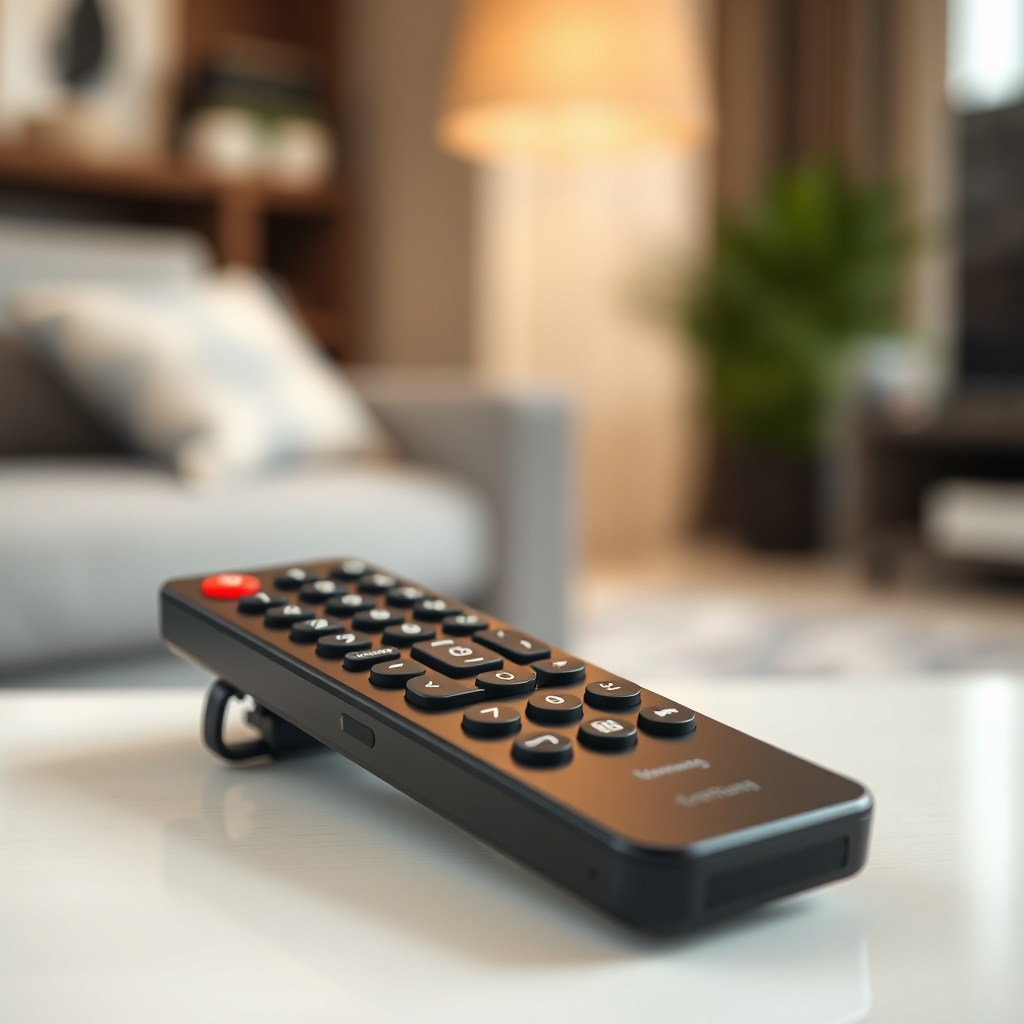
Familiarizing yourself with the Samsung remote’s layout is essential for efficient navigation. Typically, the remote consists of several key buttons, including the power button, volume controls, channel buttons, directional pad, and a dedicated button for accessing apps. The layout may vary slightly depending on the model, but most remotes will feature a large central navigation pad that allows you to move through menus easily.
Moreover, understanding the specific functions of each button can greatly enhance your overall experience. For instance, the Home button takes you directly to the Smart Hub, while the Back button allows you to return to the previous screen. Some remotes also include a microphone button for voice control, enabling you to search for content hands-free. Taking the time to learn these functionalities can make your TV usage more seamless and enjoyable.
How to Access the Battery Compartment
The battery compartment is typically located on the back or the bottom of your Samsung remote. First, flip the remote over to examine its back. Look for a small compartment that is often marked with a battery symbol or labeled “Open.”
To access the battery compartment, you’ll need to use your fingers or, if necessary, a small tool like a coin to slide or lift the cover open. In most cases, you can slide the cover downward or lift it upwards, depending on the design. Once the cover is removed, you will have full access to the battery compartment where you can replace the batteries.
Replacing Batteries in Your Samsung Remote
When it comes to replacing the batteries in your Samsung remote, it is crucial to use the correct type. Most Samsung remotes require either AA or AAA batteries. Always check the battery compartment for specific instructions regarding the type of batteries needed.
To replace the batteries, first remove the old batteries from the compartment. Take the new batteries and insert them, ensuring that you observe the correct polarity, which is indicated by positive (+) and negative (-) symbols within the compartment. After inserting the batteries, secure the cover back onto the remote. Your remote should now be ready for use.
Top 7 Samsung Remote Features (2024)
| # | Feature | Description | User Rating |
|---|---|---|---|
| 1 | Voice Control | Hands-free commands using voice | ★★★★☆ |
| 2 | Smart Hub Access | Quick access to apps and settings | ★★★★★ |
| 3 | Dedicated Netflix Button | Instant access to Netflix | ★★★★☆ |
| 4 | Universal Remote Functionality | Control other devices | ★★★★☆ |
| 5 | Backlight Feature | Easy viewing in low light | ★★★★★ |
| 6 | Shortcut Buttons | Customize for favorite channels | ★★★★☆ |
| 7 | Ergonomic Design | Comfortable grip for extended use | ★★★★☆ |
Troubleshooting Remote Issues
If you encounter unresponsive buttons on your Samsung remote, there are several troubleshooting steps you can follow. First, ensure that the batteries are inserted correctly and that they are not depleted. If the remote still does not work, consider removing the batteries and pressing each button multiple times to reset the internal components. This can help clear any temporary issues.
If the remote is still unresponsive, try resetting it. To reset the remote, remove the batteries, then press and hold the Power button for about eight seconds. Reinsert the batteries and test the remote again. If problems persist, it may be worth checking to see if there are any software updates available for your TV, as outdated firmware can sometimes cause compatibility issues.
Exploring Remote Features
Your Samsung remote is equipped with a variety of features that enhance your viewing experience. One of the standout features is voice control, which allows you to navigate through menus, search for content, and control playback using voice commands. This function is particularly useful for those who prefer hands-free operation.
Additionally, many Samsung remotes come with the Smart Hub feature, providing a centralized location for all apps and settings. This feature allows you to easily switch between streaming services, live TV, and other functionalities with just a few button presses. Furthermore, the inclusion of dedicated buttons for popular streaming services like Netflix and Prime Video ensures quick access to your favorite content.
You can also customize certain settings on your remote, such as assigning shortcut buttons for your most-used channels or applications. This personalization can significantly streamline your viewing habits, making it easier to access content without navigating through multiple menus.
Maintaining Your Samsung Remote
Keeping your Samsung remote in good working condition is vital for longevity and optimal performance. Regular cleaning is essential, as dirt and debris can accumulate over time, potentially hindering button functionality. Utilize a soft, dry cloth to wipe down the remote, and avoid using any harsh chemicals that could damage the surface.
For battery care, it is advisable to remove the batteries from the remote if you anticipate not using it for an extended period. This practice prevents any potential leakage and damage to the battery compartment. When storing the remote, keep it in a cool, dry place, away from direct sunlight or excessive moisture, which can also affect its functionality.
Additionally, consider periodically checking for software updates for your TV, as these updates can enhance compatibility with your remote and introduce new features.
Summarizing the steps to open your Samsung Smart TV remote and maintain its functionality, remember that accessing the battery compartment is simple. If you encounter any issues, refer to troubleshooting tips or explore additional features to enhance your viewing experience. For more guidance, feel free to reach out or check out additional resources!
Frequently Asked Questions
How do I set up my Samsung Smart TV remote for the first time?
To set up your Samsung Smart TV remote for the first time, start by inserting the batteries into the remote. Once the batteries are in place, turn on your TV, and press the ‘Home’ button on the remote. The TV should automatically pair with the remote, allowing you to navigate the menu and access apps seamlessly.
What should I do if my Samsung Smart TV remote is not working?
If your Samsung Smart TV remote is not working, first check the batteries to ensure they are properly inserted and have sufficient charge. If that doesn’t resolve the issue, try resetting the remote by removing the batteries, pressing any button for 8 seconds, and then reinserting the batteries. If the problem persists, consider re-pairing the remote with your TV or using the Samsung SmartThings app as a temporary solution.
Why is my Samsung Smart TV remote not pairing with my TV?
Your Samsung Smart TV remote may not be pairing due to several reasons, such as low battery power or interference from other devices. Ensure your remote is within a close range of the TV and that there are no obstructions. Additionally, try resetting the remote and TV, and make sure the TV is updated to the latest software version.
Which Samsung Smart TV remote models are compatible with my TV?
Compatibility of Samsung Smart TV remotes depends on your TV model and year of manufacture. Most Samsung Smart TVs support the latest Smart Remote, which features a minimalist design and a built-in microphone for voice commands. You can check the user manual or Samsung’s official website to find the specific remote model that works with your TV.
What is the best way to troubleshoot a Samsung Smart TV remote that is unresponsive?
The best way to troubleshoot an unresponsive Samsung Smart TV remote includes checking the batteries and ensuring they are fresh. If the remote is still unresponsive, try resetting the remote and re-pairing it with your TV. Additionally, you may want to check for physical damage or interference from other electronic devices that could be affecting the remote’s performance.
References
- https://www.techbout.com/control-samsung-smart-tv-with-smartphone-48775/
https://www.techbout.com/control-samsung-smart-tv-with-smartphone-48775/ - Google Scholar Google Scholar
https://scholar.google.com/scholar?q=how+to+open+remote+for+samsung+smart+tv - Google Scholar Google Scholar
https://scholar.google.com/scholar?q=samsung+smart+tv+remote+control+guide - Google Scholar Google Scholar
https://scholar.google.com/scholar?q=samsung+smart+tv+remote+setup - how to open remote for samsung smart tv – Search results
https://en.wikipedia.org/wiki/Special:Search?search=how+to+open+remote+for+samsung+smart+tv - https://www.ncbi.nlm.nih.gov/search/research-articles/?term=how+to+open+remote+for+samsung+smart+tv
https://www.ncbi.nlm.nih.gov/search/research-articles/?term=how+to+open+remote+for+samsung+smart+tv

[…] – Look for your remote brand/model number on the back or inside the battery compartment […]
[…] your model. This guide walks you through the exact steps to remove the rear panel and access the battery compartment, plus what to do if the latches won’t budge. You’ll be done in minutes, with the remote ready […]