

To hook up a Super Nintendo Entertainment System (SNES) to a smart TV, you need to use the appropriate cables and possibly an adapter, depending on your TV’s input options. This guide will walk you through the necessary steps to enjoy classic gaming on your modern screen. With the right setup, you can easily relive those nostalgic gaming moments and enjoy timeless classics like Super Mario World and The Legend of Zelda: A Link to the Past on a larger, clearer display.
Understanding Your TV’s Inputs
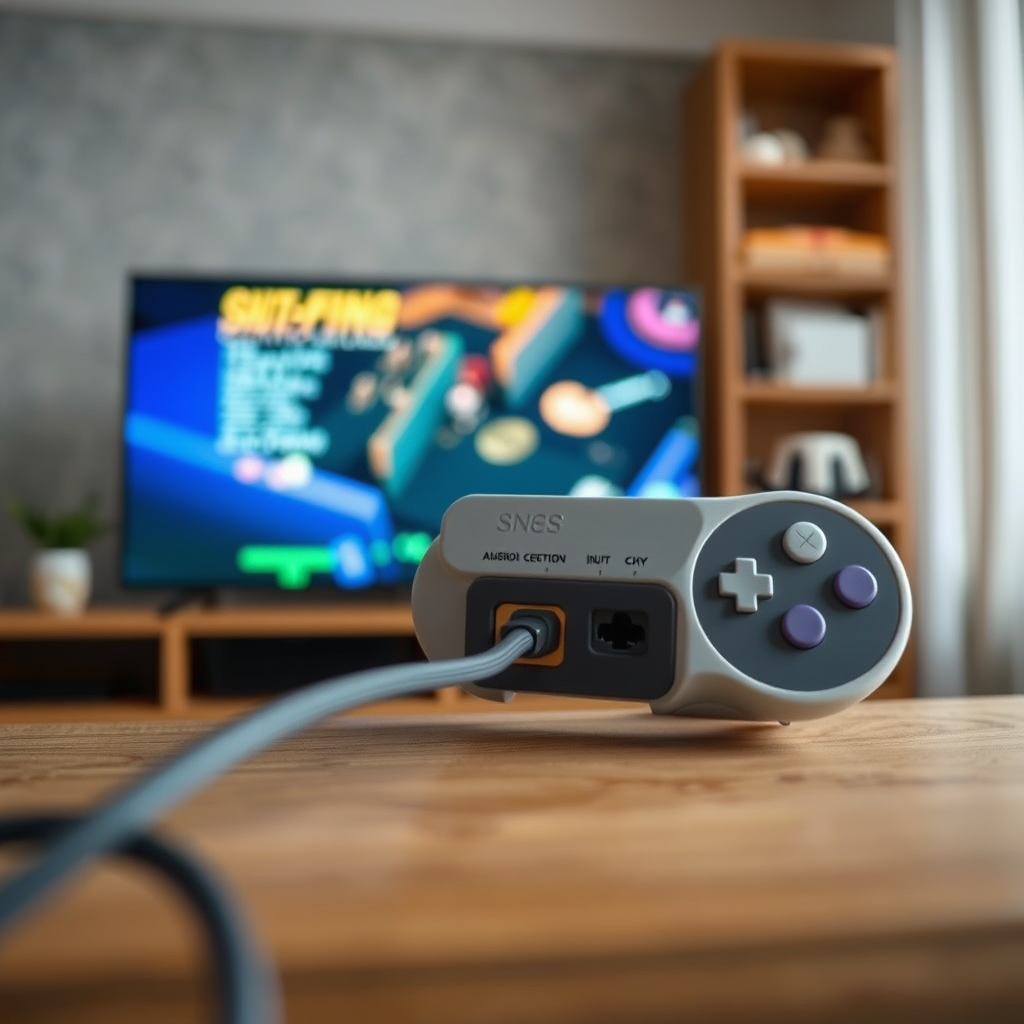
Before connecting your SNES, it’s crucial to understand the input options available on your smart TV. Most modern televisions come equipped with HDMI ports, which have become the standard for video and audio input. However, some smart TVs may still feature older composite inputs (yellow for video, red and white for audio).
First, locate the ports on your TV. If you have an HDMI-only TV, you will need an adapter or converter to facilitate the connection with your SNES. Alternatively, if your TV has a composite input, you can connect directly using an AV cable. Knowing your TV’s specifications will save you time and enhance your gaming experience.
Required Cables and Adapters
To connect your SNES to your smart TV, you will need the following cables and adapters, tailored to your TV’s input configuration:
– AV Cable: This cable includes three connectors: yellow for video and red and white for audio. If your TV supports composite inputs, this is the simplest method for connection.
– HDMI Converter: If your smart TV lacks a composite input, you will need an HDMI converter that accepts AV inputs. These converters are readily available online and in electronics stores. They typically convert the analog signal from the SNES to a digital signal that your TV can recognize.
Connecting the SNES to Your TV
Once you have the necessary cables, connecting your SNES to your smart TV is straightforward. Follow these steps:
1. Using AV Cables:
– Plug the AV cable into the corresponding ports on the back of the SNES. Ensure you connect the yellow cable to the video port and the red and white cables to the audio ports.
– Connect the other end of the AV cable to your TV’s composite input ports. Make sure each color corresponds correctly to the ports on the TV.
2. Using an HDMI Converter:
– Connect the AV cable to the SNES as mentioned above.
– Plug the other end of the AV cable into the HDMI converter.
– Finally, connect an HDMI cable from the converter to one of your TV’s HDMI ports.
Once connected, ensure all cables are secured and firmly in place.
Top 7 SNES Games by Popularity (2023)
| # | Game Title | Release Year | Genre | Popularity Rating |
|---|---|---|---|---|
| 1 | Super Mario World | 1990 | Platformer | ★★★★☆ |
| 2 | The Legend of Zelda: A Link to the Past | 1991 | Action-Adventure | ★★★★★ |
| 3 | Super Metroid | 1994 | Action-Adventure | ★★★★☆ |
| 4 | Donkey Kong Country | 1994 | Platformer | ★★★★☆ |
| 5 | Final Fantasy III | 1994 | RPG | ★★★★★ |
| 6 | Chrono Trigger | 1995 | RPG | ★★★★★ |
| 7 | EarthBound | 1994 | RPG | ★★★★☆ |
Configuring Your TV Settings
After successfully connecting your SNES, you need to configure your TV settings to ensure the best gaming experience. Here’s how to do it:
1. Input Selection: Turn on your smart TV and use the remote to select the correct input source. This is usually done by pressing the “Input” or “Source” button on your remote control until you find the channel that corresponds to where you connected the SNES.
2. Picture Settings: Once the SNES is displaying on your screen, check the picture settings. Depending on your TV model, you may have options to adjust brightness, contrast, and sharpness. Adjust these settings to enhance the visual quality of your games.
3. Sound Settings: Similarly, ensure that the sound settings are optimal. If you’re using external speakers or a soundbar, make sure to select that output in your sound settings.
Troubleshooting Common Issues
Even with the right setup, you might encounter some issues when connecting your SNES to your smart TV. Here are some common problems and solutions:
– No Picture or Sound: If you don’t see any image or hear any audio, double-check that all cables are securely connected. Ensure that the SNES is powered on and working properly.
– Incorrect Input Source: Make sure you have selected the correct input source on your TV. It might take a moment for the TV to recognize the input from the SNES.
– Poor Picture Quality: If the picture appears blurry or pixelated, adjust the TV’s picture settings or check the connections for any loose cables.
By addressing these common issues, you can ensure a smooth gaming experience without interruptions.
Enhancing Your Gaming Experience
To further enhance your experience while playing SNES games on your smart TV, consider the following tips:
– Retro Gaming Controllers: Investing in compatible retro gaming controllers can significantly improve playability. Look for wireless options that emulate the original SNES controllers for an authentic feel.
– Explore Streaming Services: Some streaming services or platforms may offer classic SNES games, allowing you to enjoy an extensive library without needing physical cartridges. Services like Nintendo Switch Online offer a range of classic games that can be played on modern systems.
– Upscaling Options: If your TV has upscaling capabilities, enable this feature to improve the image quality of older games. This can provide a more visually appealing experience when playing on larger screens.
Your classic gaming experience is just a few steps away! By following these guidelines, you’ll be able to seamlessly connect your SNES to your smart TV and relive those nostalgic gaming moments. For further assistance or tips, feel free to explore more resources on retro gaming setups. With the right setup, you can enjoy the best of both worlds: the charm of classic gameplay and the clarity of modern technology.
Frequently Asked Questions
How can I connect my SNES to a smart TV using HDMI?
To connect your SNES to a smart TV using HDMI, you’ll need an HDMI converter. First, plug the SNES’s AV output into the converter, then connect the converter to your smart TV’s HDMI port. This setup will allow you to enjoy classic games with improved image quality on your modern screen.
What cables do I need to hook up my SNES to a smart TV?
To hook up your SNES to a smart TV, you’ll need a standard AV cable (composite cable with yellow, red, and white connectors) and an HDMI converter if your TV does not have a composite input. If your TV does have composite inputs, you can connect the SNES directly using the AV cable for a straightforward setup.
Why does my SNES not display on my smart TV?
If your SNES is not displaying on your smart TV, it could be due to an improper connection or compatibility issue. Ensure that all cables are securely connected and check if your TV is set to the correct input. If you’re using an HDMI converter, make sure it’s powered up and functioning properly.
Which HDMI converter is best for connecting an SNES to a smart TV?
The best HDMI converter for connecting an SNES to a smart TV should support 240p resolution, ensuring optimal display quality. Look for converters with good customer reviews, reliable build quality, and additional features like audio support for an enhanced gaming experience.
How do I adjust the picture settings for better quality when using my SNES on a smart TV?
To adjust the picture settings for better quality when using your SNES on a smart TV, navigate to your TV’s settings menu and look for options like picture mode, sharpness, and aspect ratio. Choosing a “Game Mode” can reduce input lag and enhance responsiveness, while adjusting the sharpness can help improve the clarity of retro graphics.
References
- Super Nintendo Entertainment System
https://en.wikipedia.org/wiki/Super_Nintendo_Entertainment_System - https://www.lifewire.com/how-to-connect-a-snes-to-a-modern-tv-729634
https://www.lifewire.com/how-to-connect-a-snes-to-a-modern-tv-729634 - https://www.scholars.com/scholar?q=how+to+connect+snes+to+smart+tv
https://www.scholars.com/scholar?q=how+to+connect+snes+to+smart+tv - Google Scholar Google Scholar
https://scholar.google.com/scholar?q=Super+Nintendo+smart+tv+connection - Google Scholar Google Scholar
https://scholar.google.com/scholar?q=SNES+to+HDMI+adapter+guide - Google Scholar Google Scholar
https://scholar.google.com/scholar?q=how+to+hook+up+a+snes+to+a+smart+tv - how to hook up a snes to a smart tv – Search results
https://en.wikipedia.org/wiki/Special:Search?search=how+to+hook+up+a+snes+to+a+smart+tv - https://www.ncbi.nlm.nih.gov/search/research-articles/?term=how+to+hook+up+a+snes+to+a+smart+tv
https://www.ncbi.nlm.nih.gov/search/research-articles/?term=how+to+hook+up+a+snes+to+a+smart+tv

[…] In iPhone/Android accessibility sound settings, increase any “Loudness” or EQ […]
[…] What if my Jabra earbuds pair but I still hear laptop audio?Go to Sound settings in Windows and set your Jabra earbuds as the Output device for […]