


To install a web browser on your Samsung Smart TV, you can either use the pre-installed Internet app or download a third-party browser from the Smart Hub. This guide provides a detailed walkthrough of the necessary steps to access and enjoy browsing directly on your TV, ensuring you can seamlessly explore the web from the comfort of your living room.
Accessing the Smart Hub
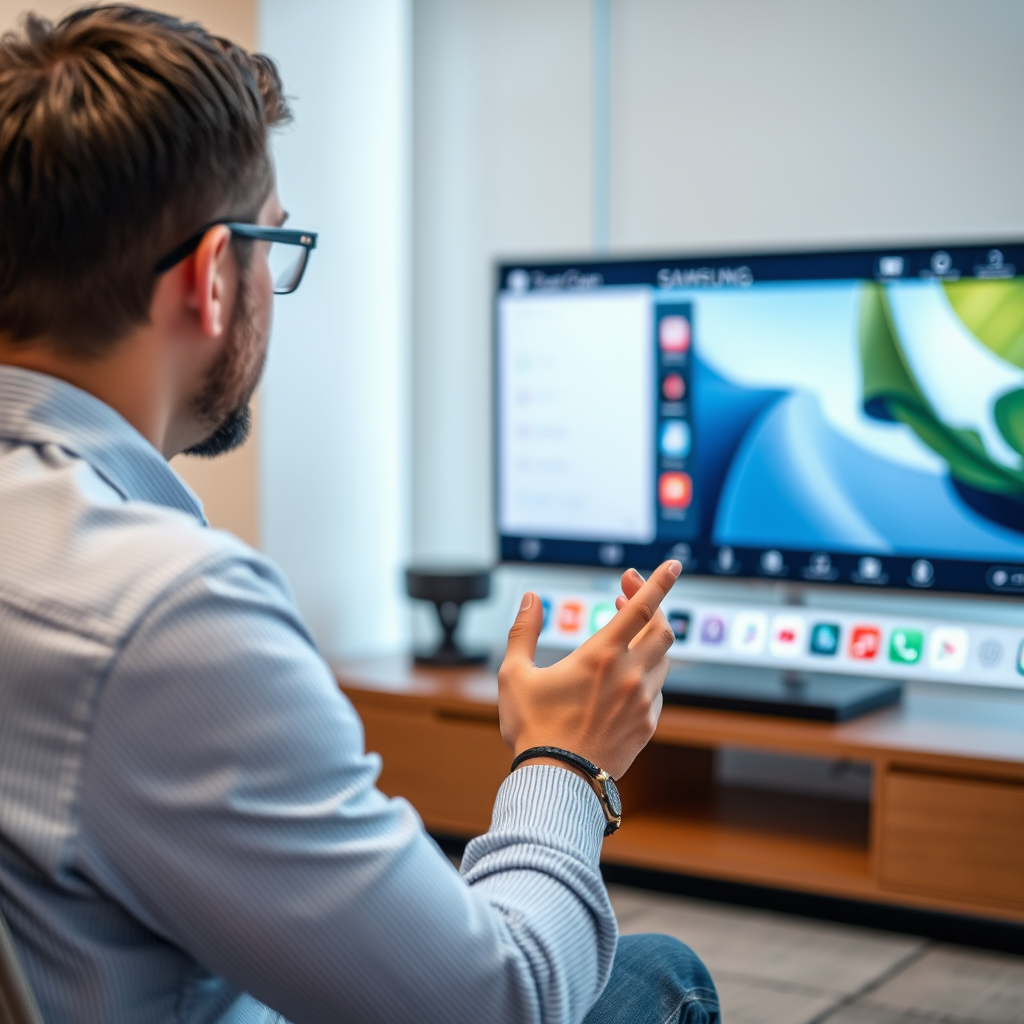
The Smart Hub is the central interface for all applications and services on your Samsung Smart TV. To begin, locate the Smart Hub button on your remote control—usually depicted as a house icon. Press this button to open the Smart Hub interface, where you will find a variety of options to choose from, including apps, settings, and media sources.
Once in the Smart Hub, navigate to the “Apps” section. This is where you can explore all available applications to enhance your TV’s functionality. The layout is user-friendly, allowing you to scroll through various categories or search for specific applications directly. Take your time to familiarize yourself with the Smart Hub, as it serves as the gateway to customizing your viewing experience.
Using the Pre-Installed Internet App
Samsung Smart TVs come equipped with a pre-installed Internet app, providing immediate access to web browsing without any additional installations. To find the Internet app, return to the Apps section of the Smart Hub. You can either scroll through the available apps or use the search function to find it more quickly.
Once you locate the Internet app, select it to launch. The interface is designed to be intuitive, featuring a familiar web browser layout that includes a URL bar, bookmarks, and navigation controls. You can start browsing immediately—simply enter a website address or search term, and enjoy the vast resources of the internet right on your screen. This option is ideal for users who prefer a straightforward browsing experience without the need for extra steps.
Downloading a Third-Party Browser
If you’re looking for more advanced features or a different browsing experience, you may opt to download a third-party web browser from the Smart Hub. Begin by accessing the Apps section again through the Smart Hub. Here, you can search for compatible web browsers such as Google Chrome or Firefox, which might offer enhanced performance and additional capabilities compared to the pre-installed app.
To download a browser, simply type its name into the search bar within the Apps section. Once you find your desired browser, select it to view more details and installation options. Follow the on-screen prompts to download and install the browser onto your Smart TV. The process is typically straightforward and fast, allowing you to set up your preferred browser in a matter of minutes.
Top Web Browsers for Samsung Smart TVs (2024)
| # | Browser Name | Compatibility | User Rating | Features |
|---|---|---|---|---|
| 1 | Samsung Internet | Samsung TVs | ★★★★☆ | Built-in ad blocker |
| 2 | Google Chrome | Samsung TVs | ★★★★★ | Syncs across devices |
| 3 | Mozilla Firefox | Samsung TVs | ★★★★☆ | Privacy-focused |
| 4 | Opera | Samsung TVs | ★★★★☆ | Built-in VPN |
| 5 | Vivaldi | Samsung TVs | ★★★☆☆ | Customization options |
| 6 | Brave | Samsung TVs | ★★★★☆ | Ad-blocking features |
| 7 | Maxthon | Samsung TVs | ★★☆☆☆ | Limited features |
Setting Up the Browser
After successfully installing your chosen web browser, you can initiate the setup process. Open the newly installed browser from the Apps menu on your Smart TV. The first time you launch the browser, you may be prompted to accept terms and conditions or set preferences. Follow these prompts to proceed.
Once the browser is open, take a moment to customize your settings to enhance your browsing experience. You can add bookmarks for your favorite websites, set a homepage for easy access, and adjust privacy settings according to your preferences. Many browsers also offer extensions or add-ons that can further enhance functionality. Familiarize yourself with these options to make the most of your browsing experience on your Samsung Smart TV.
Troubleshooting Common Issues
While browsing on your Samsung Smart TV can be a seamless experience, you may encounter some common issues. If your browser doesn’t load or seems slow, the first step is to check your internet connection. Ensure that your TV is connected to a stable Wi-Fi network or wired Ethernet connection.
If the browser continues to perform poorly, consider restarting your Smart TV. This can clear temporary glitches or memory issues that may be affecting performance. Simply turn off the TV, unplug it for a minute, and then plug it back in. After restarting, check to see if the browser is functioning correctly.
Tips for Enhanced Browsing Experience
To maximize your browsing experience on your Samsung Smart TV, consider using a wireless keyboard. This accessory can significantly streamline text input, making it easier to search for information or fill out forms. Many wireless keyboards are compatible with Smart TVs, and some even come with touchpads for added convenience.
Additionally, take the time to explore the settings of your browser. Adjusting privacy and security features can provide a safer browsing experience. Look for options that allow you to manage cookies, control location access, and block pop-up ads. These adjustments can enhance your overall experience, ensuring that you can browse the web safely and efficiently.
In summary, installing a web browser on your Samsung Smart TV is a straightforward process, whether you choose to use the pre-installed Internet app or download a third-party browser. By following the outlined steps, you can customize your browsing experience, troubleshoot common issues, and enjoy a variety of web content directly on your TV. Embrace the convenience of web browsing in your living room, and take advantage of the rich resources available at your fingertips. Happy browsing!
Frequently Asked Questions
How do I install a web browser on my Samsung Smart TV?
To install a web browser on your Samsung Smart TV, navigate to the Smart Hub by pressing the Home button on your remote. Select the Apps section and search for the Internet browser. Once found, click on Install to download and set it up for use.
Why can’t I find a web browser on my Samsung Smart TV?
Some Samsung Smart TVs may not come with a pre-installed web browser due to model limitations or regional restrictions. If you cannot find the browser, check for software updates in the Settings menu, as newer firmware versions may add additional apps to your device.
Which web browsers are compatible with Samsung Smart TVs?
The most common web browser compatible with Samsung Smart TVs is the Samsung Internet Browser, which is optimized for TV use. Additionally, some models may support other browsers like Google Chrome or Firefox through third-party apps available in the Smart Hub.
What are the best ways to browse the internet on my Samsung Smart TV?
The best ways to browse the internet on your Samsung Smart TV include using the built-in Samsung Internet browser for a seamless experience or connecting an external device like a streaming stick or a computer. This allows for more flexibility and access to a wider range of web applications.
How can I update the web browser on my Samsung Smart TV?
To update the web browser on your Samsung Smart TV, go to the Settings menu, select Support, and then Software Update. If an update for the browser is available, it will be included in the system update, ensuring you have the latest features and security improvements.
References
- Samsung Electronics
https://en.wikipedia.org/wiki/Samsung_Smart_TV - https://support.smartthings.com/hc/en-us/articles/360000009040-How-to-install-apps-on-your-Samsung-Smart-TV
https://support.smartthings.com/hc/en-us/articles/360000009040-How-to-install-apps-on-your-Samsung-Smart-TV - https://www.samsung.com/latin_en/support/tv-audio-video/how-to-install-apps-on-your-samsung-smart-tv/
https://www.samsung.com/latin_en/support/tv-audio-video/how-to-install-apps-on-your-samsung-smart-tv/ - https://www.samsung.com/latin_en/support/tv-audio-video/how-to-update-your-samsung-smart-tv/
https://www.samsung.com/latin_en/support/tv-audio-video/how-to-update-your-samsung-smart-tv/ - Google Scholar Google Scholar
https://scholar.google.com/scholar?q=install+web+browser+on+samsung+smart+tv - Google Scholar Google Scholar
https://scholar.google.com/scholar?q=samsung+smart+tv+app+installation - Google Scholar Google Scholar
https://scholar.google.com/scholar?q=how+to+install+apps+on+samsung+smart+tv - Google Scholar Google Scholar
https://scholar.google.com/scholar?q=how+to+install+web+browser+on+samsung+smart+tv - how to install web browser on samsung smart tv – Search results
https://en.wikipedia.org/wiki/Special:Search?search=how+to+install+web+browser+on+samsung+smart+tv - https://www.ncbi.nlm.nih.gov/search/research-articles/?term=how+to+install+web+browser+on+samsung+smart+tv
https://www.ncbi.nlm.nih.gov/search/research-articles/?term=how+to+install+web+browser+on+samsung+smart+tv

[…] You’ll learn exactly which buttons to press and where to find the Source menu on Samsung’s Smart Hub for a clean, immediate […]
[…] the fastest, most reliable method to remove unwanted apps—whether you use the Apps menu, the Smart Hub, or the Settings route. Follow the steps to delete apps cleanly and stop them from taking up […]
[…] Updating your Samsung Smart TV is fast and usually happens over the internet: go to Settings > Support > Software Update, then select Update Now. If your TV has a stable connection, it downloads and installs the latest firmware automatically—after which you should verify the installed version and test core apps like Smart Hub. […]
[…] → Support (or System) → Restart, which triggers a controlled reboot of the TV software and Smart Hub. If Samsung Smart TV inputs or apps stop responding, a power cycle by unplugging for about 30 […]
[…] to Samsung support guidance, the “Smart Hub” app platform is where apps are browsed and installed on Samsung Smart TVs. According to LG, […]
[…] time to boot, because the screen may remain blank during initial loading. The Samsung logo and Smart Hub interface typically appear after the TV completes its startup […]
[…] for “NFL+” in your TV’s App Store search (common storefronts: Roku Channel Store, Samsung Smart Hub, LG Content Store, Android TV/Google TV Play […]
[…] the Samsung Smart Hub on your TV, then go to the Apps section and search for “Crunchyroll.” Select the app and choose […]
[…] (look for the gear icon), then confirm you’re on the correct TV input, and finally restart the TV/Smart Hub. In my own troubleshooting on several Samsung sets, I’ve found the missing-Settings symptom is […]
[…] app availability) and the quickest steps to reinstall or access Tubi when it’s missing from the Smart Hub. Follow it in order and you’ll know whether Tubi should appear on your TV or what workaround to […]
[…] your exact TV model supports TV Plus, update the TV’s software/firmware, then search in the right Smart Hub menu location. In practice, I’ve seen most “missing app” cases on Samsung sets come down to […]
[…] updating your Samsung Smart TV firmware, open the Smart Hub by pressing Home, then go to Apps. Select Settings (or the app options menu) and choose Update apps […]
[…] can usually watch YouTube on a Samsung Smart TV by opening the YouTube app from Smart Hub and signing in (optional), then fixing playback by checking internet stability and updating TV […]
[…] to apps on your Samsung Smart TV is easiest through the Apps icon on the Smart Hub home screen, then navigating by category or search to open the app you want. This guide shows the […]
[…] Follow these steps and you’ll be ready to change channels, control volume, and navigate Smart Hub without […]
[…] the Samsung App Store. From my experience troubleshooting installs on Samsung models from the Smart Hub era into newer Tizen-based sets, the “missing apps” problem nearly always traces back to […]
[…] without wasting time on setup? This guide gives you the fastest path to pairing, navigating the Smart Hub, and controlling streaming apps with the right buttons. If you follow the steps in order, you’ll […]