


To watch Pure Flix on your Samsung Smart TV, you need to download the Pure Flix app from the Smart Hub or access it via a compatible streaming device. This guide will walk you through the steps to easily set up and enjoy Pure Flix’s family-friendly content on your TV, ensuring you can access a diverse library of wholesome entertainment for all ages.
Pure Flix is a streaming service dedicated to providing family-friendly content, including movies, TV shows, and documentaries that align with Christian values. As families increasingly seek safe viewing options, Pure Flix has emerged as a popular choice. This post will guide you through the necessary steps to access Pure Flix on your Samsung Smart TV, including troubleshooting tips and alternative methods for streaming.
Accessing the Smart Hub
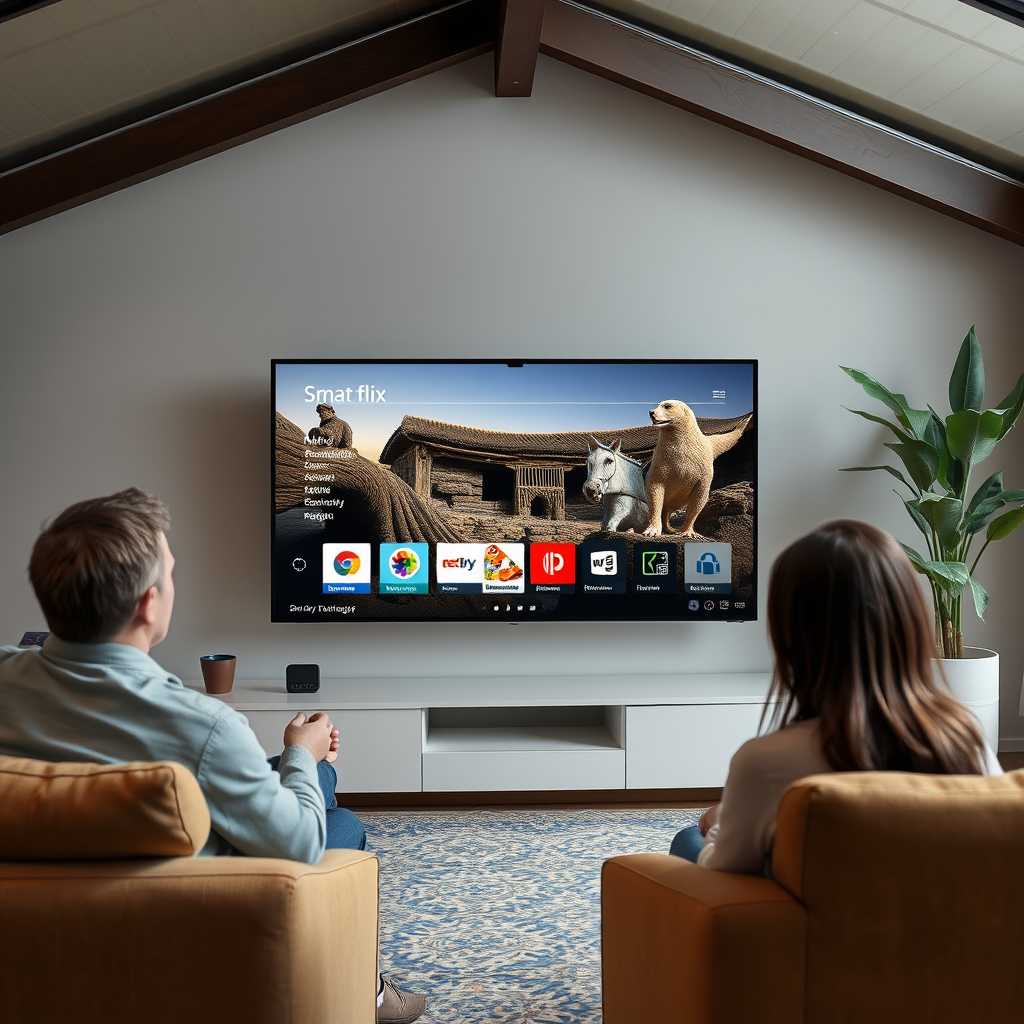
The first step to getting Pure Flix on your Samsung Smart TV is to access the Smart Hub. The Smart Hub serves as the central dashboard for your TV, granting you access to various apps and features.
– Navigate to the Smart Hub on your Samsung Smart TV. To do this, press the ‘Home’ button on your remote control. This will take you to the main menu.
– Locate the Apps section to search for new applications. Use the directional buttons on your remote to find the ‘Apps’ icon. Once highlighted, select it to open the Apps Store where you can browse available applications.
The Smart Hub is user-friendly, making it easy to explore and download new apps tailored to your entertainment needs.
Downloading the Pure Flix App
With access to the Smart Hub secured, the next step is to download the Pure Flix app.
– Search for “Pure Flix” in the Apps section. Use the search function within the Apps Store. Type “Pure Flix” using the on-screen keyboard, or use voice search if your remote supports it.
– Select the app and click “Install” to download it onto your TV. Once you find the Pure Flix app, click on it to view more details, and then select the “Install” button. The installation process will only take a few moments, after which the app will be available on your home screen.
Downloading the Pure Flix app is a straightforward process, allowing you to access a plethora of family-friendly titles at your convenience.
Setting Up Your Pure Flix Account
After successfully installing the app, you need to set up your Pure Flix account to start streaming.
– Open the Pure Flix app after installation. Navigate to your home screen and select the Pure Flix icon to launch the app.
– Sign in with your existing account or create a new account if needed. If you’re a new user, you can sign up directly through the app, requiring an email address and password. Returning users can easily sign in with their credentials.
Creating a Pure Flix account is essential for unlocking the service’s full potential, as it allows you to customize your viewing preferences and manage your subscription.
Top Features of Pure Flix (2024)
| # | Feature | Details | Rating |
|---|---|---|---|
| 1 | Extensive Library | Over 1,000 titles | ★★★★☆ |
| 2 | Multiple Genres | Movies, series, and documentaries | ★★★★★ |
| 3 | Family-Friendly Content | Safe for all ages | ★★★★★ |
| 4 | Offline Viewing | Download content for later | ★★★★☆ |
| 5 | Multiple Devices | Stream on 5 devices simultaneously | ★★★★★ |
| 6 | Ad-Free Experience | No interruptions while streaming | ★★★★★ |
| 7 | Affordable Pricing | Monthly and annual plans available | ★★★★☆ |
Troubleshooting Installation Issues
While the installation process is typically seamless, you may encounter issues. Here are some troubleshooting steps:
– Ensure your Samsung Smart TV software is up to date. Navigate to the settings menu, select “Support,” and then “Software Update” to check for updates. Keeping your software up to date can resolve compatibility issues.
– Restart your TV if the app fails to install or open. A simple restart can refresh the system and may resolve any temporary glitches causing the app to malfunction.
If you continue to experience difficulties, refer to the Pure Flix support page for further assistance or consider reaching out to Samsung customer support.
Streaming Content on Pure Flix
Once your account is set up, you can start streaming content on Pure Flix.
– Browse through the app’s library of movies and shows. The Pure Flix app features categories like “New Releases,” “Popular,” and “Family Favorites” to help you find suitable content easily.
– Select a title to start streaming directly on your TV. Click on the title you wish to watch, and the app will display additional information along with the option to play it.
The user-friendly interface of the Pure Flix app enhances your viewing experience, making it easy to discover new, family-friendly titles.
Alternative Methods to Access Pure Flix
If you’re unable to find the Pure Flix app on your Samsung Smart TV, consider these alternative methods to access the service.
– Use a streaming device like Roku or Amazon Fire Stick if Pure Flix is unavailable on your Smart TV. These devices offer flexibility and can easily be plugged into your TV’s HDMI port, allowing you to download the Pure Flix app and stream content.
– Cast from your mobile device to the TV using screen mirroring options. Both Android and iOS devices support screen mirroring, allowing you to cast content directly from the Pure Flix mobile app to your TV.
These alternative methods ensure you can enjoy Pure Flix’s offerings, regardless of your device limitations.
Tips for a Better Streaming Experience
To enhance your streaming experience on Pure Flix, consider the following tips:
– Check your internet connection for optimal streaming quality. A stable and fast internet connection is essential for uninterrupted viewing. Consider using a wired connection or ensuring your Wi-Fi signal is strong.
– Consider subscribing to Pure Flix’s premium plan for full access to all content. The premium subscription typically offers additional features and content, ensuring you and your family can enjoy the best of what Pure Flix has to offer.
By following these tips, you can ensure a smooth and enjoyable streaming experience while watching Pure Flix’s extensive library.
In summary, getting Pure Flix on your Samsung Smart TV involves downloading the app through the Smart Hub and setting up your account. If you encounter any issues, troubleshooting steps are available to ensure a smooth streaming experience. Dive into Pure Flix’s extensive library of family-friendly entertainment today! Whether you’re looking for uplifting movies or educational documentaries, Pure Flix offers a wealth of content that aligns with your family values.
Frequently Asked Questions
How do I download the Pure Flix app on my Samsung Smart TV?
To download the Pure Flix app on your Samsung Smart TV, first, press the Home button on your remote to access the Smart Hub. Navigate to the Apps section and use the search function to find “Pure Flix.” Once you locate the app, select it and click “Install” to begin downloading it to your device.
Why can’t I find the Pure Flix app on my Samsung Smart TV?
If you can’t find the Pure Flix app on your Samsung Smart TV, it may be due to compatibility issues or your TV model not supporting the app. Ensure your TV’s firmware is updated to the latest version and check the Pure Flix website for supported devices. If your TV isn’t compatible, you can consider using a streaming device like Roku or Amazon Fire Stick.
What do I need to watch Pure Flix on my Samsung Smart TV?
To watch Pure Flix on your Samsung Smart TV, you need a stable internet connection and an active Pure Flix subscription. After installing the app, log in with your account credentials, and you’ll have access to a wide range of family-friendly movies and series available on the platform.
How can I troubleshoot issues with the Pure Flix app on my Samsung Smart TV?
If you’re experiencing issues with the Pure Flix app on your Samsung Smart TV, try restarting your TV and the app. Ensure your internet connection is stable and check for any available updates for both your TV and the app. If problems persist, consider uninstalling and reinstalling the app to resolve any glitches.
Which Samsung Smart TV models support the Pure Flix app?
The Pure Flix app is generally supported on Samsung Smart TV models released from 2016 onwards. However, for the best experience, it’s recommended to use newer models that run on Tizen OS, as these are more likely to receive app updates and performance improvements. Always check the Pure Flix website for the most up-to-date compatibility information.
References
- https://support.samsung.com/us/support/owners/applications
https://support.samsung.com/us/support/owners/applications - https://www.lifewire.com/how-to-install-apps-on-samsung-smart-tv-4687395
https://www.lifewire.com/how-to-install-apps-on-samsung-smart-tv-4687395 - https://scholar.google.com/scholar?q=pure+flix+on+samsung+smart+tv Google Scholar
https://scholar.google.com/scholar?q=pure+flix+on+samsung+smart+tv - https://scholar.google.com/scholar?q=streaming+apps+on+smart+tv Google Scholar
https://scholar.google.com/scholar?q=streaming+apps+on+smart+tv - https://scholar.google.com/scholar?q=how+to+use+smart+tv+applications Google Scholar
https://scholar.google.com/scholar?q=how+to+use+smart+tv+applications - https://scholar.google.com/scholar?q=how+to+get+pure+flix+on+samsung+smart+tv Google Scholar
https://scholar.google.com/scholar?q=how+to+get+pure+flix+on+samsung+smart+tv - https://en.wikipedia.org/wiki/Special:Search?search=how+to+get+pure+flix+on+samsung+smart+tv
https://en.wikipedia.org/wiki/Special:Search?search=how+to+get+pure+flix+on+samsung+smart+tv - https://www.ncbi.nlm.nih.gov/search/research-articles/?term=how+to+get+pure+flix+on+samsung+smart+tv
https://www.ncbi.nlm.nih.gov/search/research-articles/?term=how+to+get+pure+flix+on+samsung+smart+tv

[…] they standardize performance and app support. If your Smart TV’s OS is restrictive or outdated, a streaming device like Roku, Amazon Fire TV, or Apple TV can give you more predictable casting and browser […]
[…] you’re trying to get Pure Flix on your TV, the fastest path is using the official Pure Flix app on your streaming device. This step-by-step guide walks you through installation, signing in, and […]