

Connecting speakers to your PS5 is simple and can significantly enhance your gaming experience. Whether you prefer wired or wireless speakers, this guide will walk you through the necessary steps to ensure you enjoy immersive sound while gaming. The PS5 is equipped with versatile audio options, making it easy to set up your audio output for an optimal gaming experience.
Understanding PS5 Audio Options
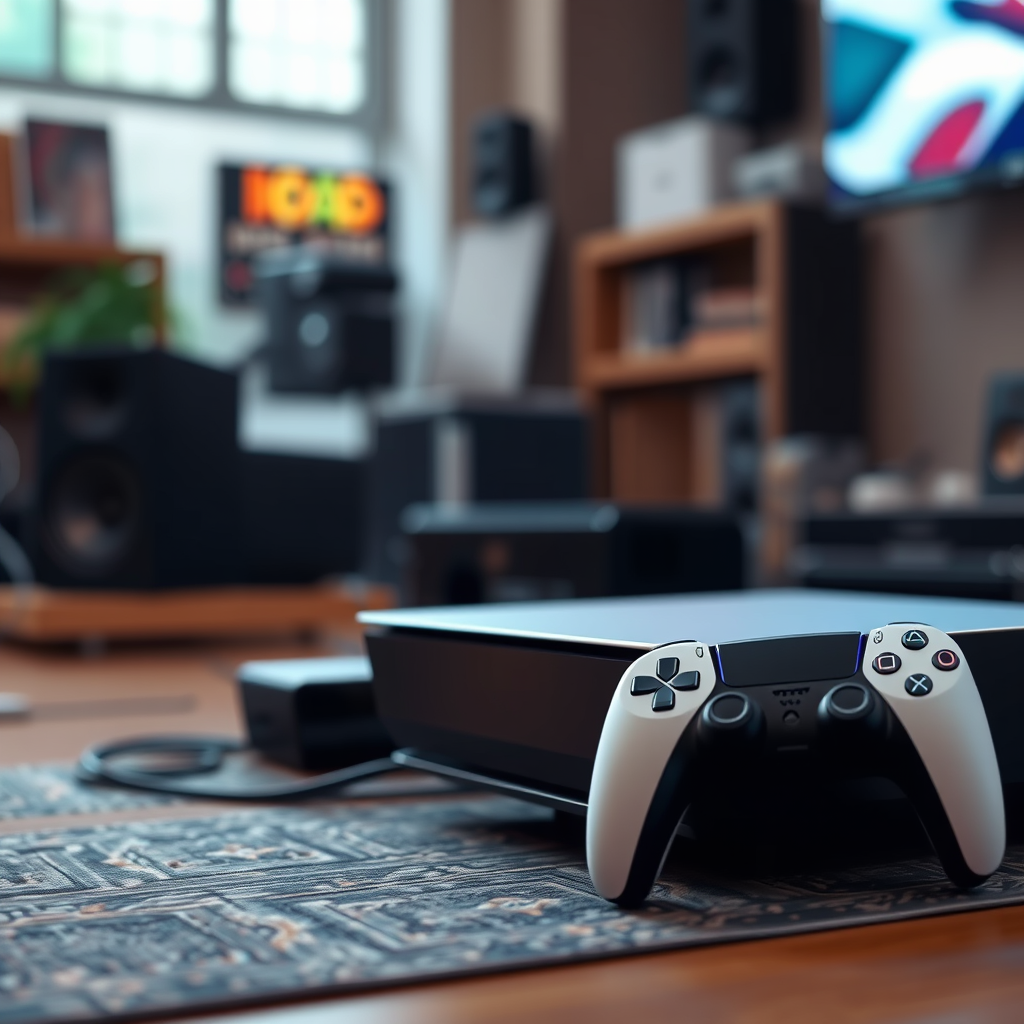
The PlayStation 5 supports various audio output formats, allowing gamers to customize their audio experience. This includes standard stereo audio and advanced surround sound formats, enhancing the immersion of titles that support these features. Before proceeding with the connection, it’s crucial to determine the type of speakers you own—whether they are wired or wireless—as this will dictate the connection method you should use.
Wired speakers typically connect through HDMI or optical audio output, while wireless speakers often utilize Bluetooth technology. Being clear on your speaker type will streamline the setup process and help you enjoy high-quality sound without unnecessary frustration.
Connecting Wired Speakers
To connect wired speakers to your PS5, follow these steps:
1. Identify the Audio Output Port: Locate the audio output port on your PS5. This could be an HDMI port or an optical audio output. Most modern speakers utilize HDMI, which provides better sound quality and supports surround sound formats.
2. Connect the Speakers: Use the appropriate cable to connect your speakers to the PS5. If you are using an HDMI connection, simply plug the HDMI cable into the designated port on the PS5 and the other end into your speakers. For optical audio connections, use a TOSLINK cable to connect the PS5’s optical output to the speakers.
3. Power On and Input Mode: Make sure your speakers are powered on and set to the correct input mode. This might require toggling through your speaker settings or remote until the correct source is selected.
4. Test the Connection: Start your PS5 and navigate to the audio settings to ensure the sound is coming through the connected speakers. Adjust volume levels and settings as required for your gaming experience.
Connecting Wireless Speakers
Connecting wireless speakers adds convenience and flexibility to your audio setup. Here’s how to do it:
1. Access Settings Menu: Turn on your PS5 and navigate to the main menu. Go to the “Settings” icon, represented by a gear, and select it.
2. Navigate to Sound Settings: Within the settings menu, find and select “Sound.” Here, you will see options for audio output.
3. Enable Bluetooth on Your Speakers: Make sure your wireless speakers have Bluetooth enabled and are in pairing mode. This typically involves pressing a button on the speakers until an indicator light blinks, signaling that they are ready to connect.
4. Connect to Your PS5: Back in the PS5 settings, select “Bluetooth Devices.” Your PS5 will scan for available devices, and once your speakers appear on the list, select them to pair.
5. Confirm Connection: After pairing, test the audio output by playing a game or media file. Adjust settings as necessary to ensure the sound quality meets your expectations.
Adjusting Audio Settings on PS5
Once your speakers are connected, it’s essential to optimize your audio settings for the best gaming experience:
– Access Sound Settings: Go to the “Settings” menu on your PS5 and select “Sound.” Here, you can choose between different audio output options such as HDMI or USB Audio, depending on your setup.
– Choose Audio Format: Explore the audio format options available, such as Stereo or 3D Audio. 3D Audio is particularly beneficial for immersive gaming experiences, as it creates a surround sound effect that enhances spatial awareness in games.
– Volume Control: Adjust the master volume and chat audio balance to ensure you can hear both game audio and in-game communication clearly.
– Test Different Settings: Experiment with various formats and settings to determine what works best for your specific speakers and gaming style.
Top 7 Speakers Compatible with PS5 (2024)
| # | Speaker Model | Type | Wireless | Sound Quality |
|---|---|---|---|---|
| 1 | Sony HT-G700 | Soundbar | Yes | Excellent |
| 2 | Bose SoundLink | Portable | Yes | Very Good |
| 3 | Logitech Z313 | Desktop | No | Good |
| 4 | Razer Nommo | Gaming | No | Excellent |
| 5 | JBL Charge 4 | Portable | Yes | Very Good |
| 6 | Audioengine A2+ | Bookshelf | No | Excellent |
| 7 | Creative Pebble 2.0 | Desktop | No | Good |
Troubleshooting Connection Issues
If you encounter difficulties when connecting your speakers, consider the following troubleshooting steps:
1. Check Connections: Ensure that all cables are securely connected and that your speakers are powered on. A loose connection can often lead to audio issues.
2. Update PS5 Software: Keeping your PS5 software up to date is crucial, as updates can resolve various connectivity issues. Navigate to the settings menu, select “System,” and check for updates.
3. Speaker Compatibility: Confirm that your speakers are compatible with the PS5. Some older models may lack necessary connections or technology.
4. Reset Speaker Settings: If you are using wireless speakers, try resetting them to factory settings and reattempt pairing with the PS5.
By following these troubleshooting steps, you can often resolve common issues that arise during the speaker connection process.
Enhancing Your Audio Experience
To further enhance your audio experience while gaming, consider the following tips:
– Soundbar or Home Theater System: Investing in a quality soundbar or home theater system can significantly improve sound quality. These systems are designed to provide immersive audio experiences with deeper bass and clearer dialogue.
– Audio Accessories: Explore additional audio accessories such as gaming headsets or amplifiers that can elevate your gaming experience. High-quality headsets can provide spatial audio and a more personal sound experience.
– Room Acoustics: Pay attention to the acoustics of your gaming space. Positioning speakers correctly and using acoustic panels can improve sound quality and reduce unwanted echo.
Final Tips for Optimal Sound
To ensure you get the most out of your audio setup, keep these final tips in mind:
– Speaker Placement: Position your speakers at ear level and make sure they are spaced appropriately for optimal sound dispersion. This can enhance the overall audio experience during gameplay.
– Regularly Check Settings: Periodically review your audio settings on the PS5 to ensure they are still optimized for your current gaming preferences and speaker setup.
– Experimentation: Don’t be afraid to experiment with different setups and sound settings. Each game may require adjustments to achieve the best sound experience.
By following these steps, you will have successfully connected your speakers to your PS5 and can enjoy a more dynamic gaming experience. Make sure to experiment with different setups to find what works best for you, and don’t hesitate to reach out for support if you encounter any difficulties. Happy gaming!
Frequently Asked Questions
How do I connect my speakers to the PS5 using Bluetooth?
To connect Bluetooth speakers to your PS5, go to the Settings menu, select Devices, and then Bluetooth Devices. Make sure your Bluetooth speakers are in pairing mode, and they should appear on the list. Select your speakers and follow the prompts to complete the connection for optimal audio experience.
What type of speakers are best for PS5 gaming?
The best speakers for PS5 gaming are those that provide immersive sound quality, such as surround sound systems or high-quality stereo speakers. Look for models that support Dolby Atmos or DTS:X for a more engaging gaming experience. Brands like Logitech, Bose, and Sony offer excellent options designed specifically for gaming.
Why won’t my speakers connect to my PS5?
If your speakers won’t connect to your PS5, ensure that they are in pairing mode and compatible with the console. Also, check for any software updates on your PS5 as outdated firmware can affect connectivity. If issues persist, try resetting your speakers or restarting your PS5 to resolve connection problems.
Can I use wired speakers with my PS5?
Yes, you can use wired speakers with your PS5 by connecting them through the optical audio output or the HDMI ARC port if your speakers support it. Make sure to configure the audio output settings in the PS5 menu to ensure sound is directed to your wired speakers for an enhanced gaming experience.
How do I adjust the audio settings for my speakers on PS5?
To adjust audio settings for your speakers on PS5, navigate to Settings, then Sound, and select Audio Output. From there, you can choose your output device and adjust settings like volume, 3D audio, and more to tailor the sound experience to your liking, ensuring you get the best audio performance from your speakers.
References
- PlayStation® Official Site: Consoles, Games, Accessories & More
https://support.playstation.com/s/article/PS5-Setup-Guide?language=en_US - https://www.reddit.com/r/PlayStation/comments/iq4j0q/how_to_connect_speakers_to_ps5/
https://www.reddit.com/r/PlayStation/comments/iq4j0q/how_to_connect_speakers_to_ps5/ - Google Scholar Google Scholar
https://scholar.google.com/scholar?q=connect+speakers+to+ps5 - Google Scholar Google Scholar
https://scholar.google.com/scholar?q=PS5+audio+setup - Google Scholar Google Scholar
https://scholar.google.com/scholar?q=how+to+connect+bluetooth+speakers+to+PS5 - Google Scholar Google Scholar
https://scholar.google.com/scholar?q=how+to+connect+speakers+to+ps5 - how to connect speakers to ps5 – Search results
https://en.wikipedia.org/wiki/Special:Search?search=how+to+connect+speakers+to+ps5 - https://www.ncbi.nlm.nih.gov/search/research-articles/?term=how+to+connect+speakers+to+ps5
https://www.ncbi.nlm.nih.gov/search/research-articles/?term=how+to+connect+speakers+to+ps5
