

To hook speakers up to your TV, you typically need to identify the right connections and cables that match both your TV and speakers. This guide will walk you through the various methods to connect your speakers, whether they are wired or wireless, ensuring you enjoy high-quality sound from your television. With the right setup, you can enhance your viewing experience by achieving a cinematic sound that immerses you in the action.
Understanding Your TV’s Audio Outputs
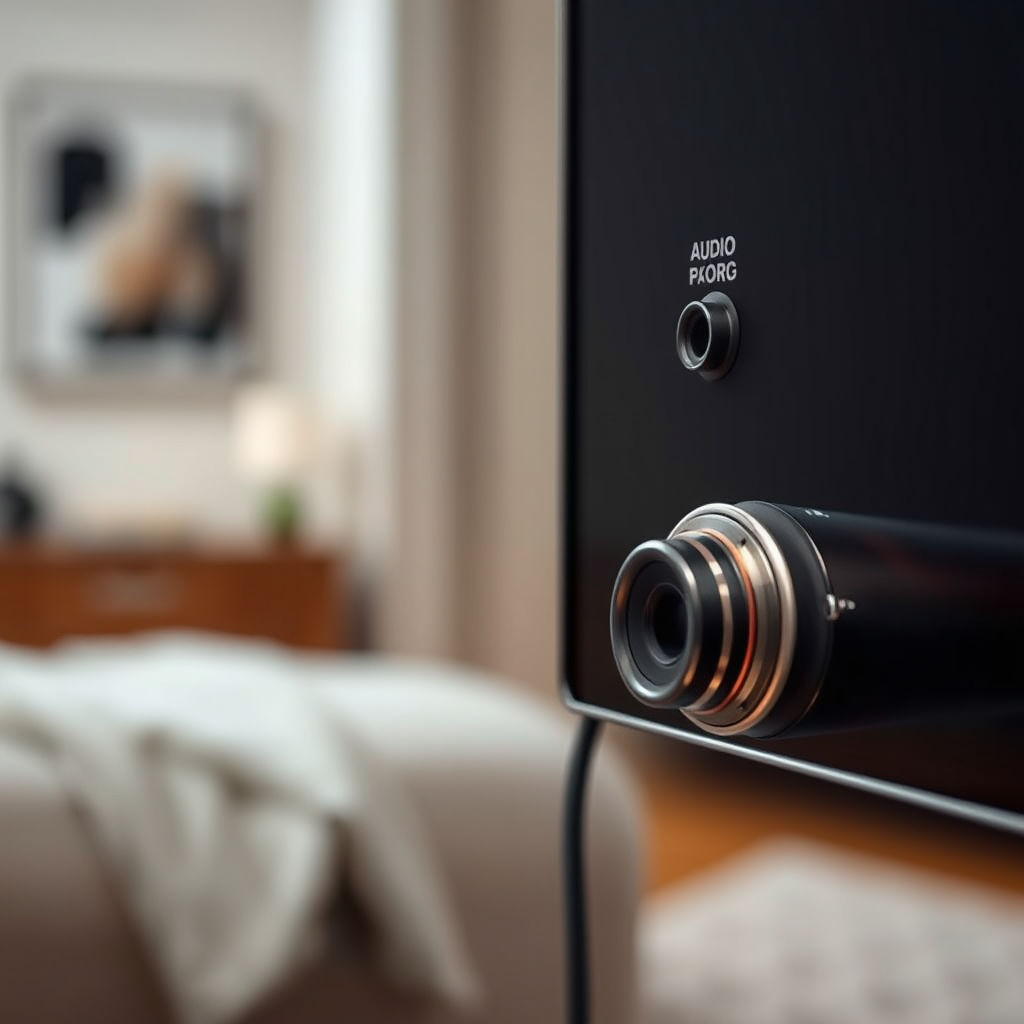
The first step in connecting your speakers to your TV involves understanding the various audio output options available. Most modern televisions come equipped with multiple audio output choices, including:
– HDMI ARC (Audio Return Channel): This is a popular choice for connecting soundbars or AV receivers. It allows for two-way communication and the transfer of high-quality audio.
– Optical (TOSLINK): This digital connection transmits audio signals in a fiber-optic format, providing high-quality sound without interference.
– RCA (Red and White Jacks): A common analog connection that is widely used for older audio equipment. This method is straightforward but may not provide the same audio quality as digital connections.
To ensure compatibility, check the specifications of your speakers. Many modern speakers offer multiple input options, allowing for flexibility in connection methods. Compatibility is crucial to ensure that you achieve the best sound quality possible.
Choosing the Right Cables
Once you have identified the audio output options on your TV and the compatible input options on your speakers, the next step is to choose the right cables. Here’s a breakdown of the cables you will need for each connection type:
– HDMI Cables: Use these for HDMI ARC connections. Ensure you have a high-speed HDMI cable to support high-definition audio formats.
– Optical Cables: These cables are specifically designed for TOSLINK connections and provide a high-quality audio signal. They are typically lightweight and easy to install.
– Speaker Wires: For wired connections, especially with passive speakers, you will need appropriate gauge speaker wire. The length of the wire should be sufficient to connect the speakers to the TV or audio receiver without causing awkward placements.
Make sure to measure the distance between your TV and speakers before purchasing cables to avoid any last-minute inconveniences.
Connecting Wired Speakers
Connecting wired speakers is a straightforward process, and it is essential to follow these steps to ensure a secure connection:
1. Locate the Audio Output: Identify whether you will be using RCA or speaker wire connections.
2. RCA Connections:
– Connect the red and white RCA plugs from the TV’s output to the corresponding input on the speakers.
– Ensure that the connections are tight, as loose connections can lead to audio issues.
3. Speaker Wire Connections:
– If you are using speaker wires, strip about half an inch of insulation from the ends of the wires.
– Connect the positive (+) and negative (-) terminals on your speakers to the corresponding terminals on your TV or receiver.
– Twist the wires securely to prevent them from coming loose.
Wiring Connection Summary
Top 7 Types of Speaker Connections
| # | Connection Type | Audio Quality | Ease of Use | Best For |
|---|---|---|---|---|
| 1 | HDMI ARC | High | Easy | Modern Home Theaters |
| 2 | Optical | High | Moderate | Soundbars |
| 3 | RCA | Moderate | Easy | Older Systems |
| 4 | Speaker Wire | High | Moderate | Home Audio Systems |
| 5 | Bluetooth | Moderate | Easy | Portable Speakers |
| 6 | Wi-Fi | High | Moderate | Smart Home Systems |
| 7 | 3.5mm Auxiliary | Moderate | Very Easy | Basic Devices |
Setting Up Wireless Speakers
Connecting wireless speakers to your TV can vary based on the type of wireless technology they use, such as Bluetooth or Wi-Fi. Here’s how to set up each type:
1. Bluetooth Speakers:
– Ensure your TV has Bluetooth capabilities. If it does, access the Bluetooth settings on your TV.
– Put your Bluetooth speaker in pairing mode, usually indicated by a flashing light.
– On your TV, scan for available Bluetooth devices and select your speaker to pair.
2. Wi-Fi Speakers:
– For Wi-Fi-enabled speakers, download the manufacturer’s app on your smartphone or tablet.
– Follow the app instructions to connect your speaker to the same Wi-Fi network as your TV.
– Once connected, you can often control the speaker through the app or your TV settings.
Troubleshooting Common Connectivity Issues
– If your Bluetooth speaker fails to connect, ensure it’s close to the TV and not connected to another device.
– For Wi-Fi speakers, confirm that both the speaker and TV are on the same network to avoid connectivity issues.
– Restarting the devices can often resolve any lingering connection problems.
Adjusting TV Audio Settings
After connecting your speakers, it is crucial to adjust your TV’s audio settings to ensure optimal sound quality. Here’s a step-by-step guide:
1. Accessing Audio Settings: Most TVs have an audio settings menu accessible via the remote control. Look for settings labeled as “Audio,” “Sound,” or “Speaker Setup.”
2. Select the Right Output: Ensure that your TV is set to output audio through the connected speakers. For HDMI ARC connections, select “External Speakers” or “Soundbar.”
3. Adjust Volume Levels: Set the volume levels for your TV and speakers to avoid distortion. Consider adjusting the balance, treble, and bass settings based on your preferences.
4. Sound Modes: Many TVs offer different sound presets such as “Movie,” “Music,” or “Game.” Experiment with these settings to find the best sound profile for your content.
Testing Your Setup
Once everything is connected and adjusted, it’s time to test your setup. Here are steps to ensure everything is working as intended:
1. Play Different Content: Start with various types of audio and video content, including movies, music, and games, to test the sound quality.
2. Check for Issues: Listen for any distortion, dropouts, or connectivity issues. If you encounter problems, revisit your connections and settings.
3. Adjust Settings: Based on your listening environment, you may need to adjust settings further. Consider your room’s acoustics and furniture layout, which can impact sound quality.
In summary, connecting speakers to your TV can enhance your viewing experience significantly. By understanding your TV’s outputs, choosing the right cables, and adjusting the settings, you can easily set up your audio system. If you encounter any issues, don’t hesitate to troubleshoot or consult your device manuals for further assistance. Enjoy your new sound setup!
Frequently Asked Questions
How do I connect my speakers to a TV using HDMI?
To connect your speakers to a TV using HDMI, first ensure that both your TV and speakers support HDMI ARC (Audio Return Channel). Then, use an HDMI cable to connect the HDMI ARC port on your TV to the HDMI input on your speakers. This setup allows for high-quality audio transmission and enables you to control the volume with your TV remote.
What type of speakers can I hook up to my TV?
You can hook up a variety of speakers to your TV, including soundbars, bookshelf speakers, and home theater systems. Make sure the speakers are compatible with your TV’s audio output options, such as optical, HDMI, or Bluetooth, to ensure the best sound quality. For a simple setup, a soundbar is often the best choice due to its ease of installation and compact design.
Why is there no sound from my speakers after connecting them to the TV?
If there is no sound from your speakers after connecting them to the TV, first check the audio output settings on your TV to ensure the correct output source is selected. Additionally, verify that the speakers are powered on and that the volume is adjusted appropriately. If you’re using HDMI or optical connections, ensure all cables are securely plugged in.
Which cables are best for connecting speakers to a TV?
The best cables for connecting speakers to a TV depend on the type of speakers and TV you have. For wired connections, HDMI cables and optical audio cables provide excellent sound quality. For traditional speakers, speaker wire is necessary, while Bluetooth connections are ideal for wireless speakers, offering convenience without the clutter of cables.
How can I set up wireless speakers with my TV?
To set up wireless speakers with your TV, first ensure that your TV has Bluetooth capability or a compatible wireless audio transmitter. Pair the speakers with your TV by accessing the Bluetooth settings on your TV and selecting your speakers from the list of available devices. Once connected, adjust the audio settings to ensure the sound is routed through your wireless speakers for an optimal listening experience.
References
- https://en.wikipedia.org/wiki/Speaker_(audio
https://en.wikipedia.org/wiki/Speaker_(audio - Find out which graphics processor is in use on your MacBook Pro – Apple Support
https://support.apple.com/en-us/HT202053 - https://www.lifewire.com/how-to-connect-speakers-to-your-tv-1846611
https://www.lifewire.com/how-to-connect-speakers-to-your-tv-1846611 - https://www.bbc.co.uk/news/technology-33445989
https://www.bbc.co.uk/news/technology-33445989 - https://www.pcmag.com/how-to/how-to-connect-your-tv-to-a-soundbar-or-home-theater-system
https://www.pcmag.com/how-to/how-to-connect-your-tv-to-a-soundbar-or-home-theater-system - What types of devices can be connected to the car stereo? | Sony USA
https://www.sony.com/electronics/support/articles/00030281 - Google Scholar Google Scholar
https://scholar.google.com/scholar?q=how+to+hook+speakers+up+to+a+tv - Google Scholar Google Scholar
https://scholar.google.com/scholar?q=speaker+connection+to+television - Google Scholar Google Scholar
https://scholar.google.com/scholar?q=home+theater+system+setup - how to hook speakers up to a tv – Search results
https://en.wikipedia.org/wiki/Special:Search?search=how+to+hook+speakers+up+to+a+tv
