

Connecting speakers to your TV can significantly enhance your audio experience. Whether you’re using wired or wireless speakers, the process is straightforward and can be accomplished with a few simple steps. This guide will walk you through the different methods of connecting speakers to your TV, ensuring you enjoy superior sound quality for your favorite movies and shows.
Understanding Your TV’s Audio Outputs
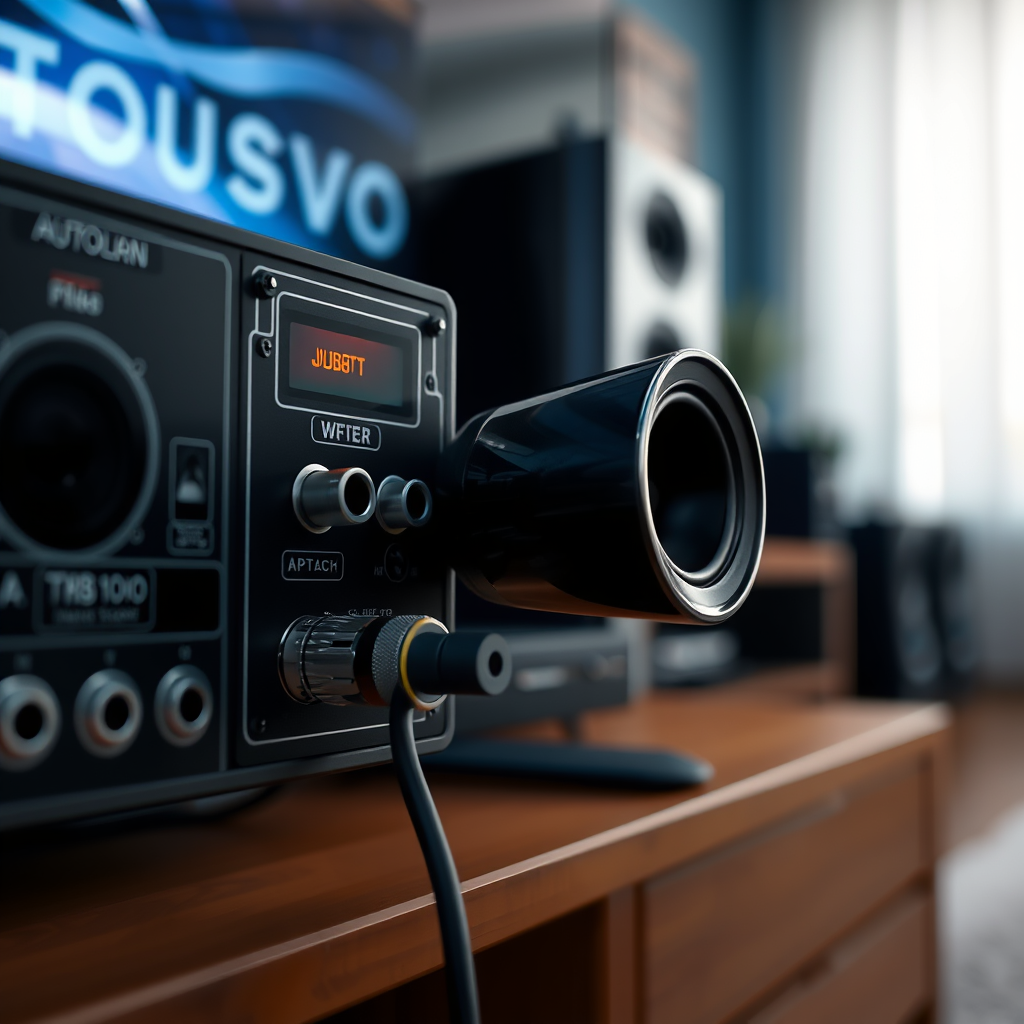
The first step in connecting speakers to your TV is to understand the available audio output options. Most modern TVs come equipped with several types of audio outputs to accommodate a variety of speaker setups:
– HDMI ARC (Audio Return Channel): This is one of the most efficient ways to connect a soundbar or home theater system. It allows audio to be sent from the TV to the speakers through a single HDMI cable.
– Optical Output: This connection uses a fiber optic cable to transmit audio signals and is commonly found on many TVs. It provides high-quality sound and is compatible with most soundbars and home theater systems.
– RCA Outputs: These are the red and white audio jacks typically used for older audio systems. While they may not offer the highest sound quality, they are widely compatible with many speaker types.
– 3.5mm Headphone Jack: Some TVs also have a headphone jack, which can be used to connect speakers or headphones directly.
– Bluetooth: If your TV supports Bluetooth, this option allows for a wireless connection to Bluetooth-enabled speakers, eliminating the need for cables.
Checking your TV’s manual or specifications can help clarify which options are available.
Choosing the Right Speakers
When it comes to choosing speakers for your TV, you have a variety of options depending on your space and preferences:
– Wired Speakers: These speakers typically provide better sound quality and are more reliable since they don’t rely on a wireless connection. Consider using bookshelf speakers or a dedicated home theater system for enhanced audio.
– Wireless Speakers: Ideal for those who prefer a clutter-free setup, wireless speakers connect via Bluetooth or Wi-Fi. They offer flexibility in placement and often come with built-in features like streaming capabilities.
– Soundbars: A popular choice for TV audio, soundbars provide a compact solution that can deliver immersive sound without the need for multiple speakers.
– Surround Sound Systems: For movie enthusiasts, a surround sound system can create an immersive audio experience by using multiple speakers strategically placed around the room.
Ultimately, the best choice depends on your audio preferences, room layout, and budget.
Connecting Wired Speakers
To connect wired speakers to your TV, follow these steps:
1. Gather the Necessary Cables: Depending on your speaker type, you may need RCA cables, speaker wire, or a 3.5mm audio cable.
2. Connect to the TV: Plug one end of the cable into the TV’s audio output and the other end into the corresponding input on your speakers.
3. Power On Your Speakers: Ensure the speakers are plugged into a power source and turned on.
4. Select the Correct Input: If your speakers have multiple input options, make sure they are set to the correct source.
After completing these steps, you should be able to enjoy sound from your TV through your wired speakers.
Top 7 Speaker Types for TV Connection (2024)
| # | Speaker Type | Connection Type | Best For | Price Range |
|---|---|---|---|---|
| 1 | Soundbar | HDMI, Optical, Bluetooth | Compact Spaces | $100 – $800 |
| 2 | Bookshelf Speakers | RCA, Speaker Wire | Hi-Fi Sound | $150 – $300 |
| 3 | Floorstanding Speakers | Speaker Wire | Home Theater | $300 – $2,000 |
| 4 | Surround Sound System | HDMI, Optical, Wireless | Immersive Sound | $500 – $3,000 |
| 5 | Portable Bluetooth Speakers | Bluetooth | On-the-Go Use | $50 – $300 |
| 6 | In-Wall Speakers | Speaker Wire | Discreet Installation | $150 – $500 |
| 7 | Smart Speakers | Bluetooth, Wi-Fi | Voice Control | $100 – $400 |
Setting Up Wireless Speakers
Setting up wireless speakers can provide a seamless audio experience without the clutter of wires. Depending on the type of wireless connection, the setup process may vary:
1. Bluetooth Speakers:
– Put the Speakers in Pairing Mode: Most Bluetooth speakers have a dedicated button for pairing. Activate this feature as per the manufacturer’s instructions.
– Access TV Bluetooth Settings: On your TV, navigate to the settings menu and select Bluetooth. Search for available devices.
– Pair the Devices: Once your speakers appear on the list, select them to establish a connection. You may need to enter a pairing code, usually provided in the speaker’s manual.
2. Wi-Fi Speakers:
– Connect to the Same Network: Ensure both the TV and speakers are connected to the same Wi-Fi network.
– Follow Manufacturer Setup Instructions: Many Wi-Fi speakers come with mobile apps that help in the setup process. Follow the prompts to connect the speakers to your TV.
After completing these steps, audio from your TV should stream directly to your wireless speakers.
Adjusting TV Audio Settings
Once your speakers are connected, it’s crucial to adjust your TV’s audio settings to ensure optimal sound quality:
1. Select the Audio Output: Access your TV’s settings and navigate to the audio section to select the appropriate output (e.g., HDMI ARC, optical, or Bluetooth).
2. Sound Mode: Many TVs offer different sound modes (e.g., movie, music, sports). Select the one that best suits your viewing.
3. Volume Levels: Adjust the volume settings for both the TV and the speakers to achieve the desired sound level while avoiding distortion or clipping.
4. Audio Sync: If you’re experiencing a delay between the video and audio, look for an audio sync option in the settings to adjust the timing.
By fine-tuning these settings, you can enhance your overall audio experience.
Troubleshooting Common Issues
Despite the straightforward nature of speaker connections, you may encounter some common issues:
– No Sound: If sound is not coming through the speakers, check all connections to ensure they are secure. Make sure the correct audio output is selected in the TV settings.
– Connection Problems: For wireless setups, ensure that both the TV and speakers are connected to the same network. Restarting both devices can sometimes resolve connectivity issues.
– Audio Delay: If there is a noticeable delay, try adjusting the audio sync settings or reducing the distance between the TV and wireless speakers.
Taking these steps can help you troubleshoot and resolve most common issues.
Enhancing Your Audio Experience
To further elevate your audio experience, consider exploring additional features and upgrades:
– Surround Sound Settings: If your speaker system supports surround sound, enable these settings to create a more immersive audio environment.
– Subwoofers: Adding a subwoofer can significantly enhance bass performance, making action scenes and music sound richer.
– Audio Calibration Tools: Consider investing in audio calibration tools or apps that can help optimize the sound settings based on your room’s acoustics.
By utilizing these enhancements, you can create a personalized audio experience tailored to your preferences.
Summarizing the steps to connect speakers to your TV, you can enhance your viewing experience with better audio. Whether you choose wired or wireless options, ensure you understand your TV’s outputs and adjust your settings accordingly. Ready to enjoy your favorite shows with improved sound? Get started by deciding on the right speakers today!
Frequently Asked Questions
How do I connect my Bluetooth speakers to my TV?
To connect Bluetooth speakers to your TV, first ensure that both devices are in pairing mode. On your TV, navigate to the settings menu, find the Bluetooth option, and select your speaker from the list of available devices. Once paired, audio from your TV should stream through the Bluetooth speakers seamlessly.
What cables do I need to connect wired speakers to my TV?
To connect wired speakers to your TV, you typically need speaker wire and possibly a receiver or amplifier, depending on your speaker type. Connect the speaker wire from the speakers to the appropriate output on the receiver, then use an HDMI, optical, or RCA cable to link the receiver to your TV for audio output.
Why is there no sound from my speakers after connecting to the TV?
If there is no sound from your speakers after connecting them to your TV, first check the volume settings on both devices to ensure they are not muted or too low. Additionally, verify that the correct audio output is selected in your TV’s settings menu and that all cables are securely connected.
What is the best way to connect surround sound speakers to my TV?
The best way to connect surround sound speakers to your TV is through a home theater receiver, which acts as a hub for all your audio and video devices. Connect your TV to the receiver using an HDMI cable, then connect each surround sound speaker to the receiver using appropriate speaker wire. This setup provides optimal sound quality and easy control.
Which type of speakers work best with a smart TV?
When choosing speakers for a smart TV, consider soundbars or wireless speakers for ease of connectivity and modern design. Soundbars typically provide a more immersive experience with minimal space requirements, while wireless speakers offer flexibility without the hassle of cables. Ensure the speakers support the audio formats used by your TV for the best performance.
References
- https://en.wikipedia.org/wiki/Audio_system
https://en.wikipedia.org/wiki/Audio_system - https://www.lifewire.com/how-to-connect-speakers-to-a-tv-3134898
https://www.lifewire.com/how-to-connect-speakers-to-a-tv-3134898 - https://www.pcmag.com/how-to/how-to-connect-soundbar-to-tv
https://www.pcmag.com/how-to/how-to-connect-soundbar-to-tv - https://www.bbc.co.uk/news/technology-53904277
https://www.bbc.co.uk/news/technology-53904277 - Google Scholar Google Scholar
https://scholar.google.com/scholar?q=connect+speakers+to+tv - Google Scholar Google Scholar
https://scholar.google.com/scholar?q=speaker+connection+to+television - Google Scholar Google Scholar
https://scholar.google.com/scholar?q=how+to+connect+speakers+to+TV+guidelines - Google Scholar Google Scholar
https://scholar.google.com/scholar?q=how+do+you+connect+speakers+to+a+tv - how do you connect speakers to a tv – Search results
https://en.wikipedia.org/wiki/Special:Search?search=how+do+you+connect+speakers+to+a+tv - https://www.ncbi.nlm.nih.gov/search/research-articles/?term=how+do+you+connect+speakers+to+a+tv
https://www.ncbi.nlm.nih.gov/search/research-articles/?term=how+do+you+connect+speakers+to+a+tv
