
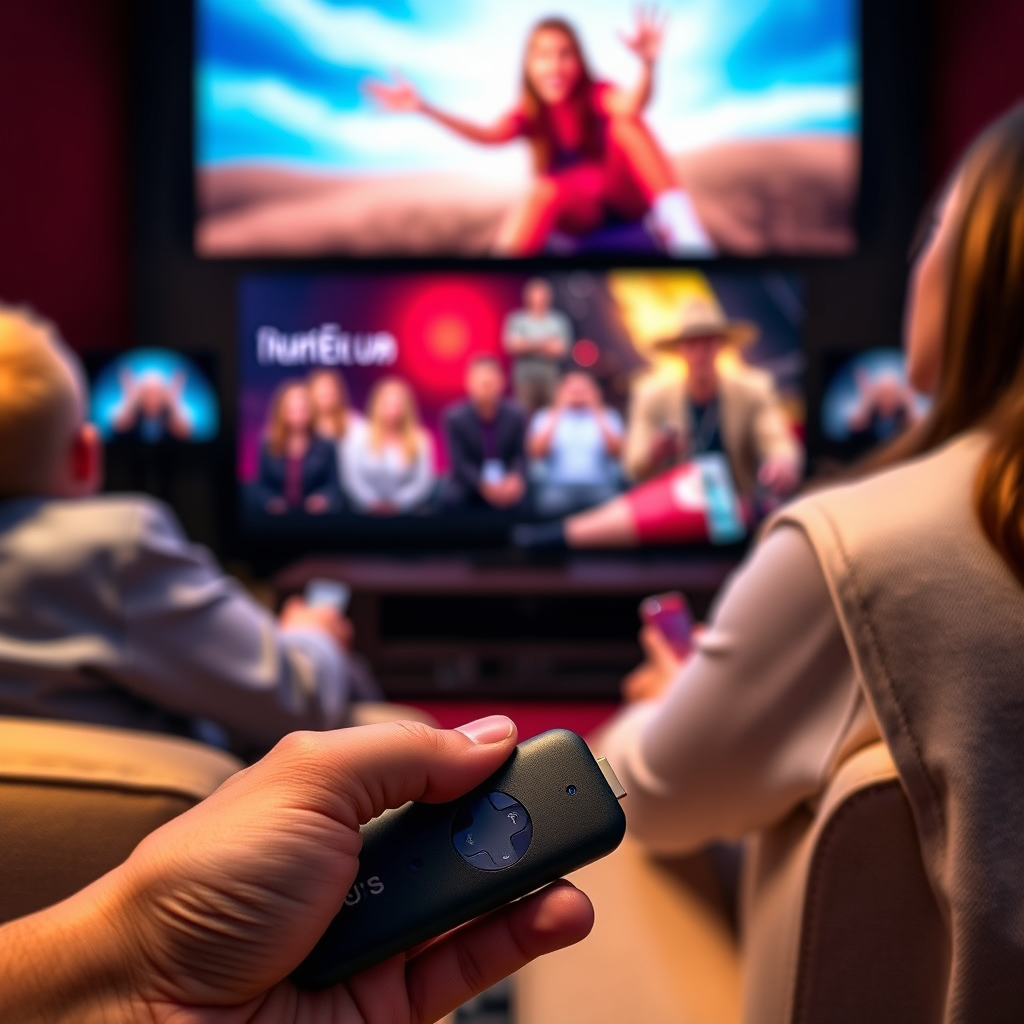

Yes, you can use both Roku and Firestick on the same TV, provided that your television has multiple HDMI ports. This capability allows you to connect both streaming devices simultaneously, giving you the flexibility to switch between them based on your preferences or the content you wish to watch. In this article, we will delve into how to set up Roku and Firestick on a single TV, considerations to keep in mind, and the advantages of utilizing both devices together.
Understanding HDMI Ports
HDMI (High-Definition Multimedia Interface) ports are essential for connecting various devices to your television. Most modern TVs come equipped with multiple HDMI ports, allowing you to connect several devices like gaming consoles, Blu-ray players, and streaming devices such as Roku and Firestick. It’s essential to check your TV’s specifications to confirm how many HDMI ports are available. Typically, you will find two to four HDMI ports on most TVs, which should suffice for connecting both Roku and Firestick without any hassle.
When selecting a TV for streaming, consider the following:
– Port Availability: Look for TVs with at least two HDMI ports to accommodate multiple devices.
– Version Compatibility: Ensure that the HDMI ports support the latest HDMI standards (e.g., HDMI 2.0 or higher) for optimal viewing experiences.
– Accessibility: Ports should be easily accessible for quick connections and disconnections, especially if you frequently switch devices.
Setting Up Roku and Firestick
Setting up both Roku and Firestick on the same TV is a straightforward process. Here’s how to do it:
1. Connect Each Device: Plug the Roku into one HDMI port and the Firestick into another. Make sure both devices are powered on.
2. Select the Input Source: Use your TV remote to switch between the HDMI inputs. Most remotes have a dedicated button for this, usually labeled “Input,” “Source,” or something similar.
3. Initial Setup: Follow the on-screen instructions for each device to complete the setup process, which typically involves connecting to your Wi-Fi network and signing into your streaming accounts.
By following these steps, you’ll have both devices ready for use. Make sure to keep the remote controls handy, as you will need to switch between them depending on the content you wish to view.
Benefits of Using Both Devices
Utilizing both Roku and Firestick can significantly enhance your streaming experience. Here are some benefits:
1. Access to Diverse Content: Different streaming platforms may be exclusive to one device or the other. For instance, while both devices offer popular services like Netflix and Hulu, some channels or apps may be unique to Roku or Firestick. This allows you to access a broader range of content.
2. User Interface Preferences: Roku features a straightforward interface that many users find intuitive, whereas Firestick integrates closely with Amazon services and offers Alexa voice control. By using both, you can choose the interface that best suits your viewing habits.
3. Unique Features: Firestick’s Alexa integration allows for voice commands, making it easier to search for content, control playback, and even manage smart home devices. Roku offers features such as a customizable home screen and private listening through the Roku app, enhancing the overall experience.
By leveraging the strengths of both devices, you can maximize your access to content and enjoy a more tailored streaming experience.
Comparison of Roku and Firestick Features (2024)
| # | Feature | Roku | Firestick |
|---|---|---|---|
| 1 | Voice Control | Limited | Yes (Alexa) |
| 2 | Content Library | Extensive | Extensive |
| 3 | User Interface | Simple | Integrated with Amazon |
| 4 | Screen Mirroring | Yes | Yes |
| 5 | Private Listening | Yes (via app) | Yes |
| 6 | Resolution Support | 4K & HDR | 4K & HDR |
| 7 | Price Range | $29 – $99 | $39 – $99 |
| 8 | Gaming Options | Limited | Broad |
| 9 | Smart Home Integration | Limited | Excellent |
| Best For | General Streaming | Roku | Firestick |
Switching Between Devices
Switching between Roku and Firestick is simple and can be done using your TV remote. Here are some tips for making this process smoother:
1. Know Your Inputs: Familiarize yourself with the input labels on your remote. Each HDMI port might be labeled as HDMI 1, HDMI 2, etc. Knowing which port corresponds to which device will make switching quicker.
2. Use the TV Remote: Most TVs allow you to cycle through inputs using a single button, often labeled “Input.” Press this button repeatedly to toggle between Roku and Firestick.
3. Organize Your Setup: To keep things neat, consider using a cable organizer to avoid tangles with the device cables. Labeling the HDMI ports on your TV can also streamline the process.
By implementing these strategies, you can enhance the convenience of switching between your streaming devices, ensuring a seamless viewing experience.
Potential Compatibility Issues
While using both Roku and Firestick on the same TV is generally straightforward, some potential compatibility issues may arise:
1. Powering On Conflicts: If both devices are powered on simultaneously, you may experience conflicts. Some TVs may not recognize the input correctly, leading to display issues. To resolve this, ensure that only one device is powered on when switching inputs.
2. Firmware Updates: Occasionally, firmware updates to either device can cause temporary connectivity issues. Keeping both devices updated is essential for optimal performance. Check the settings menu on each device for any available updates.
3. HDMI Handshake Issues: In some rare cases, the HDMI handshake process (the method by which devices establish a connection) may fail. If you encounter display issues, try disconnecting and reconnecting the HDMI cables or restarting both devices.
By understanding these potential issues and their solutions, you can minimize disruptions and maintain a smooth streaming experience.
Optimizing Your Streaming Experience
To get the most out of your Roku and Firestick setup, consider the following best practices:
1. Internet Connection: Ensure that your internet connection is stable and fast enough to support streaming. A minimum speed of 25 Mbps is recommended for 4K streaming, while 10 Mbps is sufficient for HD content. Consider using a wired Ethernet connection for improved reliability.
2. Manage Storage: Both devices have limited storage for apps. Regularly review and uninstall apps you no longer use to free up space. Additionally, clear cache data in the settings to enhance performance.
3. Quality Settings: Adjust the streaming quality settings on both devices based on your internet speed. If you experience buffering, consider lowering the resolution to ensure uninterrupted viewing.
By adhering to these best practices, you can optimize your streaming experience and enjoy a wide array of content from both Roku and Firestick.
Using both Roku and Firestick on the same TV can greatly enhance your streaming options and flexibility. By understanding how to set them up and switch between them, you can enjoy a diverse range of content right from your living room. If you haven’t already, consider trying out both devices to see which features you prefer!
Frequently Asked Questions
Can you use both Roku and Firestick on the same TV?
Yes, you can use both Roku and Firestick on the same TV as long as your TV has multiple HDMI ports. Simply plug each streaming device into a separate HDMI port, and you can switch between them using your TV remote or the input/source button.
How do I switch between Roku and Firestick on my TV?
To switch between Roku and Firestick on your TV, use the remote control that came with your TV to navigate to the input or source menu. From there, select the HDMI port that corresponds to the device you want to use, allowing you to easily toggle between Roku and Firestick.
Why would someone want to use both Roku and Firestick on the same TV?
Using both Roku and Firestick on the same TV allows users to access a wider range of streaming services and apps, as each device may offer exclusive channels or features. This flexibility can enhance your viewing experience and provide more options for content consumption.
Which device is better for streaming, Roku or Firestick, when used together?
The choice between Roku and Firestick often depends on personal preference, as both devices offer excellent streaming capabilities. Roku is known for its user-friendly interface and extensive channel selection, while Firestick integrates seamlessly with Amazon services and Alexa, making it ideal for Amazon Prime users.
What should I do if my TV doesn’t recognize both Roku and Firestick?
If your TV doesn’t recognize both Roku and Firestick, first ensure that both devices are properly connected to functional HDMI ports. You may also need to check for any firmware updates on your TV or the streaming devices, and confirm that your TV is set to the correct input source for each device.
References
- https://www.lifewire.com/roku-vs-fire-tv-4689712
https://www.lifewire.com/roku-vs-fire-tv-4689712 - https://www.pcmag.com/picks/the-best-streaming-devices
https://www.pcmag.com/picks/the-best-streaming-devices - https://www.bbc.com/news/technology-58788945
https://www.bbc.com/news/technology-58788945 - https://www.nytimes.com/wirecutter/reviews/best-streaming-device/
https://www.nytimes.com/wirecutter/reviews/best-streaming-device/ - Google Scholar Google Scholar
https://scholar.google.com/scholar?q=Roku+Firestick+same+TV - Google Scholar Google Scholar
https://scholar.google.com/scholar?q=streaming+devices+comparison - Google Scholar Google Scholar
https://scholar.google.com/scholar?q=can+you+use+roku+and+firestick+on+the+same+tv - can you use roku and firestick on the same tv – Search results
https://en.wikipedia.org/wiki/Special:Search?search=can+you+use+roku+and+firestick+on+the+same+tv - https://www.ncbi.nlm.nih.gov/search/research-articles/?term=can+you+use+roku+and+firestick+on+the+same+tv
https://www.ncbi.nlm.nih.gov/search/research-articles/?term=can+you+use+roku+and+firestick+on+the+same+tv

[…] scales with the screen’s field of view rather than its width alone. When distance increases, the same TV yields a smaller viewing angle, which can make “immersive” content feel less […]
[…] and basic image alignment before fully tightening the mount to avoid re-drilling or re-routing when HDMI handshake issues appear. Use a service loop so you can make final lens shift and angle adjustments without putting […]
[…] HDMI handshake issues: Certain conference PCs/AV extenders sometimes negotiate poorly at specific refresh […]