


Connecting your Soundcore Liberty earbuds is a straightforward process that ensures you can enjoy high-quality audio in no time. In just a few easy steps, you’ll learn how to pair your earbuds with your device and troubleshoot any potential issues that may arise. This guide covers everything from preparing your earbuds for connection to customizing sound settings, enabling you to maximize your listening experience.
Preparing Your Soundcore Liberty Earbuds
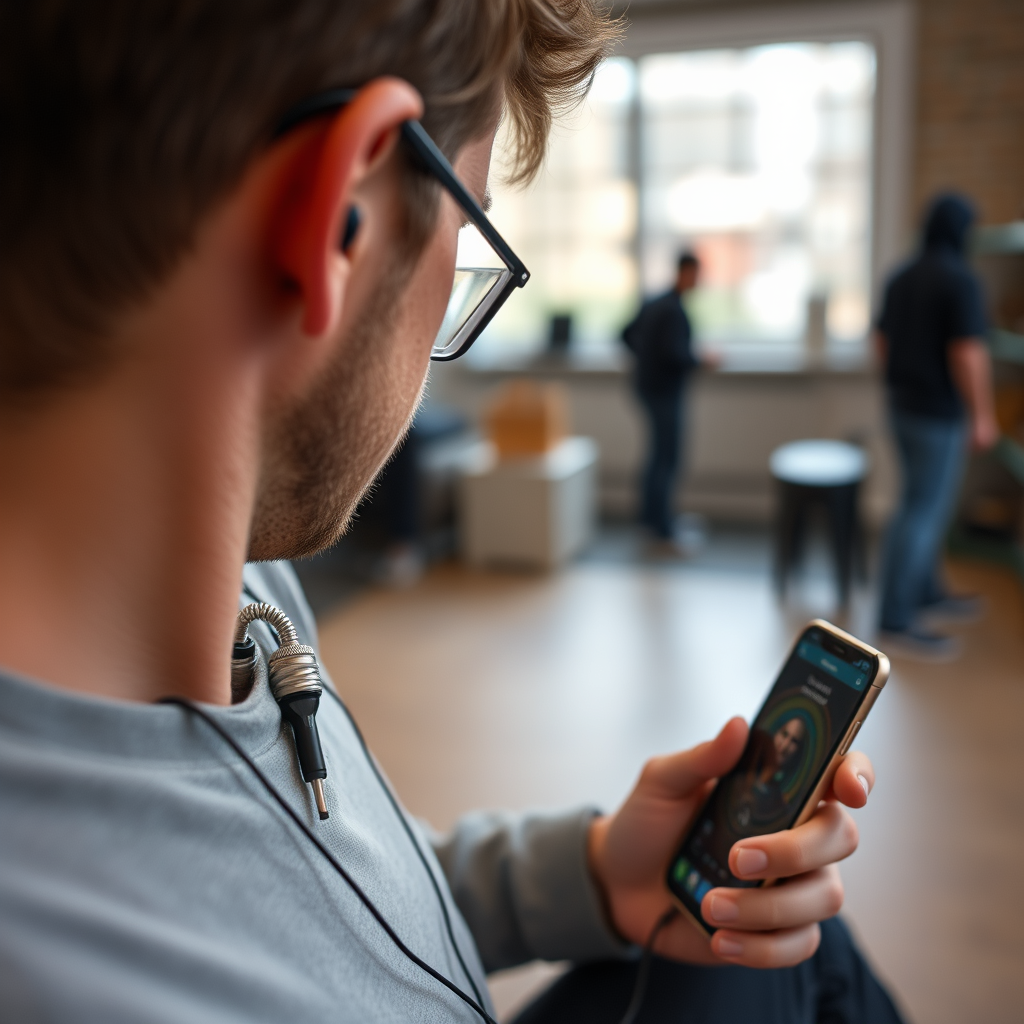
Before connecting your Soundcore Liberty earbuds, it’s essential to ensure they are adequately prepared for pairing. Start by ensuring your earbuds are fully charged; this can typically be done by placing them in their charging case for at least an hour. A fully charged set of earbuds not only allows for uninterrupted listening but also helps avoid connection issues caused by low battery levels.
Once charged, remove the earbuds from the charging case. Most Soundcore Liberty models are designed to automatically enter pairing mode upon removal. You will likely hear a voice prompt indicating that the earbuds are ready to connect, which is a helpful feature for first-time users. If they do not automatically enter pairing mode, you can manually activate it by pressing and holding the touch control on both earbuds for a few seconds.
Connecting to a Smartphone
Pairing your Soundcore Liberty earbuds with a smartphone is a seamless process. Follow these steps:
1. Open Bluetooth Settings: Access the Bluetooth settings on your smartphone. This can usually be found in the settings menu or by swiping down from the top of the screen to open the quick settings panel.
2. Select Your Earbuds: In the Bluetooth settings, look for “Soundcore Liberty” in the list of available devices. Tap on it to establish a connection. Upon successful pairing, you will receive a confirmation notification, and the earbuds will often emit a sound indicating they are connected.
3. Test the Connection: Once connected, play some audio to ensure the sound is coming through the earbuds. If you encounter any issues, refer to the troubleshooting section below.
Connecting to a Computer or Laptop
Connecting your Soundcore Liberty earbuds to a computer or laptop is equally straightforward. Here’s how to do it:
1. Access Bluetooth Settings: Click on the Bluetooth icon in the system tray of your computer or navigate to the settings menu and select Bluetooth.
2. Choose Your Earbuds: From the list of available devices, select “Soundcore Liberty” and click ‘Connect.’ You may be prompted to confirm the connection; if so, follow the on-screen instructions.
3. Verify Connection: Once connected, play an audio file to test the sound quality and ensure the earbuds work correctly with your computer or laptop.
Troubleshooting Connection Issues
While connecting your Soundcore Liberty earbuds is generally a hassle-free process, issues may arise. Here are steps to troubleshoot common connection problems:
– Bluetooth Enabled: First, ensure that Bluetooth is enabled on your device. If it’s turned off, your earbuds will not be discoverable.
– Pairing Mode: Make sure the earbuds are in pairing mode. If they haven’t entered pairing mode automatically, try placing them back in the charging case and removing them again.
– Resetting Earbuds: If your earbuds are still not connecting, you may need to reset them. To do this, place both earbuds in the charging case, close the lid for a few seconds, then reopen it and remove the earbuds again.
– Device Compatibility: Check that your device is compatible with Bluetooth audio devices. Additionally, ensure that no other devices are currently connected to the earbuds.
Maintaining Your Earbuds
To ensure your Soundcore Liberty earbuds continue to perform at their best, regular maintenance is crucial. Here are some essential tips:
– Cleaning: Regularly clean the ear tips and the charging contacts. Use a soft, dry cloth for the charging contacts and a damp cloth for the ear tips. Avoid using harsh chemicals that could damage the surfaces.
– Firmware Updates: Keeping your earbuds updated is vital for optimal performance. Use the Soundcore app to check for firmware updates and apply them as needed. This not only enhances functionality but also fixes any bugs that may affect the performance.
– Storage: Always store your earbuds in their charging case when not in use. This protects them from physical damage and helps maintain battery health.
Using Touch Controls
Familiarizing yourself with the touch controls on your Soundcore Liberty earbuds can significantly enhance your listening experience. Here’s how to utilize these features effectively:
– Basic Controls: Most Soundcore Liberty models allow you to play or pause music with a single tap on either earbud. To skip tracks, double-tap on the right earbud, and to go back to the previous track, double-tap on the left earbud.
– Answering Calls: If you receive a call while using the earbuds, a single tap will answer the call, while a long press will reject it.
– Voice Assistants: Many models support voice assistant integration. You can activate your voice assistant by triple-tapping the right earbud.
Practicing these controls can help you navigate your audio experience without needing to reach for your device.
Customizing Sound Settings
The Soundcore app enables you to personalize your audio experience by adjusting sound settings. Here’s how to get started:
– Equalizer Settings: Open the Soundcore app and navigate to the equalizer settings. Here, you can choose from various presets or create your own custom configuration based on your listening preferences.
– Sound Profiles: Explore different sound profiles tailored for specific genres or environments. Whether you prefer a bass-heavy sound for electronic music or a balanced output for podcasts, the app allows you to achieve your desired audio profile.
– Firmware Updates: Regularly check the app for firmware updates, as these can introduce new features and enhancements to your earbuds.
Key Features of Soundcore Liberty Earbuds
| # | Feature | Specification | Battery Life | Water Resistance |
|---|---|---|---|---|
| 1 | Active Noise Cancellation | Yes | 7 hours (with ANC) | IPX7 |
| 2 | Touch Controls | Yes | 7 hours (without ANC) | IPX5 |
| 3 | Voice Assistant Support | Yes | 30 hours (with case) | IPX4 |
| 4 | Charging Case | Yes (USB-C) | 7 hours (audio playback) | No |
| 5 | Bluetooth Version | 5.0 | 8 hours (audio playback) | No |
| 6 | Quick Charge | Yes | 10 minutes = 2 hours | IPX8 |
| 7 | Weight | 4.5 grams each | N/A | N/A |
By following these steps, you’ll seamlessly connect your Soundcore Liberty earbuds to any device and fully enjoy their capabilities. Remember to keep your device’s Bluetooth settings accessible, and don’t hesitate to refer back to this guide whenever you need assistance. With the right preparation and maintenance, your listening experience can be exceptional. Enjoy your audio journey!
Frequently Asked Questions
How do I connect my Soundcore Liberty earbuds to my smartphone?
To connect your Soundcore Liberty earbuds to your smartphone, first, ensure the earbuds are charged. Then, press and hold the touch control on both earbuds until the LED indicator flashes white, indicating they are in pairing mode. On your smartphone, go to the Bluetooth settings, find “Soundcore Liberty” in the list of available devices, and select it to complete the connection.
Why won’t my Soundcore Liberty earbuds connect to my device?
If your Soundcore Liberty earbuds won’t connect, make sure they are in pairing mode and that Bluetooth is enabled on your device. Additionally, check if they are already connected to another device; if so, disconnect them first. If problems persist, try resetting the earbuds by placing them back in the charging case and holding the buttons for 10 seconds.
What is the best way to reset my Soundcore Liberty earbuds?
To reset your Soundcore Liberty earbuds, place them in the charging case and ensure they are charging. Then, press and hold the buttons on both earbuds for about 10 seconds until you see the LED indicators flash red and white. This will reset the earbuds, allowing you to reconnect them to your device without previous pairing issues.
Which devices are compatible with Soundcore Liberty earbuds?
Soundcore Liberty earbuds are compatible with a wide range of devices, including smartphones, tablets, laptops, and smart TVs that support Bluetooth. Make sure your device has Bluetooth 4.0 or higher for optimal performance. Always check the manufacturer’s specifications for compatibility details to ensure they work seamlessly with your specific device.
How do I switch between mono and stereo mode on my Soundcore Liberty earbuds?
To switch between mono and stereo mode on your Soundcore Liberty earbuds, simply remove one earbud from the charging case to use it in mono mode. To return to stereo mode, place both earbuds in your ears; they will automatically sync to provide stereo sound. This feature is ideal for users who prefer using one earbud at a time for calls or music.
References
- https://support.soundcore.com/hc/en-us/articles/360046728392-How-to-Connect-Soundcore-Liberty-Earbuds
https://support.soundcore.com/hc/en-us/articles/360046728392-How-to-Connect-Soundcore-Liberty-Earbuds - Google Scholar Google Scholar
https://scholar.google.com/scholar?q=how+to+connect+soundcore+liberty+earbuds - https://www.lifewire.com/connect-soundcore-liberty-air-wireless-earbuds-5071910
https://www.lifewire.com/connect-soundcore-liberty-air-wireless-earbuds-5071910 - https://www.pcmag.com/how-to/how-to-connect-wireless-earbuds-to-your-pc
https://www.pcmag.com/how-to/how-to-connect-wireless-earbuds-to-your-pc - How to set up an out of office message in Mail on a Mac | Macworld
https://www.macworld.com/article/671288/how-to-connect-airpods-to-windows-10.html - Google Scholar Google Scholar
https://scholar.google.com/scholar?q=soundcore+earbuds+pairing+instructions - Google Scholar Google Scholar
https://scholar.google.com/scholar?q=wireless+earbuds+connectivity+issues - how to connect soundcore liberty earbuds – Search results
https://en.wikipedia.org/wiki/Special:Search?search=how+to+connect+soundcore+liberty+earbuds - https://www.ncbi.nlm.nih.gov/search/research-articles/?term=how+to+connect+soundcore+liberty+earbuds
https://www.ncbi.nlm.nih.gov/search/research-articles/?term=how+to+connect+soundcore+liberty+earbuds
