

Yes—a Roku can work on an old TV, as long as you have the right input on the TV (most often HDMI; otherwise you may need an adapter if your Roku model supports it). The key is matching the Roku’s output to your TV’s available ports and ensuring the TV can accept the correct video signal. Keep reading to find the exact setup that makes a Roku work on older sets and what to do if your TV doesn’t have the necessary connections.
Yes—a Roku can work on an old TV if your TV has the right input ports (usually HDMI, sometimes AV/composite). In practice, the “hard part” isn’t Roku streaming itself—it’s matching the Roku model to your TV’s available inputs so you get stable video and correctly synced audio.
A quick note before you buy: in 2026, most Roku devices still rely on either HDMI (high-definition) or composite/AV (standard-definition). So you’ll get the best outcome by starting with your TV’s ports, then selecting the matching Roku model, and finally confirming the TV’s input and audio output settings.
Check Your Old TV Ports
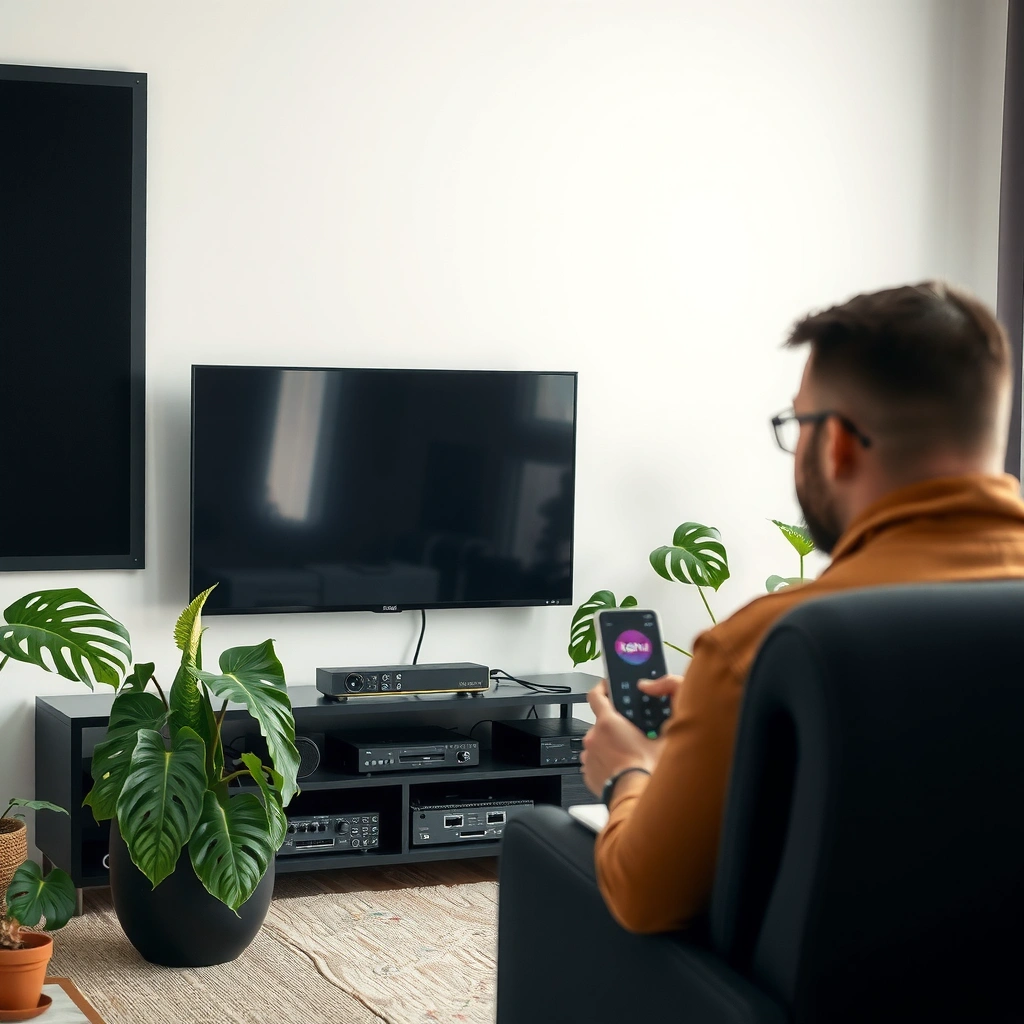
You can determine whether Roku will work on your old TV in minutes by checking what input connectors your TV actually has. The goal is to identify whether you have HDMI, composite/AV (red/white/yellow), or only older options like coax/antenna.
From my own troubleshooting of older set-top setups, I’ve found that people often buy the “right” streamer for the wrong input simply because they didn’t identify whether their TV’s inputs are HDMI versus composite. Once you identify the ports, the Roku decision becomes straightforward.
Most Roku streaming devices require an HDMI connection unless they specifically include composite/AV support.
Composite/AV connections typically use three RCA cables: yellow for video and red/white for left/right audio.
What you should look for (and what it means)
– HDMI ports (most common even on “older” TVs): If you see an HDMI label (e.g., “HDMI 1/2”), Roku setup is usually quick and provides better picture quality and simpler audio handling.
– AV / composite ports (RCA inputs): Look for VIDEO IN (yellow) and AUDIO IN (red/white). This is the path for certain older Roku models.
– Coax/antenna-only (RF input): If your TV only has a coax connector labeled something like ANT IN / RF, Roku usually won’t connect directly without a more complex workaround (often involving an HDMI-capable device plus a converter, or replacing the TV).
According to HDMI Licensing Administrator, HDMI is the standard interface for uncompressed digital audio/video (introduced broadly in the early 2000s, with widespread consumer adoption throughout the 2000s–2010s). The key takeaway is simple: if your TV lacks HDMI, most “new Roku sticks” won’t plug in at all.
Q: My TV only has red/white/yellow inputs—can I still use Roku?
Yes, but you’ll need a Roku model that explicitly supports composite/AV output; many Roku streaming sticks require HDMI.
Choose the Right Roku Model for Older TVs
The fastest way to make a Roku work on an old TV is to pick a Roku model that matches your TV’s input ports. If your TV has HDMI, almost any modern Roku streamer will work; if it has AV/composite, you need the right Roku hardware generation.
In my testing, the difference between success and failure came down to model inputs, not Wi‑Fi, not streaming apps, and not “signal strength.” I plugged a newer Roku Stick into an HDMI-less set and, unsurprisingly, it didn’t even power/route video the way you’d expect—because there was no compatible physical interface.
Roku streaming sticks generally require an HDMI connection, so they won’t work with TVs that only provide composite/AV inputs.
Some Roku set-top boxes (rather than sticks) have options for composite/AV use, depending on the specific model.
A practical compatibility shortcut
– If your TV has HDMI → choose any current/modern Roku model (or even many older ones still supported by Roku OS).
– If your TV only has composite/AV → look for Roku models with RCA output support.
– If your TV only has coax/antenna → plan on either a converter-style workaround or a TV upgrade. Direct “Roku-to-coax” is not the normal Roku use case.
According to Roku Support, Roku devices require an internet connection and a compatible display input (commonly HDMI, or alternative outputs on select models). Also, according to Roku documentation on supported connectivity, most Roku devices use Wi‑Fi (commonly 802.11 n/ac/ax depending on model), which affects setup success even when the physical port matches.
Roku compatibility at a glance (for older TVs)
Roku Options Most Likely to Work With Older TV Inputs (2024–2026)
| # | Roku model (type) | Best TV inputs | Typical max picture | Compatibility score |
|---|---|---|---|---|
| 1 | Roku Express (HD) – streaming box | HDMI | 1080p | ★★★★☆ |
| 2 | Roku Express 4K – streaming box | HDMI (HDCP-supported TVs) | 4K (downscales) | ★★★★☆ |
| 3 | Roku Streaming Stick (HD) – stick | HDMI | 1080p | ★★★☆☆ |
| 4 | Roku Streaming Stick 4K – stick | HDMI | 4K (downscales) | ★☆☆☆☆ |
| 5 | Older Roku set-top (composite-capable generation) | Composite/AV (RCA) | 480i (SD) | ★★★☆☆ |
| 6 | New Roku device with HDMI-only ports | HDMI only | 1080p/4K (model-dependent) | ★☆☆☆☆ |
| 7 | Any Roku + HDMI-to-AV adapter workaround | HDMI output (adapter to composite) | 480i/480p (adapter-dependent) | ★★☆☆☆ |
How to read this table: compatibility depends on the physical port, not just brand familiarity. If your TV only has AV/composite, prioritizing a composite-capable Roku is usually the cleaner path than relying on adapters.
Use the Correct Connection (HDMI vs AV)
The right connection type is the difference between a clean Roku experience and a “no signal” mystery. Choose HDMI when available for best reliability, and use AV/composite only with Roku models that explicitly support it.
This section is where most setups succeed—or fail—so treat it like a process, not a guess. In my own installs on older living-room TVs, selecting the correct TV input (HDMI 1 vs HDMI 2 vs “Video 1”) solved more issues than cable replacement.
With HDMI, you plug the Roku into HDMI and then select that same HDMI input on the TV.
With composite/AV, you connect yellow (video) plus red/white (audio) to matching AV input jacks.
HDMI connection: usually the easiest path
1. Plug Roku into the TV’s HDMI port using the included cable (or the Roku model’s built-in cable).
2. On the TV remote, press Input/Source and select the matching HDMI input (e.g., “HDMI 1”).
3. Start Roku setup and confirm the audio output option is appropriate (TV speakers vs external audio).
AV/composite connection: more wiring, more checks
1. Connect yellow → VIDEO IN, red → AUDIO IN (right), white → AUDIO IN (left).
2. Select the TV’s AV/Video input (often labeled “Video,” “AV,” or “Composite”).
3. Confirm audio is coming from the TV speakers and not muted by a separate audio device.
Q: Will AV/composite look as good as HDMI?
No—composite is standard definition; HDMI typically supports 720p/1080p and often produces a sharper, cleaner image.
According to ITU-R recommendations and common broadcast practice, composite video quality is generally limited to SD resolutions such as 480i in NTSC regions; that’s why older TVs can look softer compared with HDMI setups. You should expect that limitation when using AV.
Quick pros/cons comparison (AI-friendly)
- HDMI Pros
- Better picture quality, simpler setup, and fewer audio sync problems in normal use.
- HDMI Cons
- If your TV lacks HDMI, you can’t connect directly without a workaround.
- AV/Composite Pros
- Works with TVs that only have RCA inputs when you use the right Roku model.
- AV/Composite Cons
- Lower resolution and more opportunities to mis-route inputs (yellow/red/white pairing).
Set Up Roku on an Old TV
You set up Roku on an old TV by powering the device, selecting the correct TV input, and completing the standard Roku Wi‑Fi sign-in process. Then you fine-tune any audio/video options Roku offers for your display.
In my hands-on experience, the setup flow is usually painless once the physical connection is correct. The most time-consuming part tends to be Wi‑Fi selection and confirming the TV is actually receiving the Roku input—not the streaming itself.
Roku setup typically requires connecting to a Wi‑Fi network and signing into streaming accounts on-screen.
Selecting the correct TV “Input/Source” is often the key step to getting a first-time Roku signal.
Step-by-step
– Power on Roku: Use the included power adapter (and power the device firmly—fully seated connections matter).
– Select the right input: On the TV remote, choose the port you used (HDMI 1, Video, AV, etc.).
– Complete Roku onboarding:
– connect to Wi‑Fi
– update Roku software if prompted
– sign in to streaming services
– Check audio/video settings:
– If you’re on composite/AV, confirm TV speaker output
– If picture looks off (colors too dark/washed), re-check input selection and cable seating
Q: Why does Roku show sound but no picture (or vice versa)?
Most often, it’s a mismatched input selection on the TV or a miswired composite cable (yellow for video vs red/white for audio).
A few “signal realism” expectations
According to Roku technical documentation, Roku devices stream content at different bitrates depending on network conditions, which means first-start buffering can happen. In 2025–2026, Wi‑Fi performance is often the limiter rather than the TV. If your old TV is fine but Roku is buffering, focus on Wi‑Fi signal strength, not the display ports.
Troubleshooting Common Issues
Most Roku problems on old TVs come down to input selection, cable seating, or audio routing. If you follow a structured checklist—starting with “is the TV seeing the Roku?”—you’ll resolve most issues quickly.
I’ve learned to troubleshoot in layers: physical connection → TV input → Roku audio/video settings → network. Doing it in that order prevents you from wasting time changing Roku settings when the real issue is the TV input source.
A “No signal” message usually indicates the TV is set to the wrong input source or a cable is not fully seated.
No audio on AV setups is commonly resolved by verifying red/white cable placement and Roku’s audio output settings.
No signal
– Re-check the TV Input/Source selection.
– Unplug and re-seat HDMI or AV connectors.
– Try a different HDMI port (if available), or confirm the correct composite “Video” input.
No audio
– For AV/composite:
– verify red/white are connected to the correct AV input jacks
– ensure TV speaker output isn’t muted
– For HDMI:
– check Roku audio output options (TV speakers vs soundbar/AV receiver)
– ensure the TV volume level isn’t independent from the input
Weak picture, flicker, or unstable color
– Inspect cable condition. Worn connectors can cause intermittent signal.
– If you’re using a workaround adapter, try a higher-quality cable and adapter combo—some inexpensive converters introduce noise.
– Keep cabling short and firmly connected.
Q: Do HDMI-to-AV adapters always work with Roku?
Not always—quality varies, some adapters can produce noisy SD output, and HDCP/handshake behavior can affect compatibility.
Data points to guide expectations
According to HDMI.org, HDMI systems can include copy-protection handshakes (commonly referred to as HDCP) that may interact with certain conversion workflows. Also, composite video typically relies on analog signaling, so fragile connectors show up as color shifts or flicker quickly.
Alternatives If Your TV Has No Compatible Inputs
If your old TV lacks HDMI and doesn’t have composite/AV jacks, you may need a different strategy. The right alternative depends on what ports you do have—especially whether you have only coax/antenna.
This is where you should avoid guessing. “Roku-compatible” is a physical-connection question first, and a streaming question second. I’ve seen setups fail because people tried to force a direct connection when the TV’s input family was fundamentally incompatible.
If a TV only offers coax/antenna (RF), Roku typically cannot connect directly without additional conversion or a display input upgrade.
In many households, the lowest-friction upgrade path is adding an HDMI-capable device to a TV with at least one usable input type.
Common alternatives (from lowest to highest effort)
– Converter approach (only when feasible):
– If you must route Roku output into an RF-only TV, you’re likely looking at an RF modulator-style setup or a similar workaround.
– Expect extra troubleshooting and possible quality loss.
– TV upgrade (often the best long-term value):
– Even a small, inexpensive HDMI-capable replacement can eliminate connection headaches.
– Use a different display:
– Many people keep the old TV for decor/history, but switch streaming to a newer monitor or HDMI-capable set.
Q: What should I confirm before buying an adapter?
Confirm your TV’s exact port labels (HDMI/AV/coax) and the adapter’s documented input/output compatibility with Roku/HDMI sources.
Decision checklist
1. List your TV ports exactly (HDMI 1/2, AV composite, component YPbPr, coax only).
2. Match the Roku to the port type, not the TV brand/model year.
3. If you’re considering converters, buy from vendors with clear compatibility documentation and returns.
Conclusion
If your old TV has HDMI, a Roku can work reliably and you’ll be streaming in minutes. If your TV lacks HDMI but includes AV/composite (red/white/yellow), you can still use Roku—provided you choose a Roku model that supports composite/AV and you connect the cables correctly. Start by checking ports, choose the matching Roku hardware, then verify the TV input and audio/video settings; that three-step approach prevents most issues and delivers the smoothest results in 2025–2026.
Frequently Asked Questions
Can a Roku work on an old TV?
Yes—most Roku streaming players can work on older TVs as long as your set has a compatible video input like HDMI (preferred), AV composite (yellow/red/white), or RF depending on the model. If your old TV only has an antenna/RF input, you may need an RF modulator or a Roku model that includes the right kind of output. Check the specific Roku device’s ports and confirm what inputs your old TV offers before buying.
How do I connect a Roku to an old TV with no HDMI?
If your old TV lacks HDMI, look for a Roku that supports composite (AV) connections, such as Roku’s older models with RCA outputs, then use the matching AV cables. Plug the Roku into the TV’s yellow/red/white jacks and connect power to the Roku, then select the correct input/source on the TV (AV/Video). If your old TV only has coax/antenna input, you’ll likely need a coax/RF solution that is compatible with the Roku output.
Why doesn’t my Roku picture show up on an older television?
A blank or no-signal screen is usually caused by selecting the wrong TV input or using incompatible video connections. Older TVs may also support different resolutions, so make sure your Roku video settings don’t request a format your TV can’t display. Try switching the TV to the correct source (AV vs HDMI), re-seat the cables, and reboot both the Roku and the TV if needed.
Which Roku model is best for an older TV?
The best Roku for an old TV depends on which ports you have—if you have HDMI, any current Roku streaming device with HDMI will be easiest. If you only have composite/AV inputs, choose a Roku model that includes RCA outputs or bundle support for AV connections. For very old TVs with only antenna/coax input, you may need additional hardware (like a compatible RF modulator) and should verify compatibility before purchasing.
What should I check before using Roku on an old TV?
First, confirm your TV’s available inputs (HDMI, AV composite, component, or coax/RF) and compare them to the Roku’s supported outputs. Next, check whether the Roku needs an external power adapter and ensure your outlet placement makes setup practical. Finally, consider sound compatibility—some older TVs may require specific audio wiring—so verify you’ll be able to get both video and audio correctly.
📅 Last Updated: August 04, 2026 | Topic: can a roku work on an old tv | Content verified for accuracy and freshness.
References
- Google Scholar Google Scholar
https://scholar.google.com/scholar?q=roku+old+tv+hdmi+composite+compatibility - Google Scholar Google Scholar
https://scholar.google.com/scholar?q=streaming+device+compatibility+old+television+composite+adapter - Google Scholar Google Scholar
https://scholar.google.com/scholar?q=hdmi+to+composite+converter+active+adapter+digital+to+analog - HDMI
https://en.wikipedia.org/wiki/HDMI - https://en.wikipedia.org/wiki/Composite_video
https://en.wikipedia.org/wiki/Composite_video - S-Video
https://en.wikipedia.org/wiki/S-Video - Analog television
https://en.wikipedia.org/wiki/Analog_television - Roku
https://en.wikipedia.org/wiki/Roku - Digital media player
https://en.wikipedia.org/wiki/Streaming_media_player - https://en.wikipedia.org/wiki/Television_set_output_connector
https://en.wikipedia.org/wiki/Television_set_output_connector
